 7Z
7Z
In this guide 5 steps
-
Overview
7Z doesn't collect your personal information. It collects anonymous usage data and crash reports to help us improve the app, and the free version uses your advertising ID to show ads. Your files and folders stay on your phone.
-
Step 1
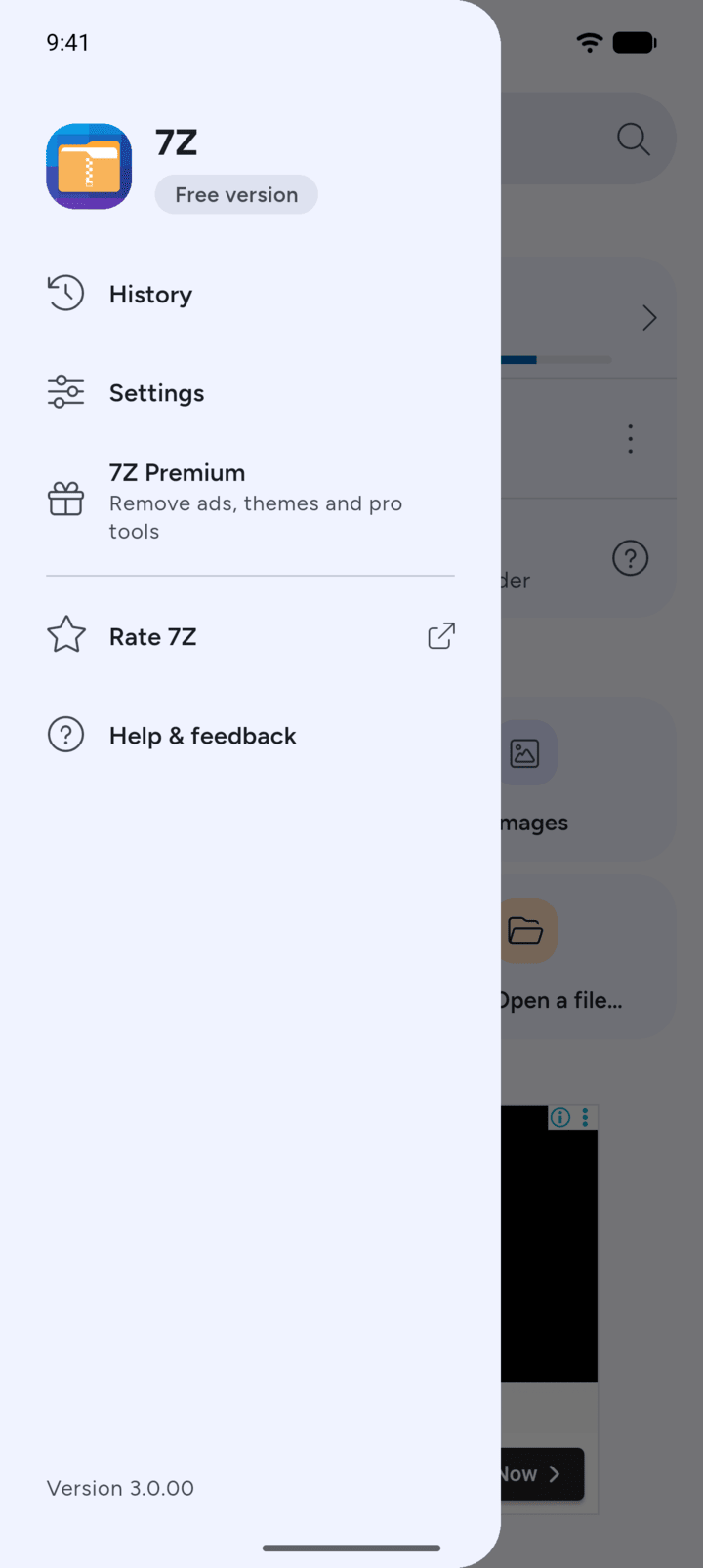
On Home, tap the menu button at the top left, then tap Settings.
-
Step 2
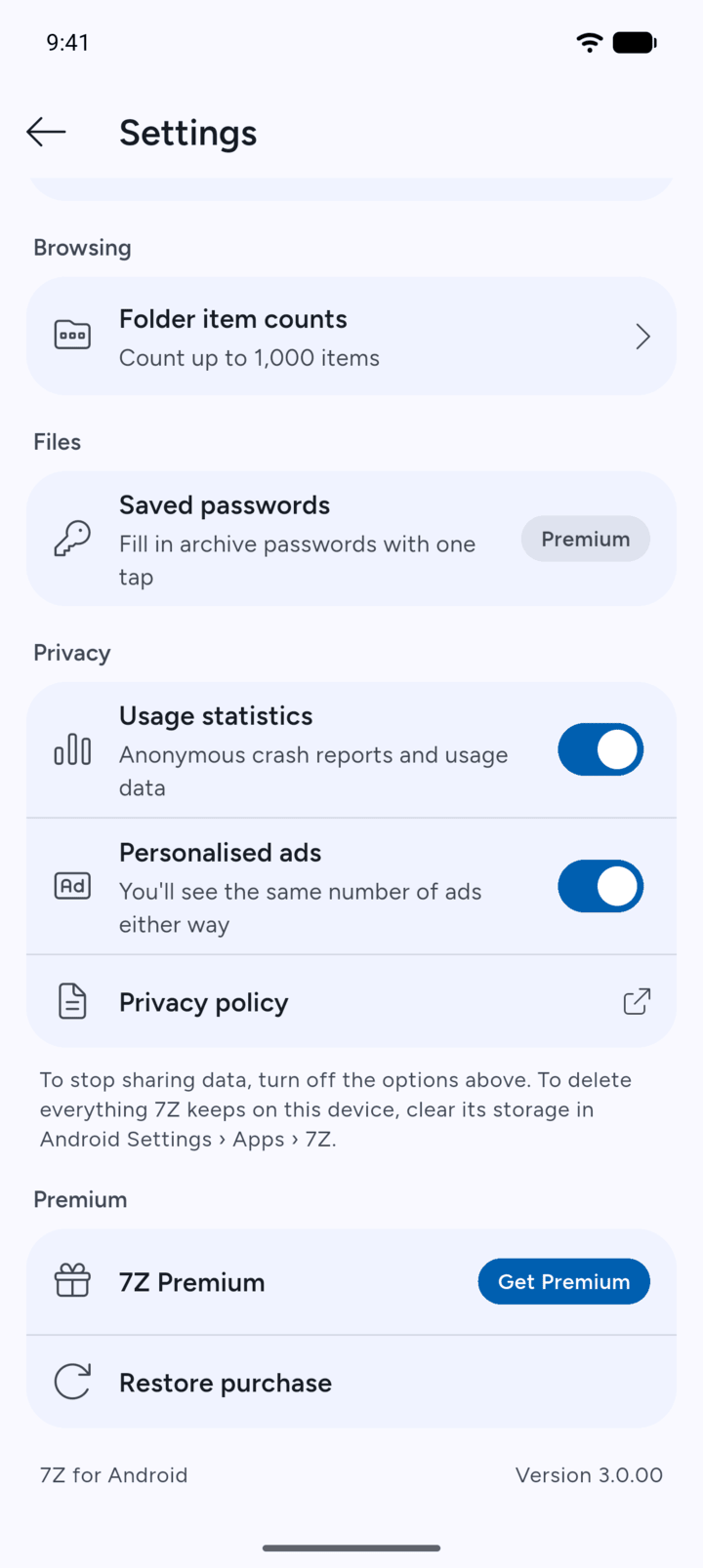
Under Privacy, you'll find Usage statistics and, in the free version, Personalised ads.
-
Step 3
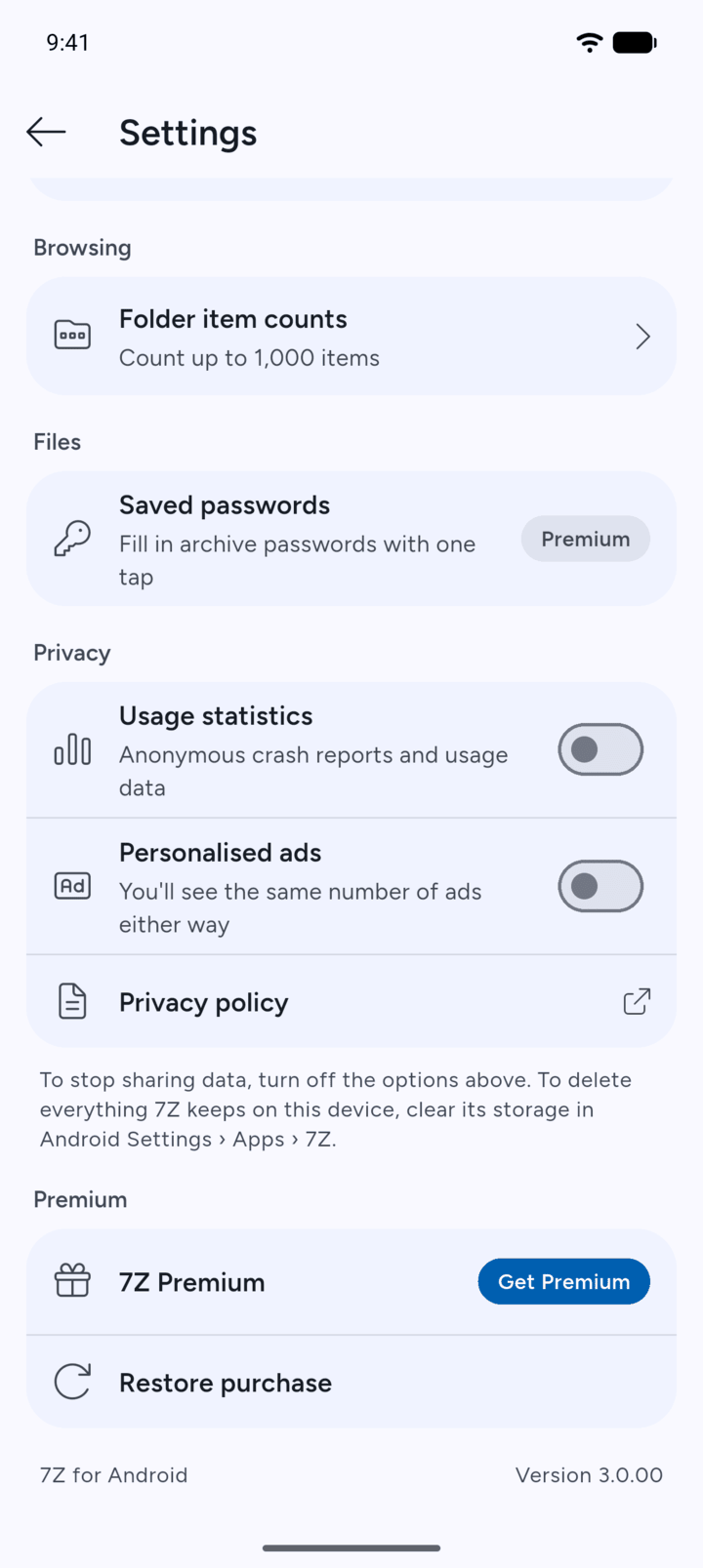
Turn them off to stop sharing this data. You'll see the same number of ads either way.
-
Step 4
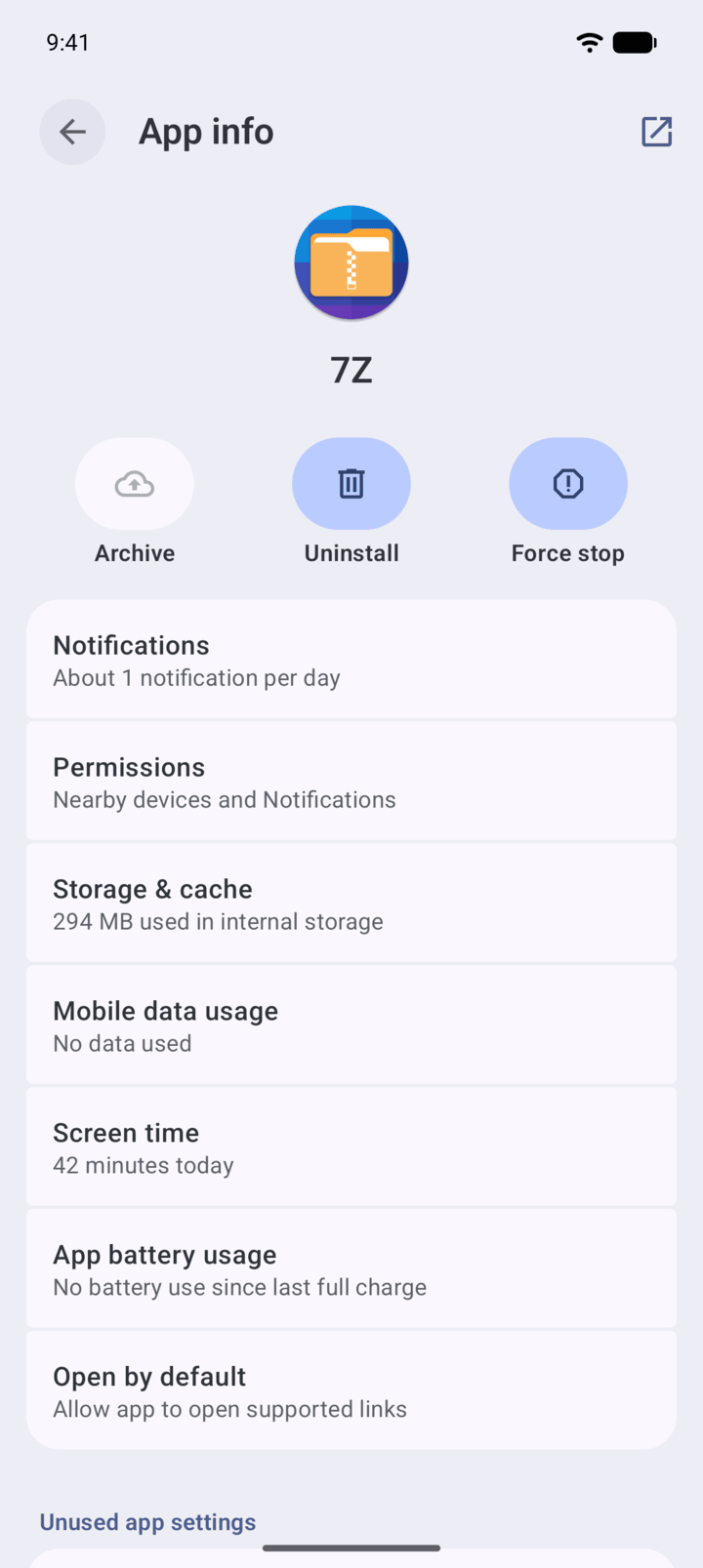
To delete everything 7Z keeps on your phone, open Android Settings › Apps › 7Z.
-
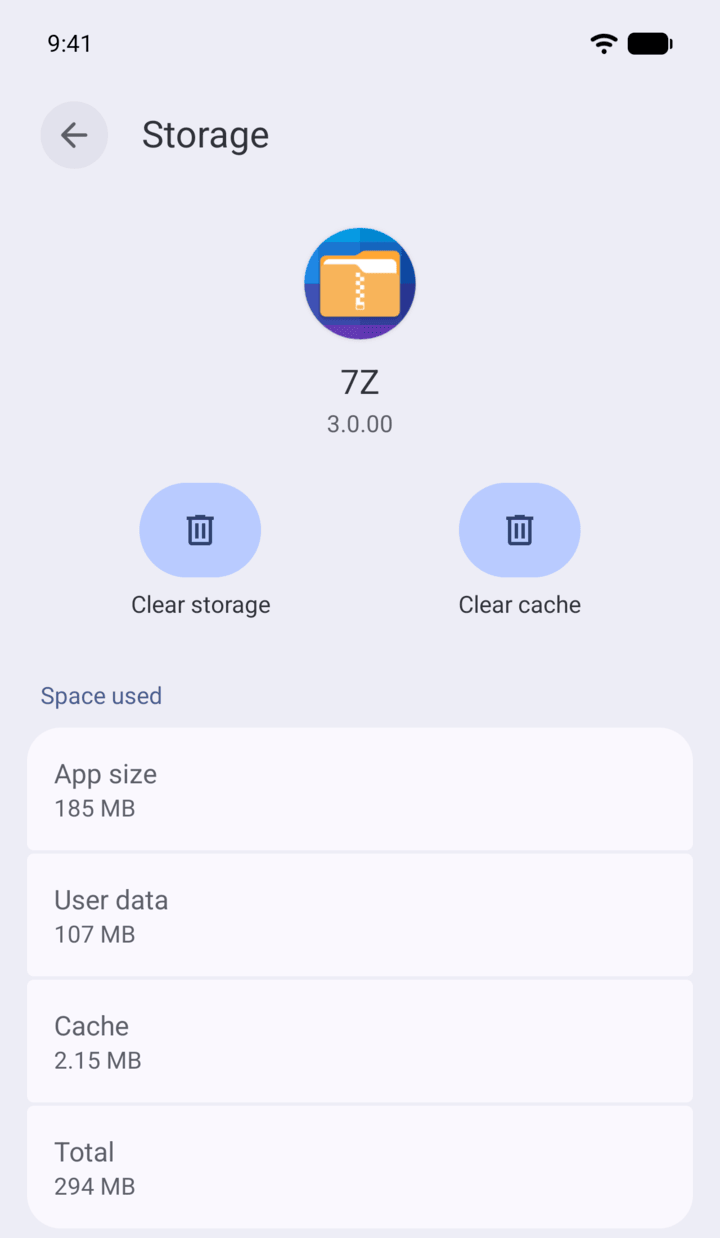
Step 5
Tap Storage & cache, then Clear storage. This removes 7Z's settings, history and saved passwords. Your files and archives are not deleted.
-
Uninstalling 7Z also removes everything it keeps on your phone. If you have 7Z Premium, you can restore it afterwards with Restore purchase.
Email us at support@sociosoftware.com if you have any trouble removing your data.
7Z doesn't collect your personal information. It collects anonymous usage data and crash reports to help us improve the app, and the free version uses your advertising ID to show ads. Your files and folders stay on your phone.
- On Home, tap the menu button at the top left, then tap Settings.
- Under Privacy, you'll find Usage statistics and, in the free version, Personalised ads.
- Turn them off to stop sharing this data. You'll see the same number of ads either way.
- To delete everything 7Z keeps on your phone, open Android Settings › Apps › 7Z.
- Tap Storage & cache, then Clear storage. This removes 7Z's settings, history and saved passwords. Your files and archives are not deleted.
Uninstalling 7Z also removes everything it keeps on your phone. If you have 7Z Premium, you can restore it afterwards with Restore purchase.
Email us at support@sociosoftware.com if you have any trouble removing your data.