 7Z
7Z
In this guide 6 steps
-
Overview
Extracting, creating, copying and moving keep running when you browse to another folder or leave 7Z.
-
Step 1
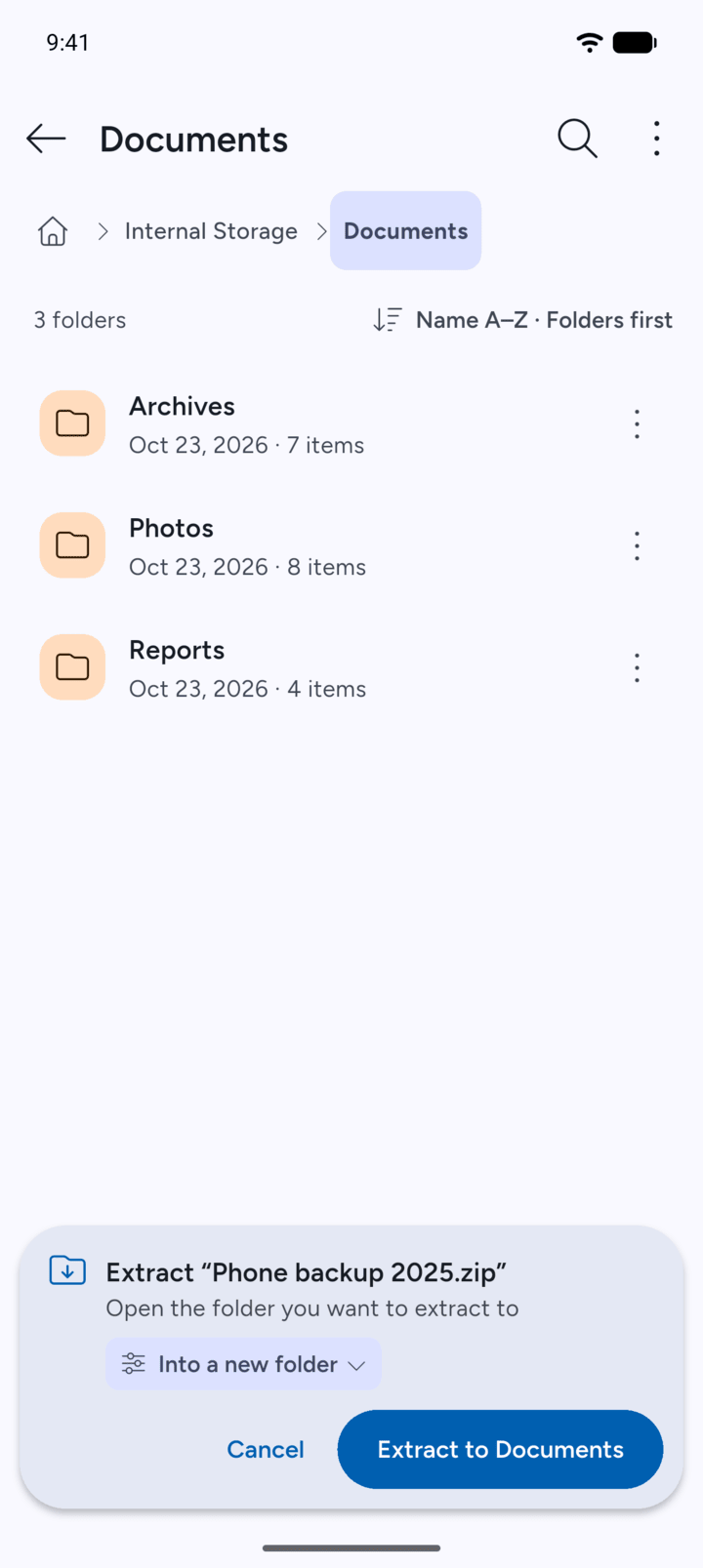
Start a task, for example extract an archive.
-
Step 2
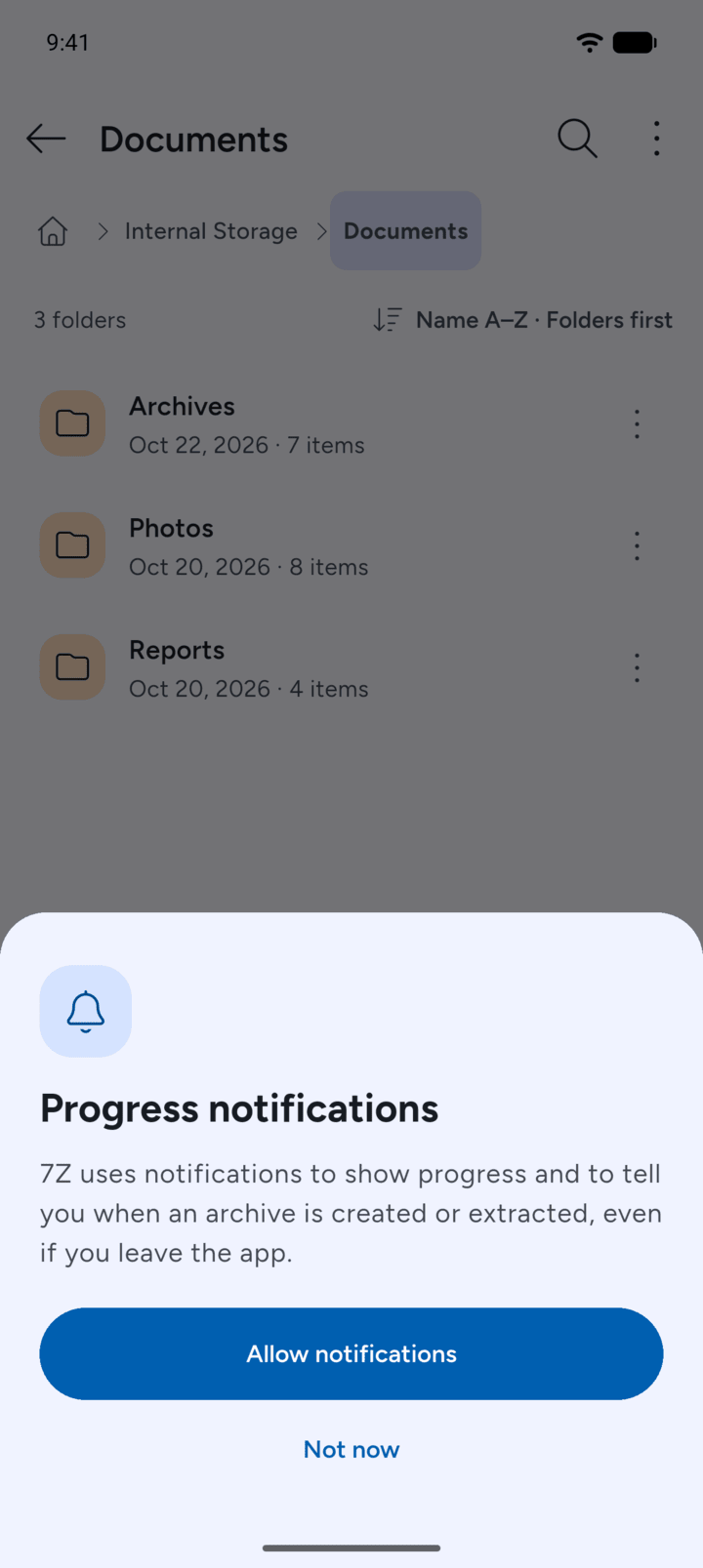
The first time, 7Z asks if it can show progress notifications. Tap Allow notifications to see progress even when you leave the app.
-
Step 3
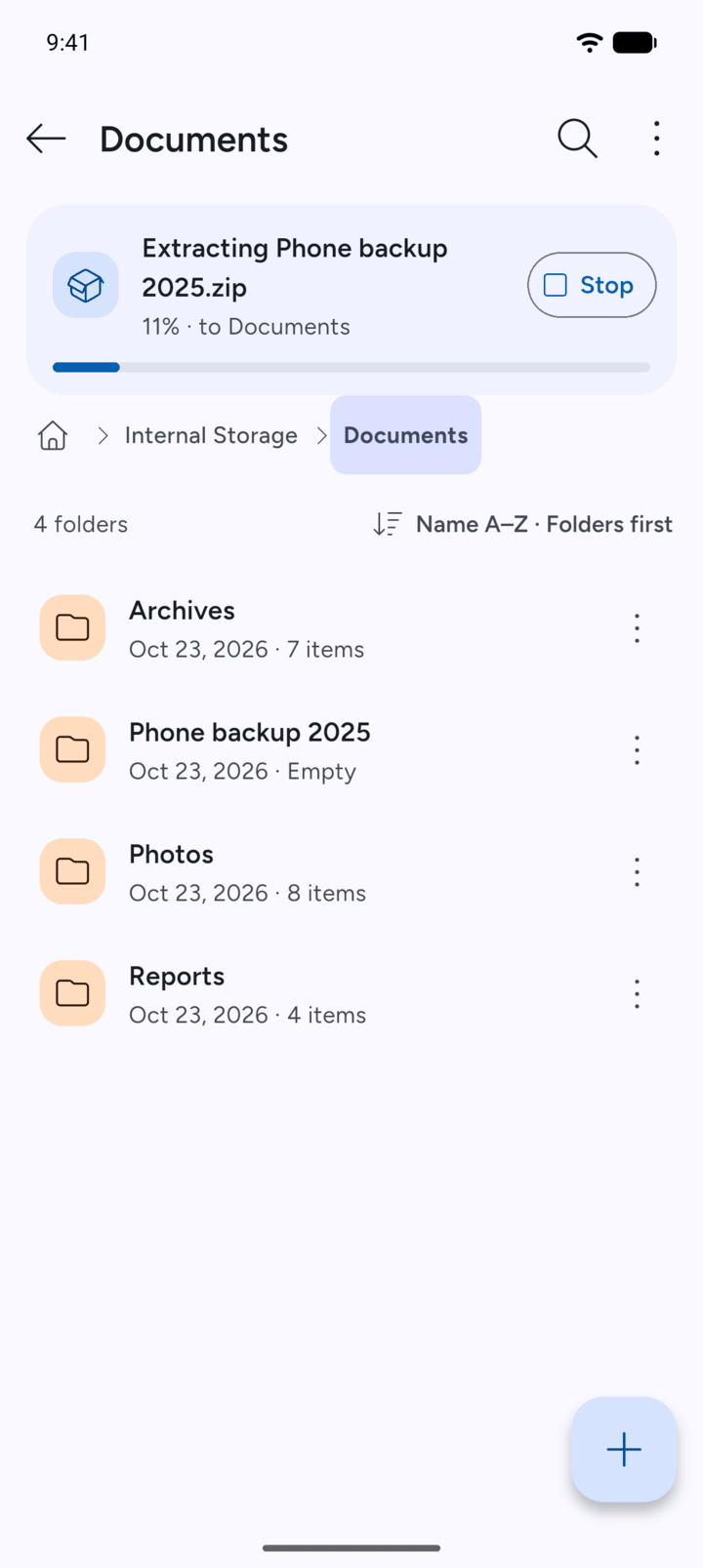
A card at the top of the screen shows the progress.
-
Step 4
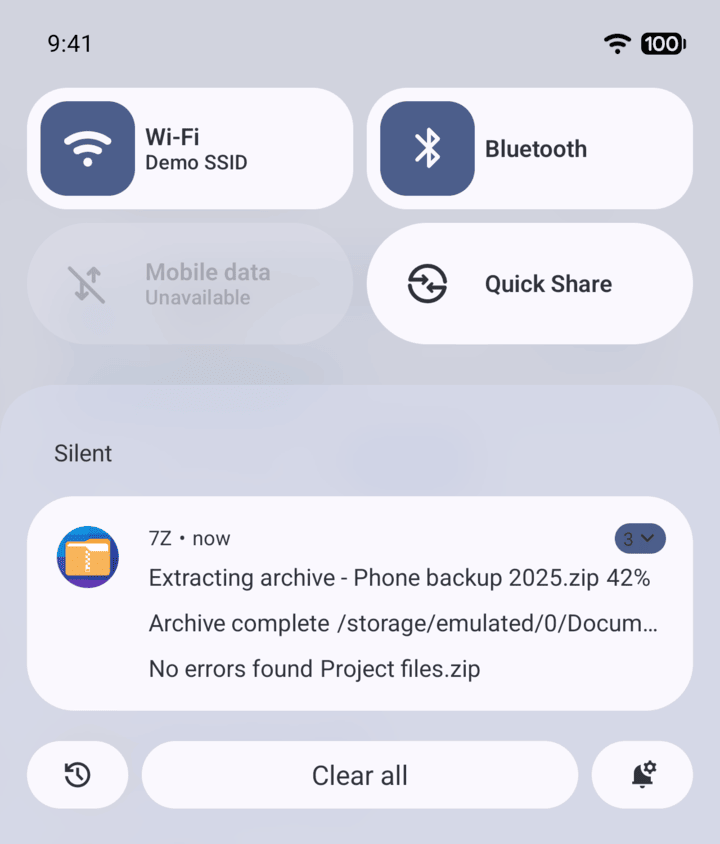
The progress also shows in your phone's notifications.
-
Step 5
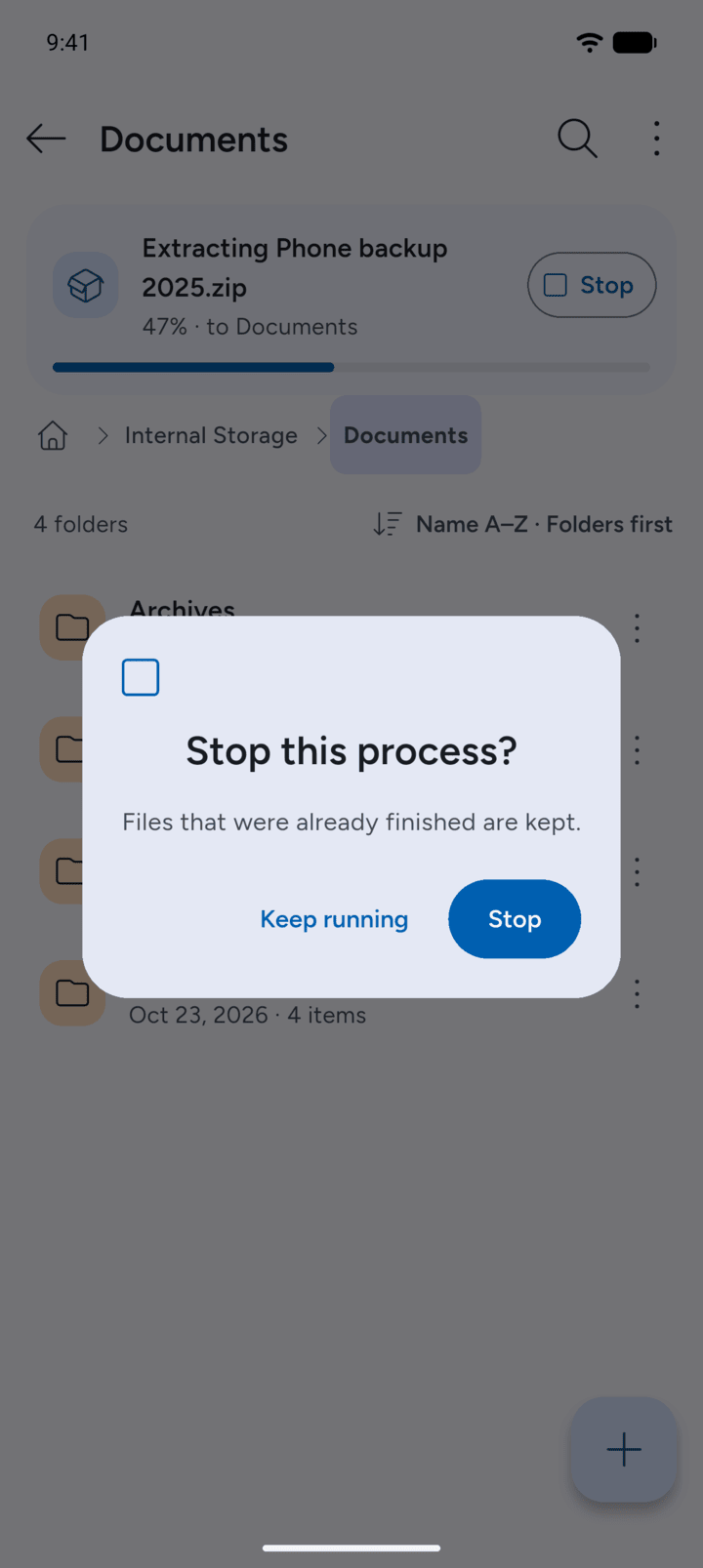
To stop, tap Stop on the card, then tap Stop again. Files that were already finished are kept. Tap Keep running if you change your mind.
-
Step 6
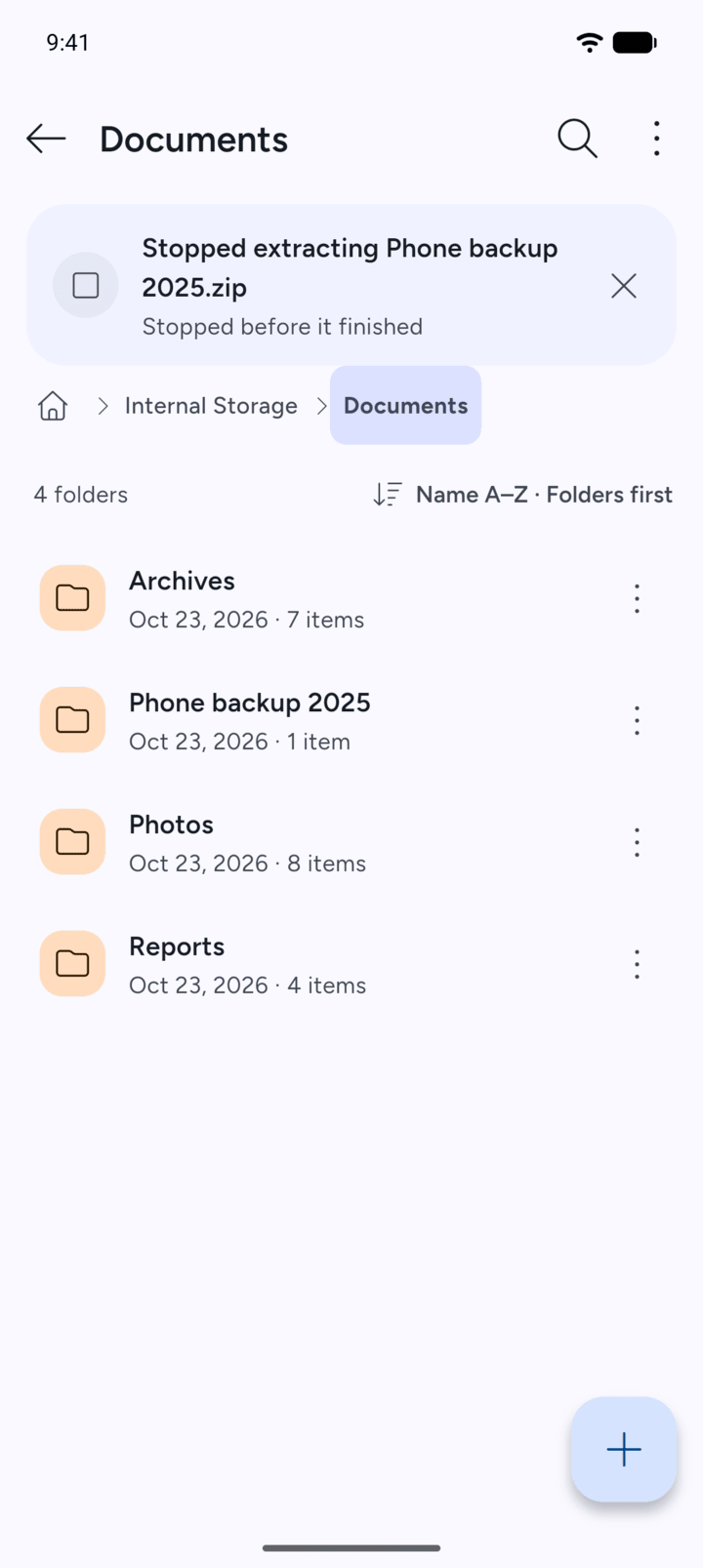
The card shows that the task stopped. Tap X to close the card.
-
Finished and stopped extracts and archives are listed in History. See the guide Viewing your history.
Extracting, creating, copying and moving keep running when you browse to another folder or leave 7Z.
- Start a task, for example extract an archive.
- The first time, 7Z asks if it can show progress notifications. Tap Allow notifications to see progress even when you leave the app.
- A card at the top of the screen shows the progress.
- The progress also shows in your phone's notifications.
- To stop, tap Stop on the card, then tap Stop again. Files that were already finished are kept. Tap Keep running if you change your mind.
- The card shows that the task stopped. Tap X to close the card.
Finished and stopped extracts and archives are listed in History. See the guide Viewing your history.