 7Z
7Z
In this guide 9 steps
- 01On Home, tap the menu button at the top left…
- 02Tap Theme.
- 03The preview at the top shows how 7Z will look.
- 04Under Mode, choose System to follow your phone…
- 05Under Accent colour, tap a colour. Tap + to…
- 06Under Background, choose None, Colour, Pattern…
- 07Go back to see your new theme.
- 08To undo your changes, tap the three dots at the…
- 09In the free version, items with a lock are part…
-
Overview
Choose light or dark mode, an accent colour and a background.
-
Step 1
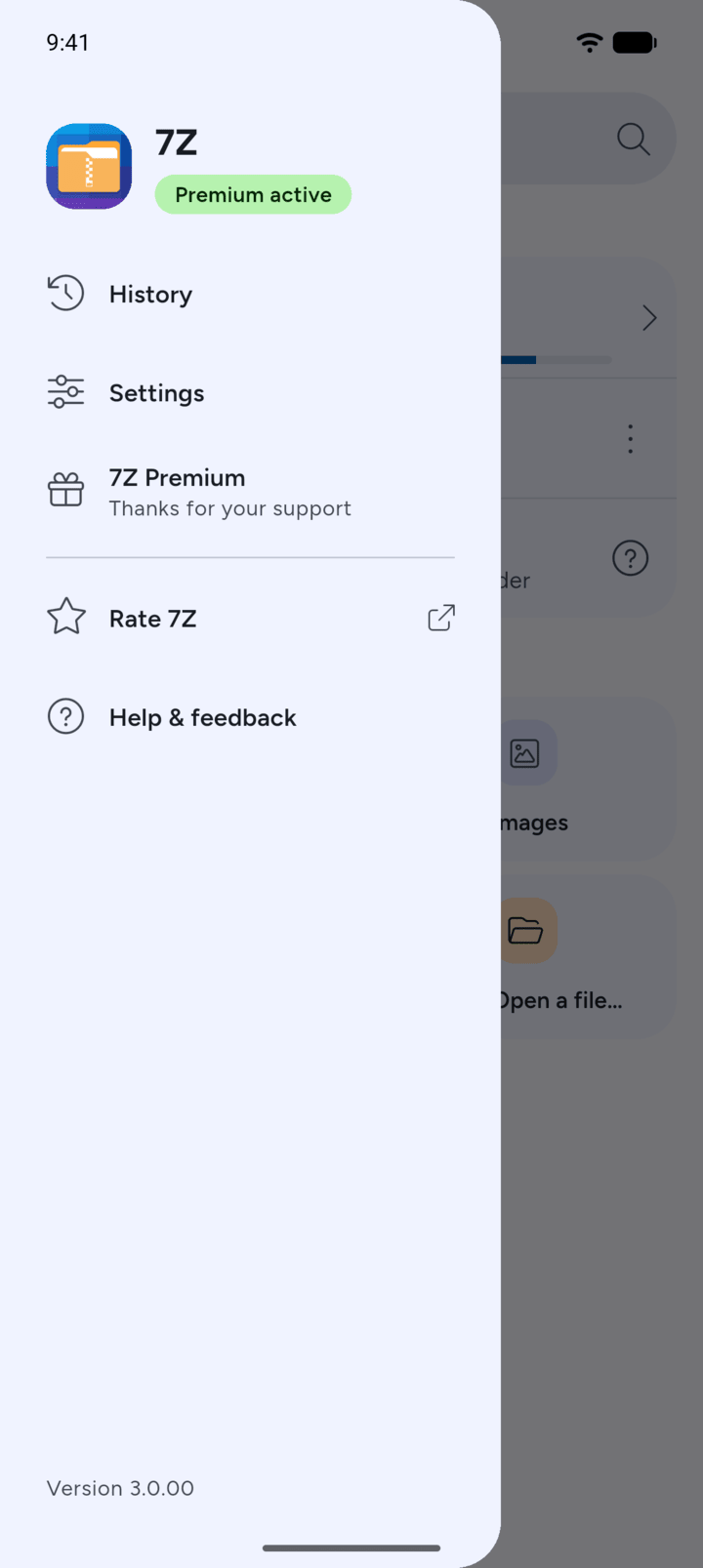
On Home, tap the menu button at the top left, then tap Settings.
-
Step 2
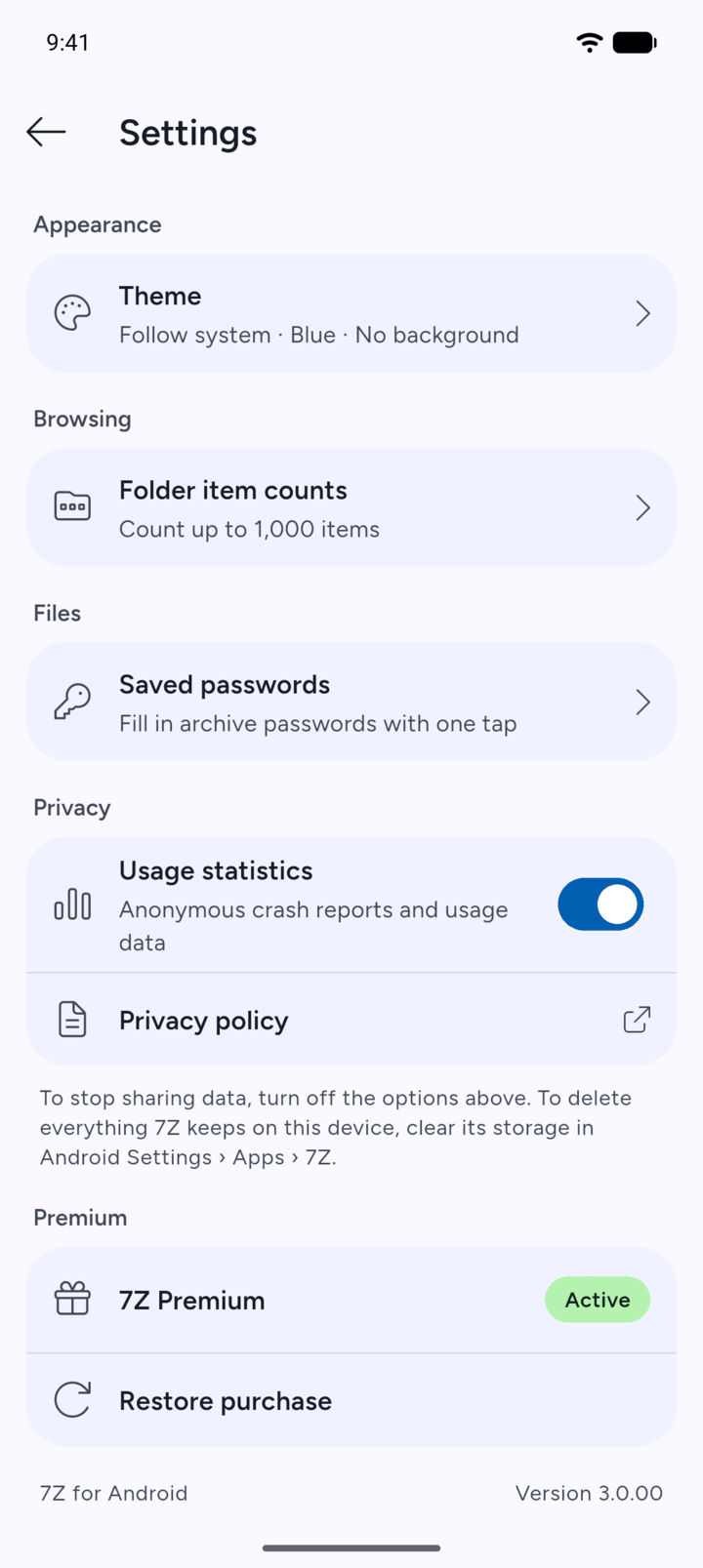
Tap Theme.
-
Step 3
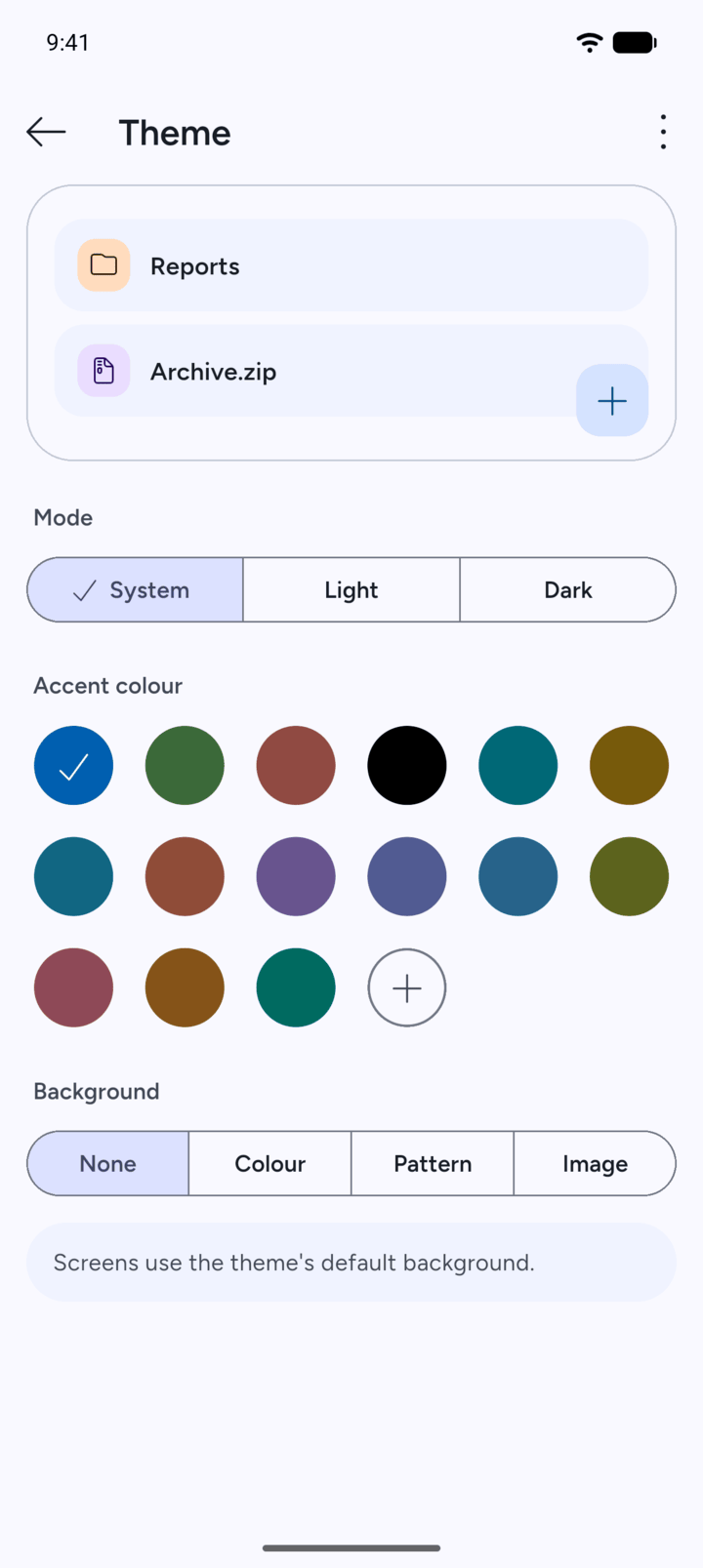
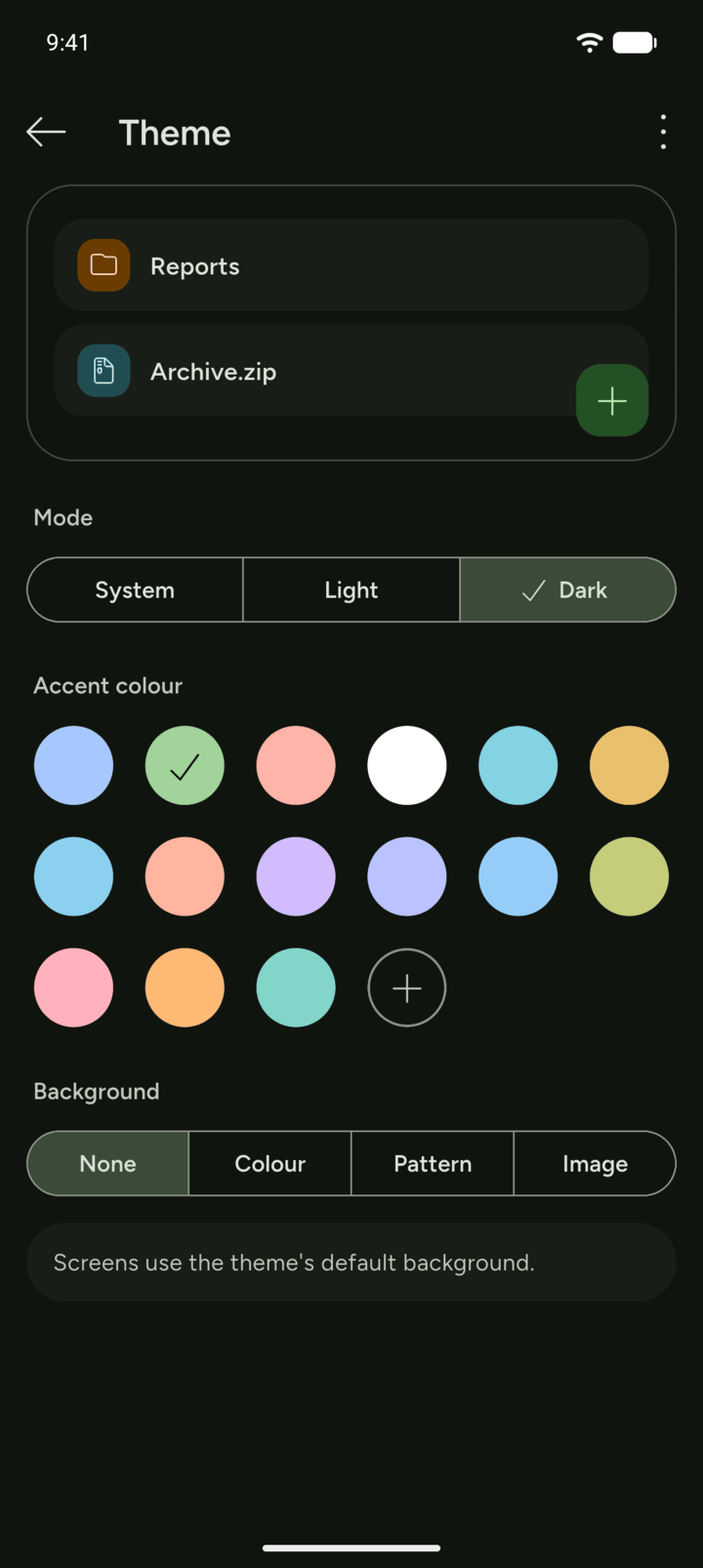
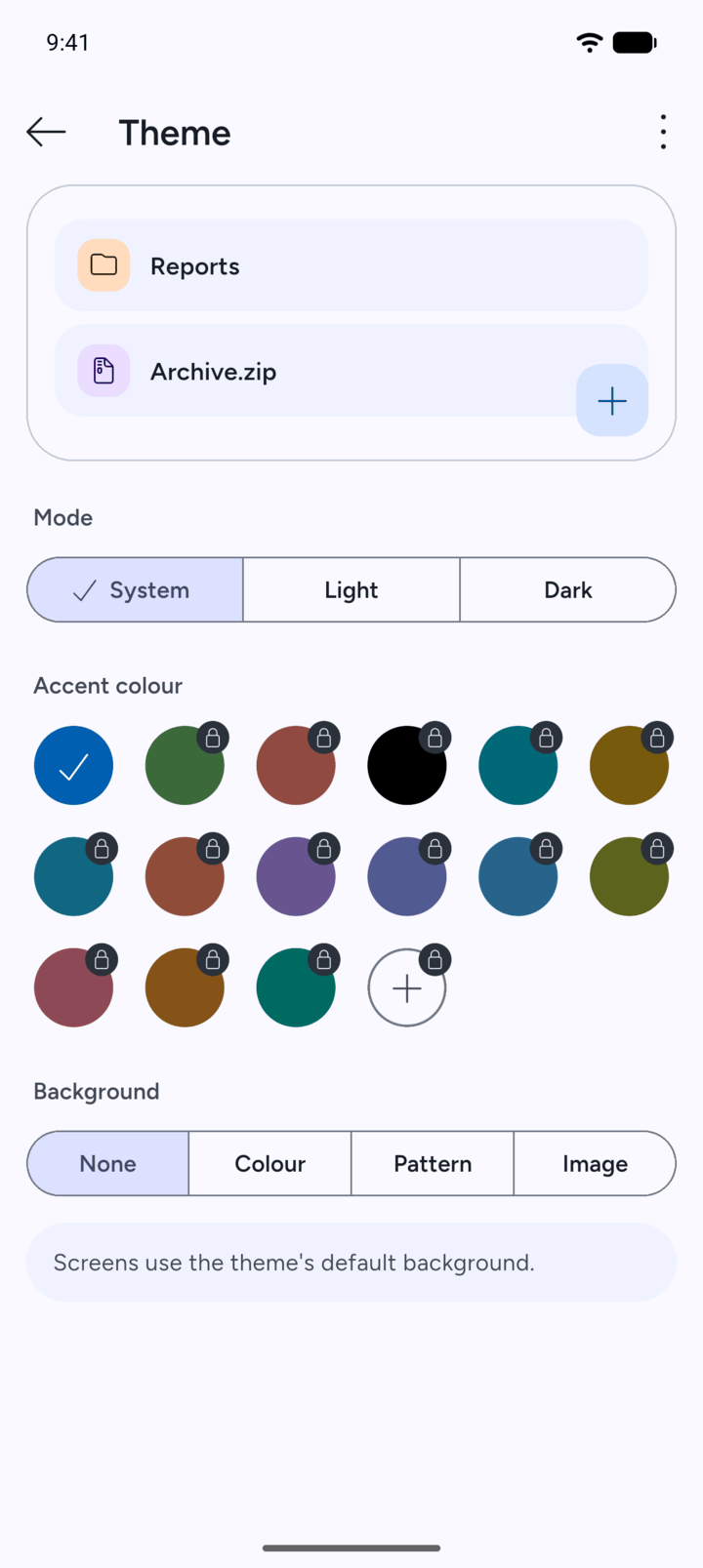
The preview at the top shows how 7Z will look.
-
Step 4
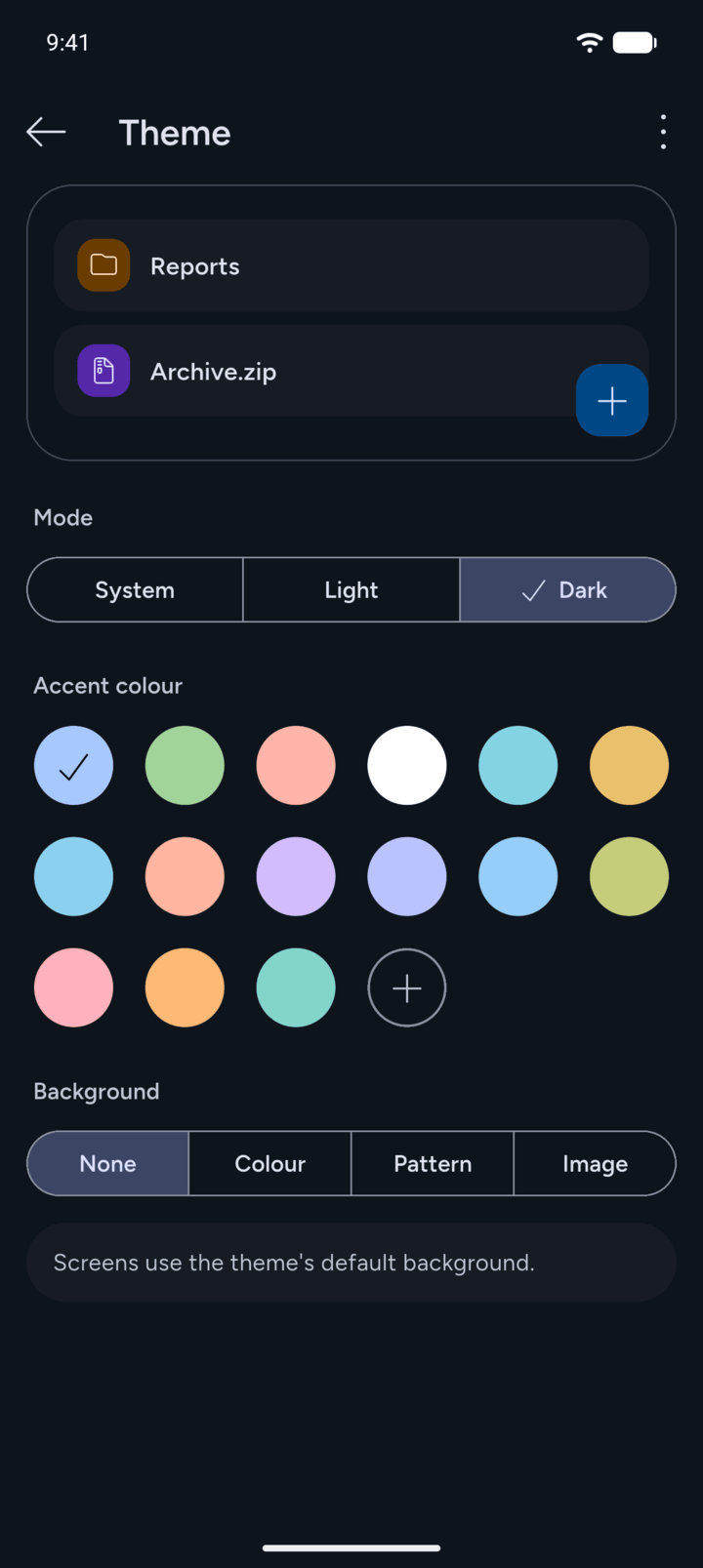
Under Mode, choose System to follow your phone, Light or Dark.
-
Step 5
Under Accent colour, tap a colour. Tap + to pick your own colour.
-
Step 6
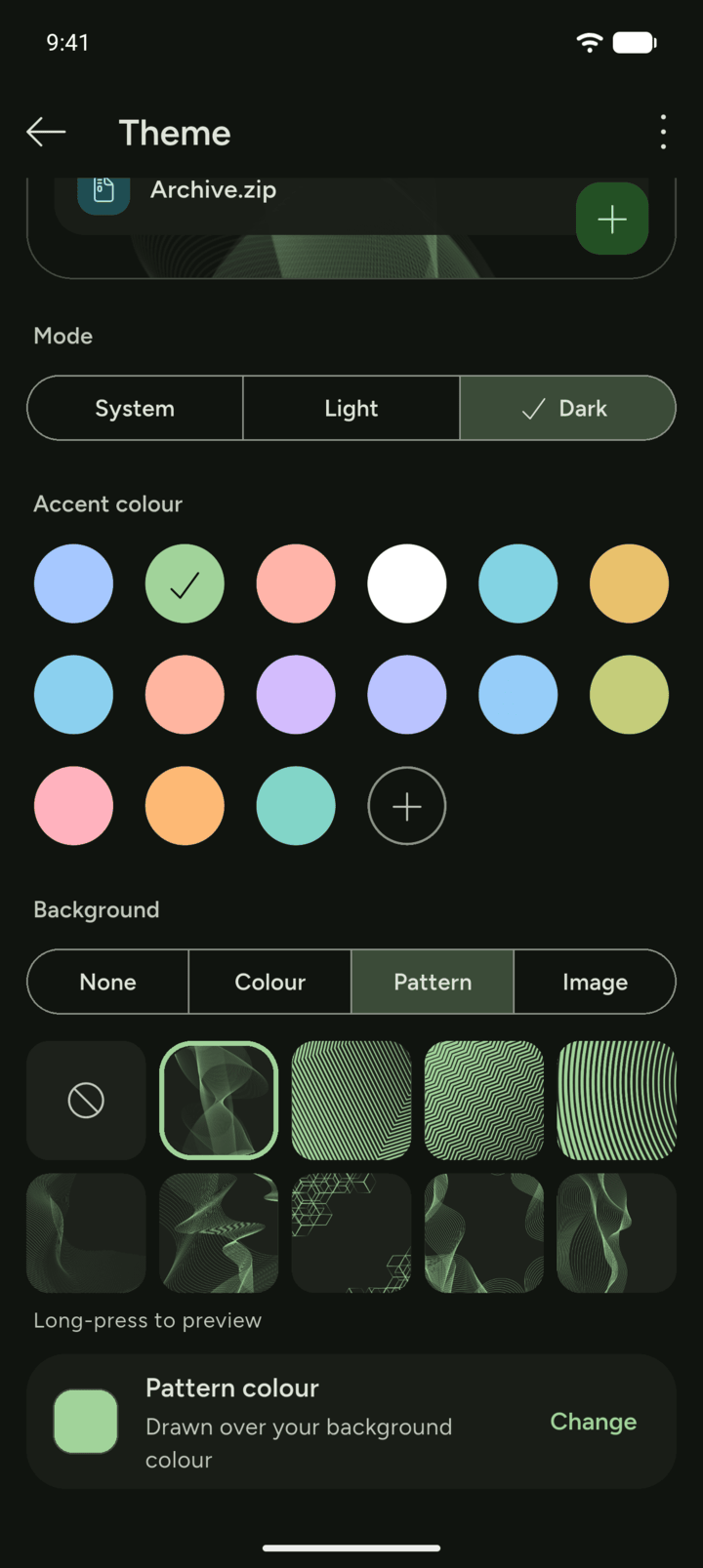
Under Background, choose None, Colour, Pattern or Image. For a pattern, tap the one you want. Long-press a pattern to preview it.
-
Step 7
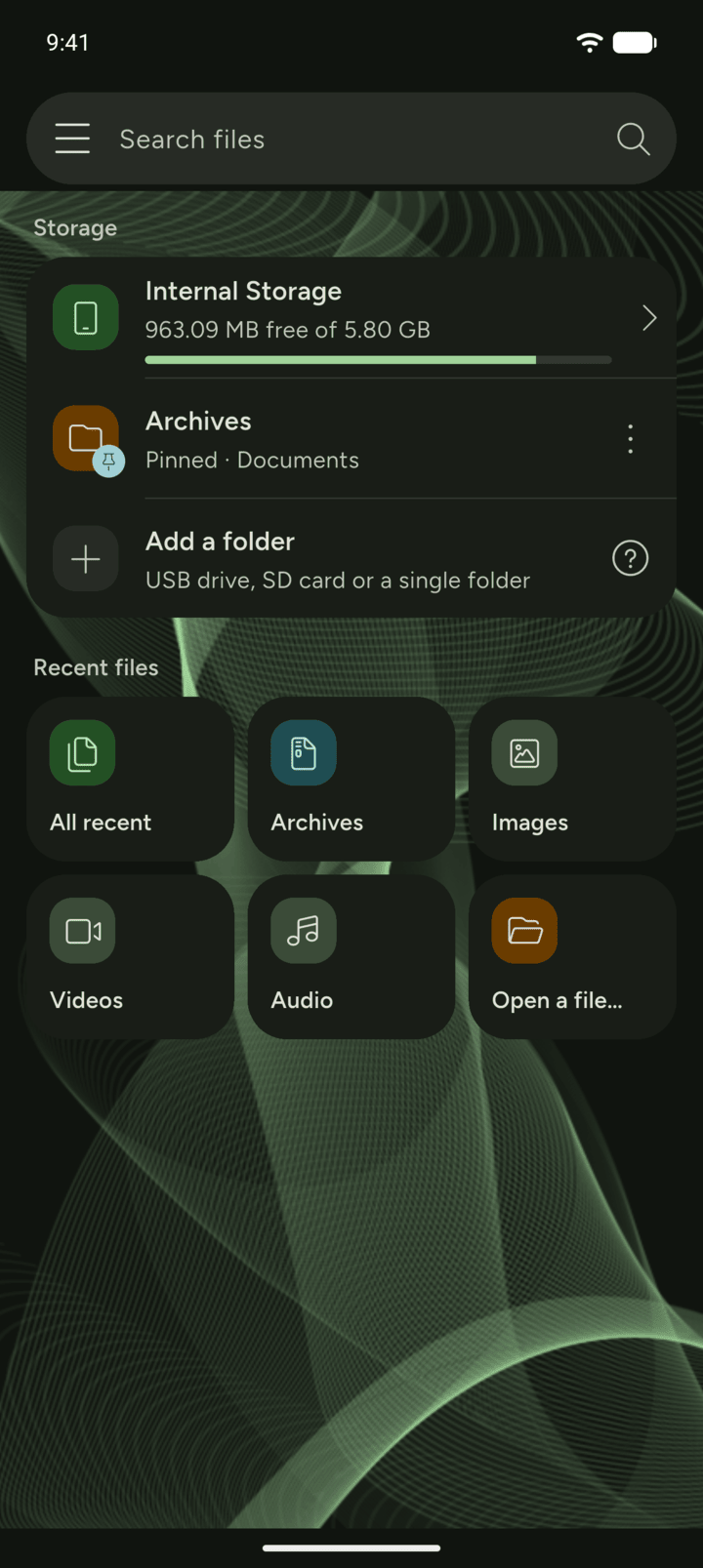
Go back to see your new theme.
-
Step 8
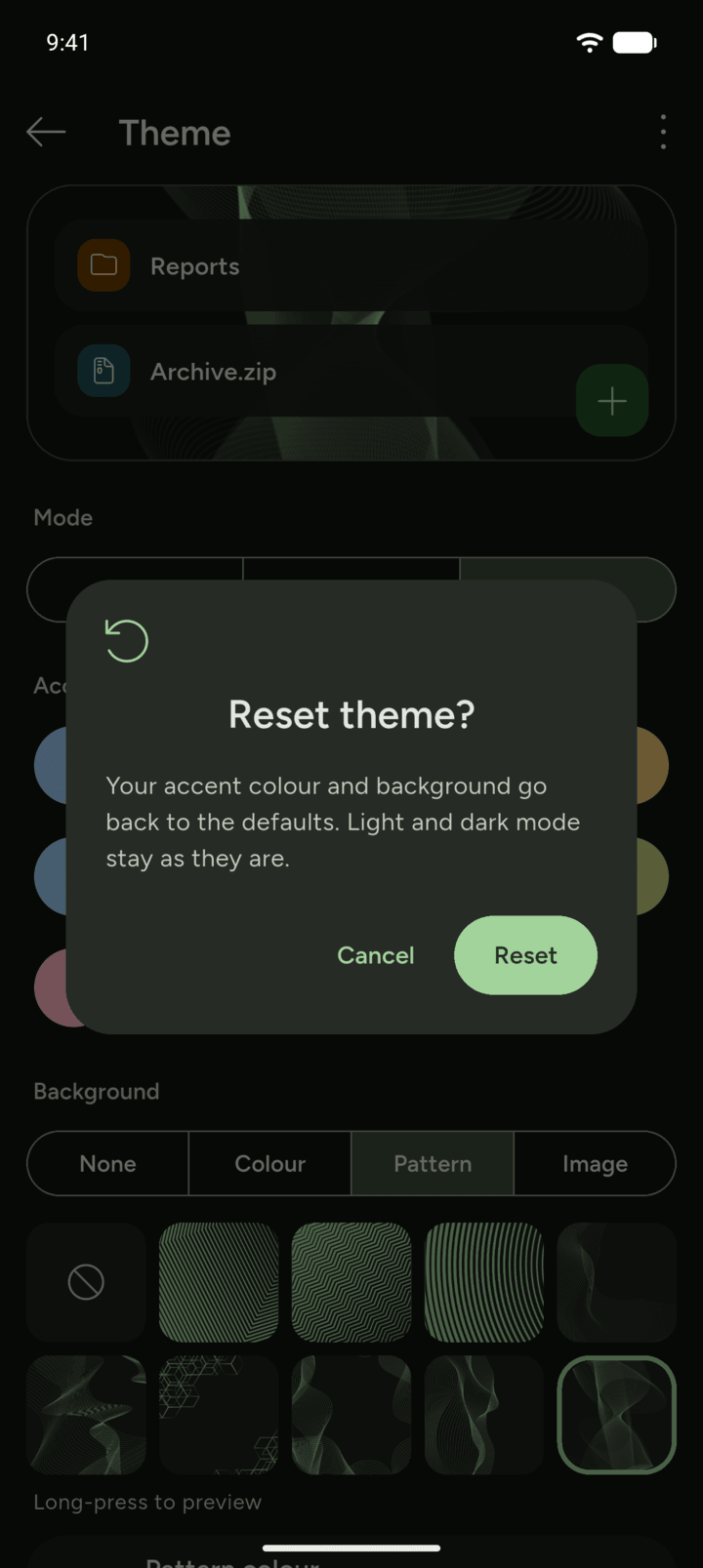
To undo your changes, tap the three dots at the top right of the Theme page, tap Reset to default, then Reset. The accent colour and background go back to the defaults. Light or dark mode stays as it is.
-
Step 9
In the free version, items with a lock are part of 7Z Premium. Light and dark mode are free.
Choose light or dark mode, an accent colour and a background.
- On Home, tap the menu button at the top left, then tap Settings.
- Tap Theme.
- The preview at the top shows how 7Z will look.
- Under Mode, choose System to follow your phone, Light or Dark.
- Under Accent colour, tap a colour. Tap + to pick your own colour.
- Under Background, choose None, Colour, Pattern or Image. For a pattern, tap the one you want. Long-press a pattern to preview it.
- Go back to see your new theme.
- To undo your changes, tap the three dots at the top right of the Theme page, tap Reset to default, then Reset. The accent colour and background go back to the defaults. Light or dark mode stays as it is.
- In the free version, items with a lock are part of 7Z Premium. Light and dark mode are free.