 7Z
7Z
In this guide 5 steps
-
Overview
Saved passwords are part of 7Z Premium. 7Z stores them encrypted on your phone and offers them when an archive asks for a password.
-
Step 1
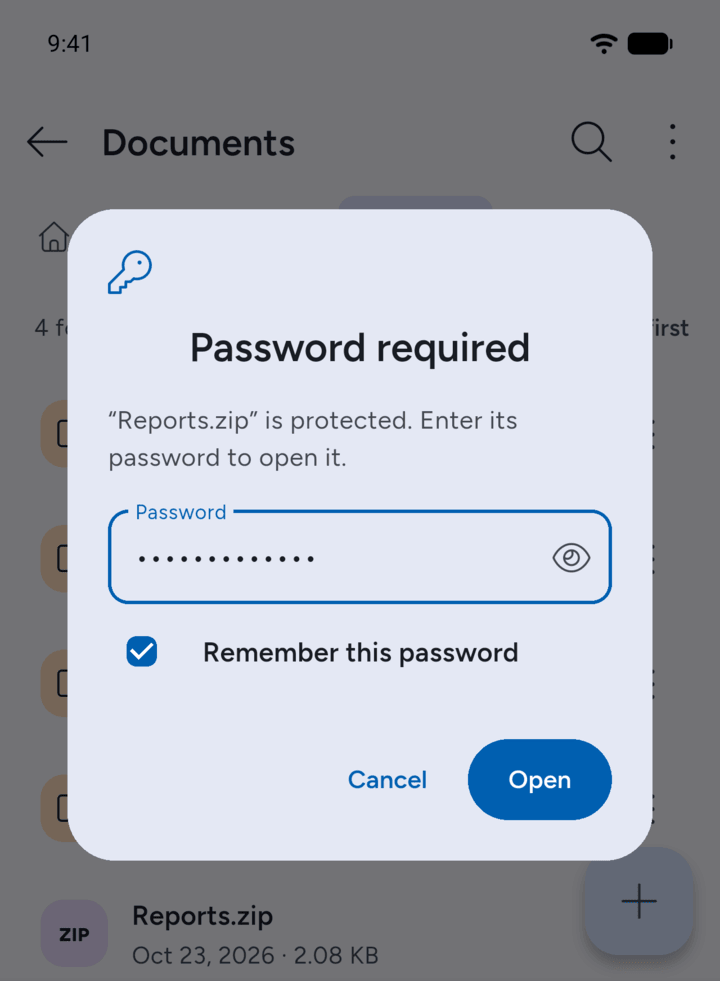
When 7Z asks for a password, type it and tick Remember this password before you tap Open.
-
Step 2
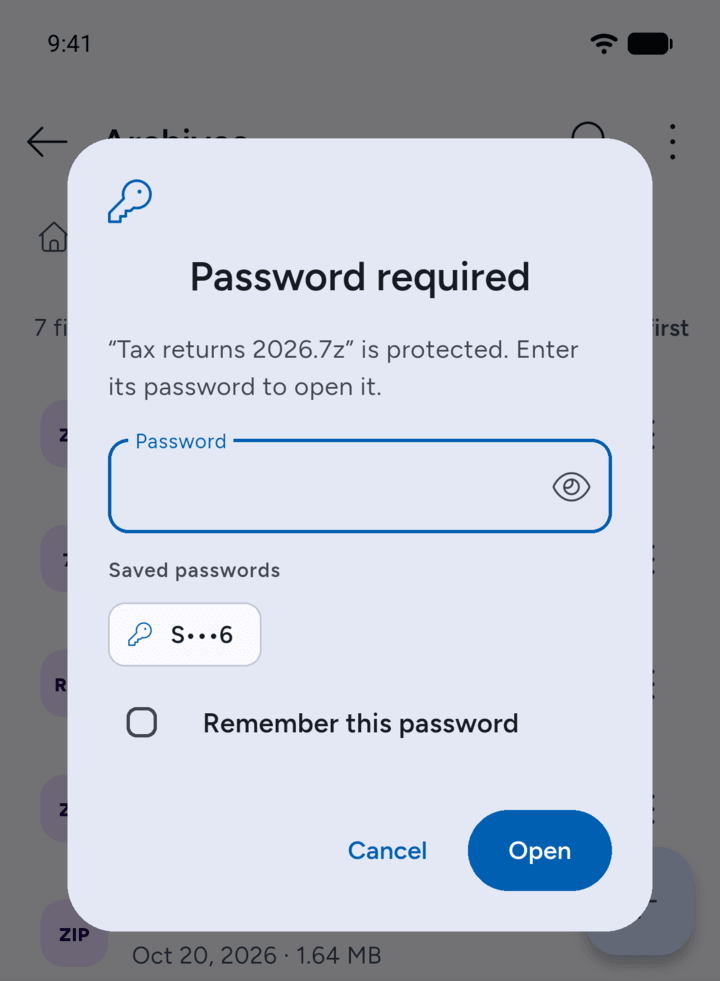
Next time, your saved passwords show under Saved passwords in the password box. Tap one to use it.
-
Step 3
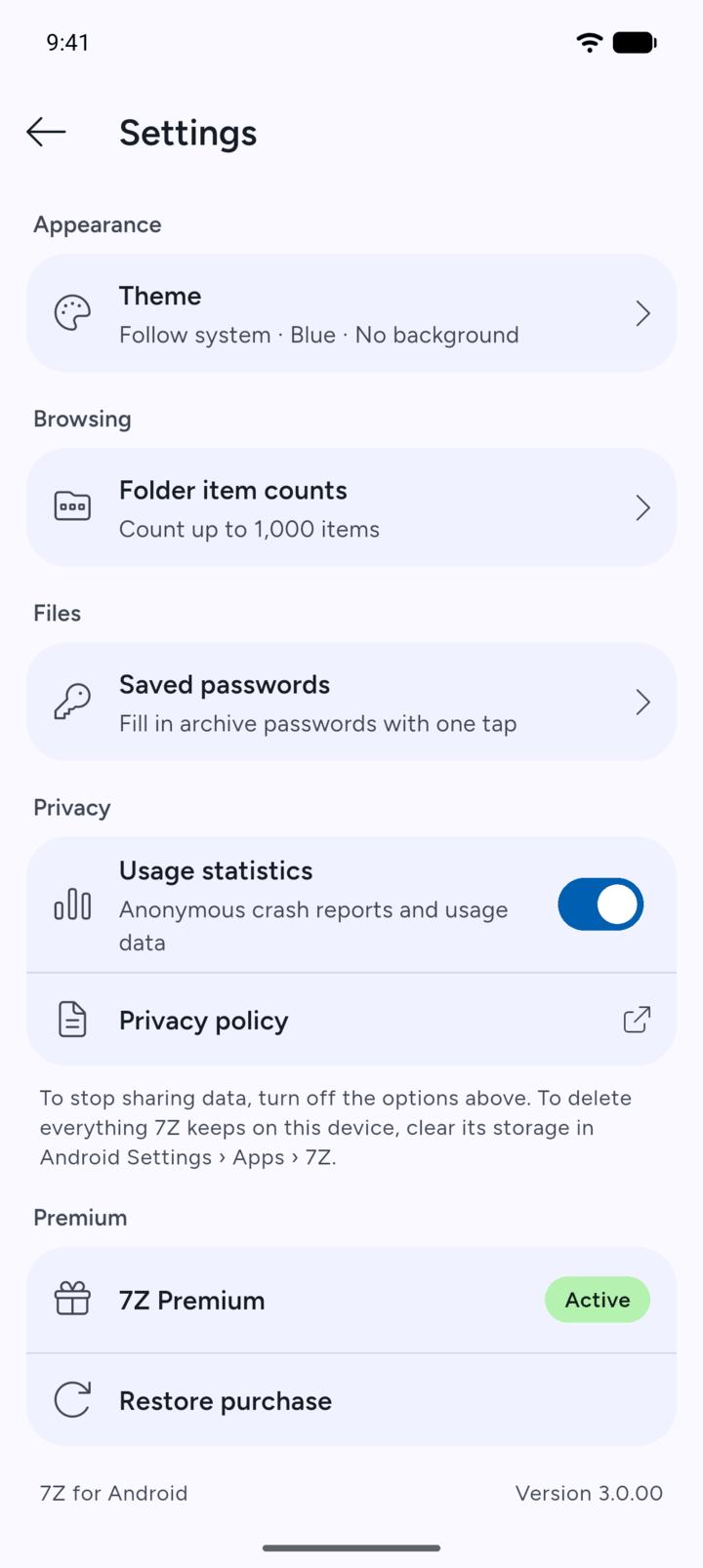
To see your saved passwords, tap the menu button at the top left of Home, tap Settings, then Saved passwords.
-
Step 4
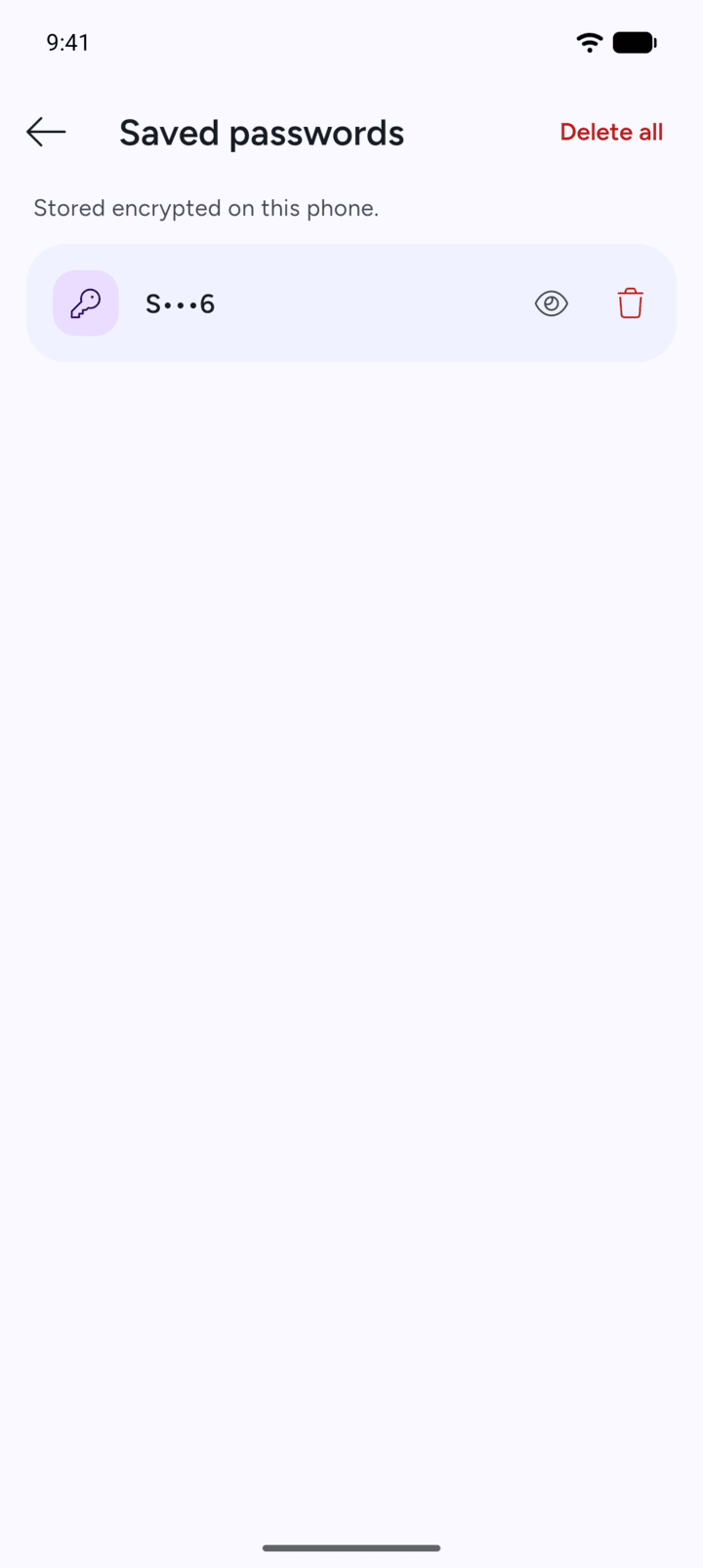
Tap the eye to show a password, or the bin to delete it. Tap Delete all to remove them all.
-
Step 5
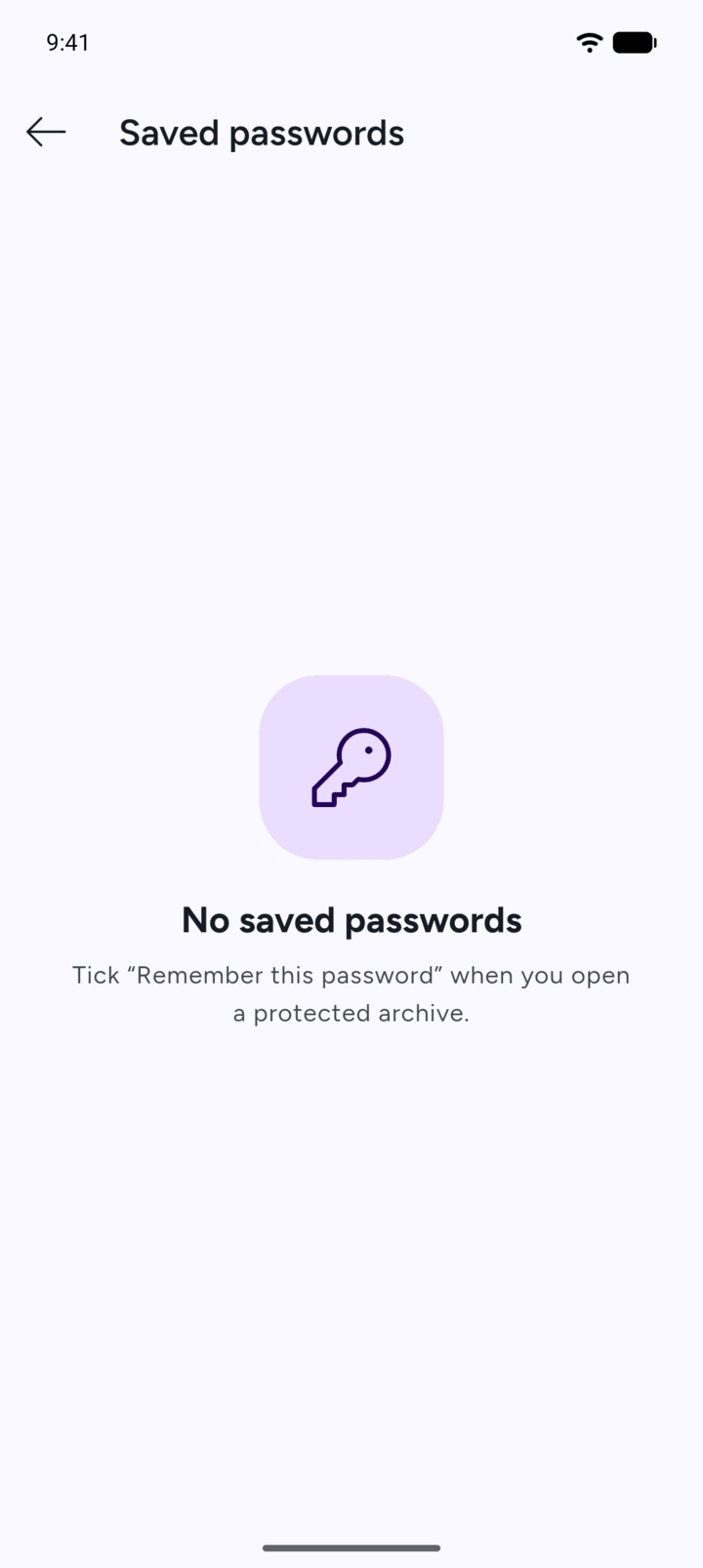
When none are left, 7Z shows No saved passwords.
Saved passwords are part of 7Z Premium. 7Z stores them encrypted on your phone and offers them when an archive asks for a password.
- When 7Z asks for a password, type it and tick Remember this password before you tap Open.
- Next time, your saved passwords show under Saved passwords in the password box. Tap one to use it.
- To see your saved passwords, tap the menu button at the top left of Home, tap Settings, then Saved passwords.
- Tap the eye to show a password, or the bin to delete it. Tap Delete all to remove them all.
- When none are left, 7Z shows No saved passwords.