 7Z
7Z
In this guide 7 steps
- 01Open the folder with the files and folders you…
- 02Tap and hold a file or folder to select it.
- 03Tap the other files and folders you want. Then…
- 04The Create archive page lists everything you…
- 05To add items from another folder, tap Add. Find…
- 06Check the name, the format and where it will be…
- 077Z shows Created with the archive's name.
-
Step 1
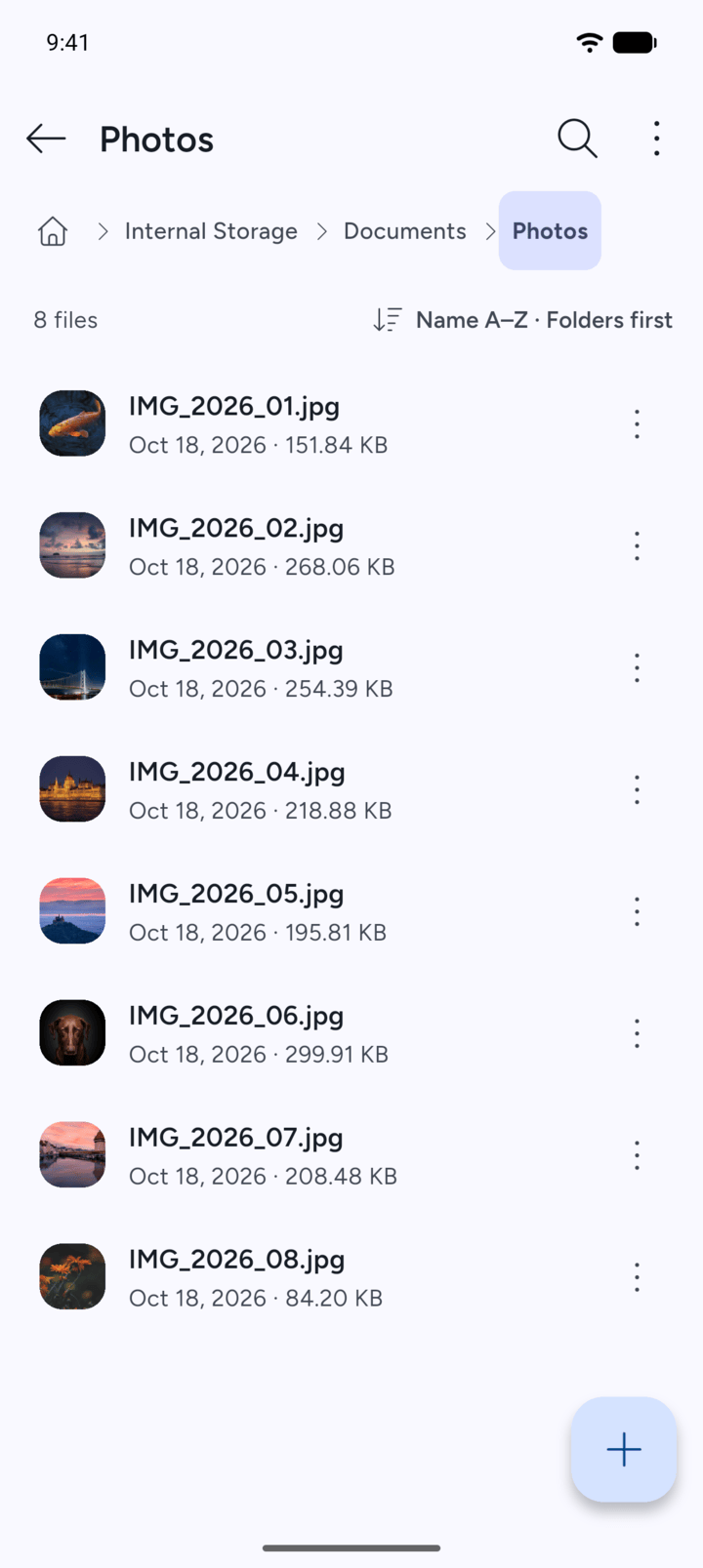
Open the folder with the files and folders you want.
-
Step 2
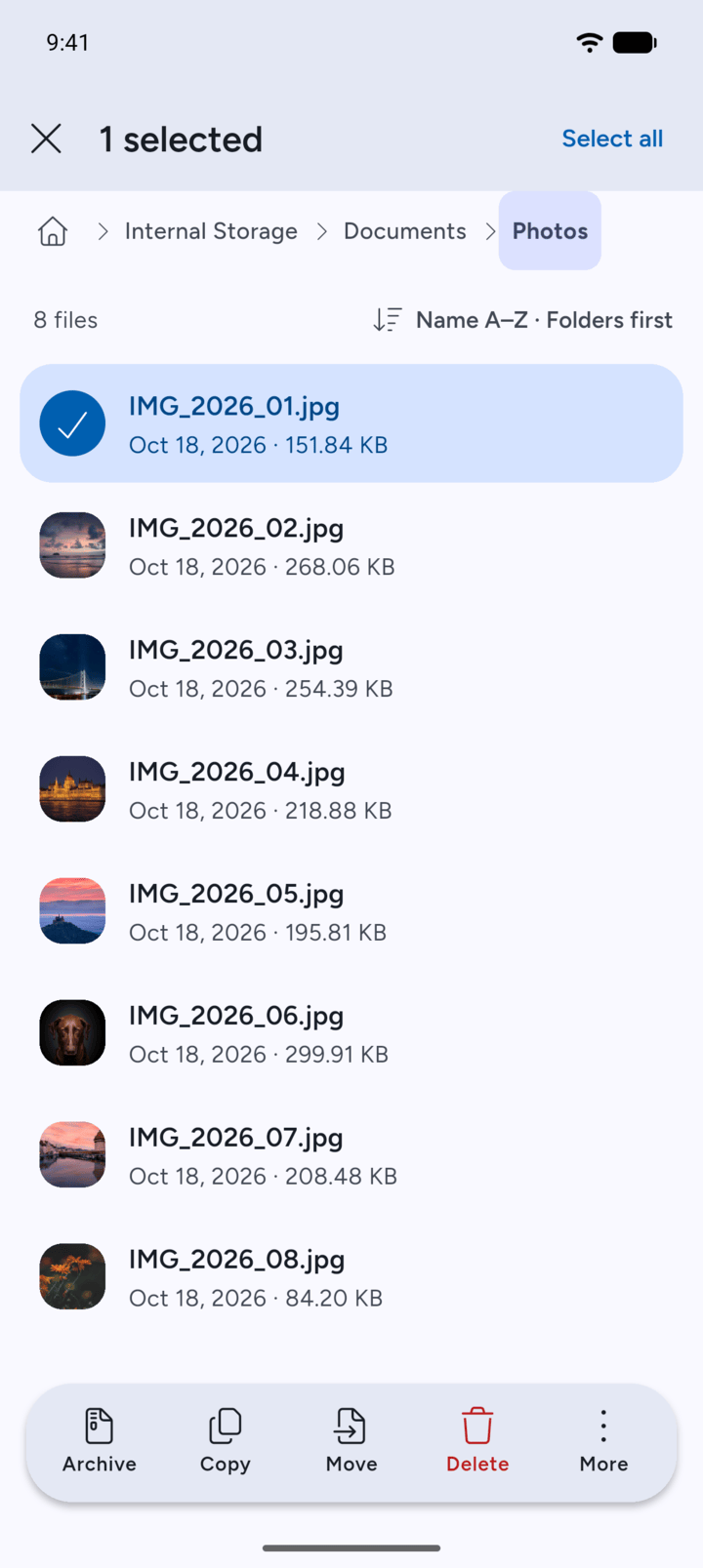
Tap and hold a file or folder to select it.
-
Step 3
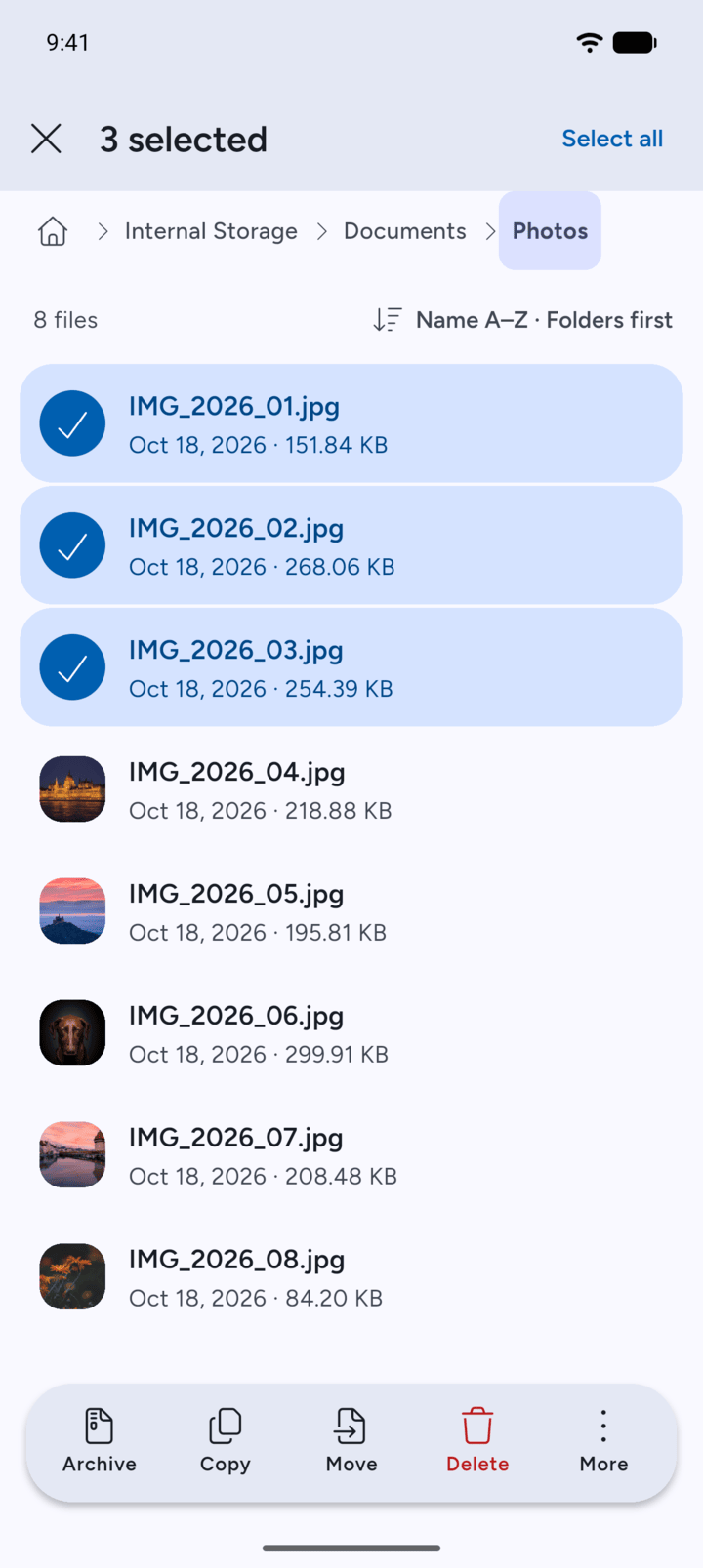
Tap the other files and folders you want. Then tap Archive at the bottom.
-
Step 4
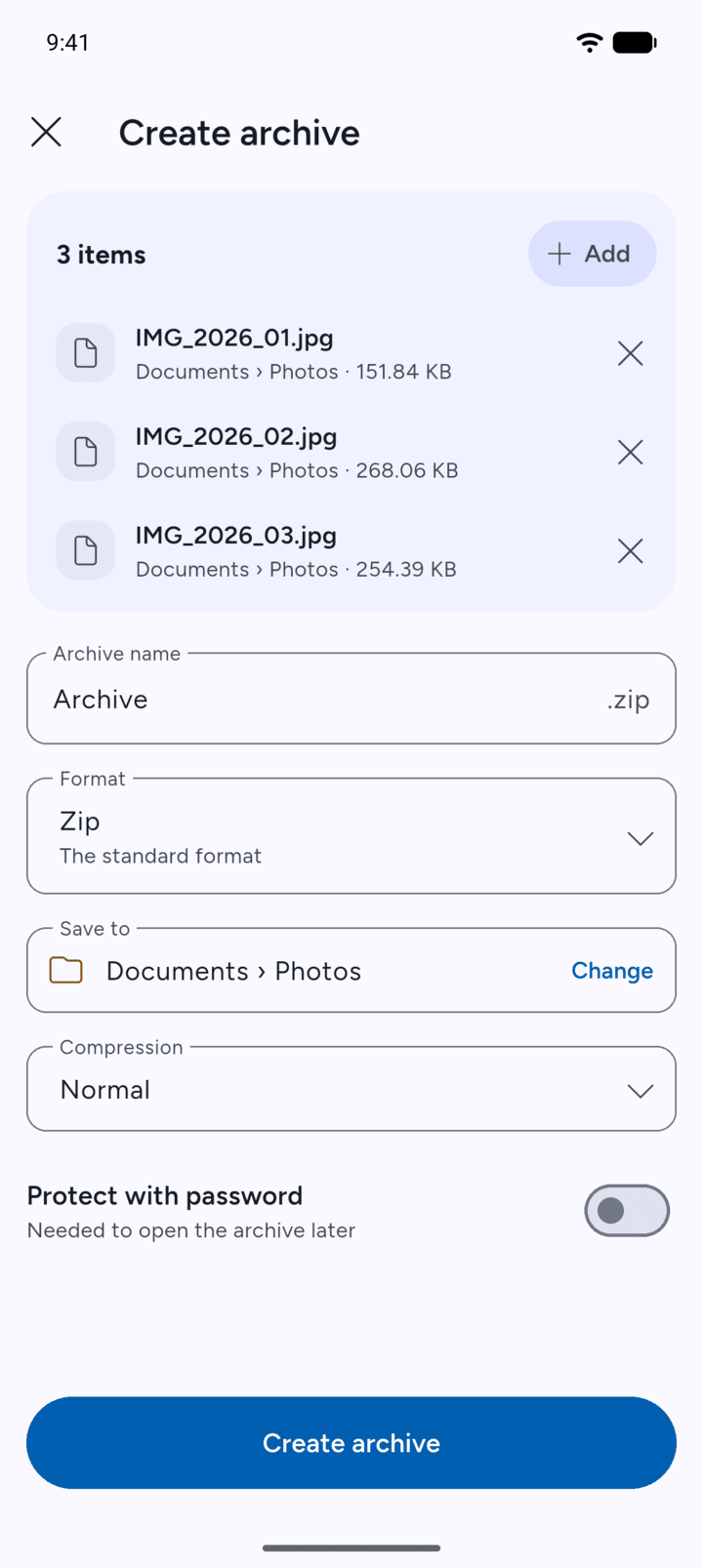
The Create archive page lists everything you chose.
-
Step 5
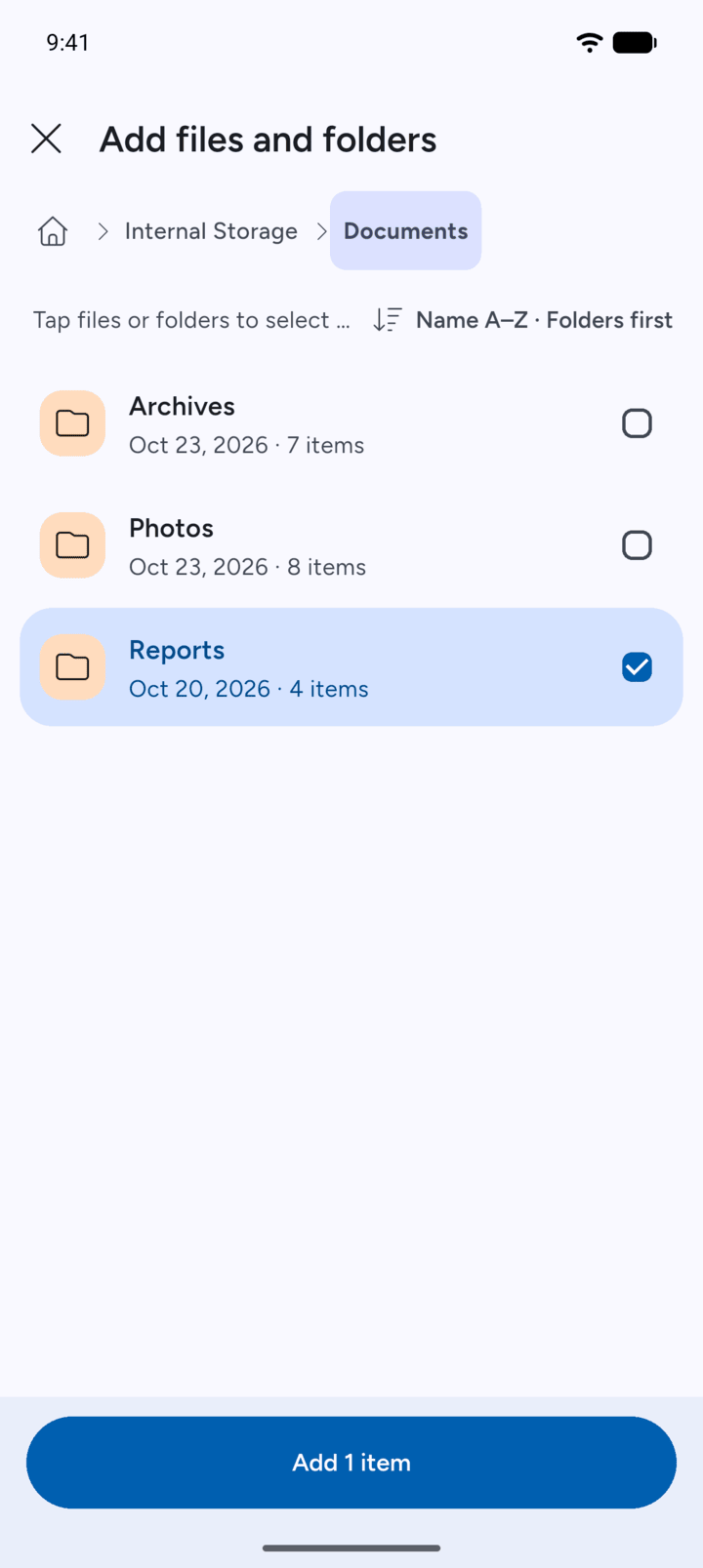
To add items from another folder, tap Add. Find the items, tick them, and tap the button at the bottom, for example Add 1 item.
-
Step 6
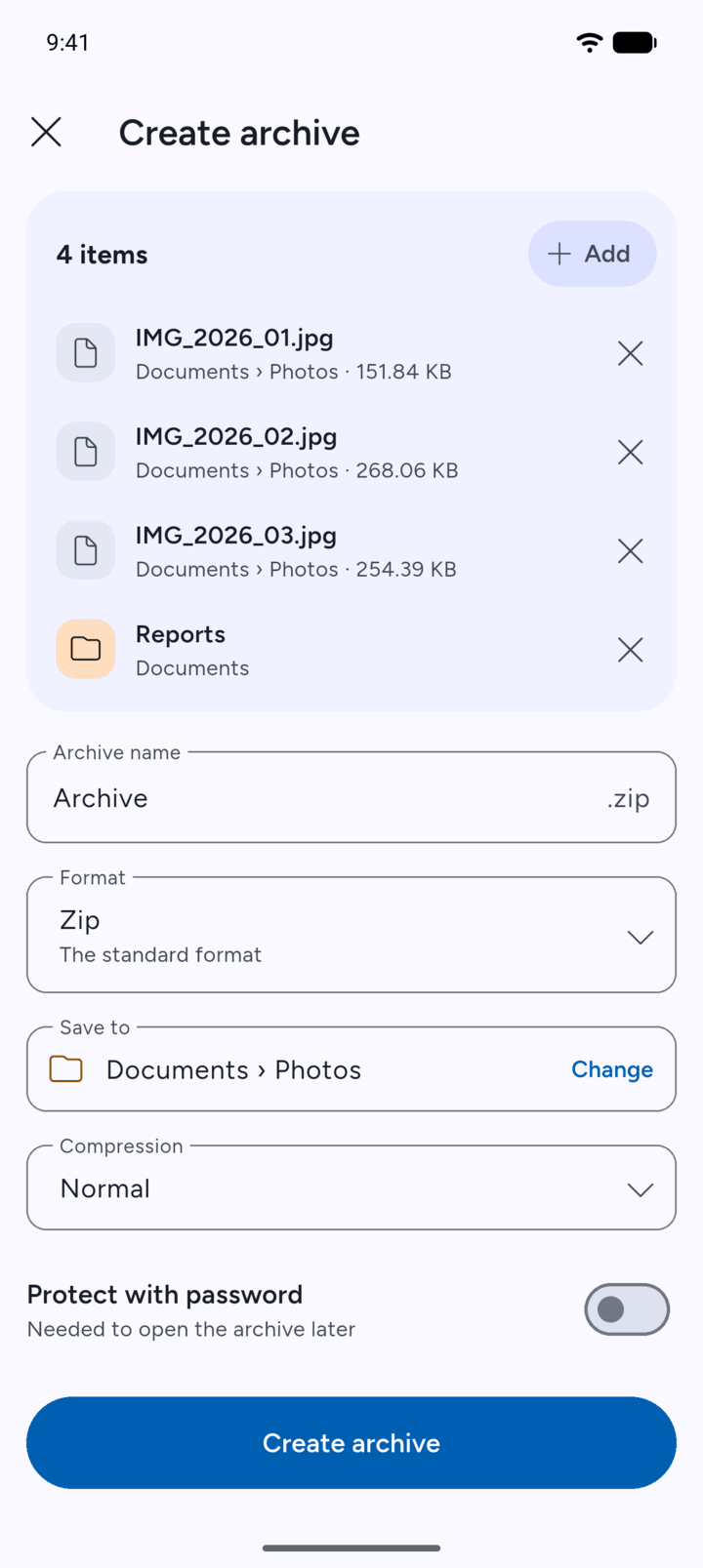
Check the name, the format and where it will be saved, then tap Create archive.
-
Step 7
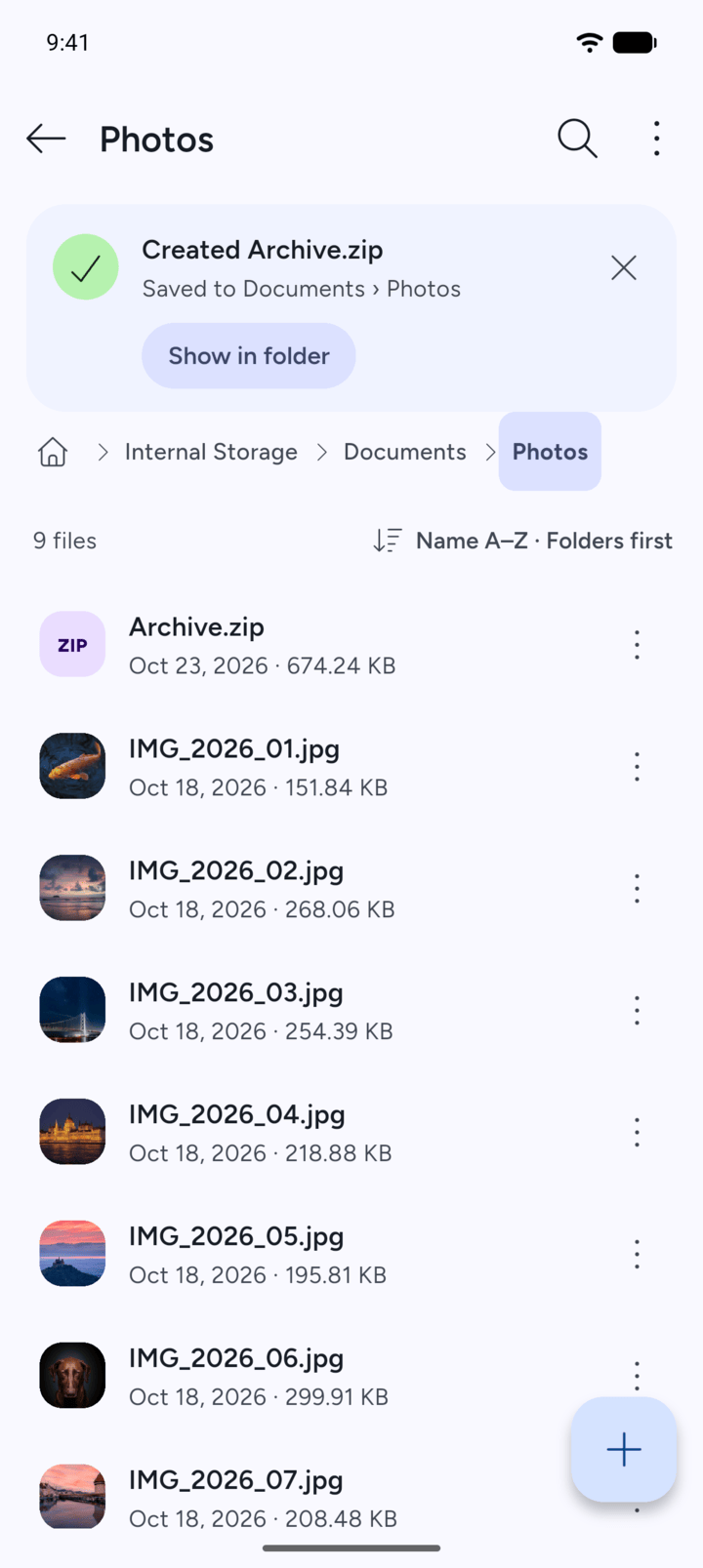
7Z shows Created with the archive's name.
-
GZip, BZip2 and XZ only work with a single file, so you can't choose them when you add more than one item.
- Open the folder with the files and folders you want.
- Tap and hold a file or folder to select it.
- Tap the other files and folders you want. Then tap Archive at the bottom.
- The Create archive page lists everything you chose.
- To add items from another folder, tap Add. Find the items, tick them, and tap the button at the bottom, for example Add 1 item.
- Check the name, the format and where it will be saved, then tap Create archive.
- 7Z shows Created with the archive's name.
GZip, BZip2 and XZ only work with a single file, so you can't choose them when you add more than one item.