 7Z
7Z
In this guide 5 steps
-
Step 1
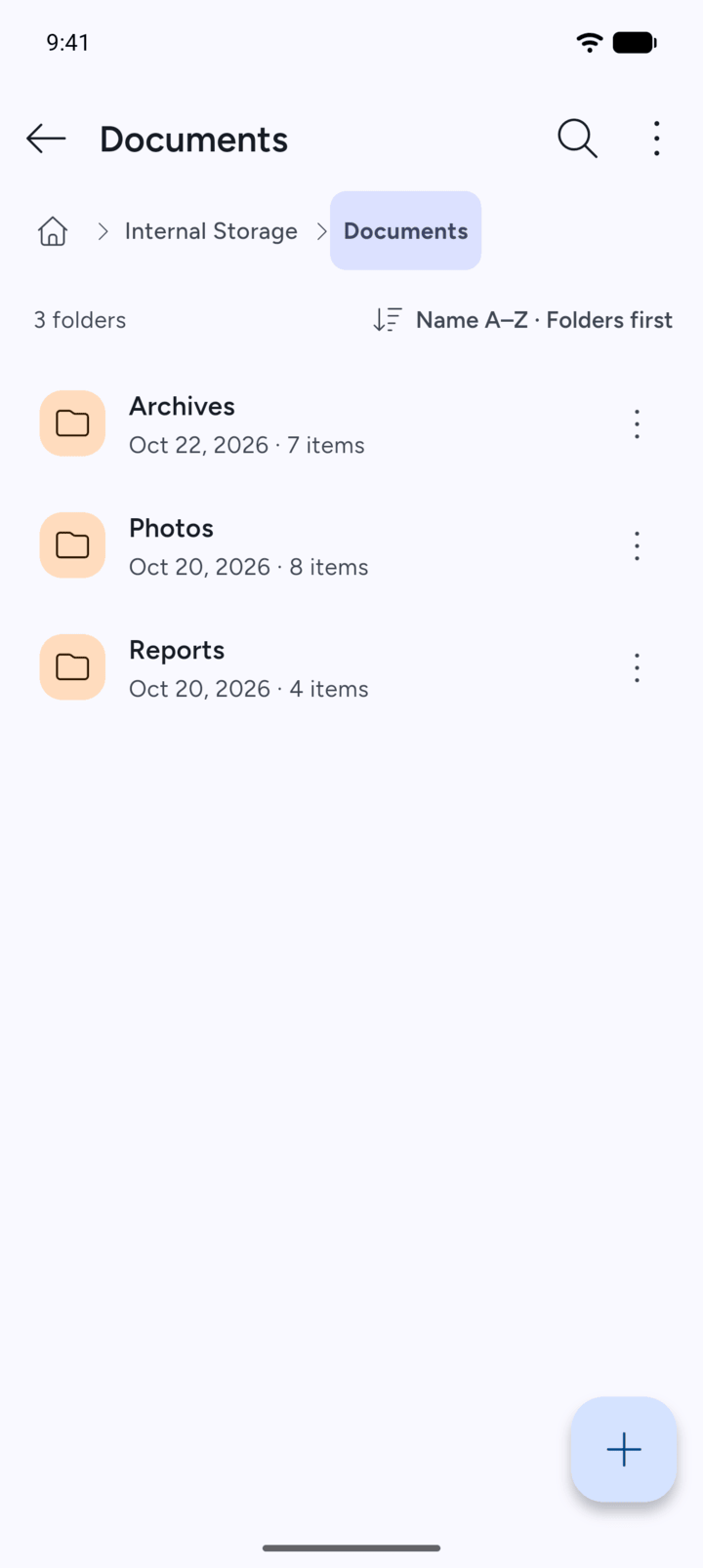
Open the folder that holds the file or folder and tap the three dots next to it.
-
Step 2
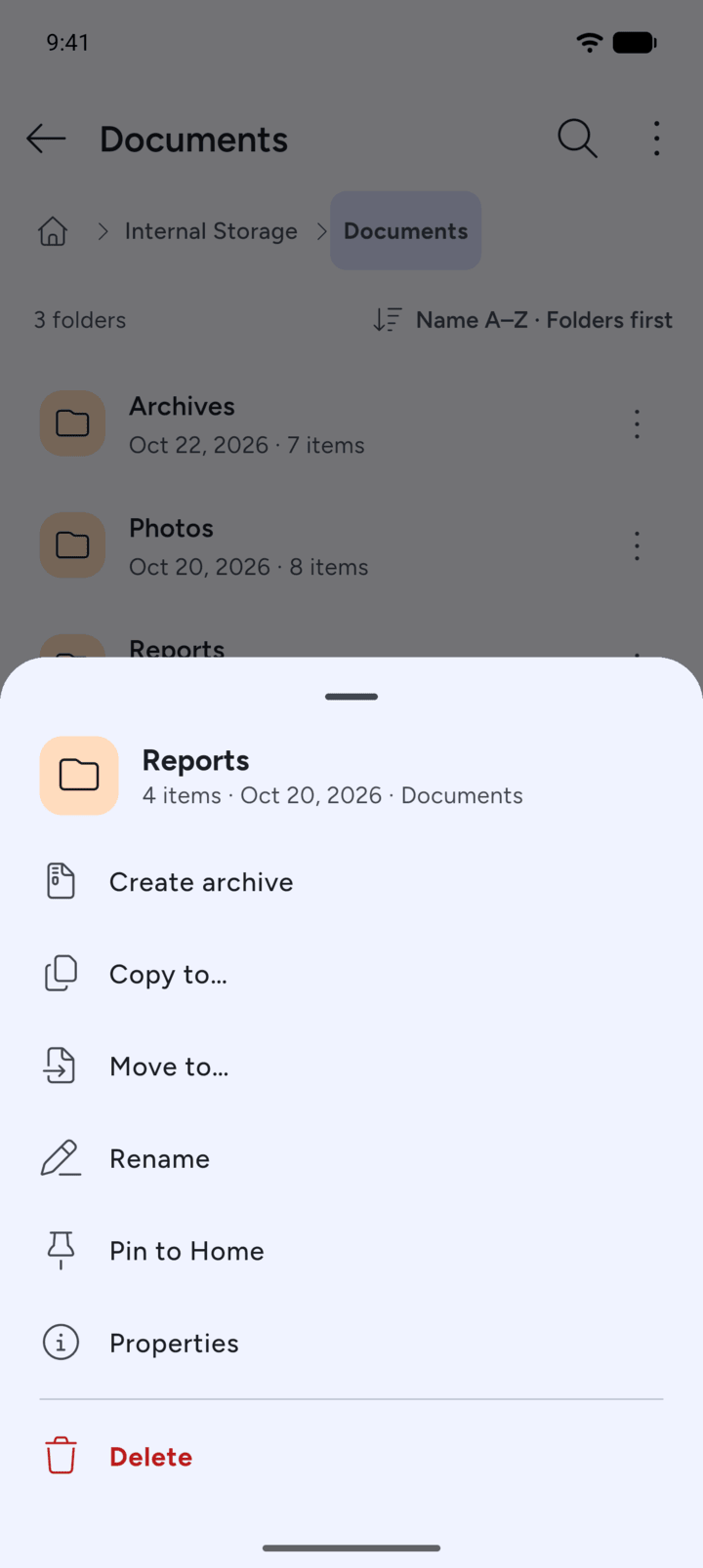
Tap Create archive.
-
Step 3
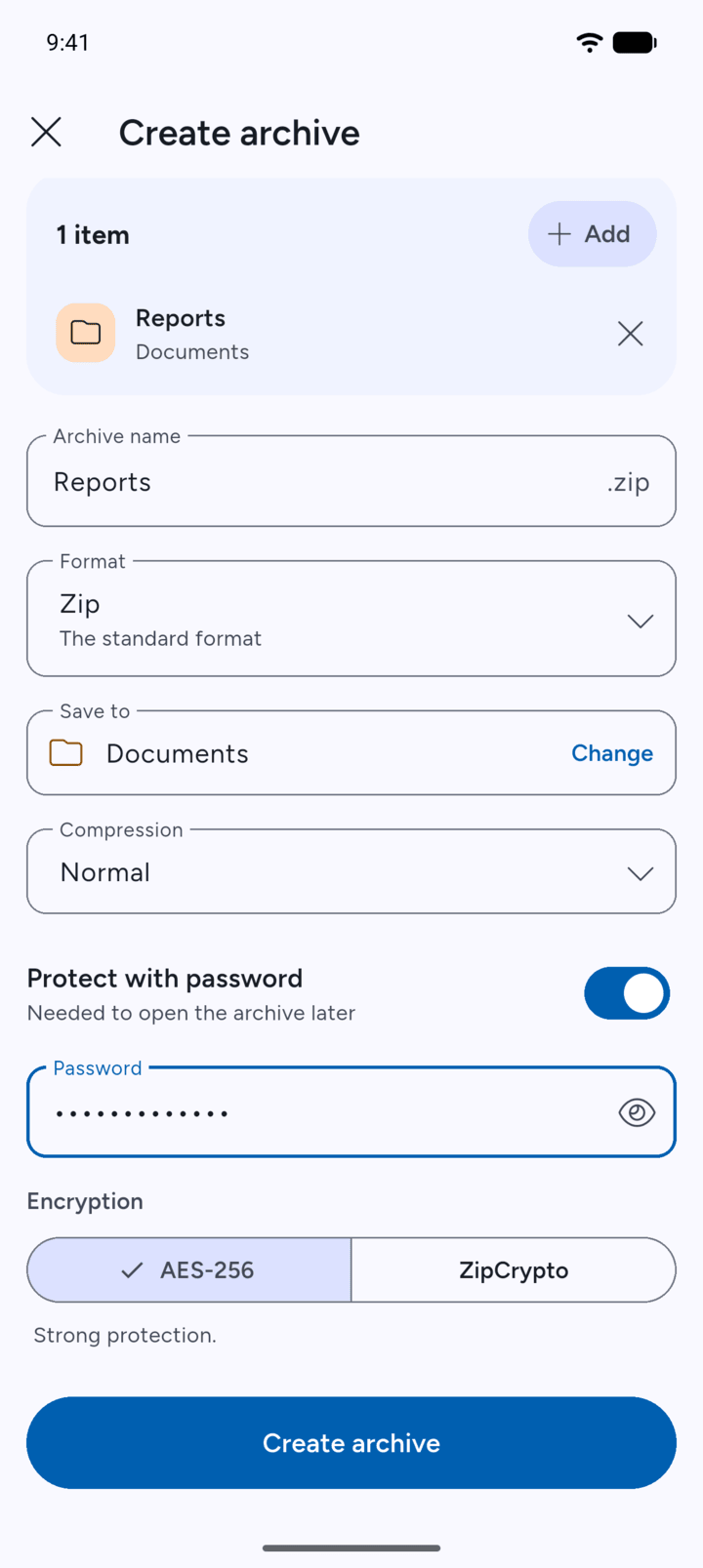
Turn on Protect with password and type a password. For a Zip archive, choose the Encryption: AES-256 gives strong protection and is the default. Only choose ZipCrypto if the archive has to open in an old program that doesn't support AES-256.
-
Step 4
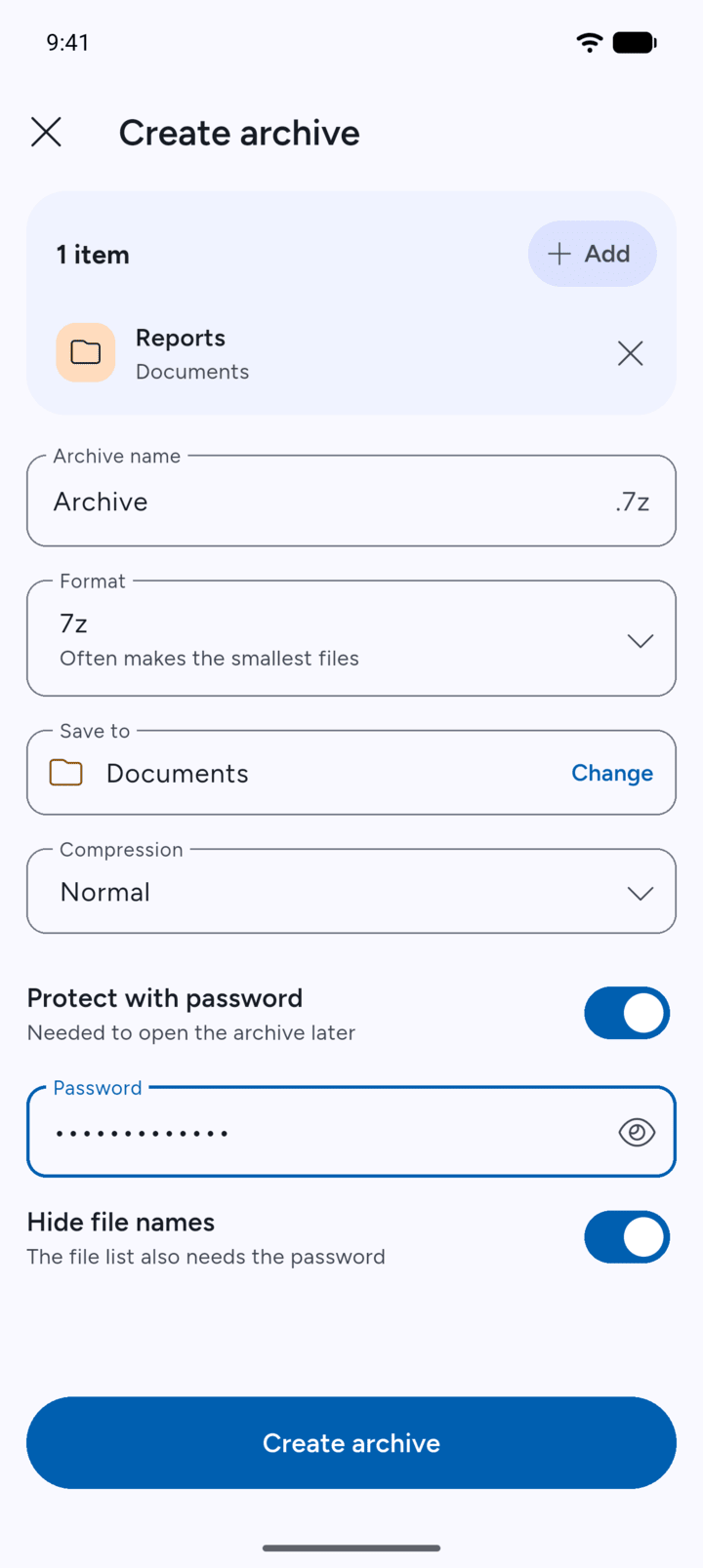
For a 7z archive, you can also turn on Hide file names. Then nobody can see the list of files without the password.
-
Step 5
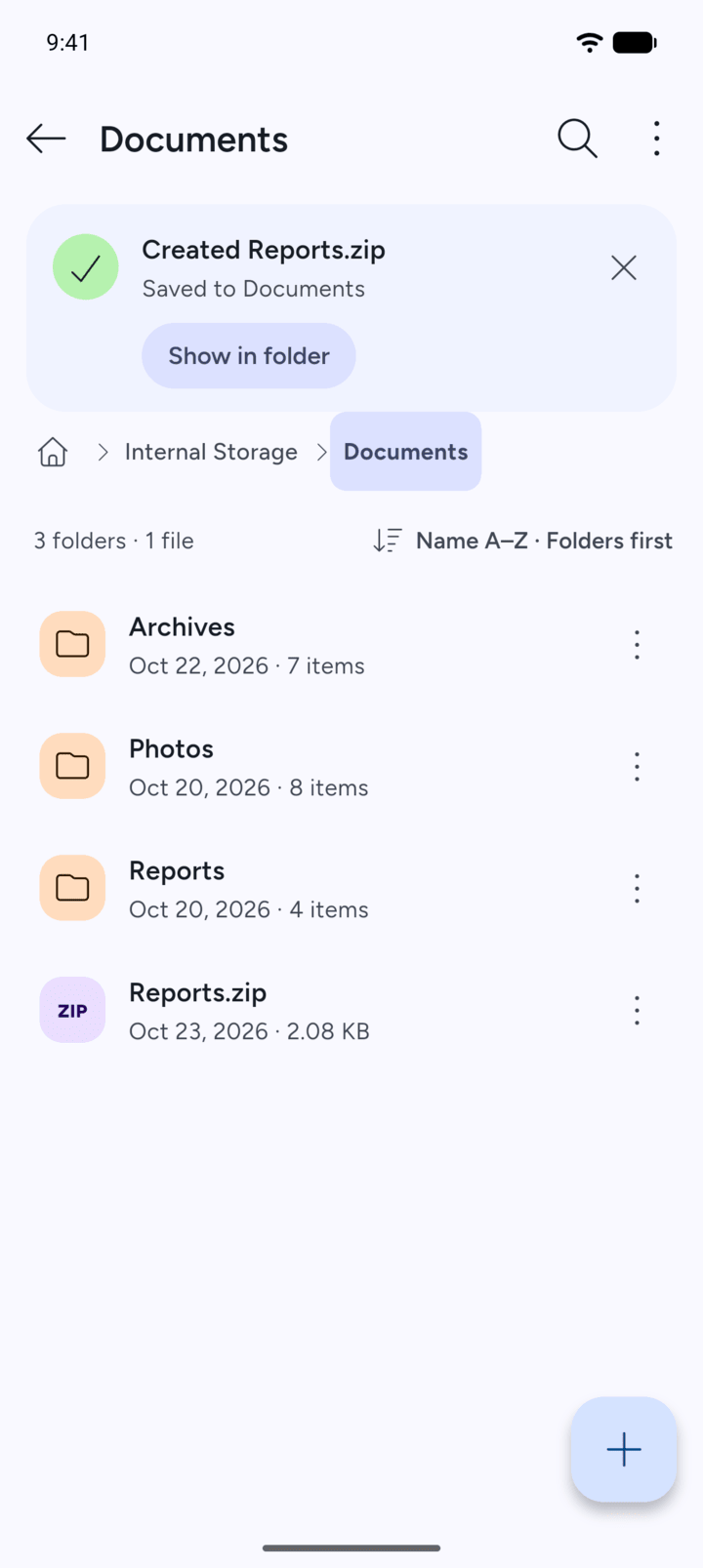
Tap Create archive. 7Z shows Created when it's done.
-
You can add a password to Zip, 7z, JAR and APK archives.
Keep the password somewhere safe. Without it, nobody can open the archive, and that includes 7Z.
- Open the folder that holds the file or folder and tap the three dots next to it.
- Tap Create archive.
- Turn on Protect with password and type a password. For a Zip archive, choose the Encryption: AES-256 gives strong protection and is the default. Only choose ZipCrypto if the archive has to open in an old program that doesn't support AES-256.
- For a 7z archive, you can also turn on Hide file names. Then nobody can see the list of files without the password.
- Tap Create archive. 7Z shows Created when it's done.
You can add a password to Zip, 7z, JAR and APK archives.
Keep the password somewhere safe. Without it, nobody can open the archive, and that includes 7Z.