 7Z
7Z
In this guide 9 steps
- 01Open the folder that holds the file or folder…
- 02Tap Create archive.
- 03The Create archive page opens, with your file…
- 04Type a name under Archive name.
- 05Tap Format to choose a format. Zip is the…
- 06Tap Compression to choose how much to compress.…
- 07To save the archive somewhere else, tap Change…
- 08Tap Create archive.
- 09When it's done, 7Z shows Created with the…
-
Step 1
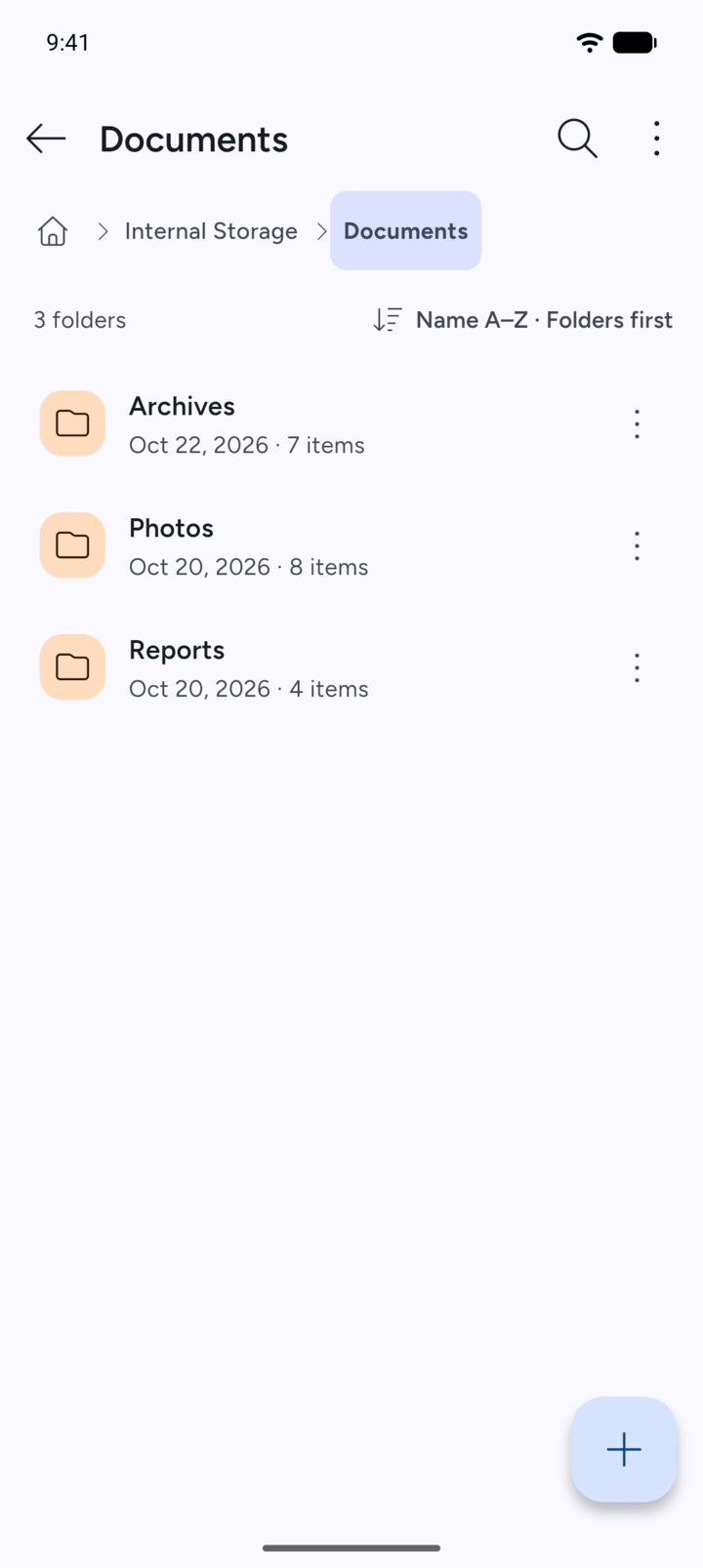
Open the folder that holds the file or folder, then tap the three dots next to it.
-
Step 2
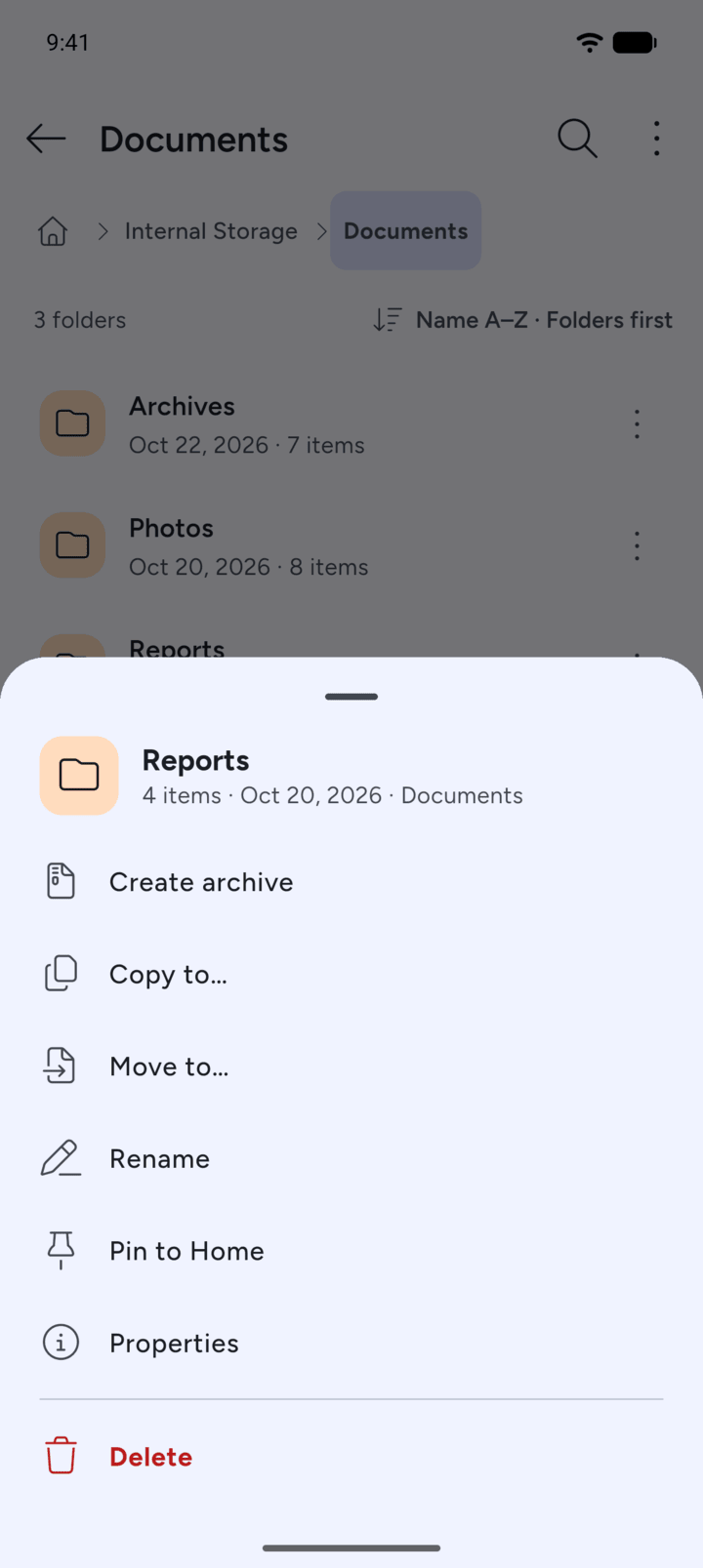
Tap Create archive.
-
Step 3
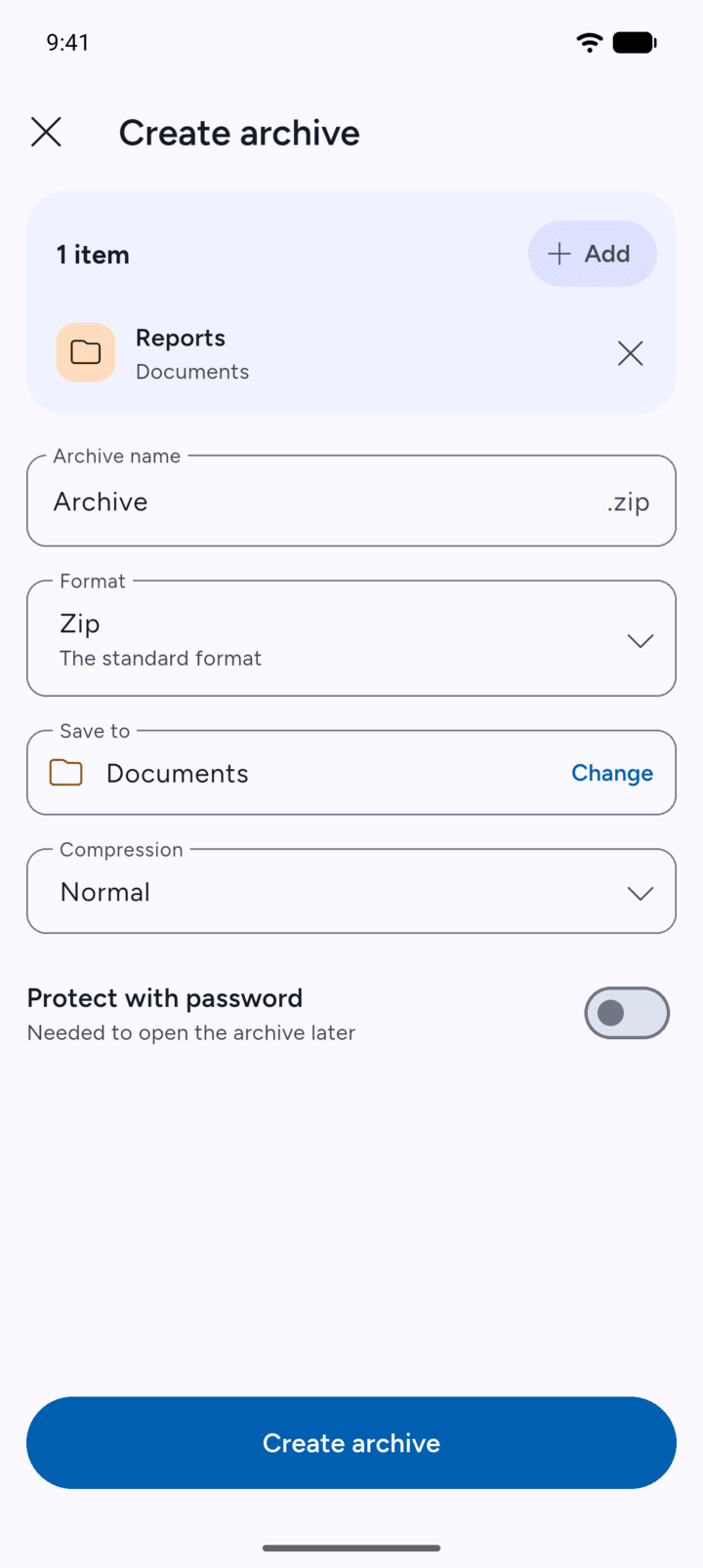
The Create archive page opens, with your file or folder at the top.
-
Step 4
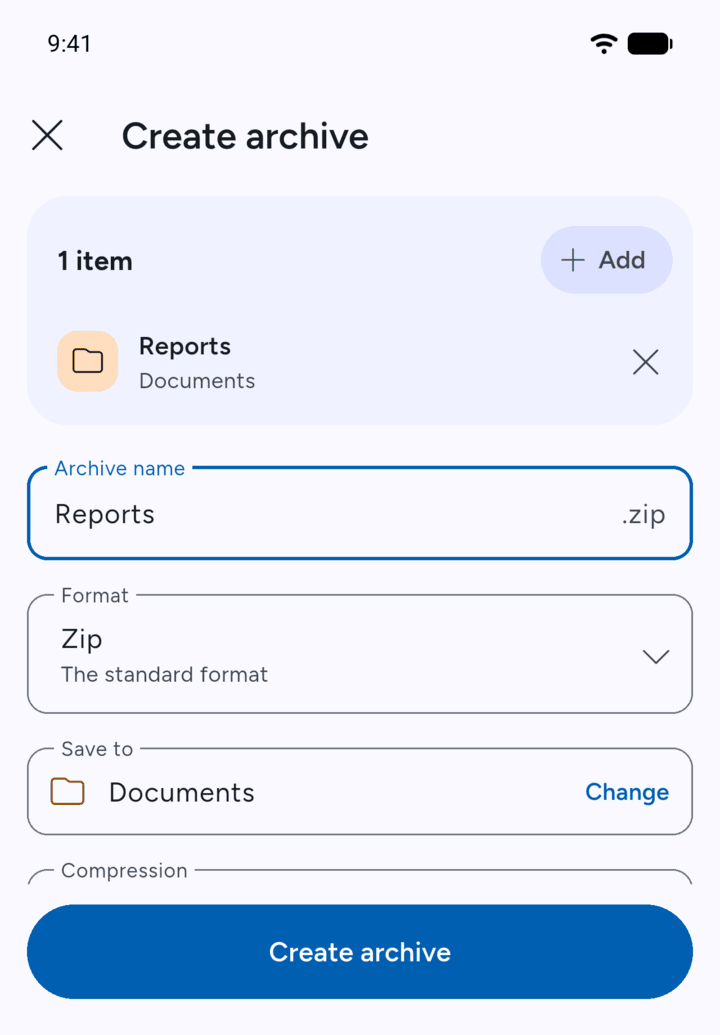
Type a name under Archive name.
-
Step 5
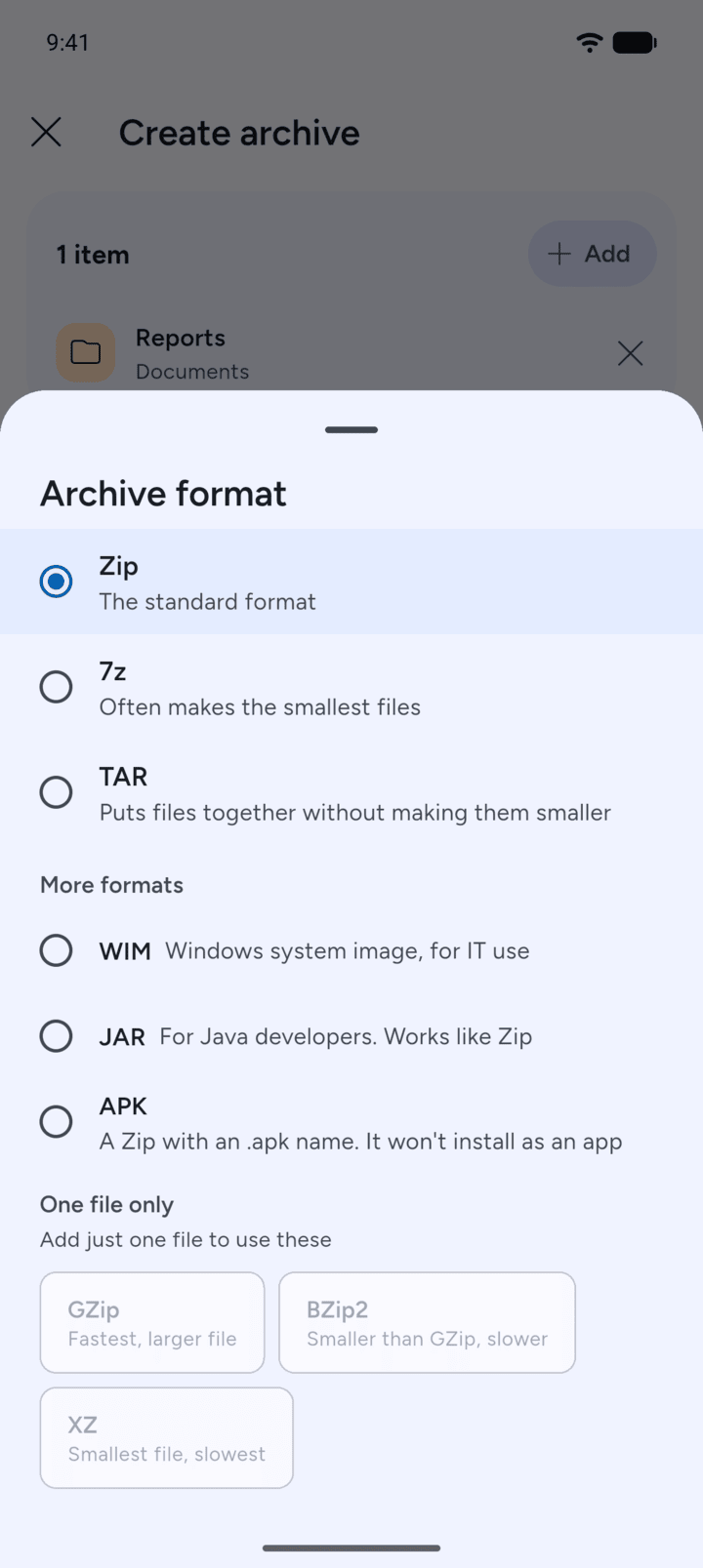
Tap Format to choose a format. Zip is the standard format, 7z often makes the smallest files, and TAR puts files together without making them smaller. GZip, BZip2 and XZ only work with a single file.
-
Step 6
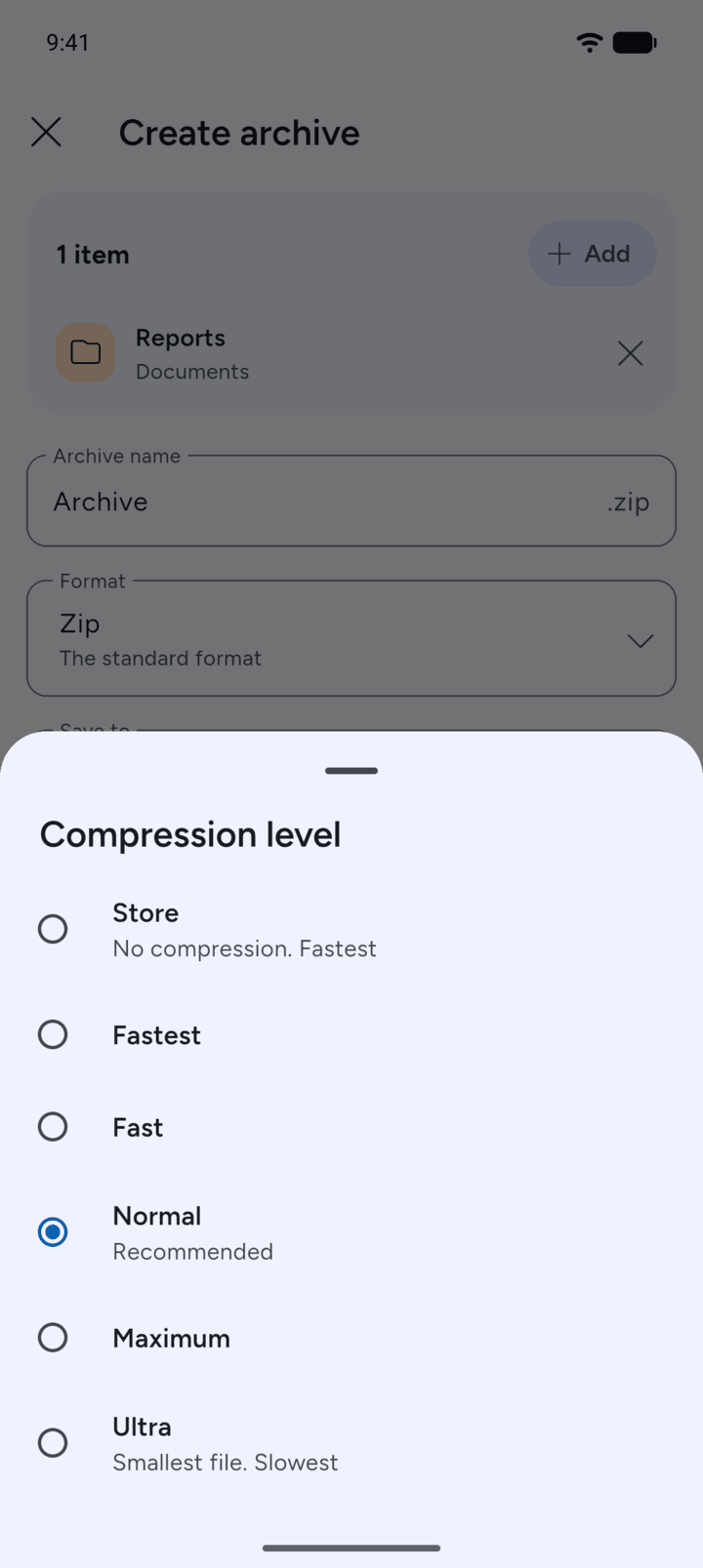
Tap Compression to choose how much to compress. Normal is recommended. Store doesn't compress and is fastest. Ultra makes the smallest file but is slowest.
-
Step 7
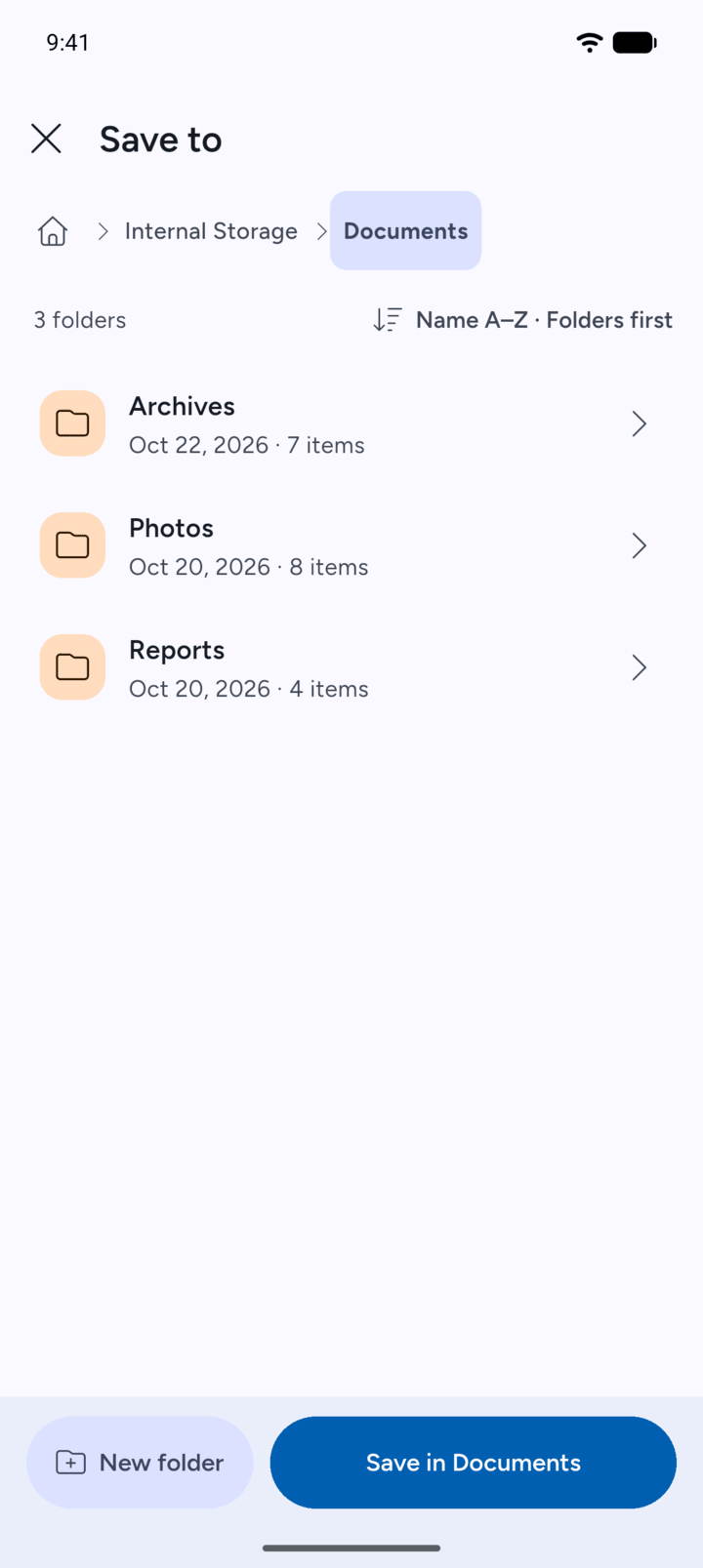
To save the archive somewhere else, tap Change next to Save to. Open the folder you want and tap the button at the bottom, for example Save in Documents.
-
Step 8
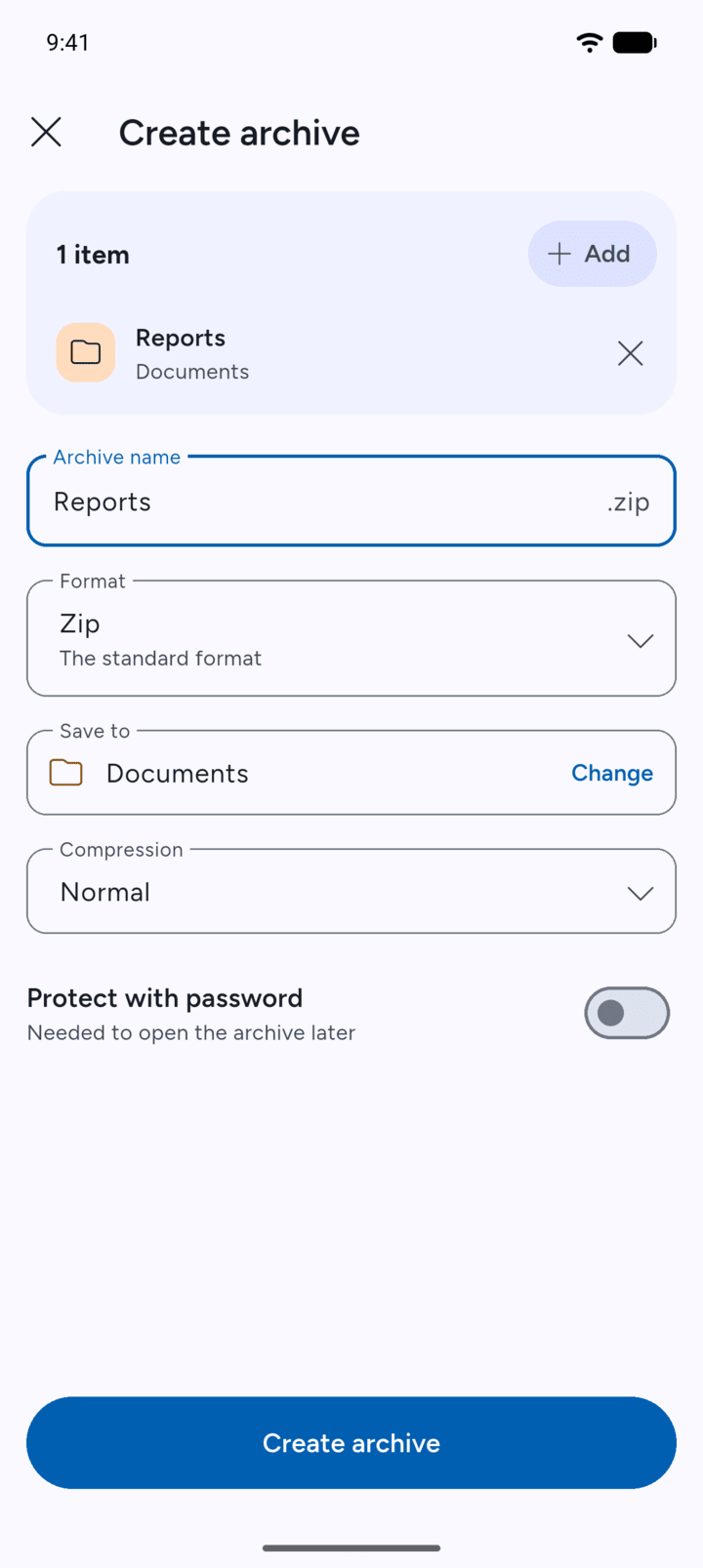
Tap Create archive.
-
Step 9
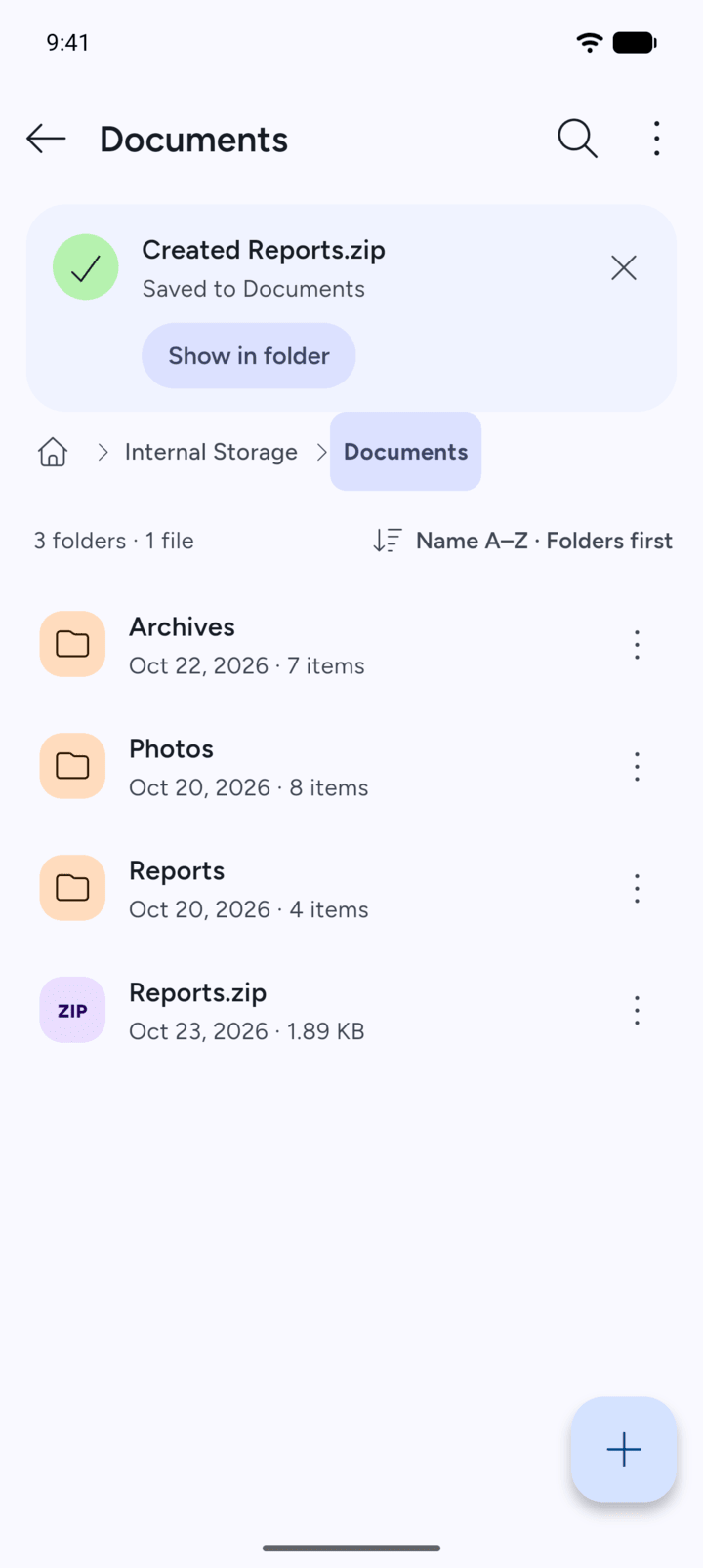
When it's done, 7Z shows Created with the archive's name. The new archive is in the folder you chose.
-
To add more files and folders, tap Add at the top of the page. See the guide Archiving several files and folders.
To protect the archive with a password, see the guide Creating a password-protected archive.
- Open the folder that holds the file or folder, then tap the three dots next to it.
- Tap Create archive.
- The Create archive page opens, with your file or folder at the top.
- Type a name under Archive name.
- Tap Format to choose a format. Zip is the standard format, 7z often makes the smallest files, and TAR puts files together without making them smaller. GZip, BZip2 and XZ only work with a single file.
- Tap Compression to choose how much to compress. Normal is recommended. Store doesn't compress and is fastest. Ultra makes the smallest file but is slowest.
- To save the archive somewhere else, tap Change next to Save to. Open the folder you want and tap the button at the bottom, for example Save in Documents.
- Tap Create archive.
- When it's done, 7Z shows Created with the archive's name. The new archive is in the folder you chose.
To add more files and folders, tap Add at the top of the page. See the guide Archiving several files and folders.
To protect the archive with a password, see the guide Creating a password-protected archive.