 Sober Time
In this guide 3 steps
-
Overview
Each widget can show a different tracker, so you can add one widget per tracker.
-
Step 1
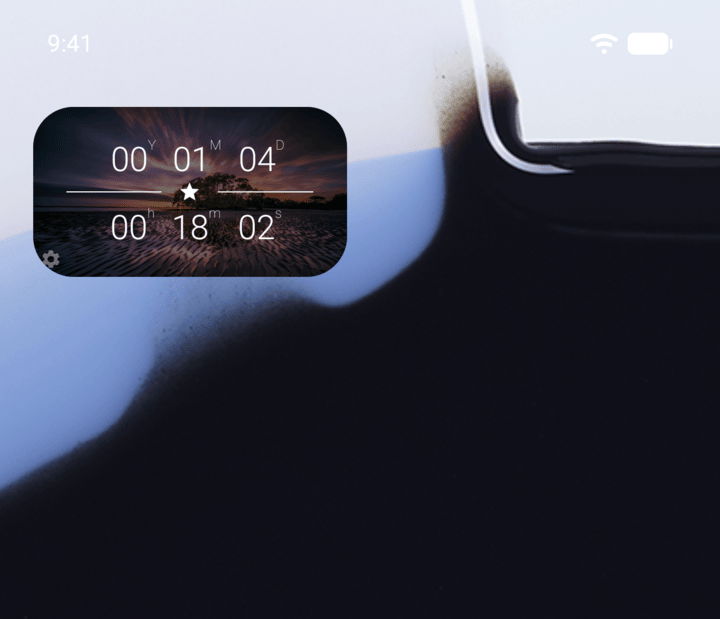
On Android, tap the gear icon in the bottom-left corner of the widget.
-
Step 2
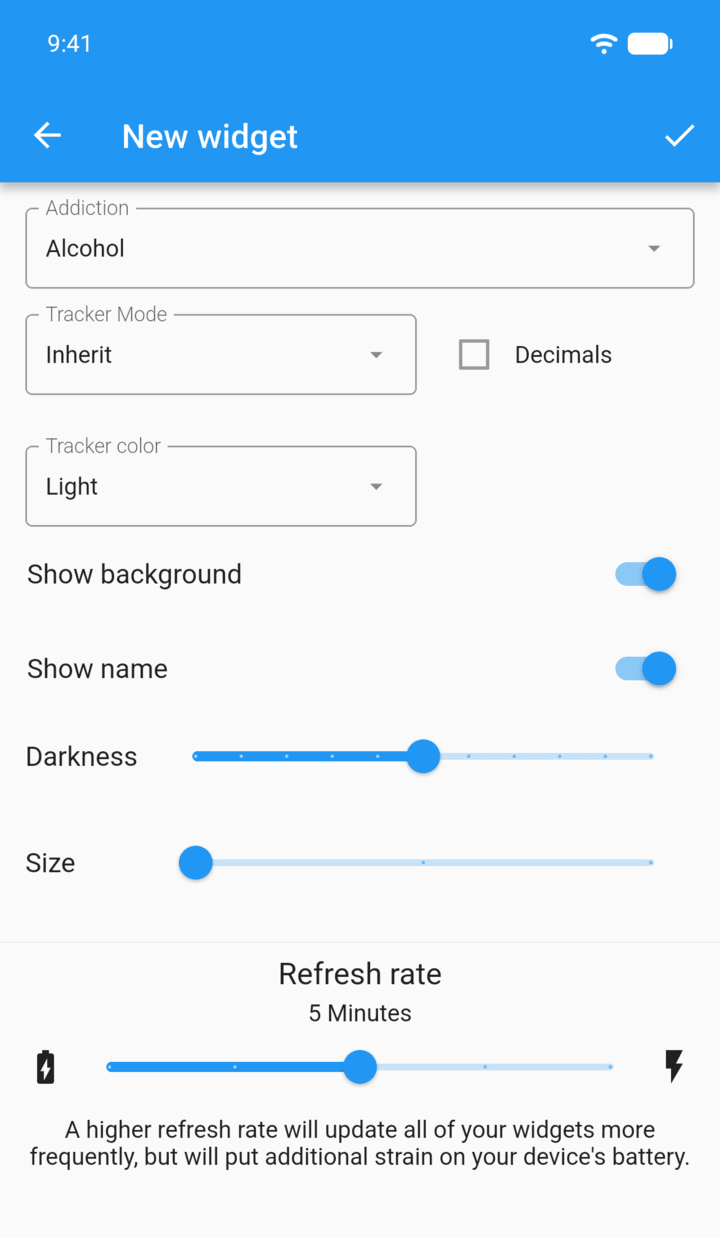
Choose the Addiction and Tracker Mode, then set Tracker color, Show background, Show name, Darkness and Size.
-
Step 3
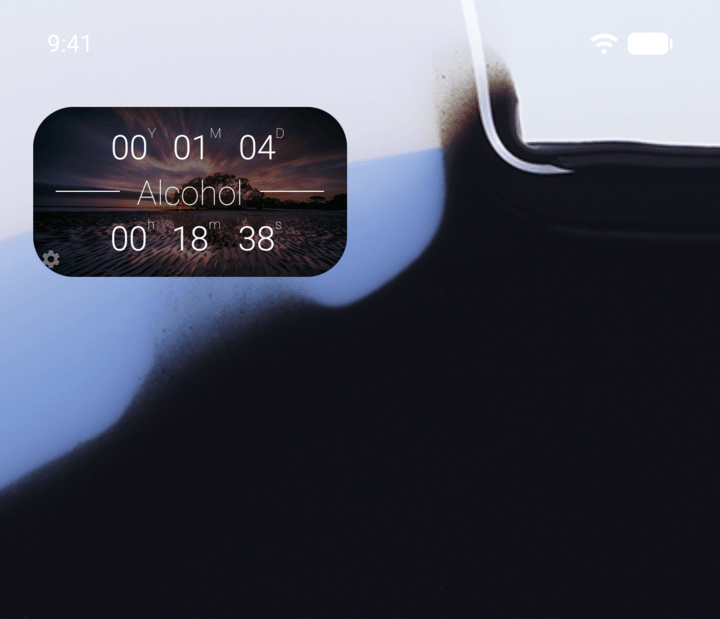
Tap the check mark in the top-right corner. The widget updates.
-
On iPhone, touch and hold the widget, tap Edit Widget, then choose the tracker.
Each widget can show a different tracker, so you can add one widget per tracker.
- On Android, tap the gear icon in the bottom-left corner of the widget.
- Choose the Addiction and Tracker Mode, then set Tracker color, Show background, Show name, Darkness and Size.
- Tap the check mark in the top-right corner. The widget updates.
On iPhone, touch and hold the widget, tap Edit Widget, then choose the tracker.