 Sober Time
In this guide 4 steps
-
Overview
You can save your resets as a PDF, HTML or CSV file.
-
Step 1
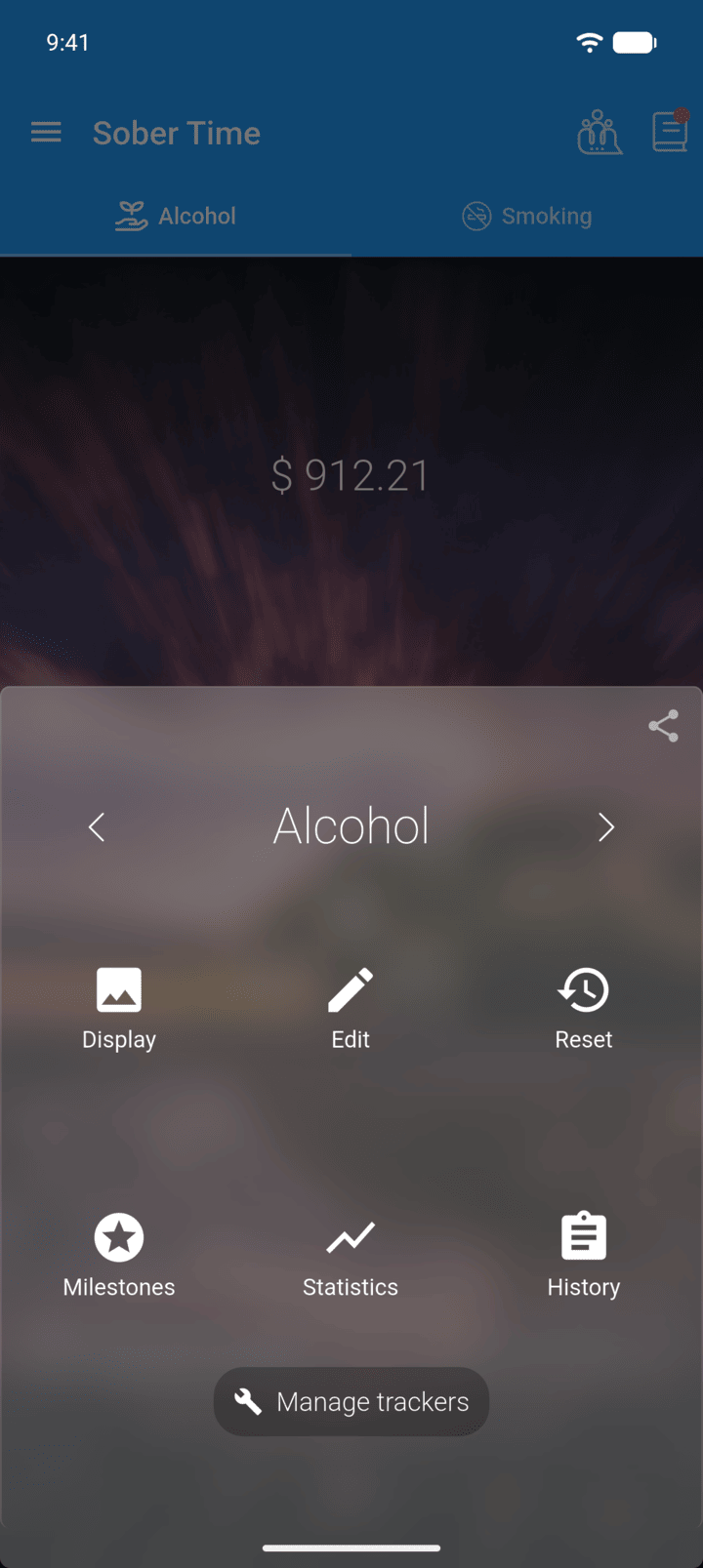
On the Home screen, swipe to the tracker you want. Tap the round arrow button at the bottom of the screen to open its options. Tap History.
-
Step 2
Tap the download icon in the top-right corner.
-
Step 3
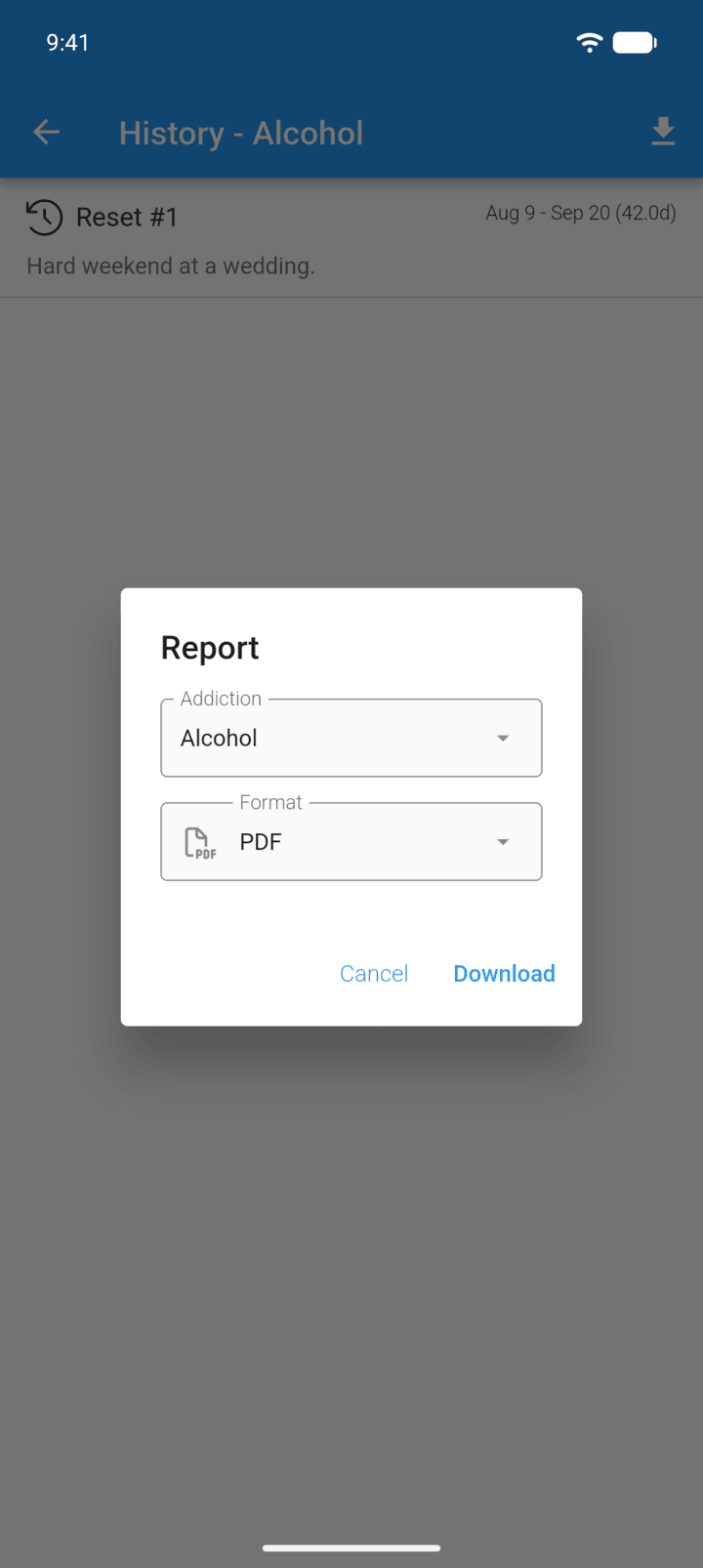
Choose the Addiction, or All, and the Format. Tap Download.
-
Step 4
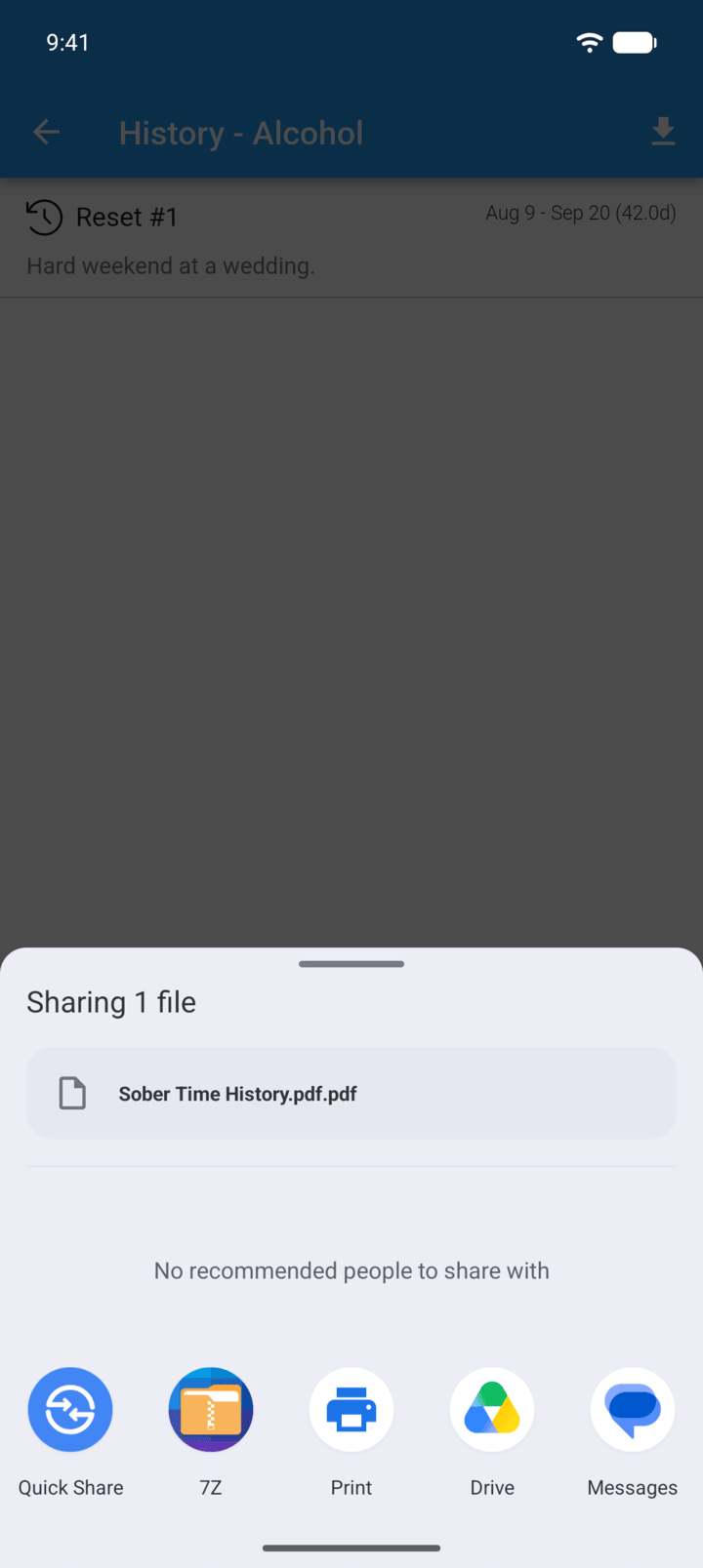
Choose where to send or save the file.
-
The download icon only appears once the tracker has at least one reset.
You can save your resets as a PDF, HTML or CSV file.
- On the Home screen, swipe to the tracker you want. Tap the round arrow button at the bottom of the screen to open its options. Tap History.
- Tap the download icon in the top-right corner.
- Choose the Addiction, or All, and the Format. Tap Download.
- Choose where to send or save the file.
The download icon only appears once the tracker has at least one reset.