 Sober Time
In this guide 6 steps
-
Step 1
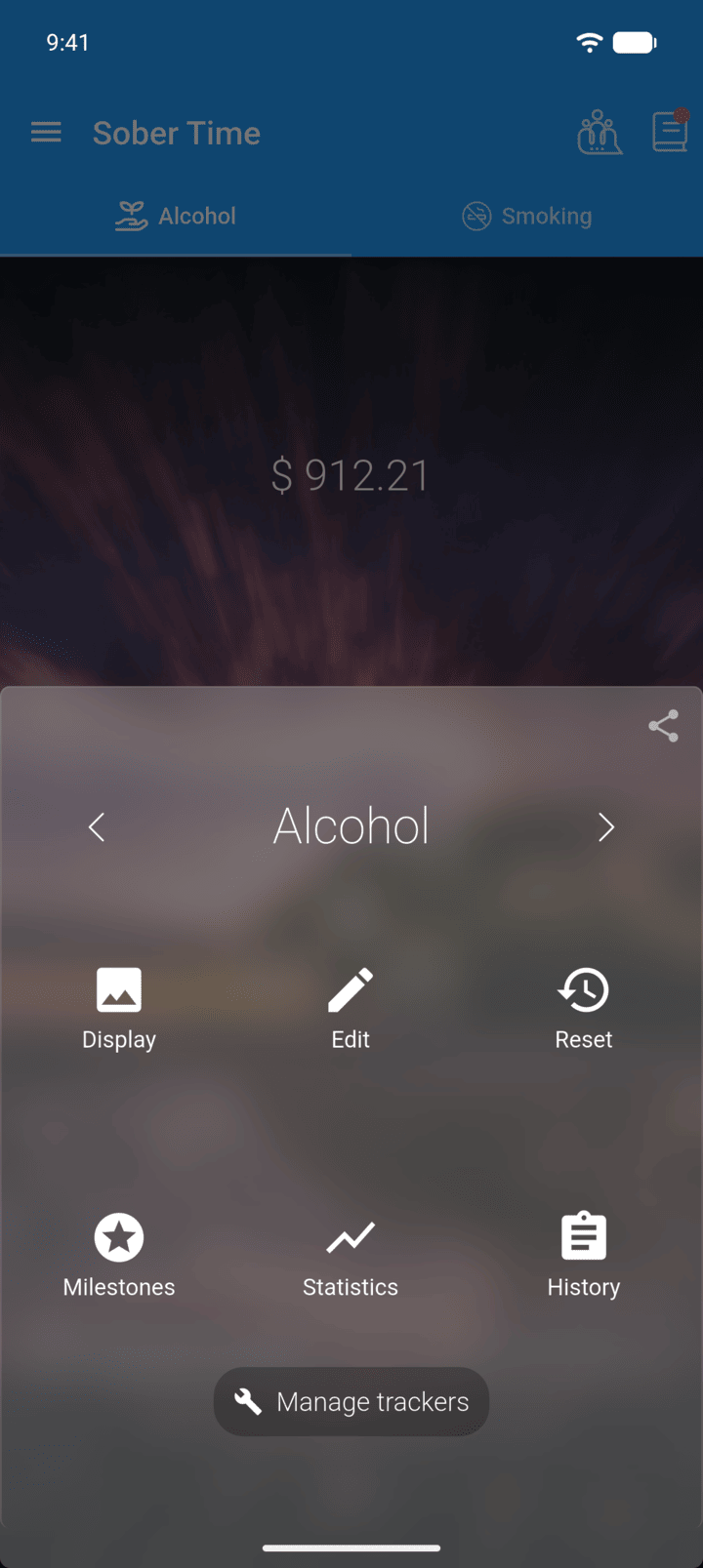
On the Home screen, swipe to the tracker you want. Tap the round arrow button at the bottom of the screen to open its options. Tap Statistics.
-
Step 2
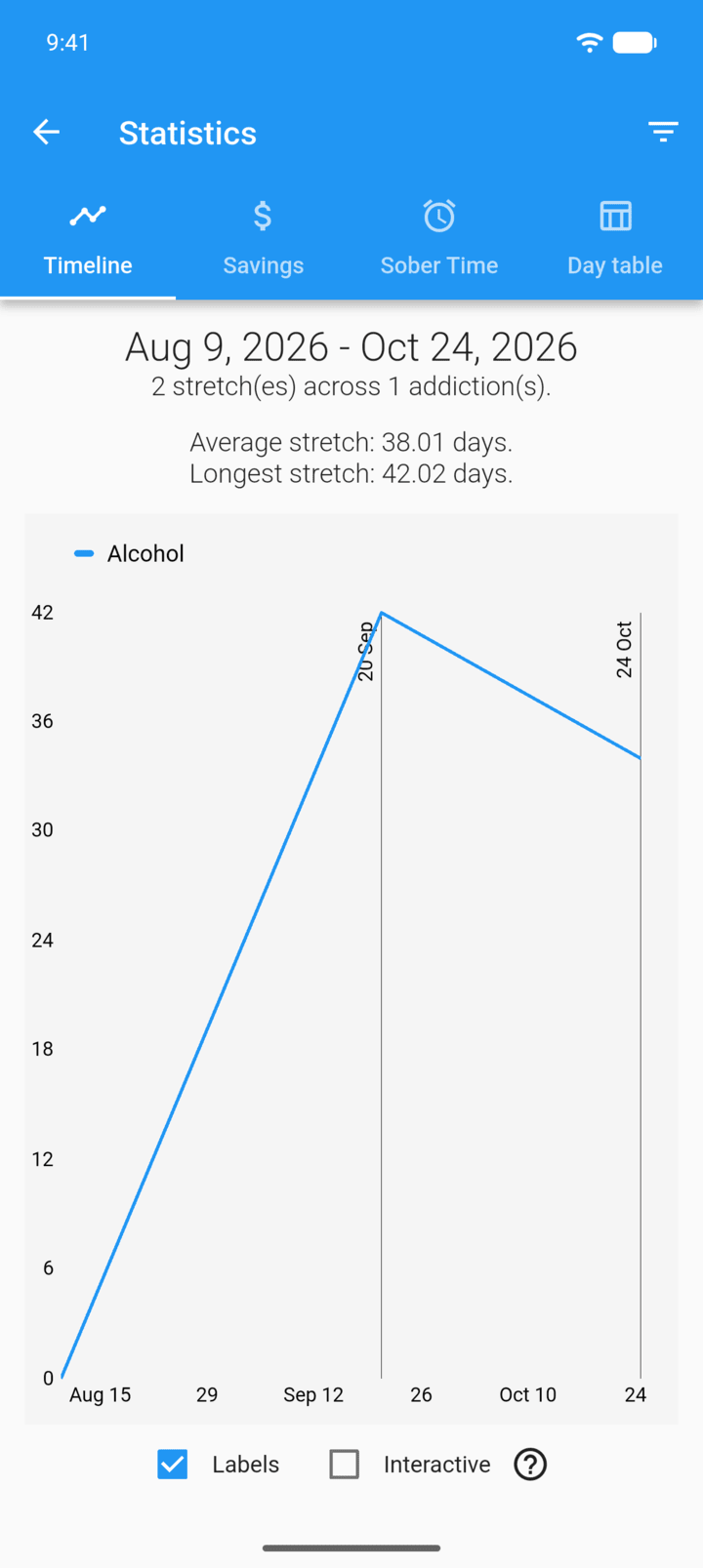
Timeline shows each stretch of clean time, your average stretch and your longest stretch.
-
Step 3
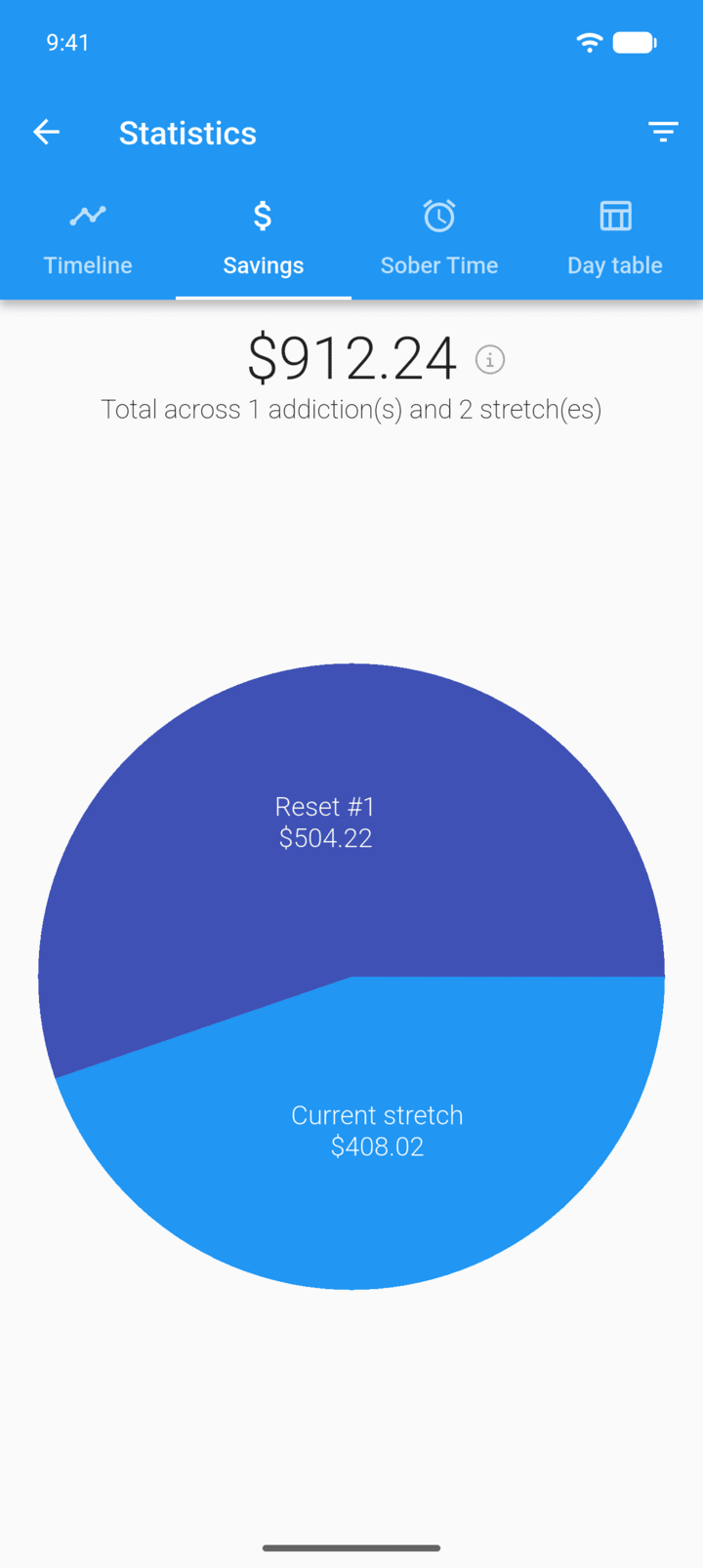
Savings shows how much you've saved in each stretch.
-
Step 4
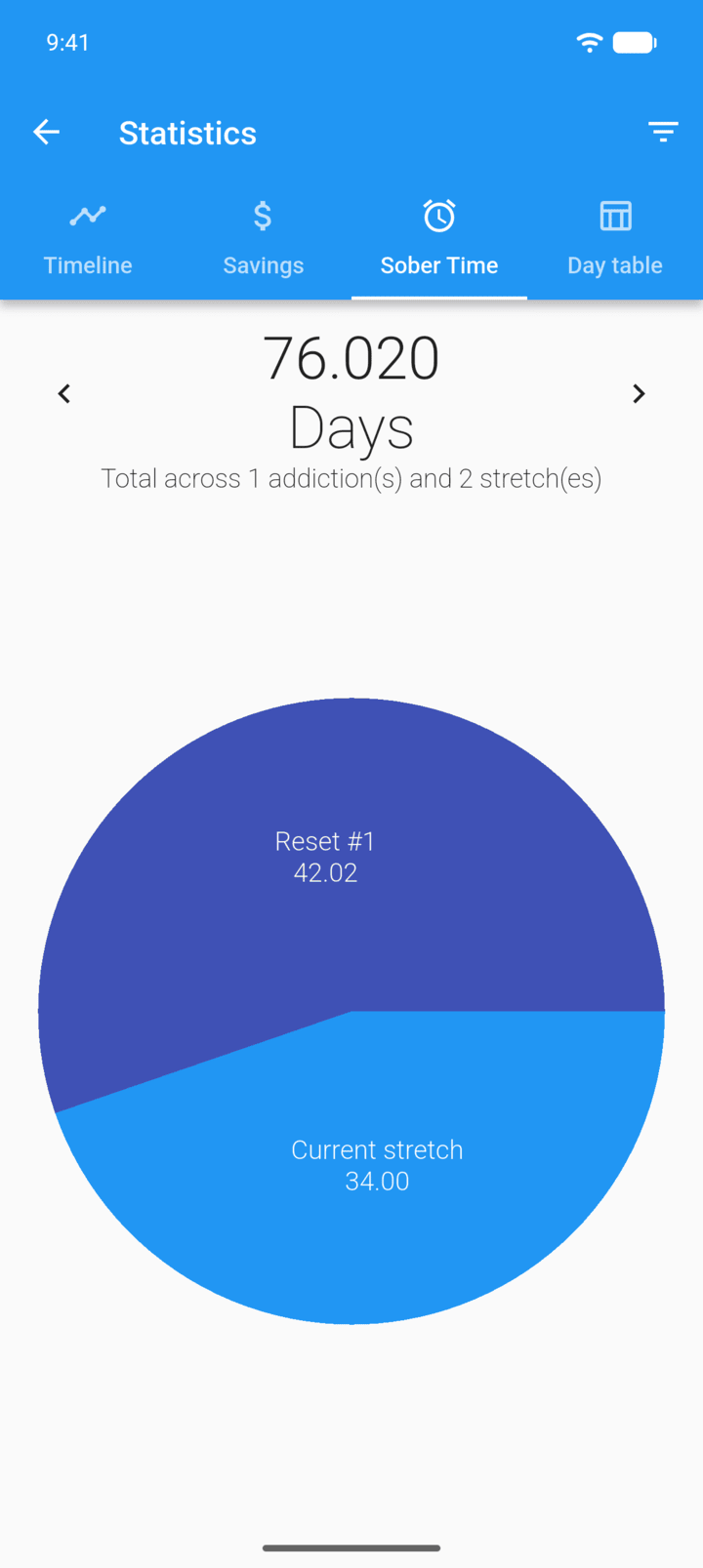
Sober Time shows your total clean time. Tap the arrows to change the unit.
-
Step 5
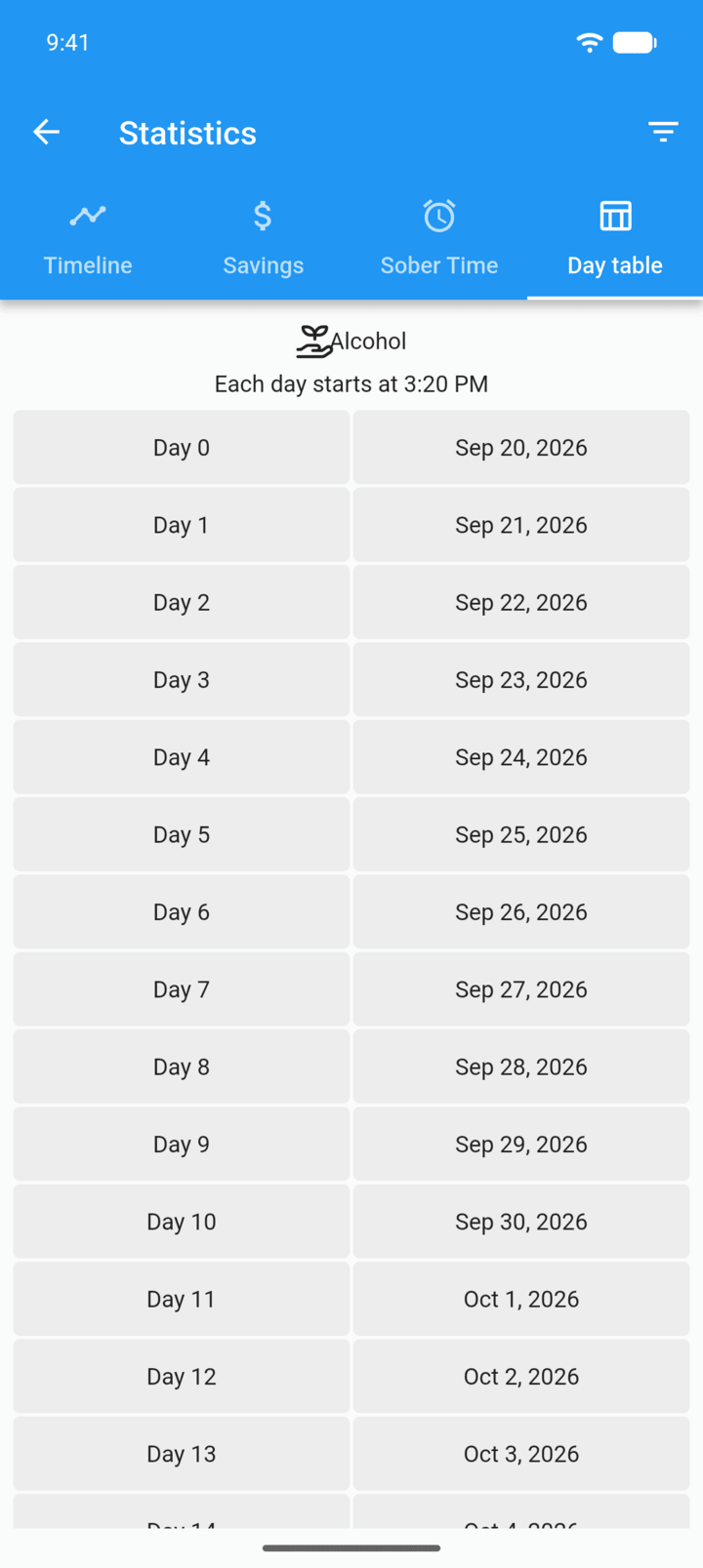
Day table lists each day of your current stretch. Tap a day to open its journal entry.
-
Step 6
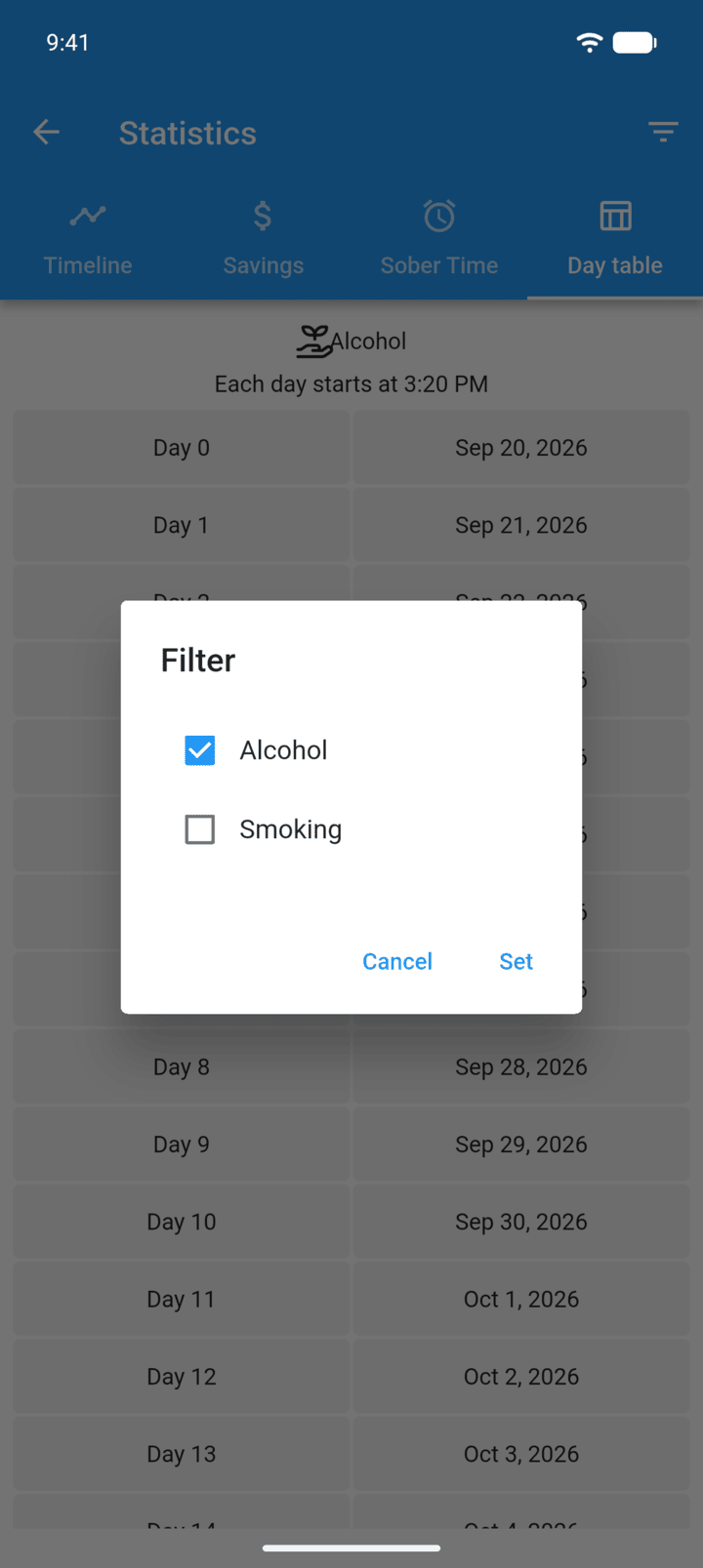
To choose which trackers are included, tap the filter icon in the top-right corner, tick the trackers and tap Set.
- On the Home screen, swipe to the tracker you want. Tap the round arrow button at the bottom of the screen to open its options. Tap Statistics.
- Timeline shows each stretch of clean time, your average stretch and your longest stretch.
- Savings shows how much you've saved in each stretch.
- Sober Time shows your total clean time. Tap the arrows to change the unit.
- Day table lists each day of your current stretch. Tap a day to open its journal entry.
- To choose which trackers are included, tap the filter icon in the top-right corner, tick the trackers and tap Set.