 Sober Time
In this guide 3 steps
-
Overview
Every time you reset a tracker, Sober Time adds an entry to its history. If the history is empty, you haven't reset that tracker yet.
-
Step 1
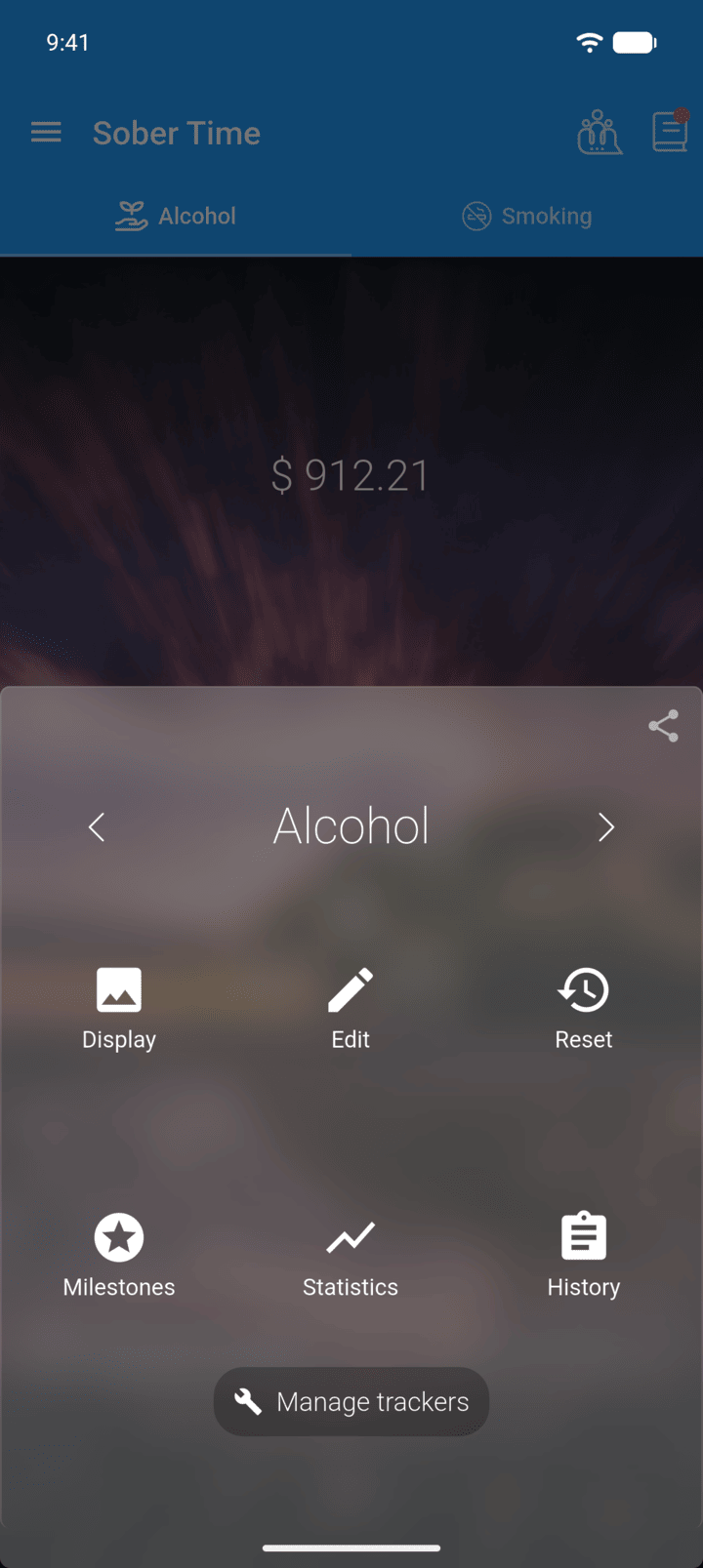
On the Home screen, swipe to the tracker you want. Tap the round arrow button at the bottom of the screen to open its options. Tap History.
-
Step 2
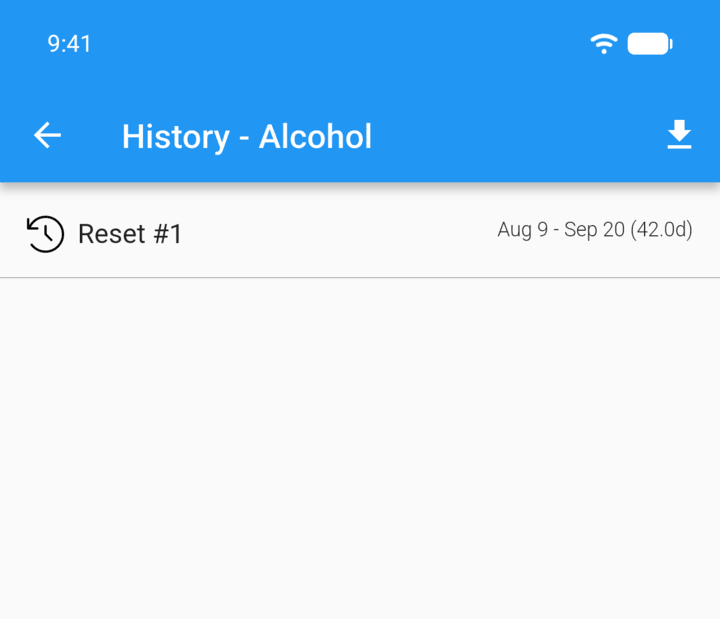
Tap an entry to open it.
-
Step 3
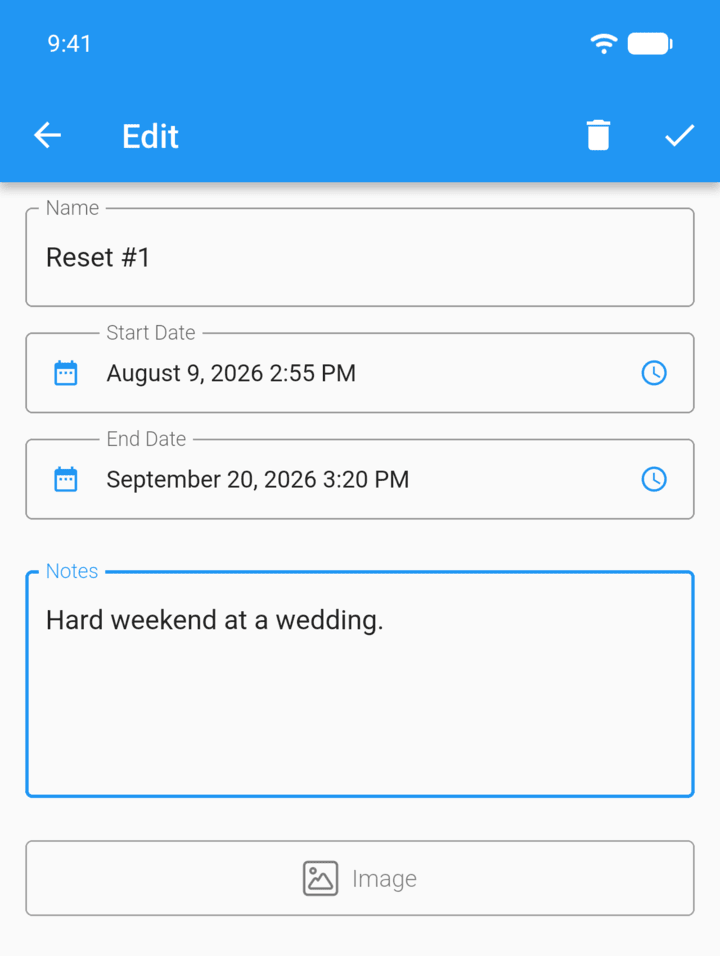
Change the Name, Start Date or End Date, add Notes or an Image, then tap the check mark to save.
Every time you reset a tracker, Sober Time adds an entry to its history. If the history is empty, you haven't reset that tracker yet.
- On the Home screen, swipe to the tracker you want. Tap the round arrow button at the bottom of the screen to open its options. Tap History.
- Tap an entry to open it.
- Change the Name, Start Date or End Date, add Notes or an Image, then tap the check mark to save.