 7Z
7Z
In this guide 4 steps
-
Step 1
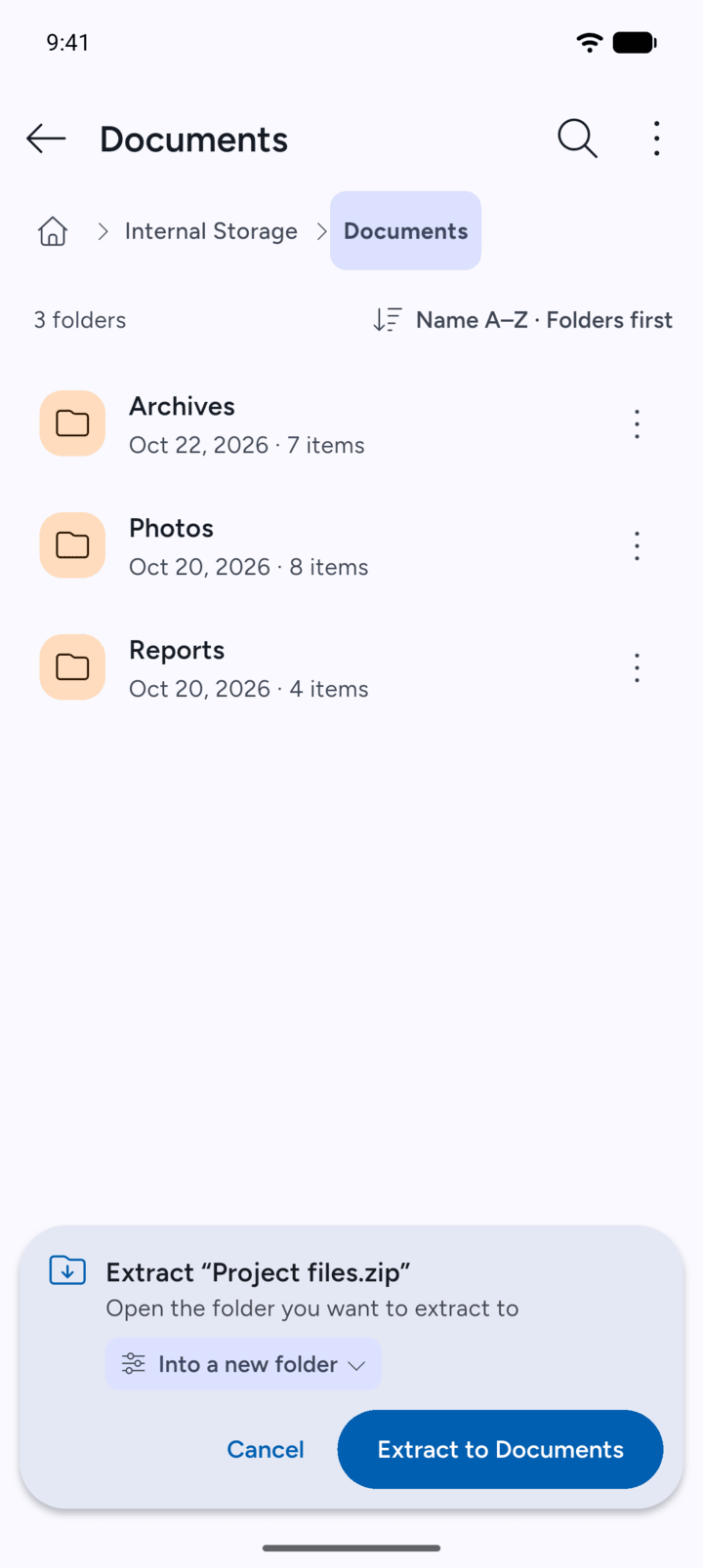
Start an extract: tap the archive, then Extract to…. In the bar at the bottom, tap the options chip, for example Into a new folder.
-
Step 2
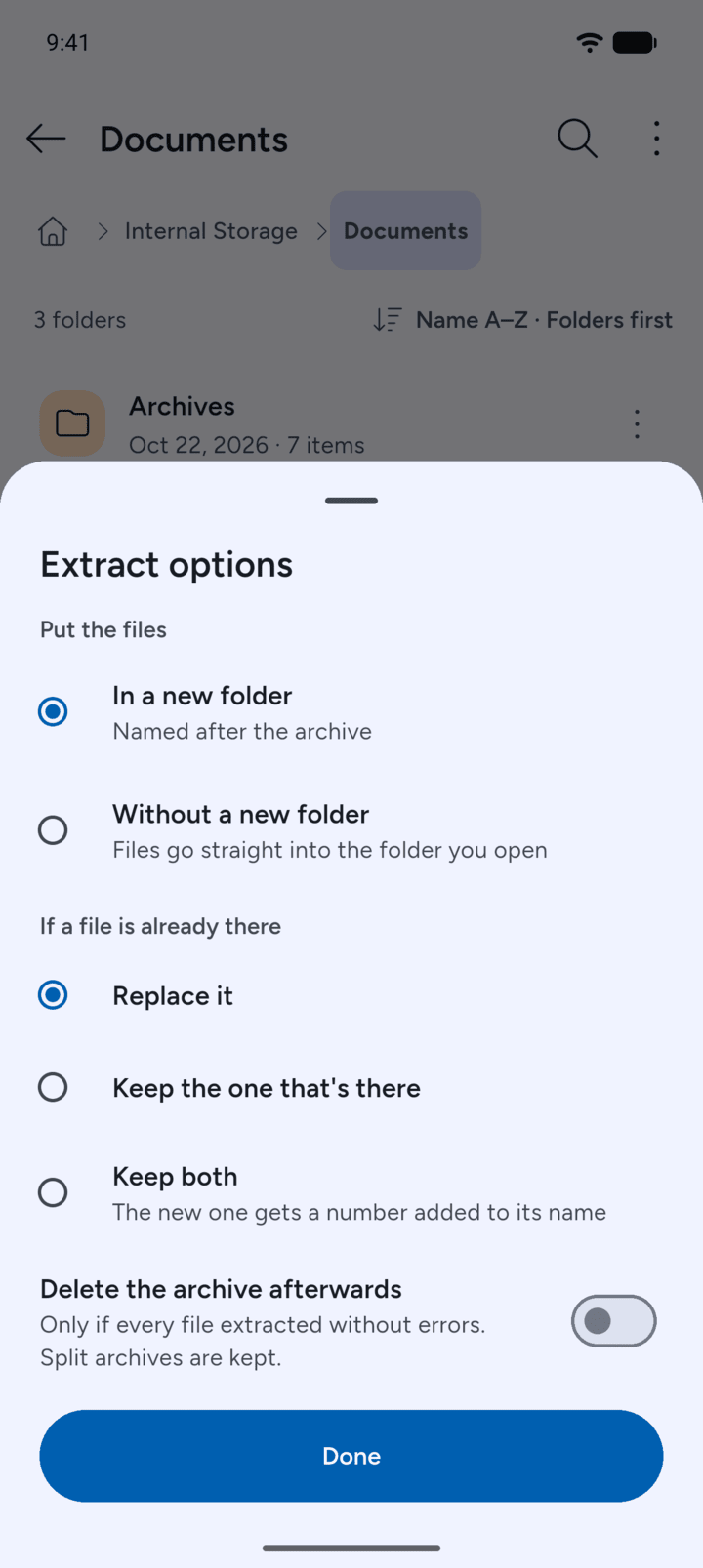
Under Put the files, choose In a new folder to get a folder named after the archive, or Without a new folder to put the files straight into the folder you open.
-
Step 3
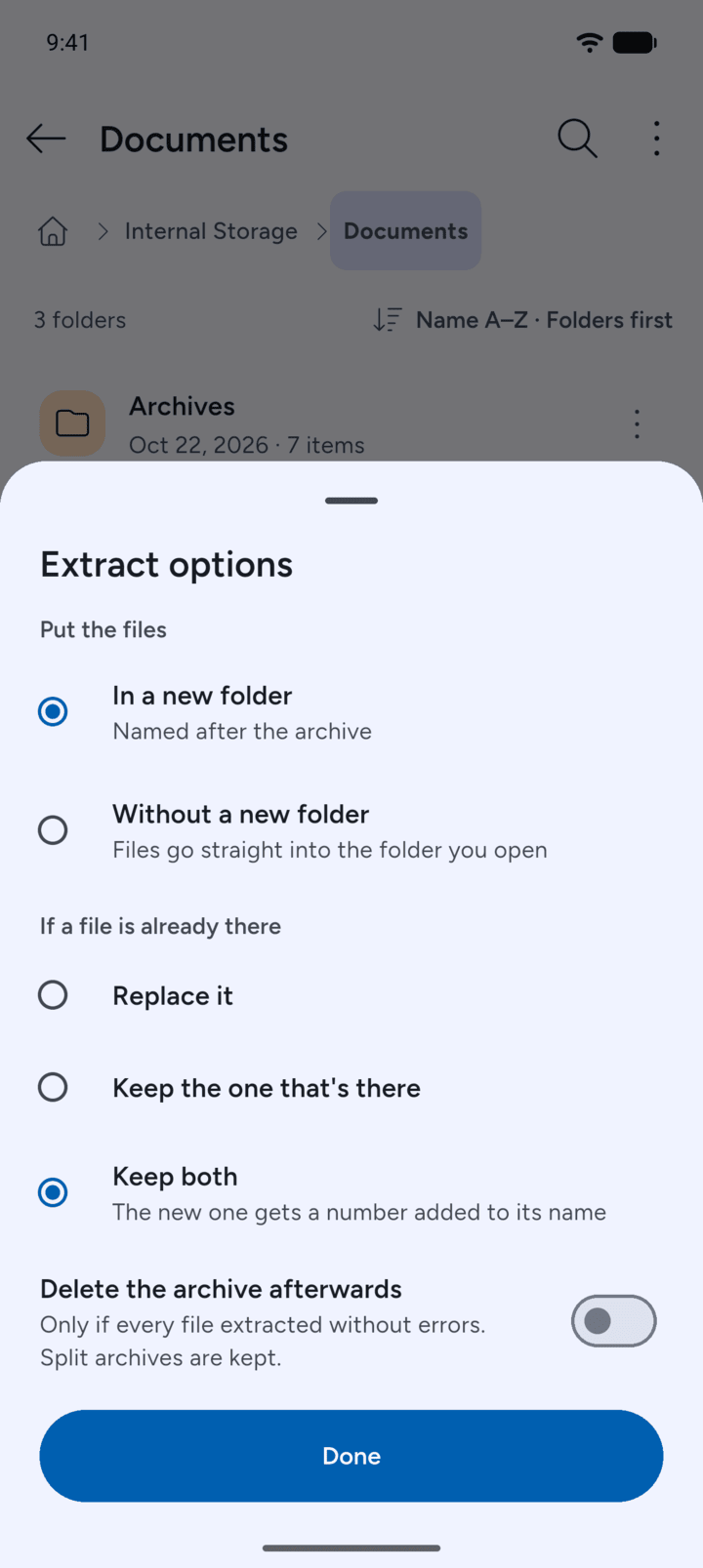
Under If a file is already there, choose Replace it, Keep the one that's there or Keep both. With Keep both, the new file gets a number added to its name. Turn on Delete the archive afterwards if you don't need the archive once it's extracted. It's only deleted if every file extracted without errors, and split archives are kept.
-
Step 4
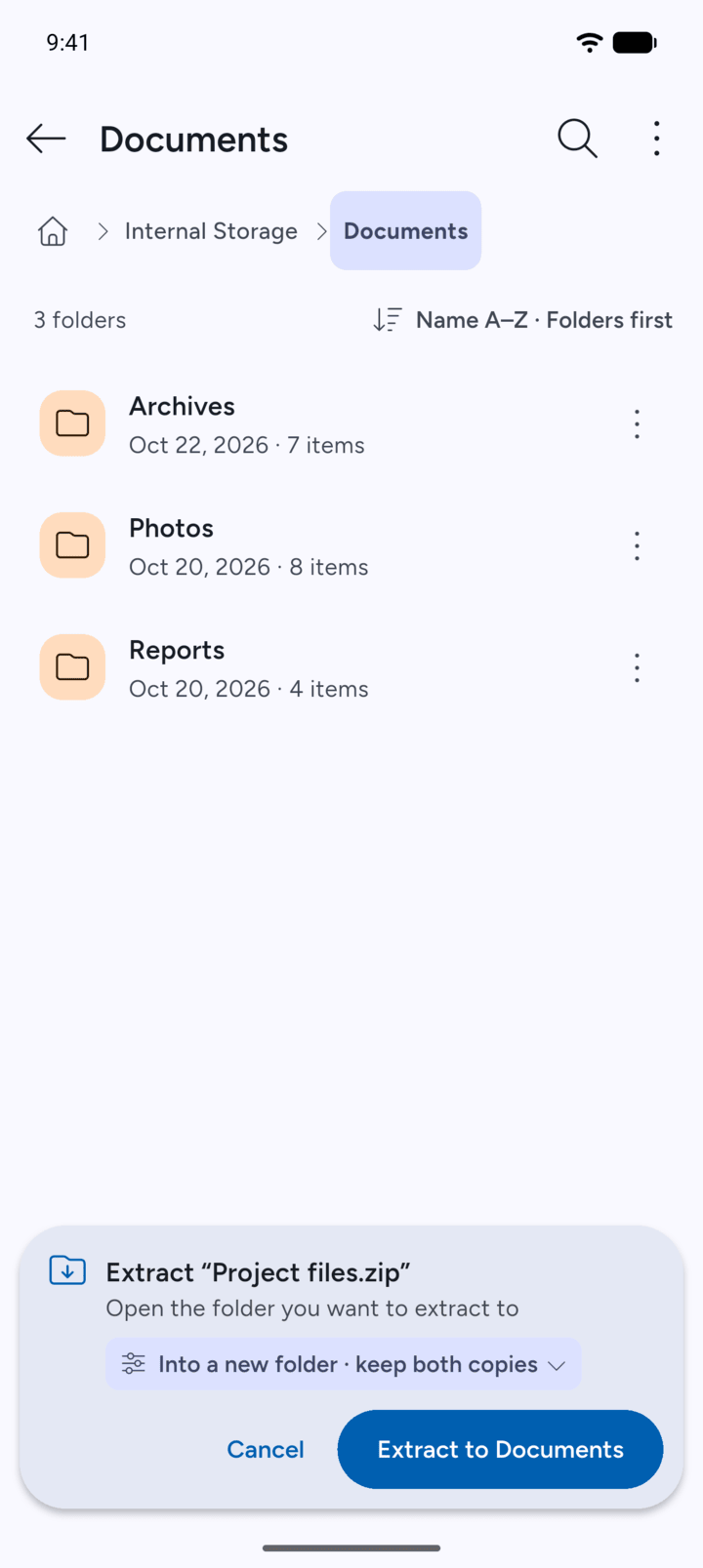
Tap Done. The chip shows your choice, for example Into a new folder · keep both copies.
-
7Z remembers where to put the files and what to do with existing files for your next extract.
- Start an extract: tap the archive, then Extract to…. In the bar at the bottom, tap the options chip, for example Into a new folder.
- Under Put the files, choose In a new folder to get a folder named after the archive, or Without a new folder to put the files straight into the folder you open.
- Under If a file is already there, choose Replace it, Keep the one that's there or Keep both. With Keep both, the new file gets a number added to its name. Turn on Delete the archive afterwards if you don't need the archive once it's extracted. It's only deleted if every file extracted without errors, and split archives are kept.
- Tap Done. The chip shows your choice, for example Into a new folder · keep both copies.
7Z remembers where to put the files and what to do with existing files for your next extract.