 7Z
7Z
In this guide 5 steps
-
Step 1
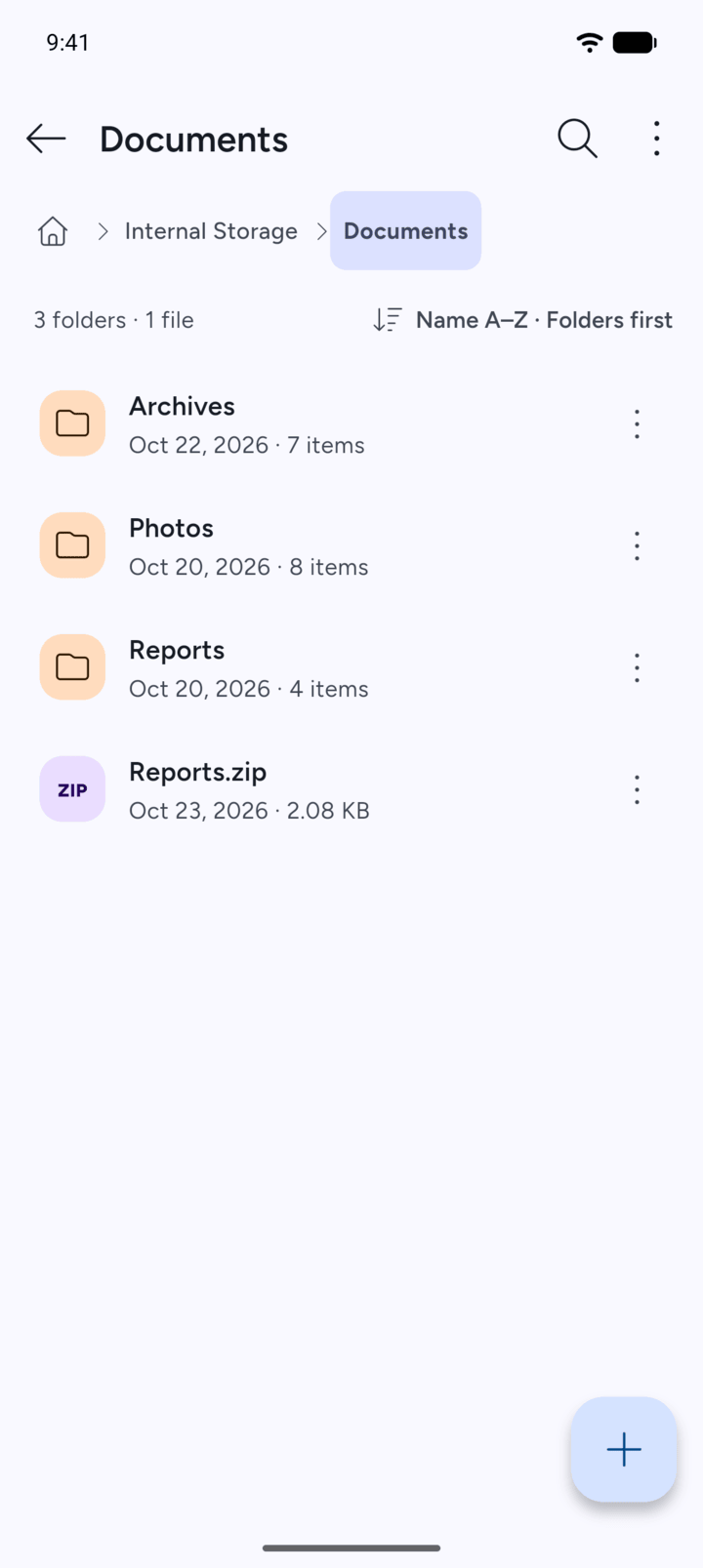
Open the folder that holds the archive.
-
Step 2
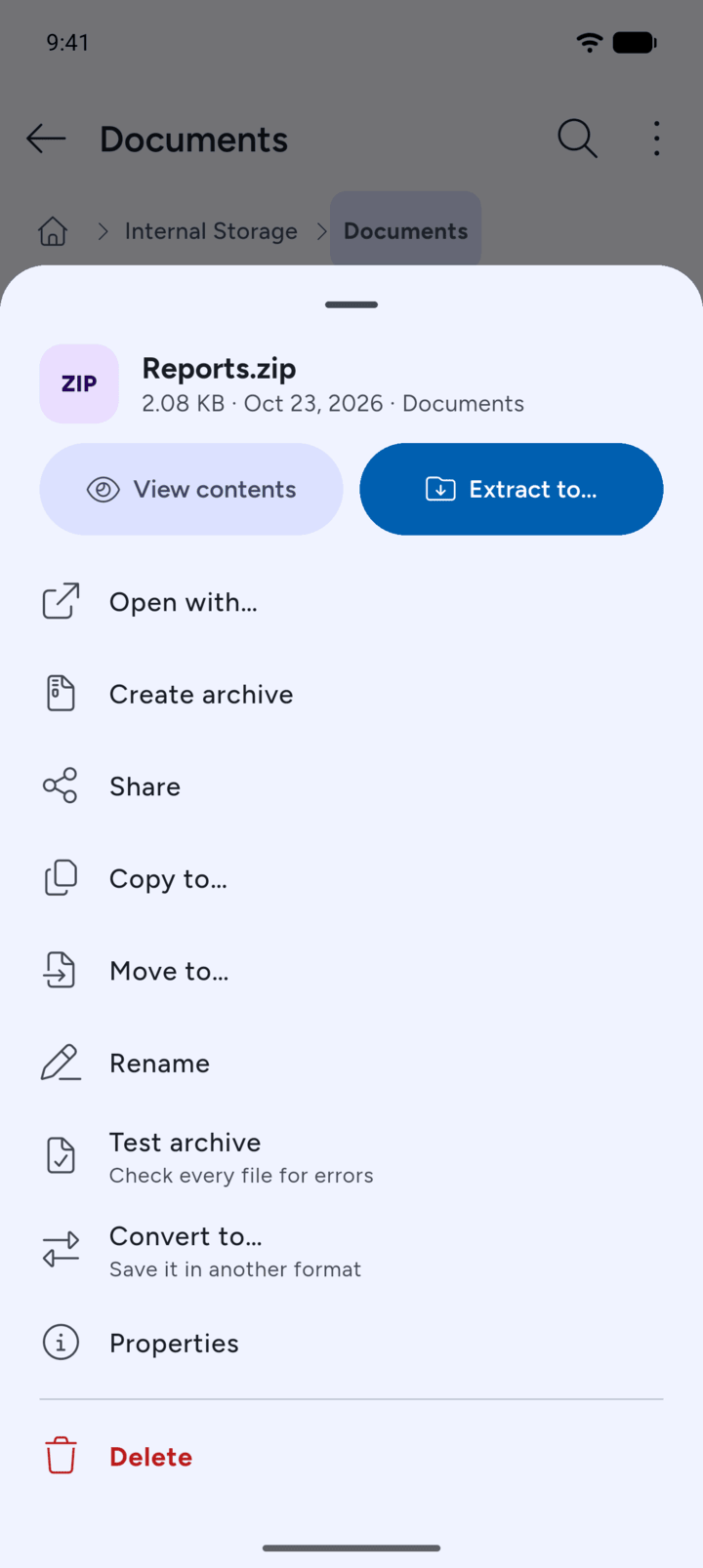
Tap the archive and tap Extract to….
-
Step 3
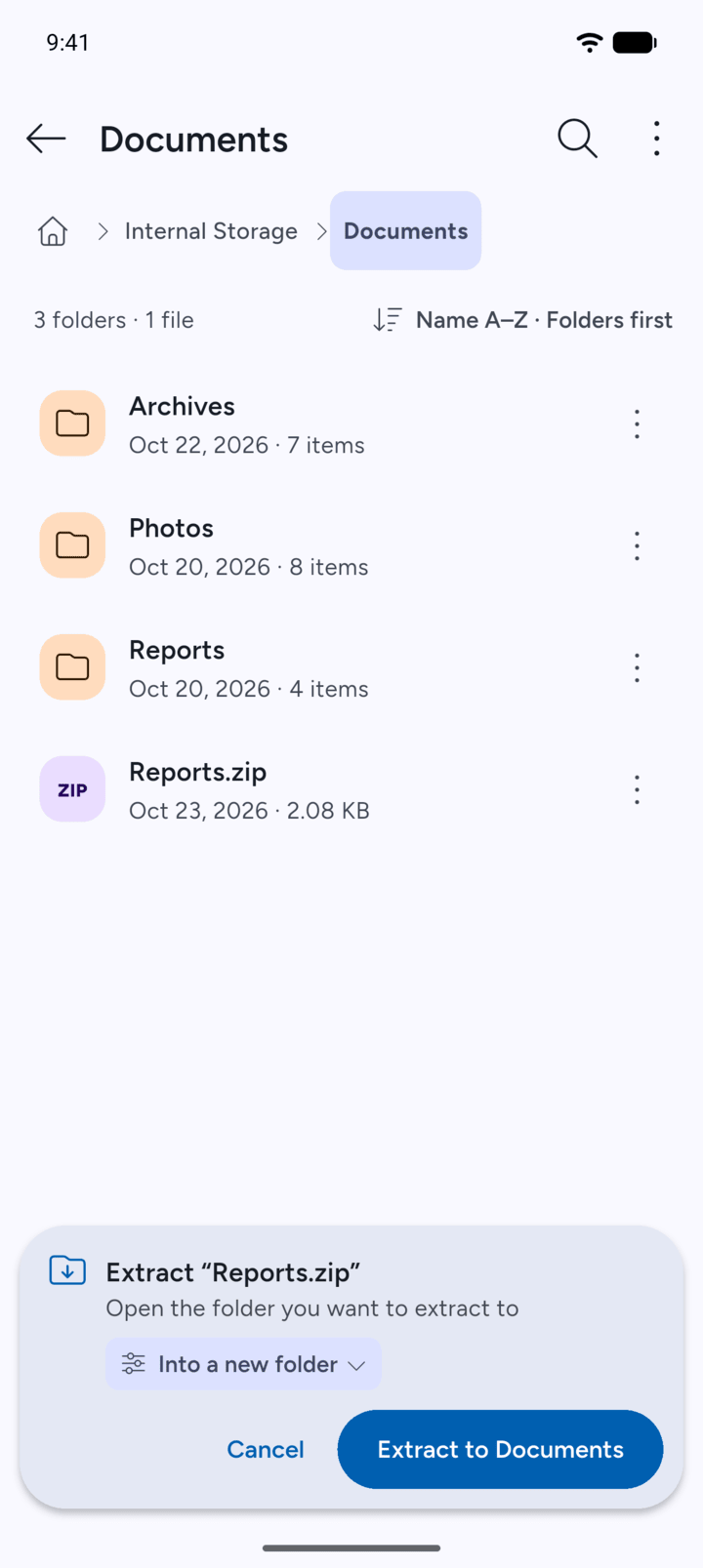
Go to the folder you want and tap the button in the bar, for example Extract to Documents.
-
Step 4
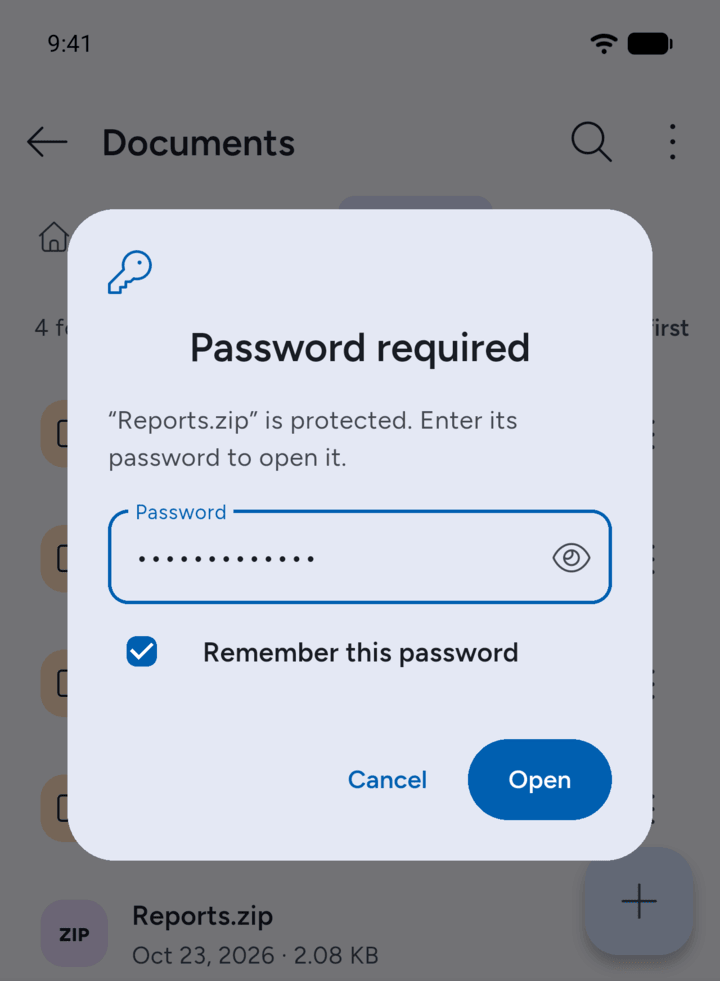
7Z asks for the password. Type it and tap Open. With 7Z Premium you can tick Remember this password so you don't have to type it next time.
-
Step 5
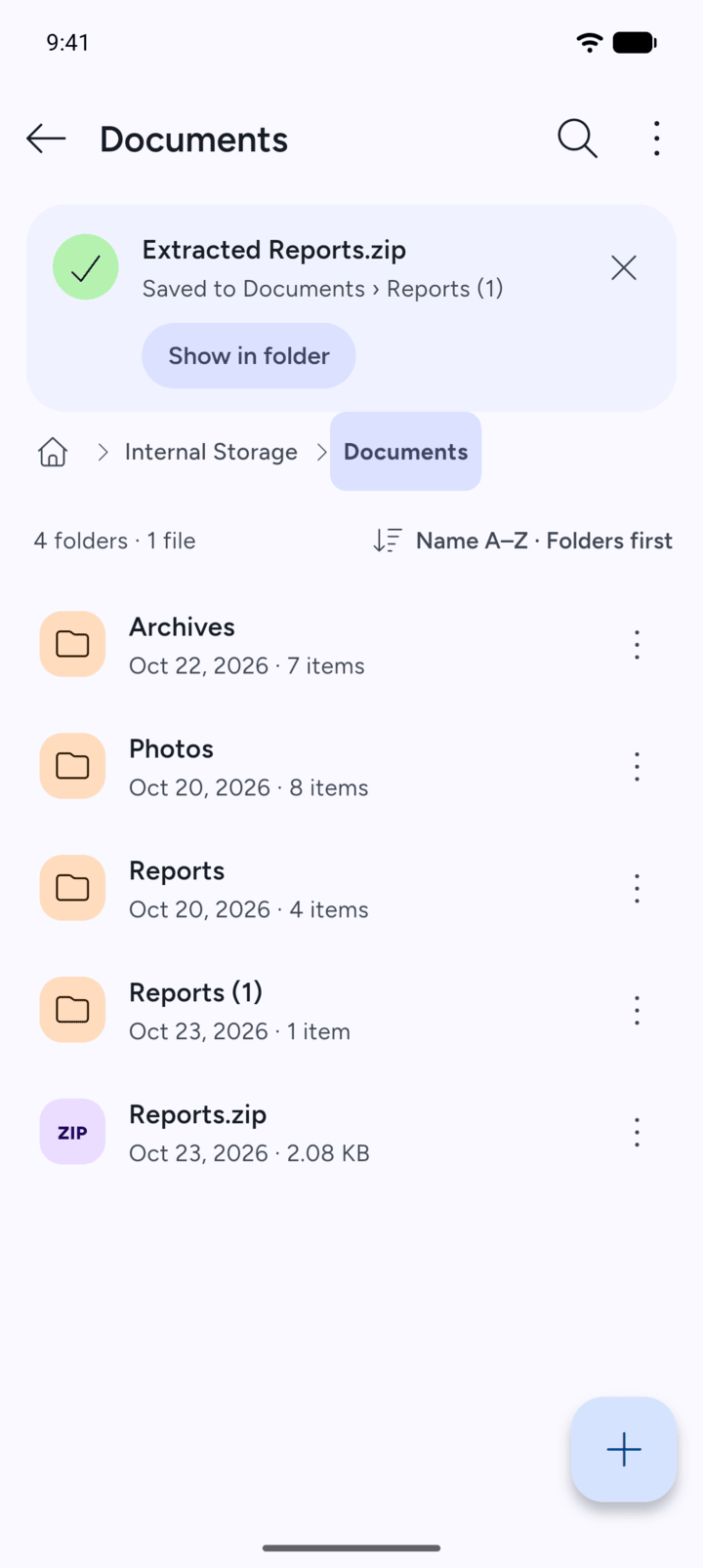
7Z extracts the files. If a folder with the same name is already there, 7Z adds a number to the new folder's name, such as Reports (1).
-
If 7Z says Wrong password, try again, check the password and type it again. Passwords are case-sensitive.
Some archives also hide their file names. 7Z then asks for the password as soon as you view the contents.
- Open the folder that holds the archive.
- Tap the archive and tap Extract to….
- Go to the folder you want and tap the button in the bar, for example Extract to Documents.
- 7Z asks for the password. Type it and tap Open. With 7Z Premium you can tick Remember this password so you don't have to type it next time.
- 7Z extracts the files. If a folder with the same name is already there, 7Z adds a number to the new folder's name, such as Reports (1).
If 7Z says Wrong password, try again, check the password and type it again. Passwords are case-sensitive.
Some archives also hide their file names. 7Z then asks for the password as soon as you view the contents.