 7Z
7Z
In this guide 5 steps
-
Overview
You can look inside an archive without extracting it.
-
Step 1
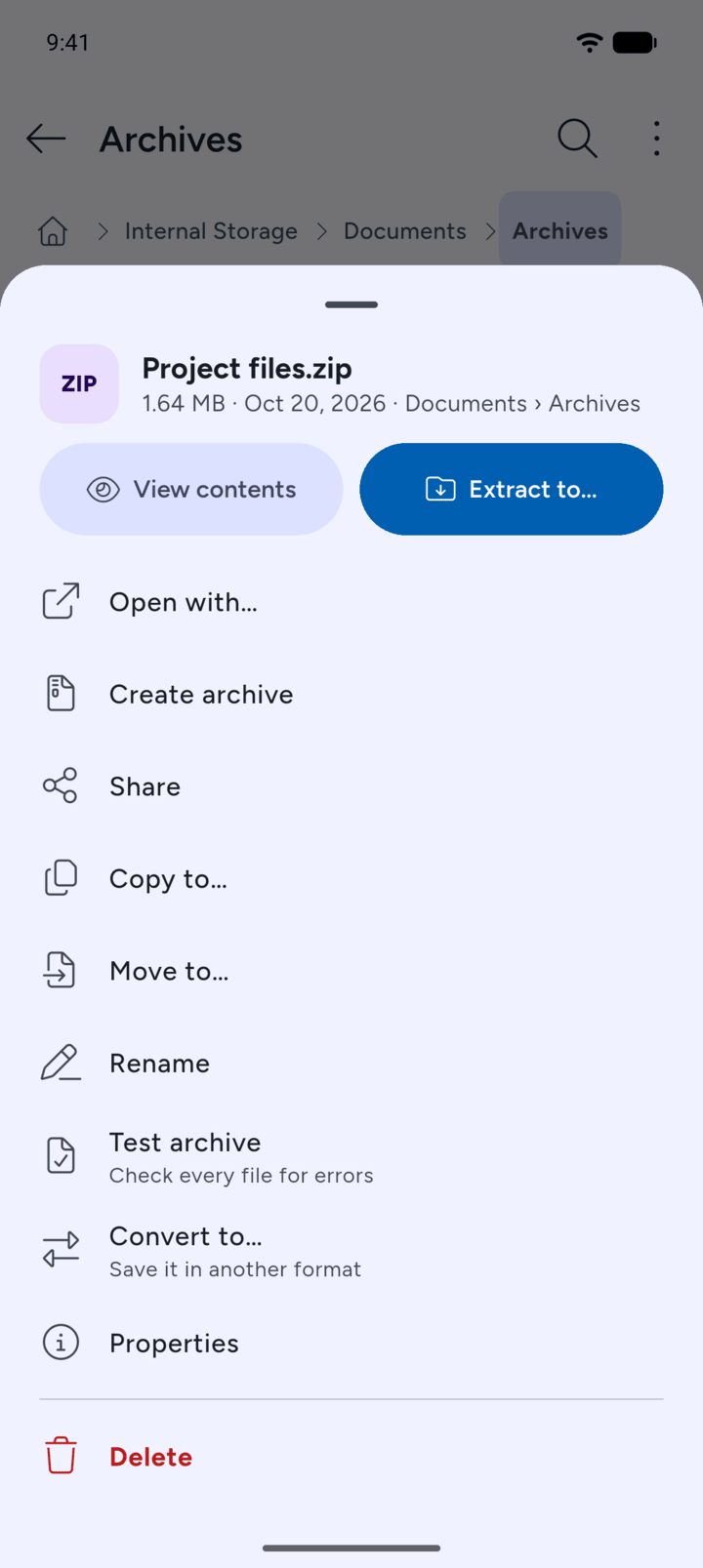
Open the folder that holds the archive and tap the archive. Tap View contents.
-
Step 2
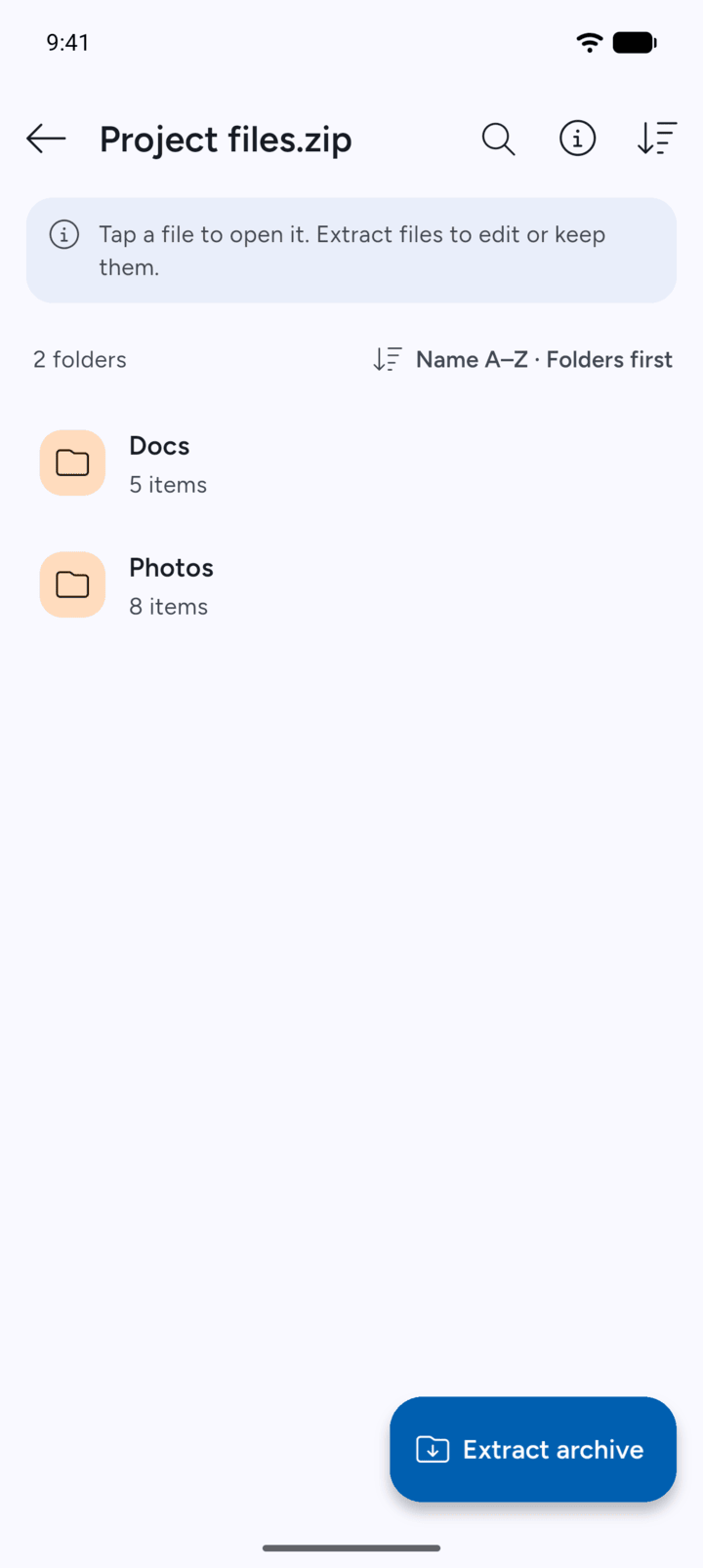
7Z lists the folders and files inside the archive.
-
Step 3
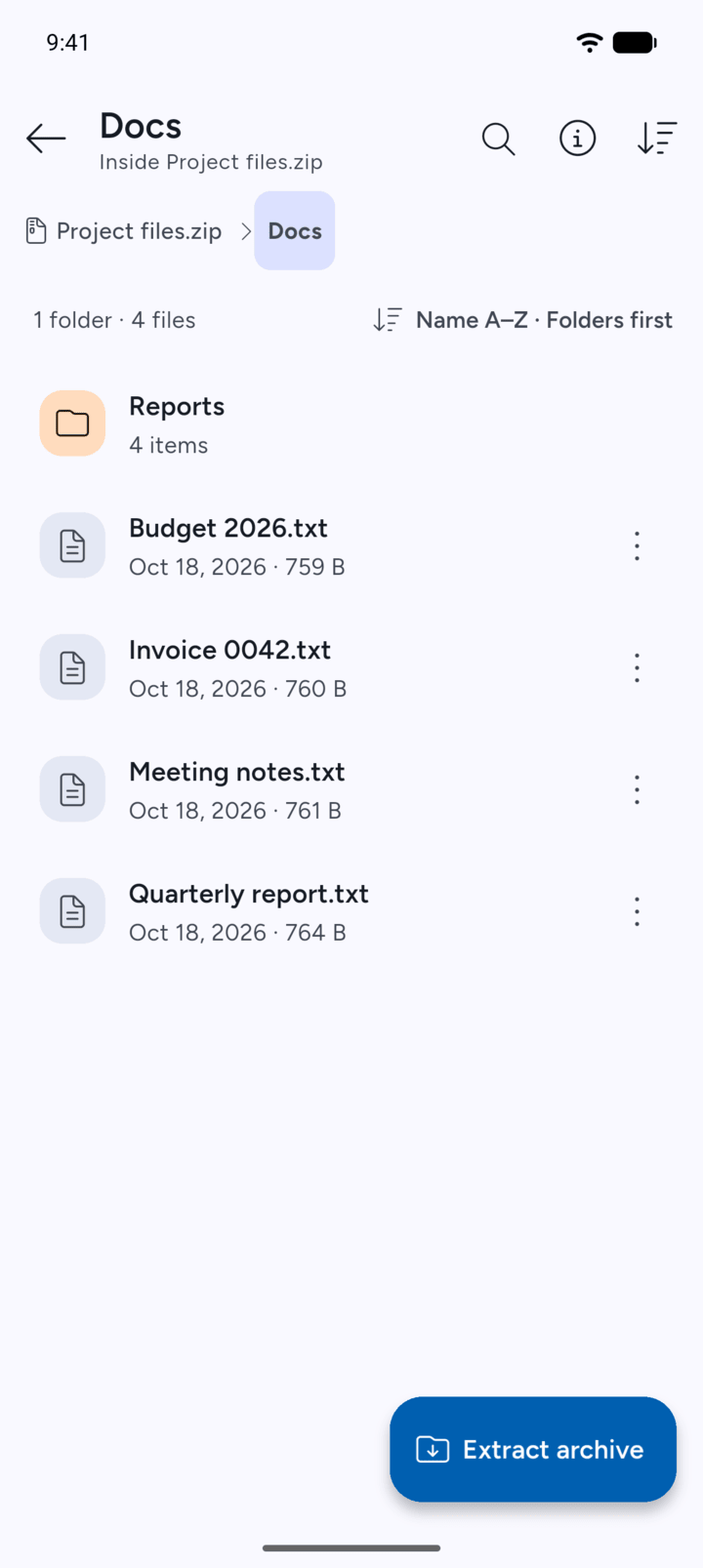
Tap a folder to open it. The path at the top shows where you are inside the archive.
-
Step 4
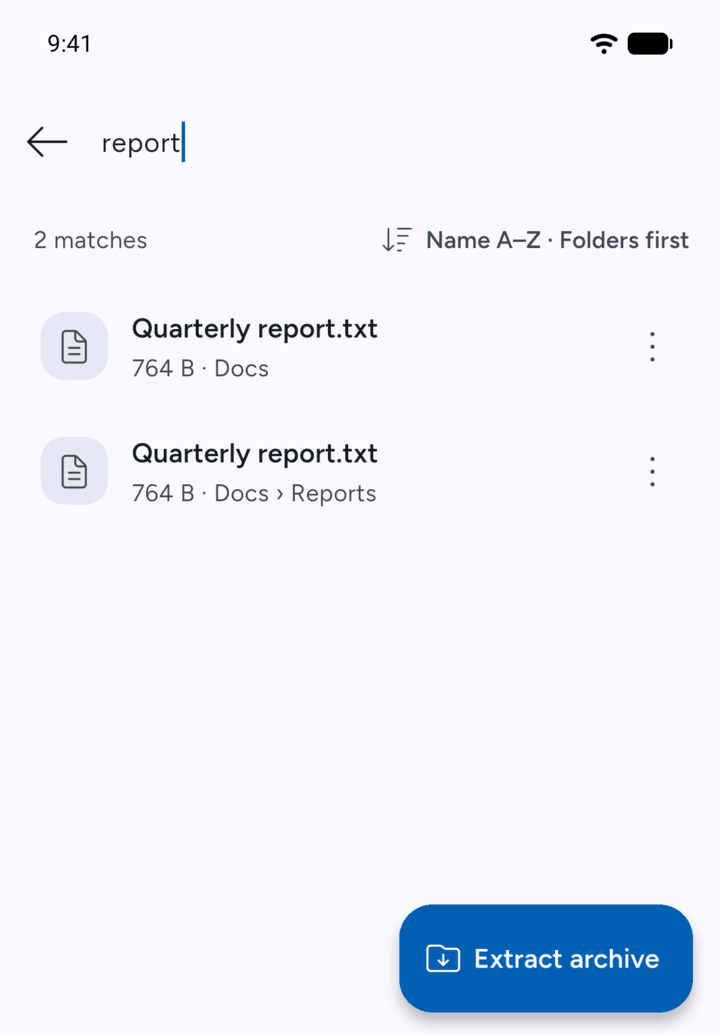
To find a file, tap the magnifying glass at the top and type part of its name.
-
Step 5
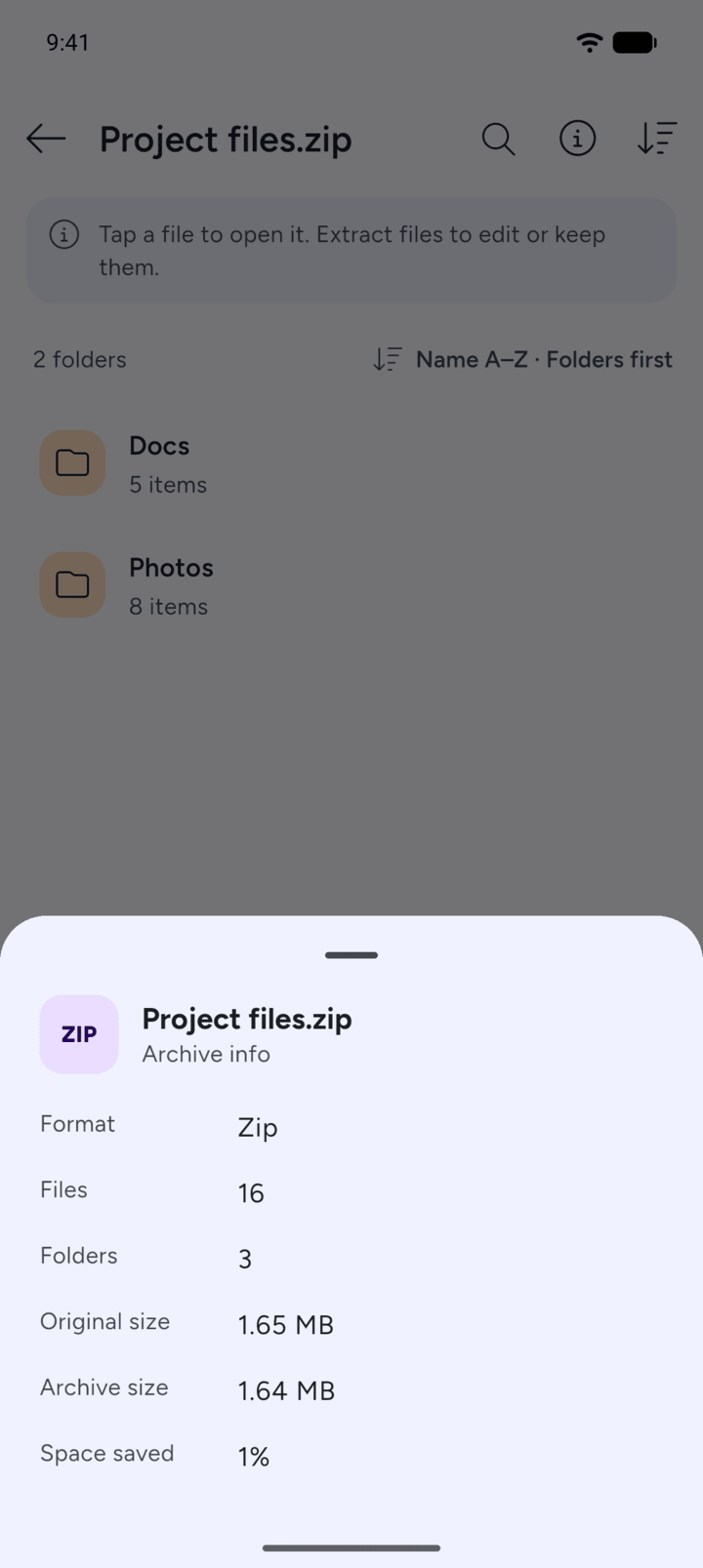
To see the format, how many files it holds and how much space it saves, tap the i button at the top.
-
Large archives can take a few moments to open.
If the archive has a password and hides its file names, 7Z asks for the password first.
You can look inside an archive without extracting it.
- Open the folder that holds the archive and tap the archive. Tap View contents.
- 7Z lists the folders and files inside the archive.
- Tap a folder to open it. The path at the top shows where you are inside the archive.
- To find a file, tap the magnifying glass at the top and type part of its name.
- To see the format, how many files it holds and how much space it saves, tap the i button at the top.
Large archives can take a few moments to open.
If the archive has a password and hides its file names, 7Z asks for the password first.