 7Z
7Z
In this guide 5 steps
-
Step 1
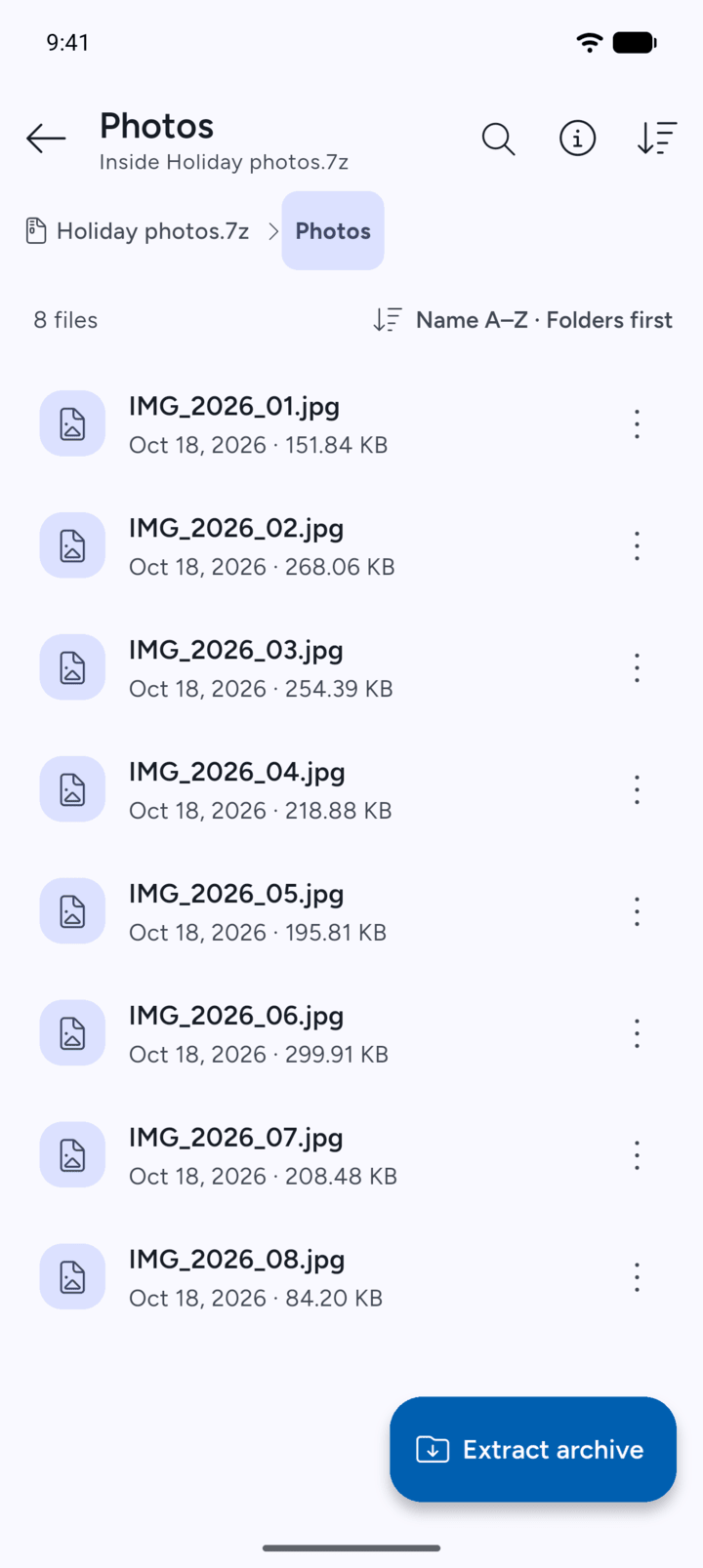
View the archive's contents and open the folder with the files you want.
-
Step 2
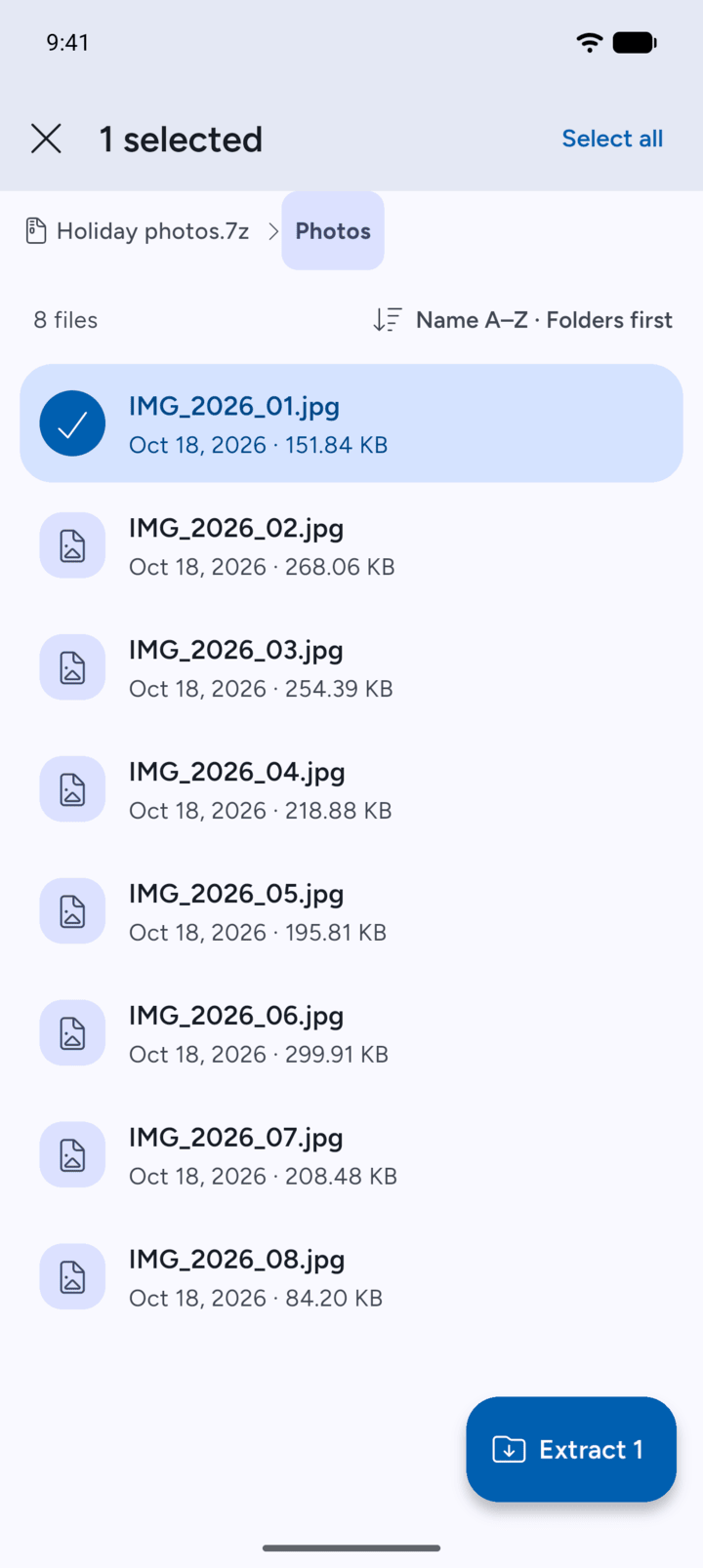
Tap and hold a file to select it.
-
Step 3
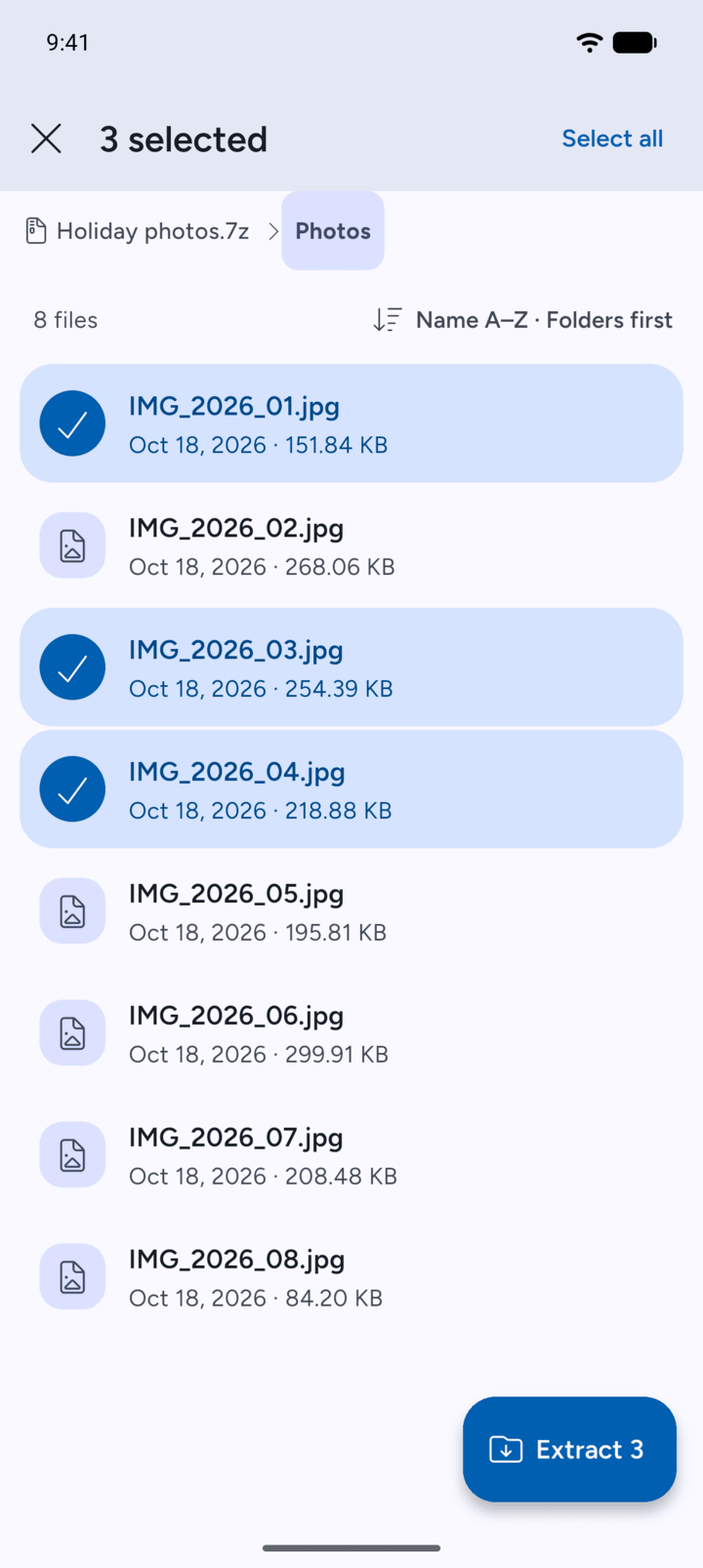
Tap more files to add them, or tap Select all. Then tap the extract button at the bottom, for example Extract 3.
-
Step 4
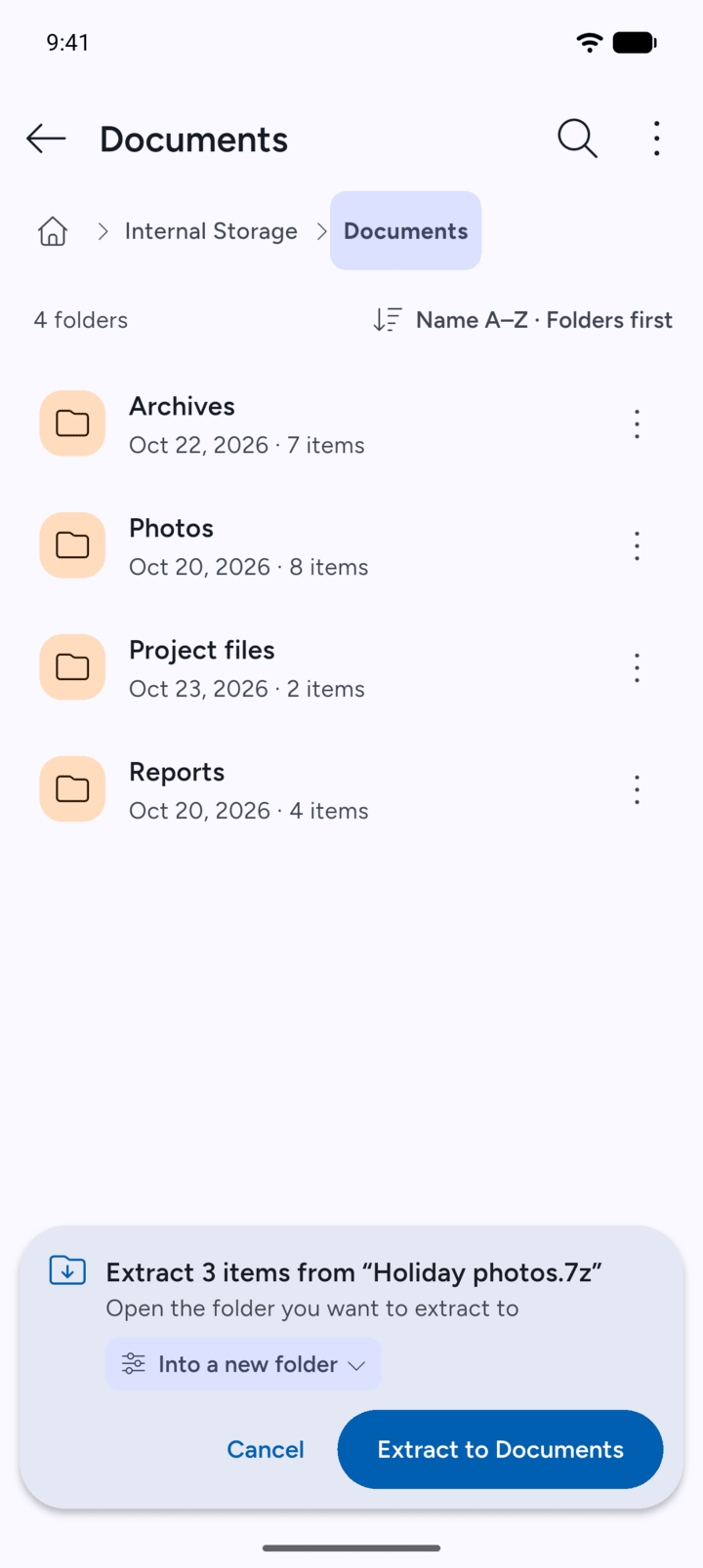
Go to the folder you want and tap the button in the bar, for example Extract to Documents.
-
Step 5
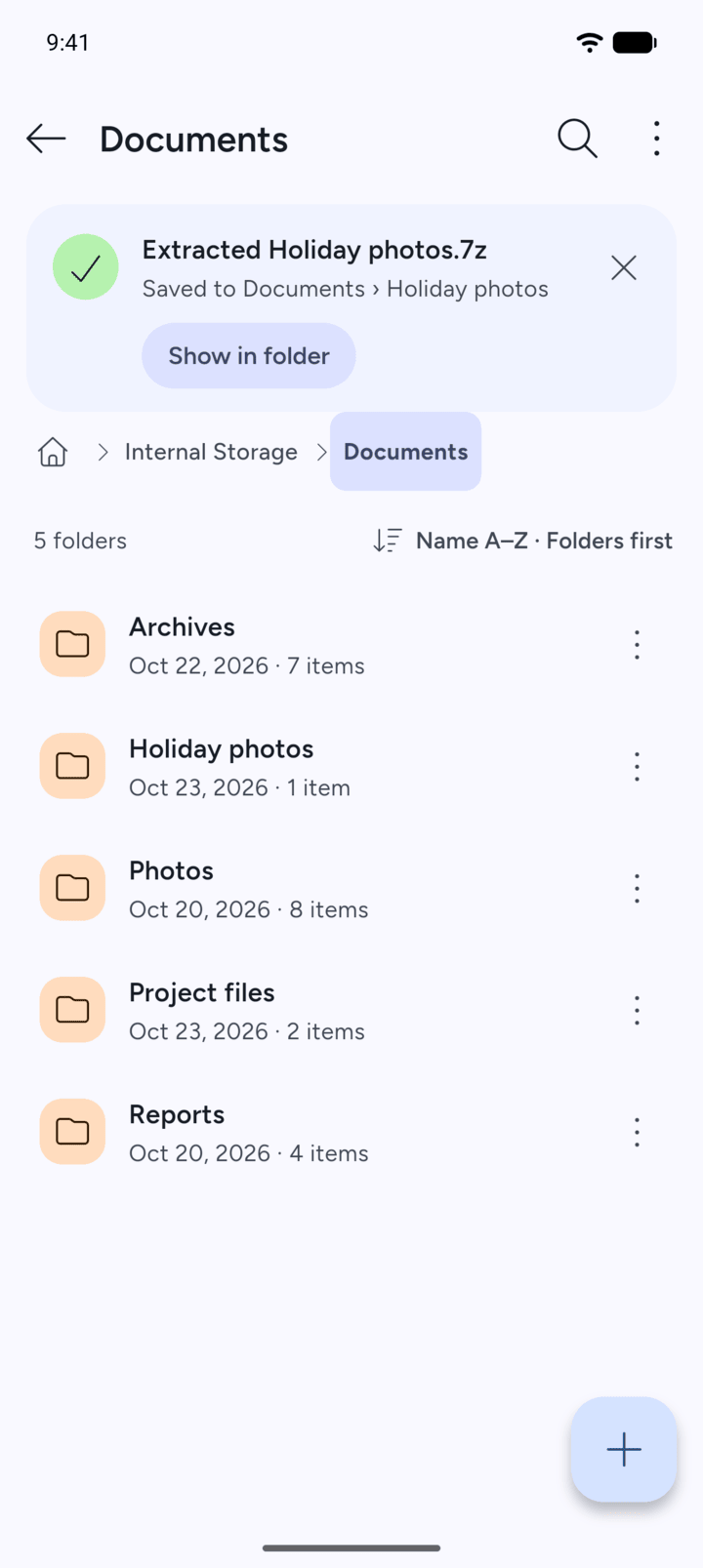
7Z extracts only the files you chose.
-
To extract one file, tap it and tap Extract this file.
- View the archive's contents and open the folder with the files you want.
- Tap and hold a file to select it.
- Tap more files to add them, or tap Select all. Then tap the extract button at the bottom, for example Extract 3.
- Go to the folder you want and tap the button in the bar, for example Extract to Documents.
- 7Z extracts only the files you chose.
To extract one file, tap it and tap Extract this file.