 7Z
7Z
In this guide 6 steps
-
Step 1
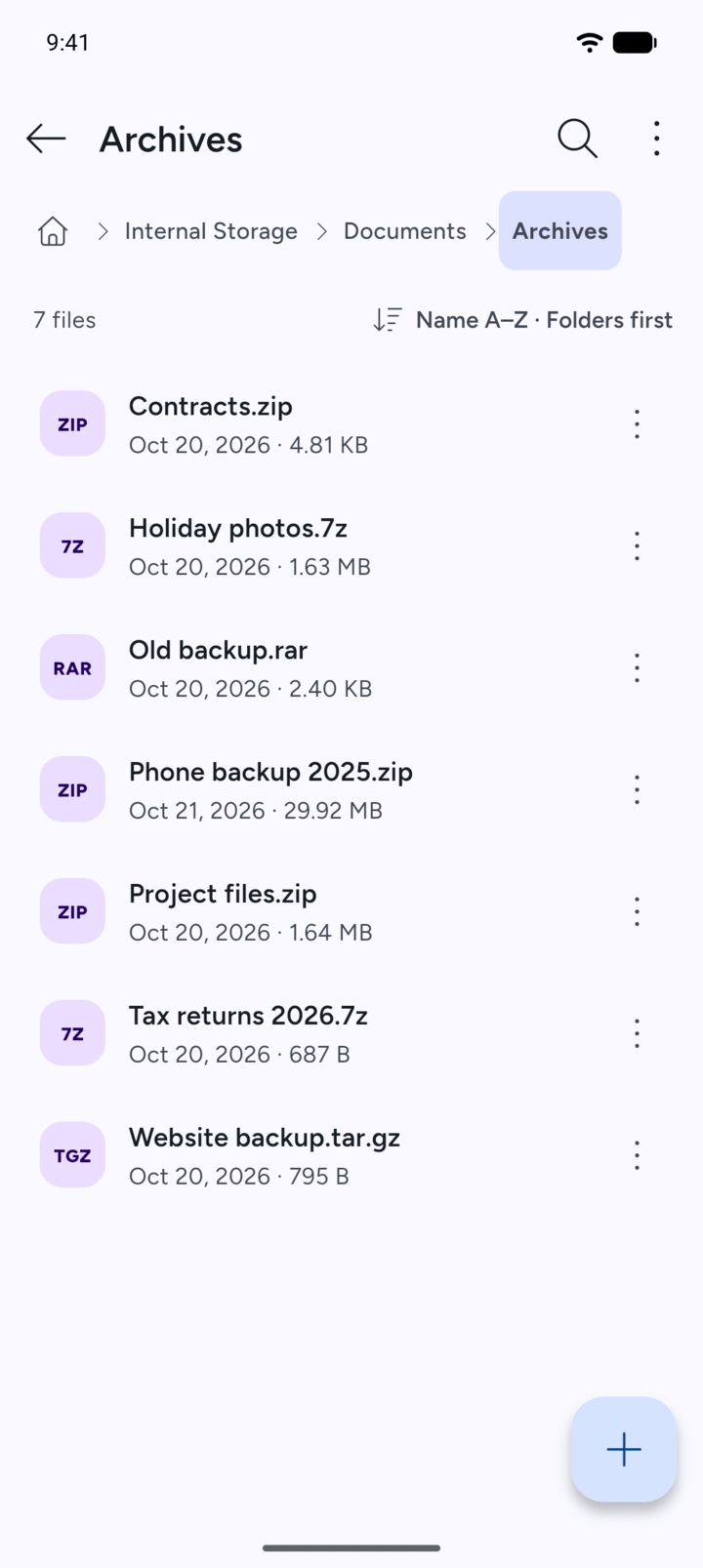
Open the folder that holds the archive.
-
Step 2
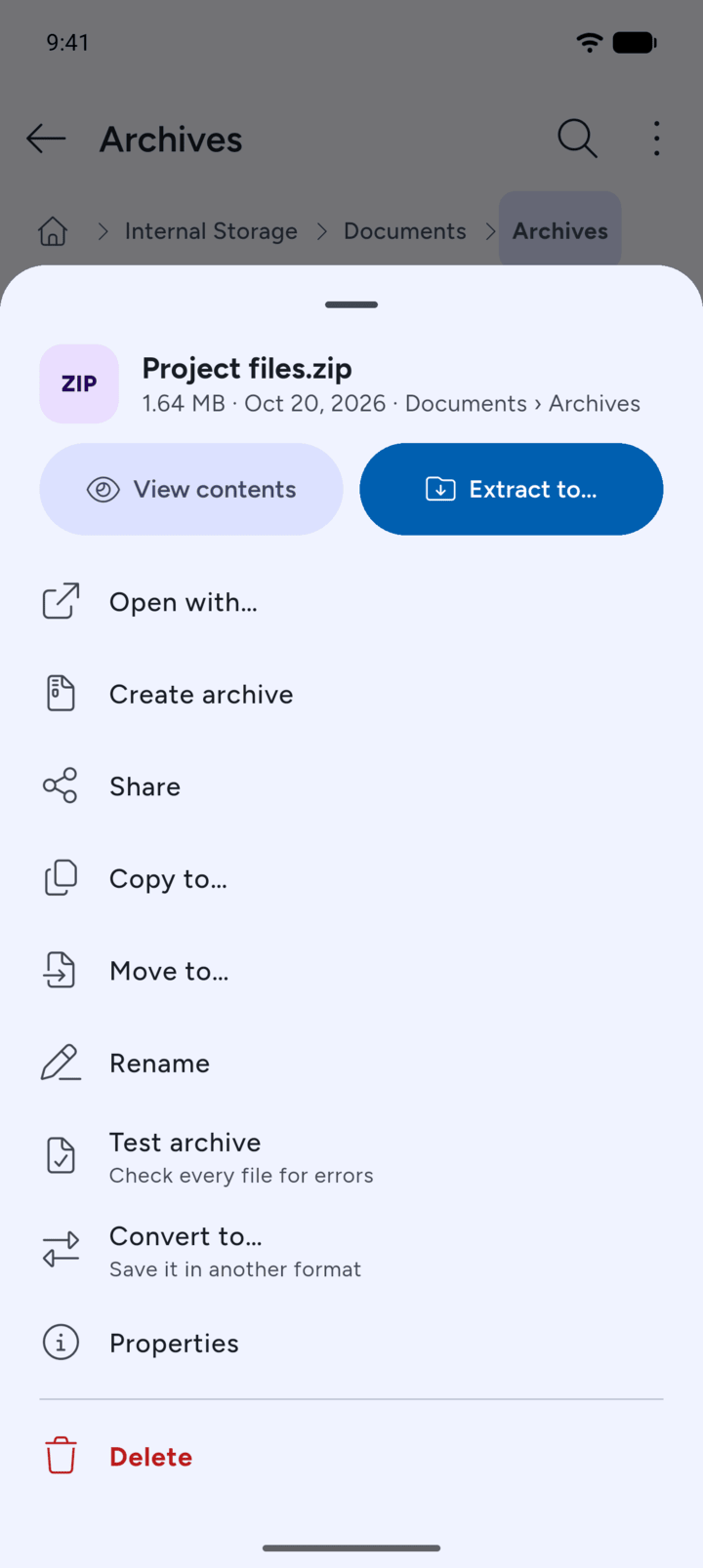
Tap the archive, then tap Extract to….
-
Step 3
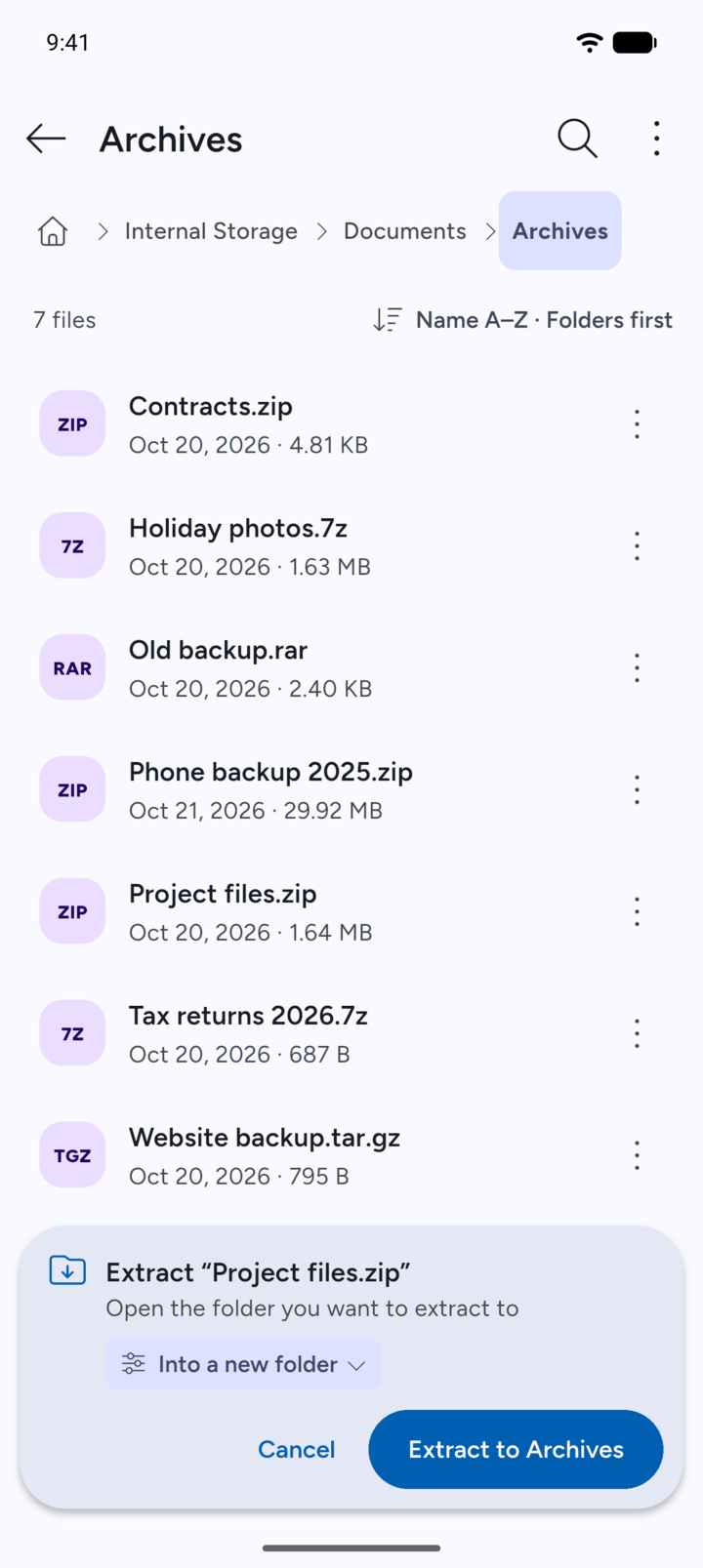
A bar shows at the bottom: Open the folder you want to extract to.
-
Step 4
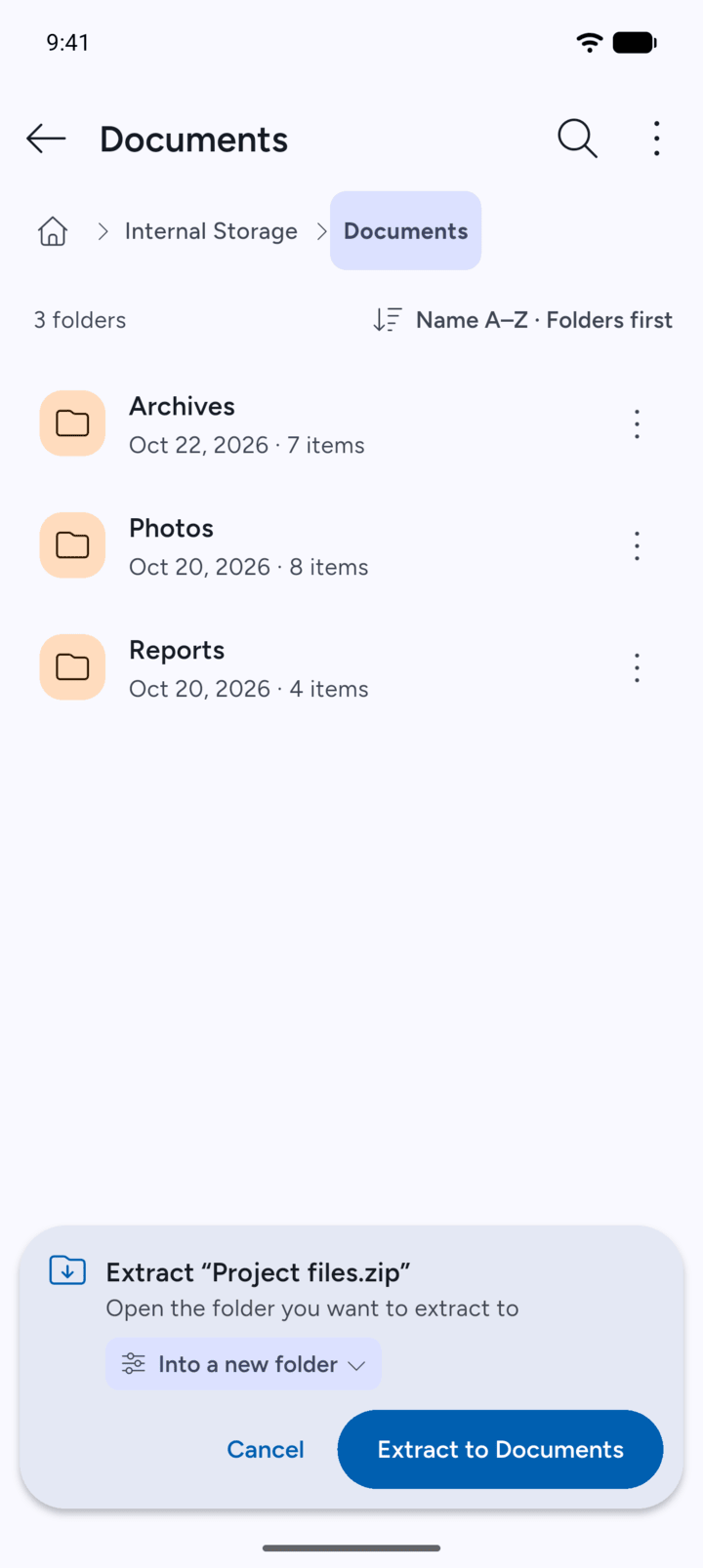
Go to the folder you want, for example by tapping Documents in the path at the top. Then tap the button in the bar. It shows the name of the folder you're in, for example Extract to Documents.
-
Step 5
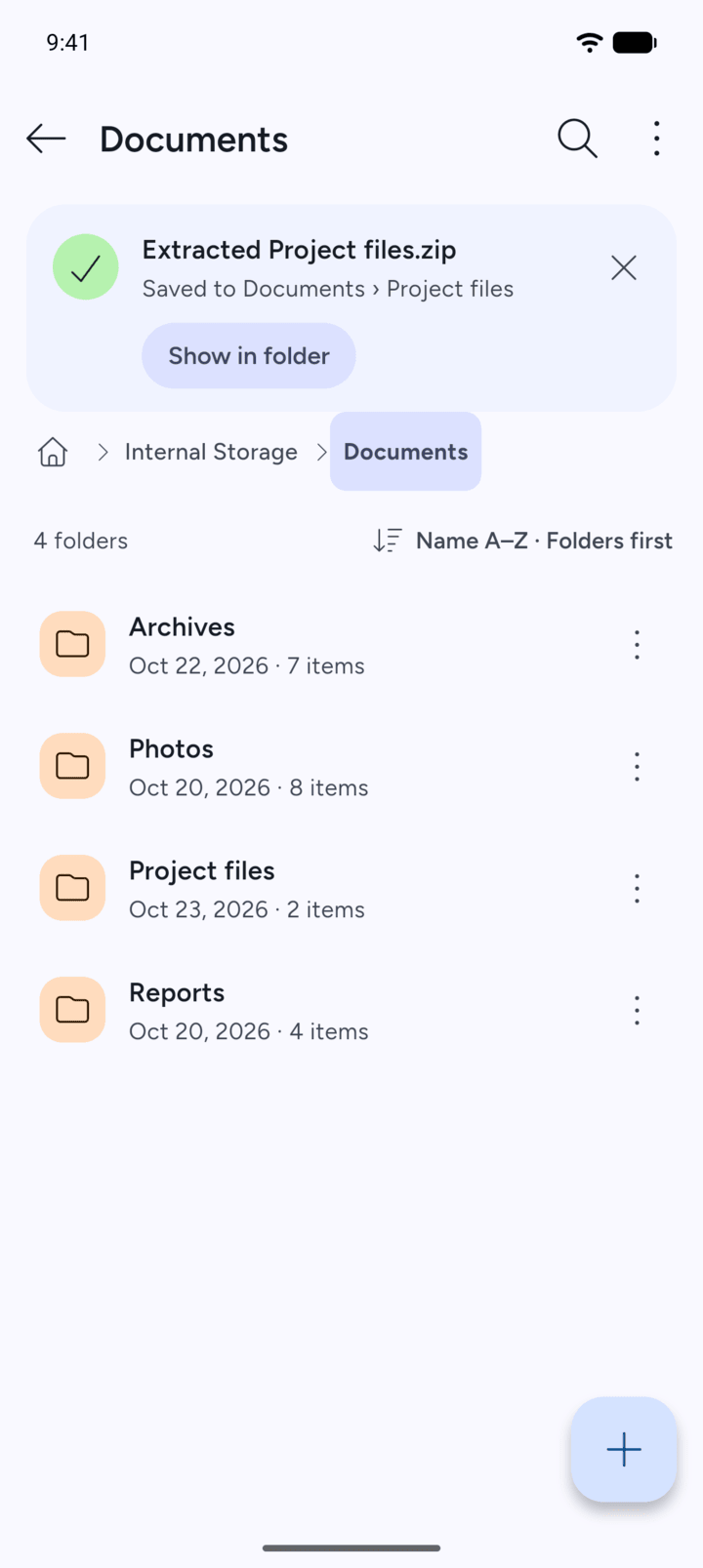
When it's done, 7Z shows Extracted and where the files went. Tap Show in folder to go to the folder you extracted to.
-
Step 6
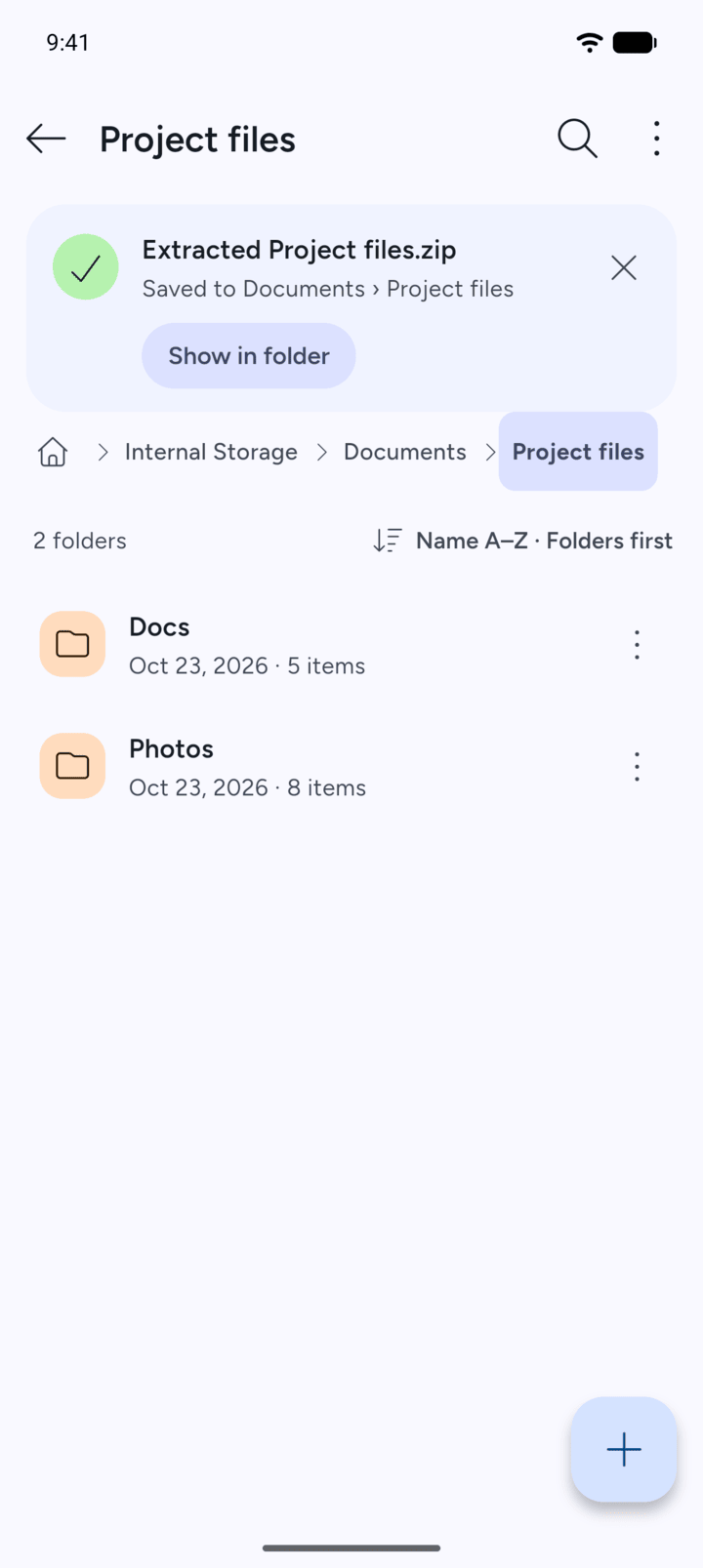
The files are in a new folder named after the archive.
-
To choose whether 7Z makes a new folder, what happens to files that are already there, or to delete the archive afterwards, tap the options chip in the bar. See the guide Choosing extract options.
If the archive has a password, 7Z asks for it. Tap Cancel in the bar to stop without extracting.
- Open the folder that holds the archive.
- Tap the archive, then tap Extract to….
- A bar shows at the bottom: Open the folder you want to extract to.
- Go to the folder you want, for example by tapping Documents in the path at the top. Then tap the button in the bar. It shows the name of the folder you're in, for example Extract to Documents.
- When it's done, 7Z shows Extracted and where the files went. Tap Show in folder to go to the folder you extracted to.
- The files are in a new folder named after the archive.
To choose whether 7Z makes a new folder, what happens to files that are already there, or to delete the archive afterwards, tap the options chip in the bar. See the guide Choosing extract options.
If the archive has a password, 7Z asks for it. Tap Cancel in the bar to stop without extracting.