 7Z
7Z
In this guide 4 steps
-
Step 1
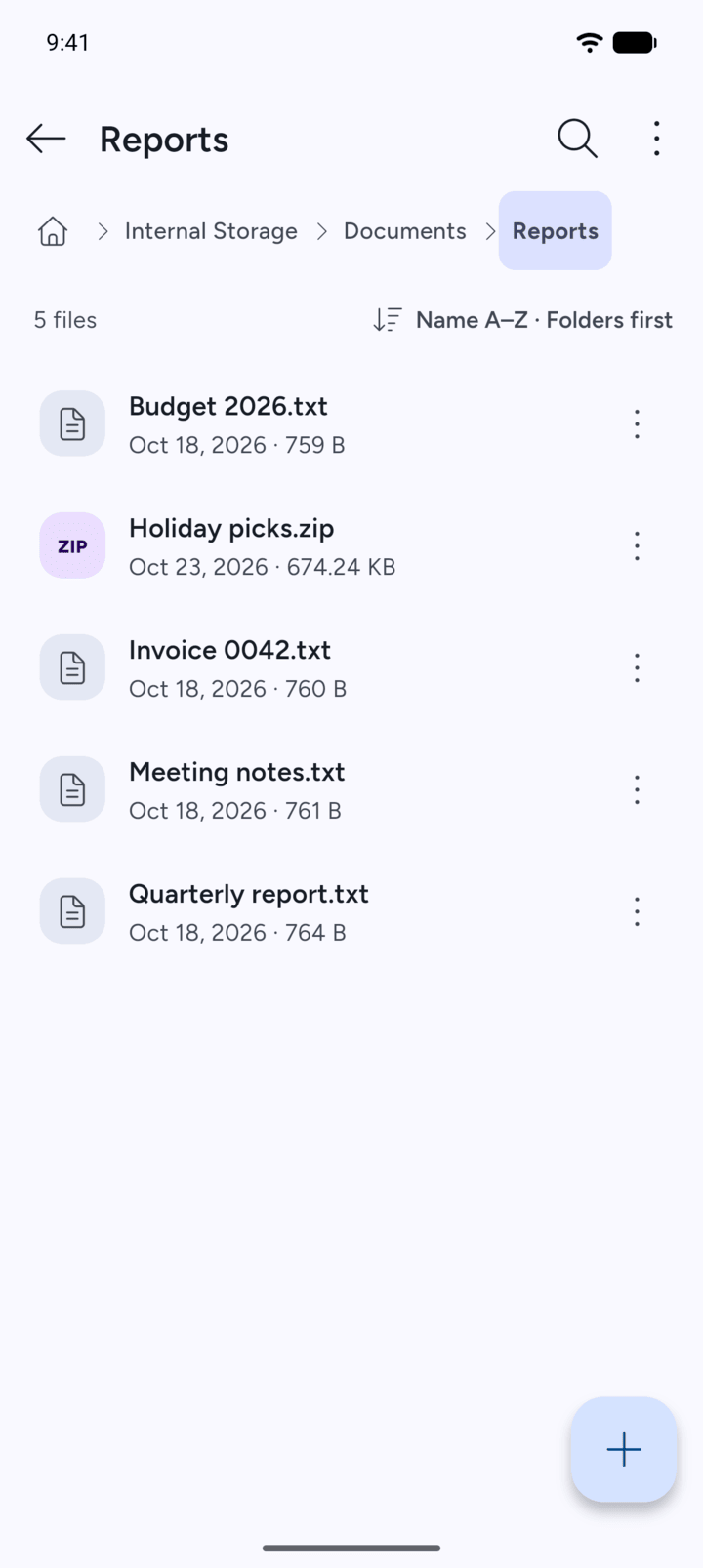
Open the folder that holds the file or folder, then tap the three dots next to it.
-
Step 2
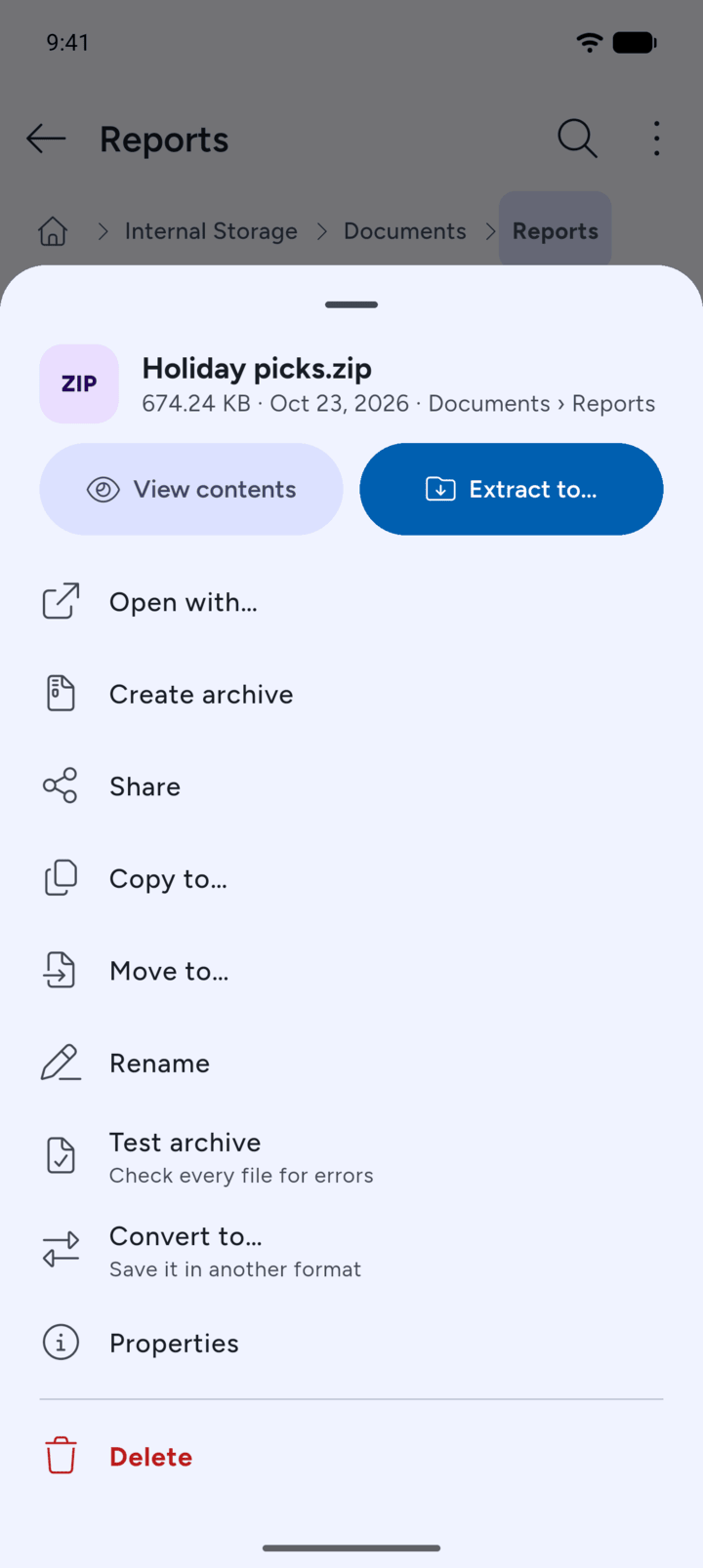
Tap Delete.
-
Step 3
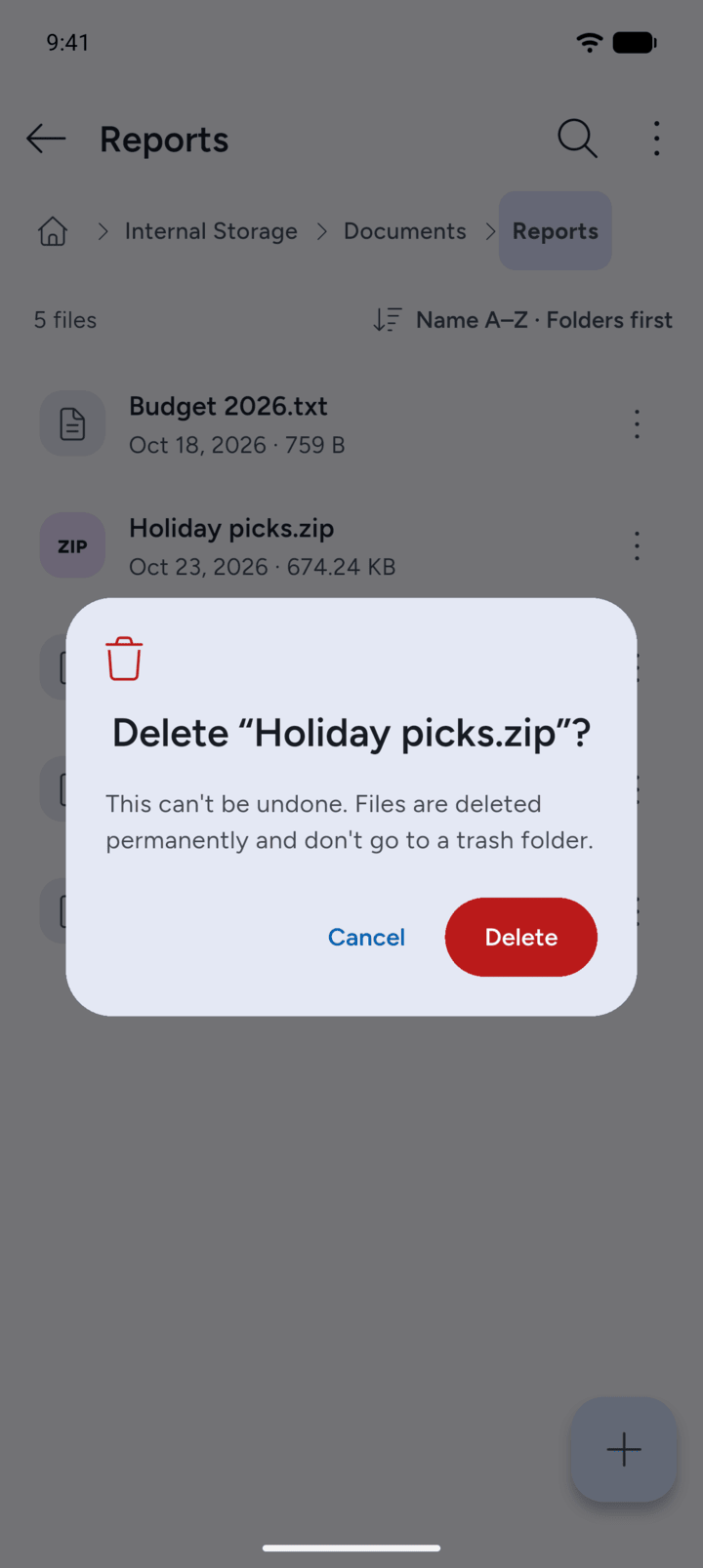
Tap Delete again to confirm. This can't be undone. Files are deleted permanently and don't go to a trash folder.
-
Step 4
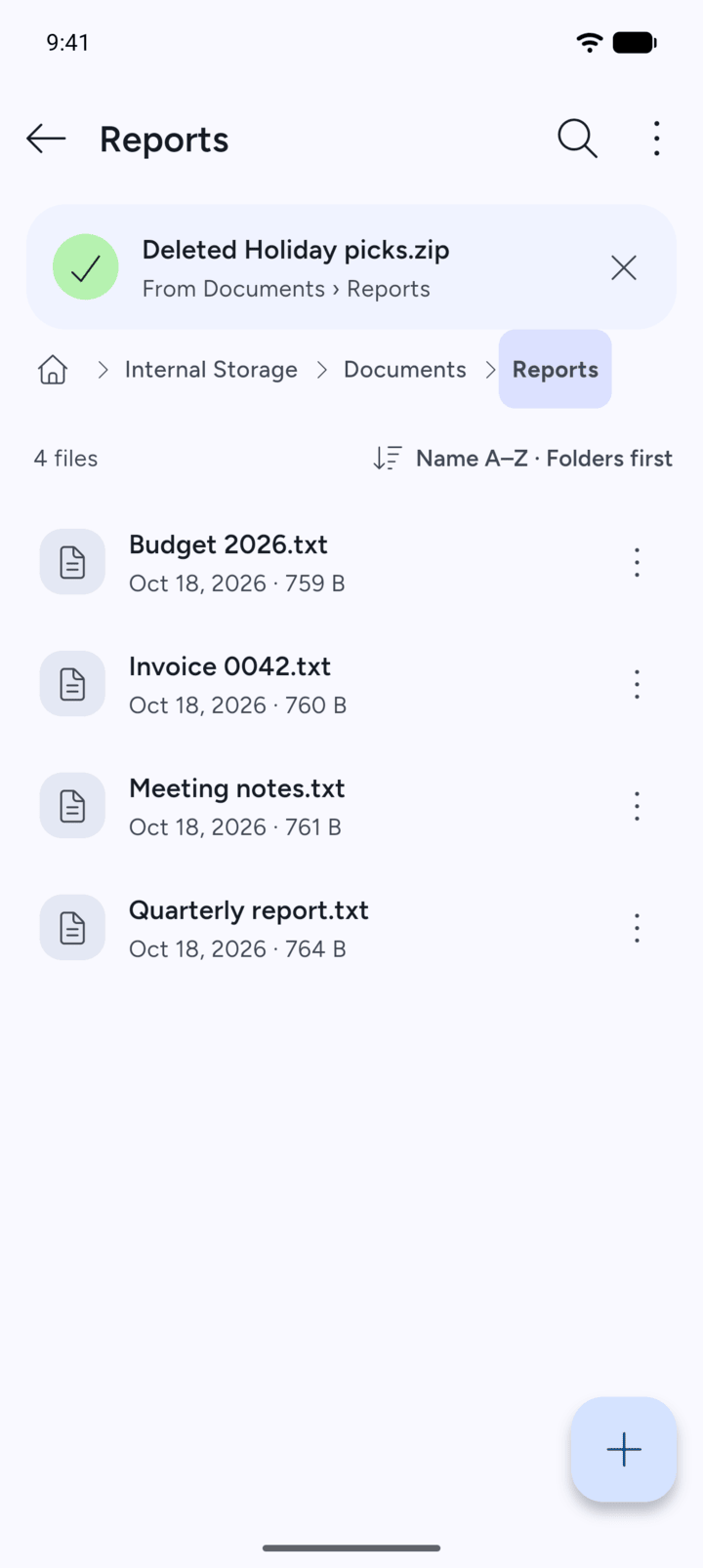
7Z shows Deleted with the item's name.
-
To delete several items, tap and hold one to select it, tap the others, then tap Delete at the bottom.
- Open the folder that holds the file or folder, then tap the three dots next to it.
- Tap Delete.
- Tap Delete again to confirm. This can't be undone. Files are deleted permanently and don't go to a trash folder.
- 7Z shows Deleted with the item's name.
To delete several items, tap and hold one to select it, tap the others, then tap Delete at the bottom.