 7Z
7Z
In this guide 4 steps
-
Overview
Batch rename is part of 7Z Premium. It gives a group of files the same name with a number, for example Holiday 001, Holiday 002 and so on.
-
Step 1
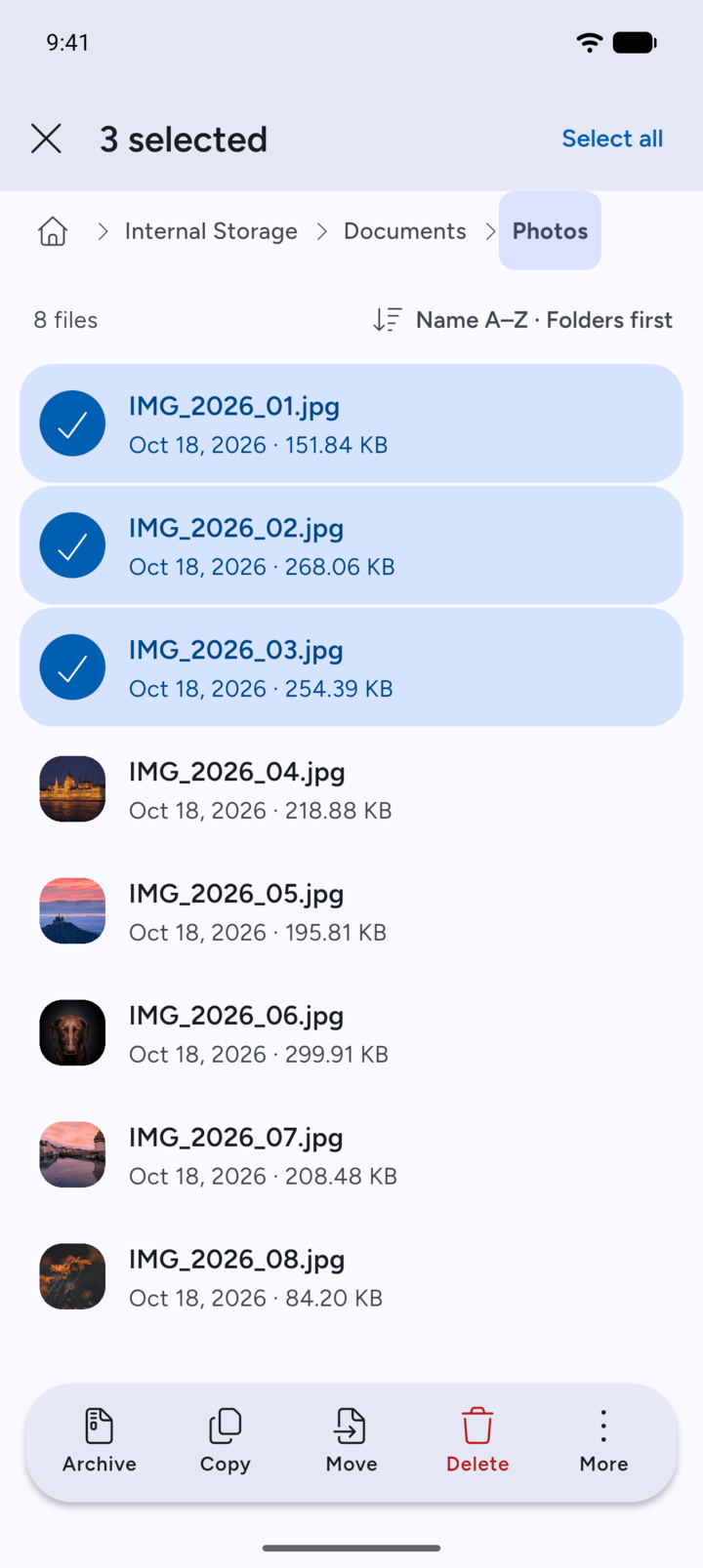
Tap and hold a file to select it, then tap the other files you want to rename.
-
Step 2
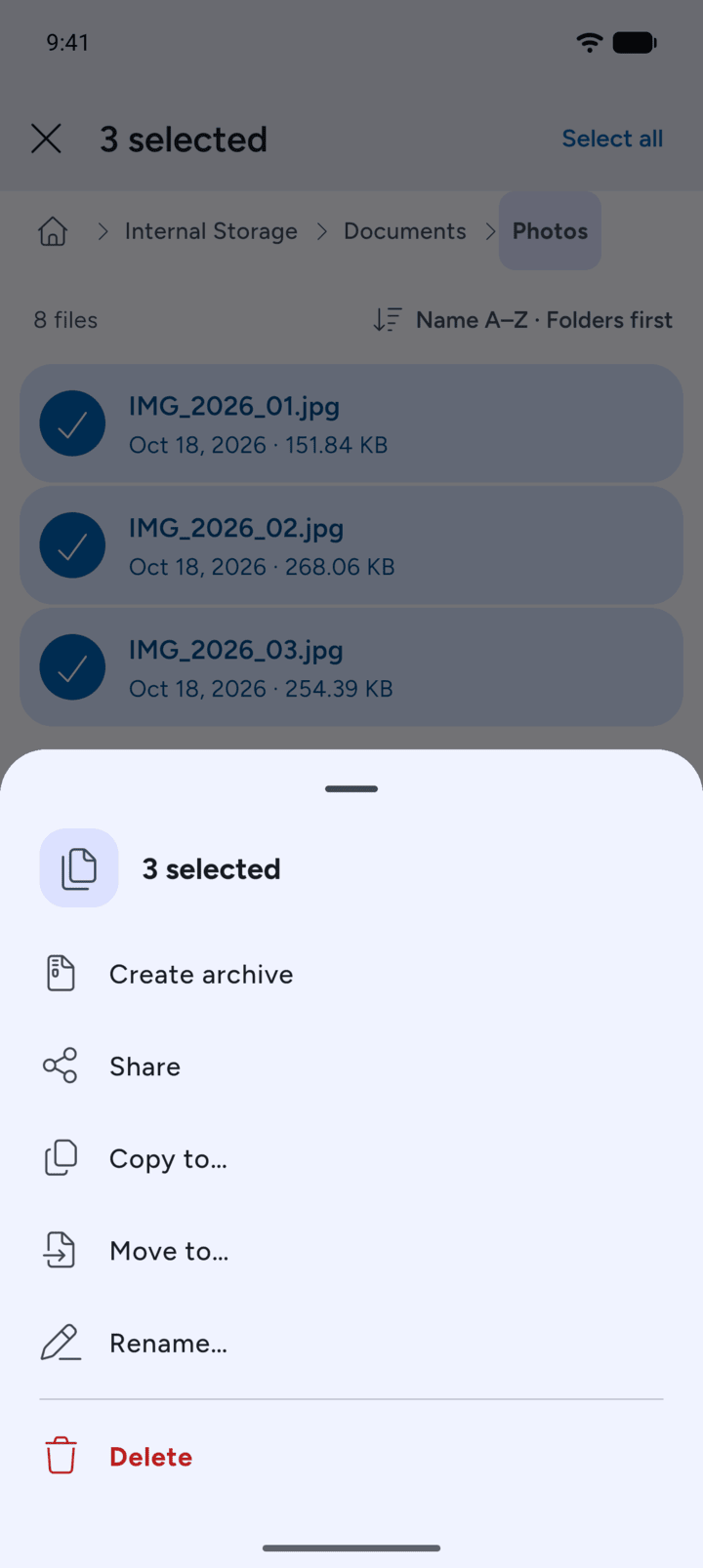
Tap More at the bottom, then tap Rename….
-
Step 3
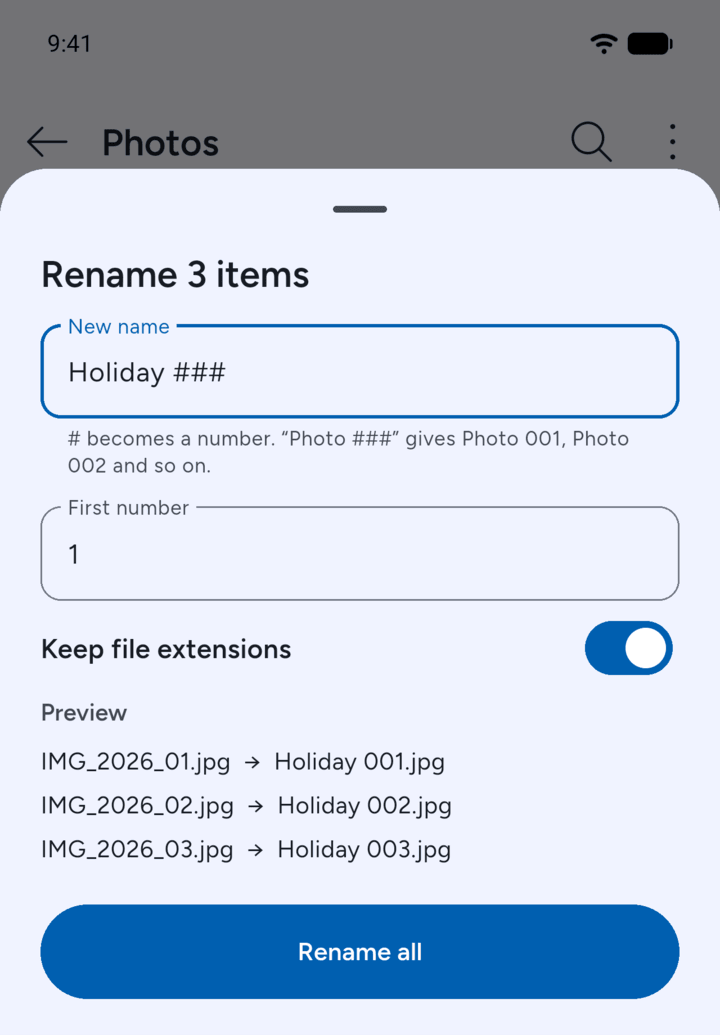
Type the new name under New name. Each # becomes a number, so Holiday ### gives Holiday 001, Holiday 002 and so on. Change the First number if you want to start from another number, and leave Keep file extensions on. The preview shows the new names. Tap Rename all.
-
Step 4
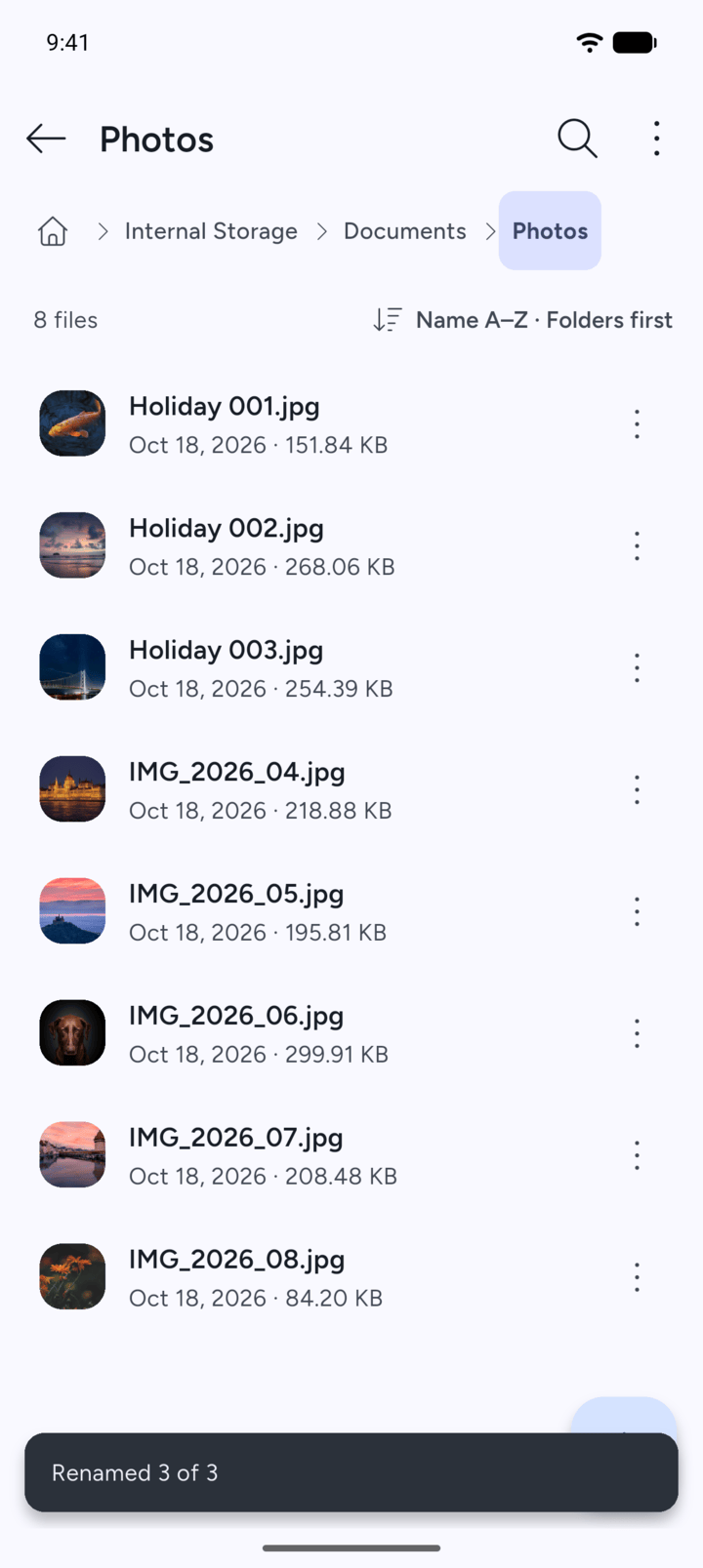
7Z shows how many files it renamed, for example Renamed 3 of 3.
Batch rename is part of 7Z Premium. It gives a group of files the same name with a number, for example Holiday 001, Holiday 002 and so on.
- Tap and hold a file to select it, then tap the other files you want to rename.
- Tap More at the bottom, then tap Rename….
- Type the new name under New name. Each # becomes a number, so Holiday ### gives Holiday 001, Holiday 002 and so on. Change the First number if you want to start from another number, and leave Keep file extensions on. The preview shows the new names. Tap Rename all.
- 7Z shows how many files it renamed, for example Renamed 3 of 3.