 7Z
7Z
In this guide 5 steps
-
Step 1
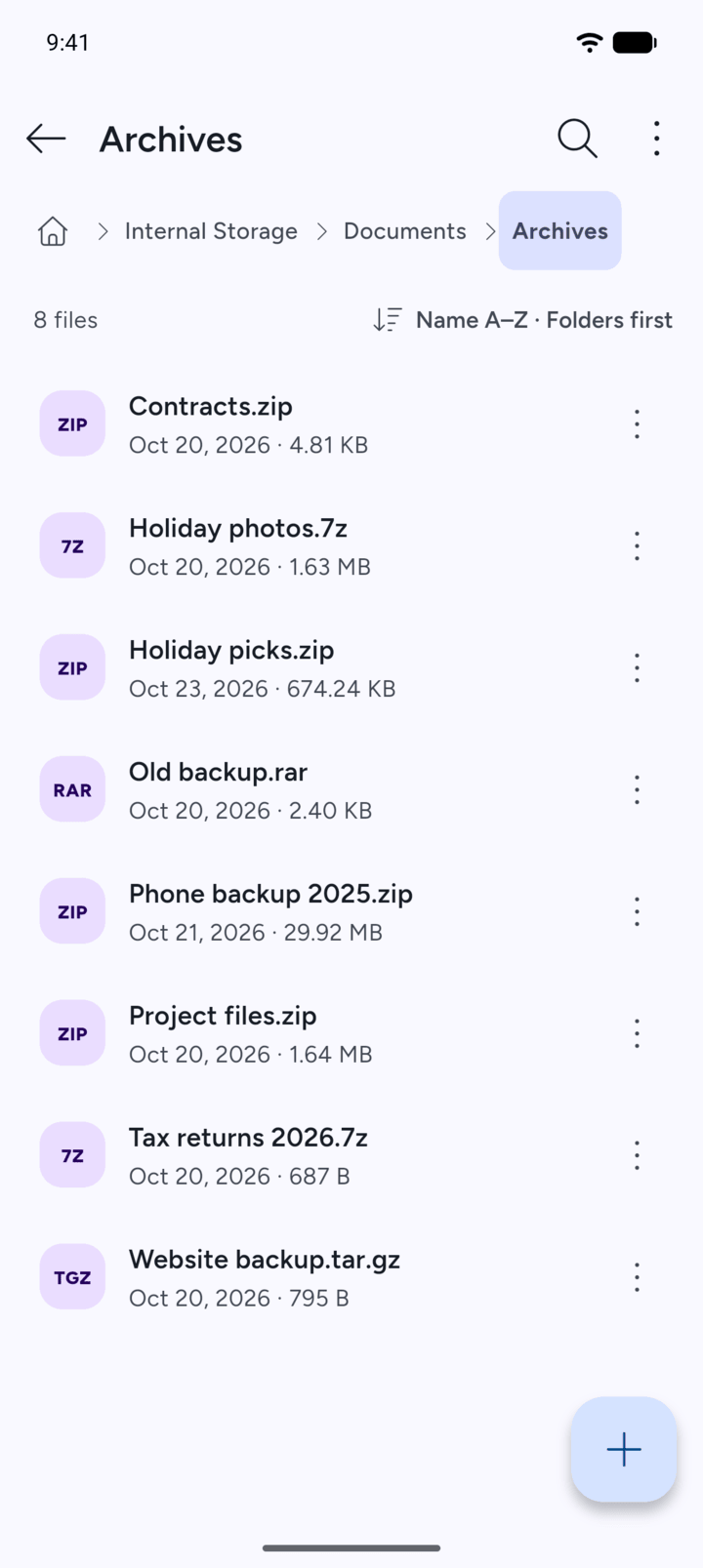
Open the folder that holds the file or folder.
-
Step 2
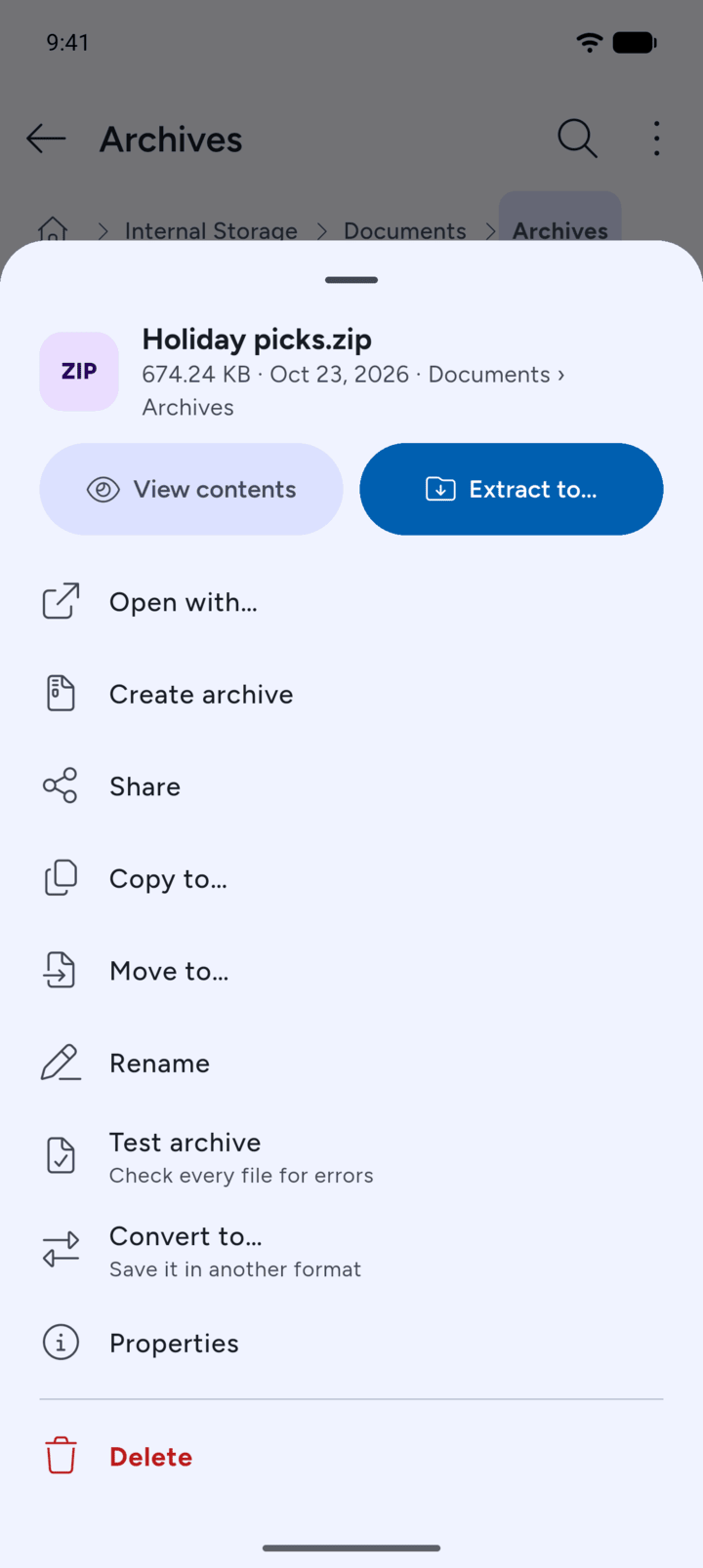
Tap the three dots next to it and tap Move to….
-
Step 3
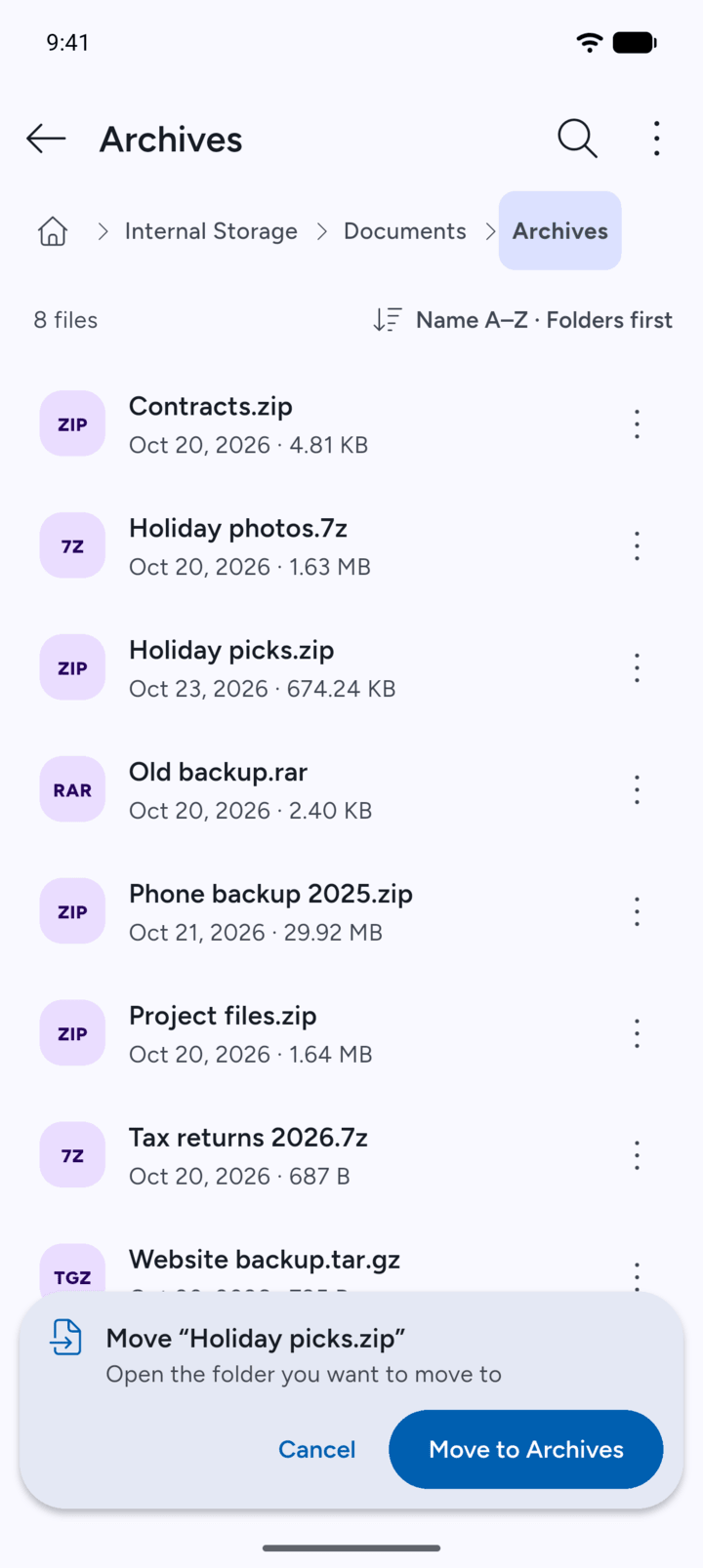
A bar shows at the bottom: Open the folder you want to move to.
-
Step 4
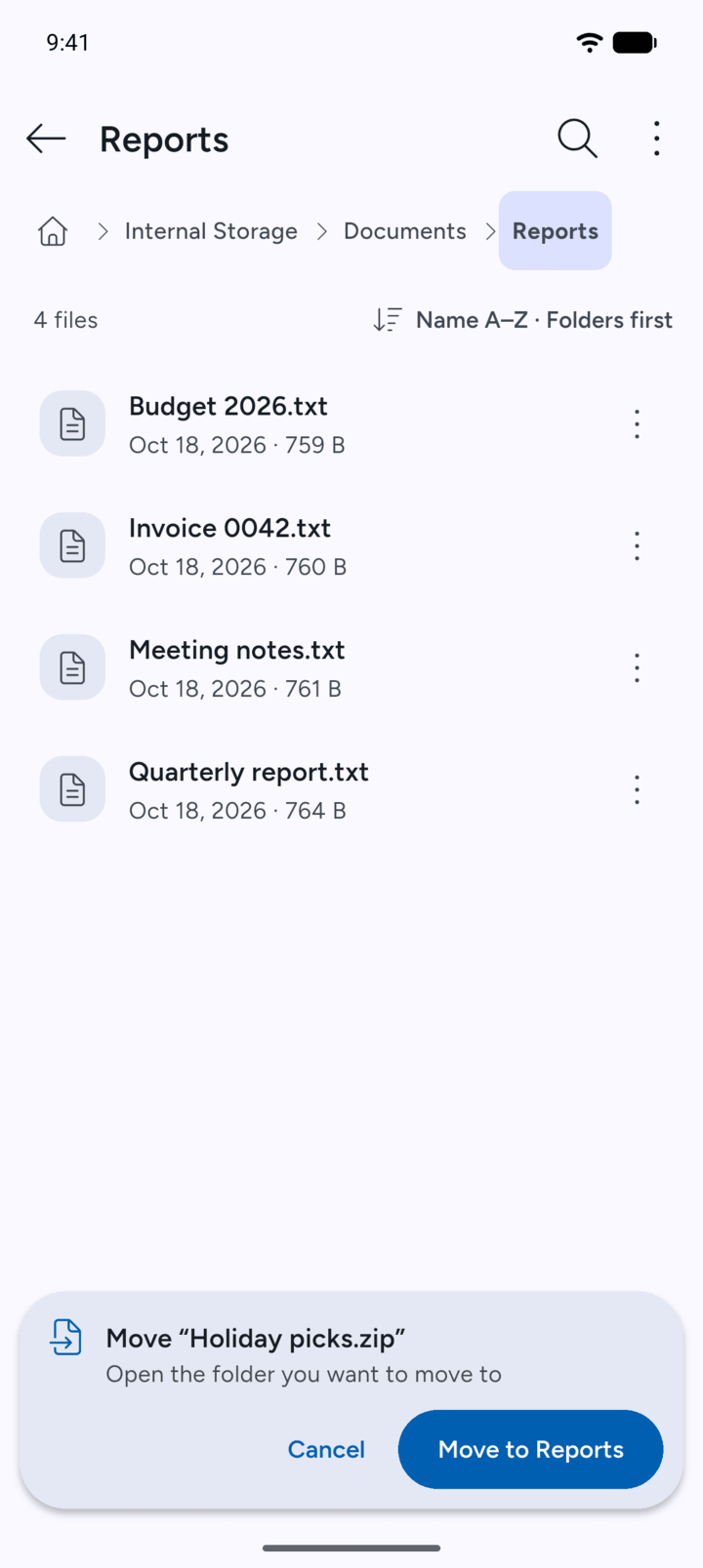
Go to the folder you want and tap the button in the bar, for example Move to Reports.
-
Step 5
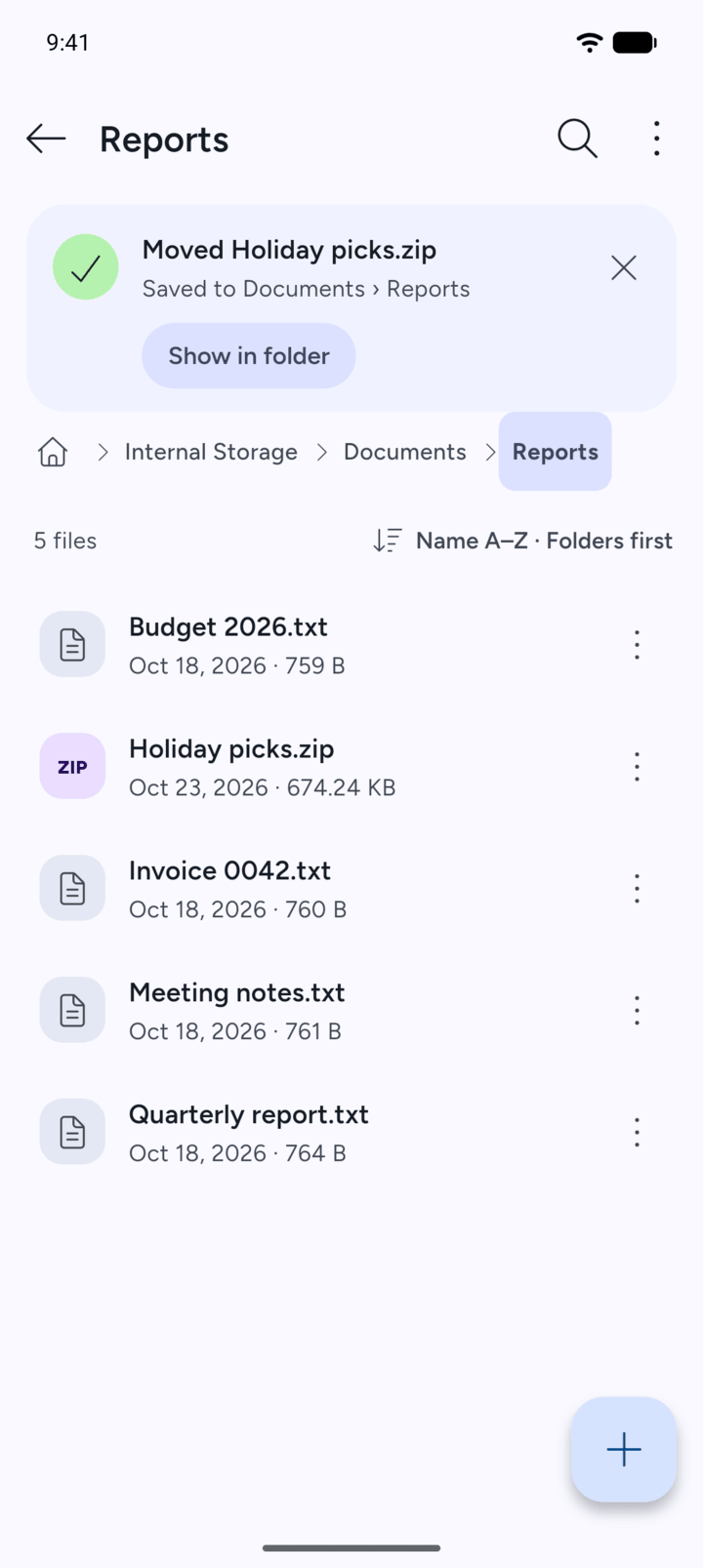
7Z shows Moved, and the item is now in the new folder.
-
To move several items, tap and hold one to select it, tap the others, then tap Move at the bottom.
- Open the folder that holds the file or folder.
- Tap the three dots next to it and tap Move to….
- A bar shows at the bottom: Open the folder you want to move to.
- Go to the folder you want and tap the button in the bar, for example Move to Reports.
- 7Z shows Moved, and the item is now in the new folder.
To move several items, tap and hold one to select it, tap the others, then tap Move at the bottom.