 Sober Time
In this guide 4 steps
-
Overview
Most of Sober Time is reached from three places: the tracker's options, the main menu, and the buttons at the top of the Home screen.
-
Step 1
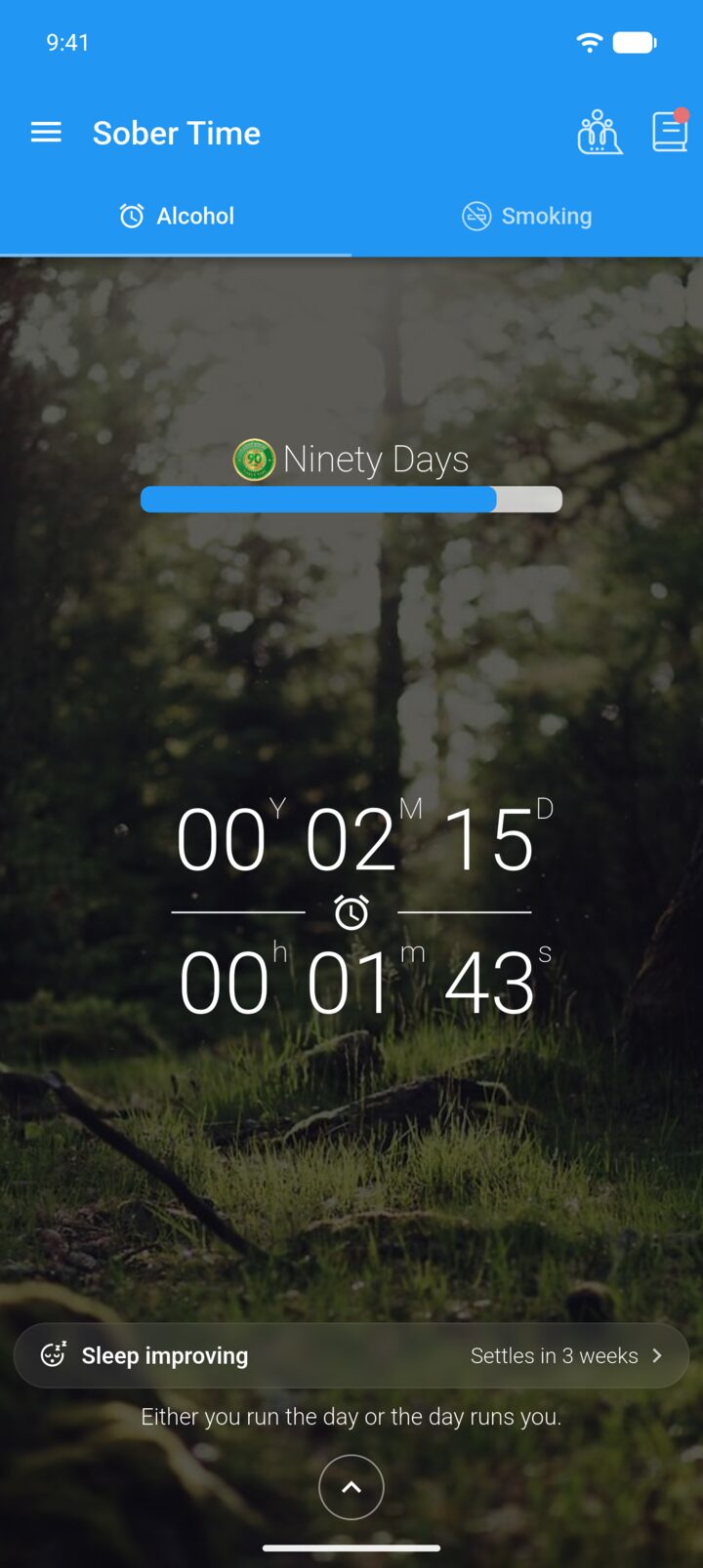
On the Home screen, the buttons in the top-right open the community and your journal. The bar under the tracker opens your health timeline, and the line below it is today's message.
-
Step 2
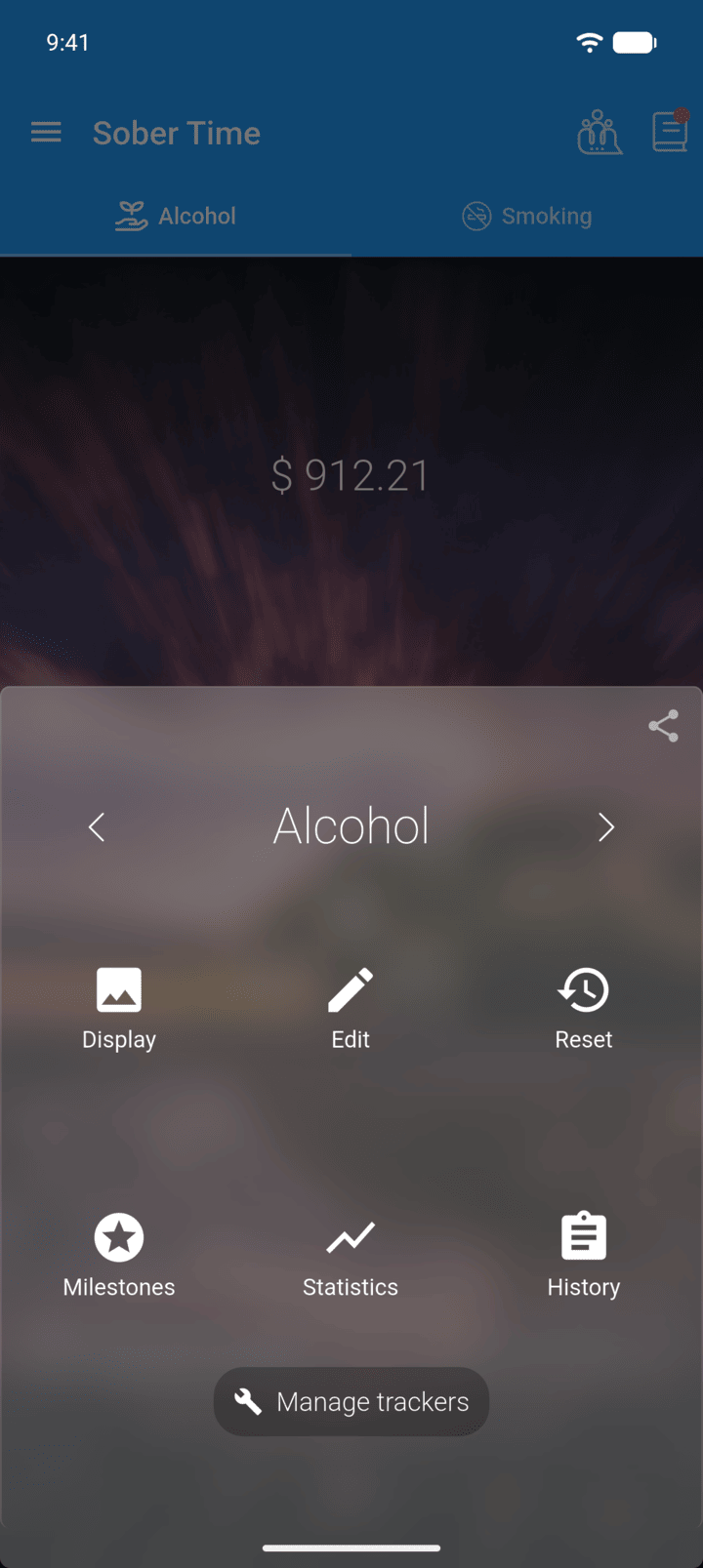
Tap the round arrow button at the bottom, or tap the middle of the tracker, to open the tracker's options: Display, Edit, Reset, Milestones, Statistics and History. Use the arrows next to the name to switch tracker.
-
Step 3
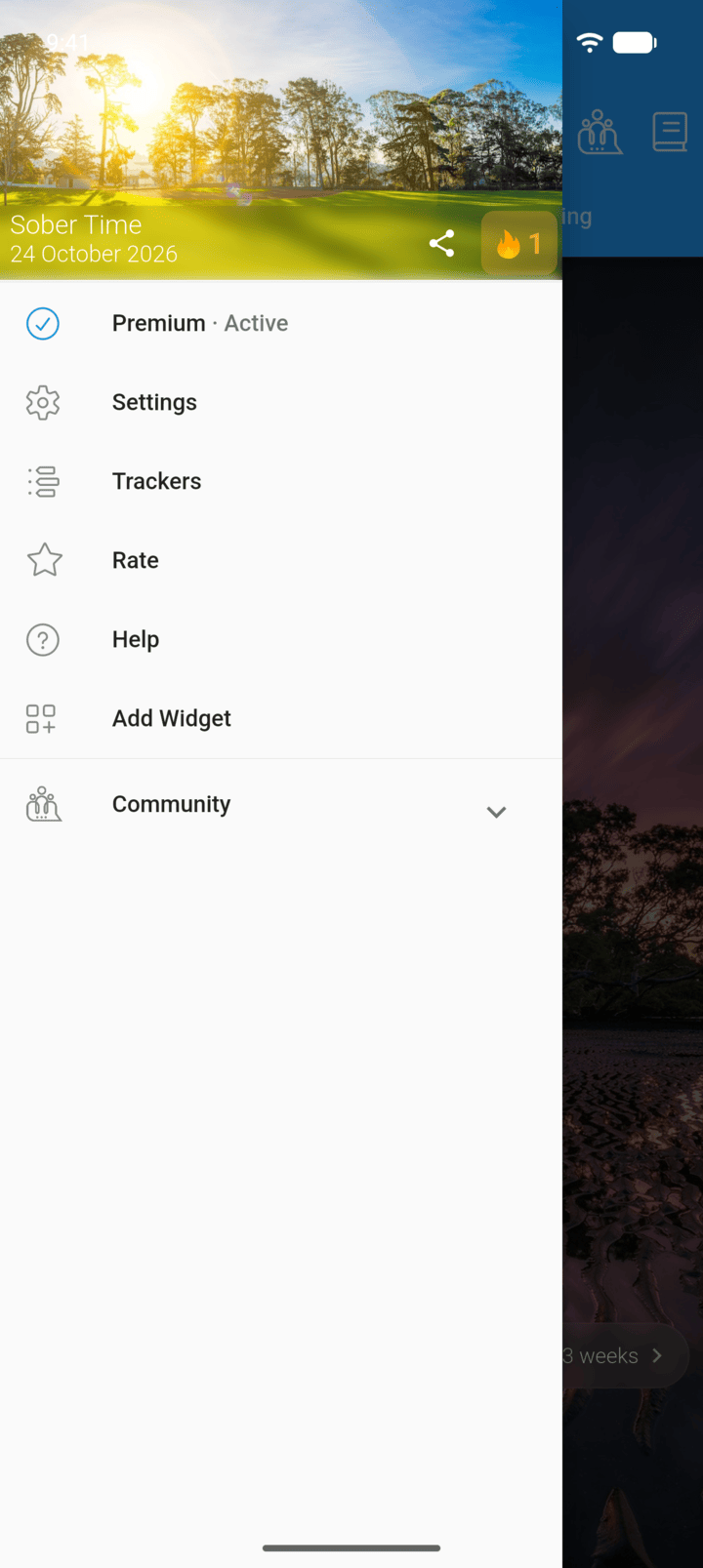
Tap the menu button ☰ in the top-left to open the main menu: Premium, Settings, Trackers, Rate, Help, Add Widget and Community.
-
Step 4
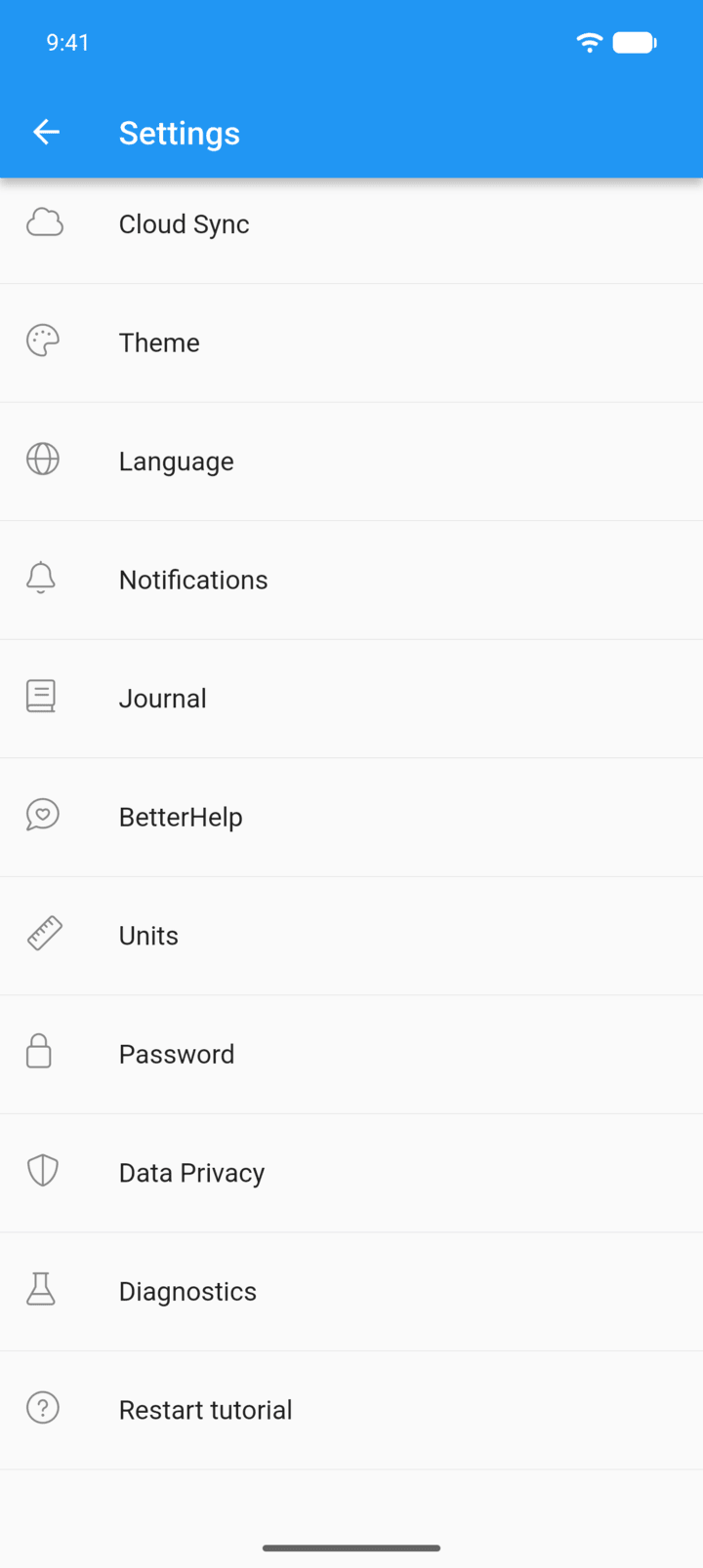
Tap Settings for the app's settings.
-
You can switch to a layout with tabs at the bottom of the screen in Settings › Theme › Layout.
Most of Sober Time is reached from three places: the tracker's options, the main menu, and the buttons at the top of the Home screen.
- On the Home screen, the buttons in the top-right open the community and your journal. The bar under the tracker opens your health timeline, and the line below it is today's message.
- Tap the round arrow button at the bottom, or tap the middle of the tracker, to open the tracker's options: Display, Edit, Reset, Milestones, Statistics and History. Use the arrows next to the name to switch tracker.
- Tap the menu button ☰ in the top-left to open the main menu: Premium, Settings, Trackers, Rate, Help, Add Widget and Community.
- Tap Settings for the app's settings.
You can switch to a layout with tabs at the bottom of the screen in Settings › Theme › Layout.