 7Z
7Z
In this guide 6 steps
-
Overview
Add a folder when you want 7Z to open a USB drive, an SD card, or just one folder instead of all your files.
-
Step 1
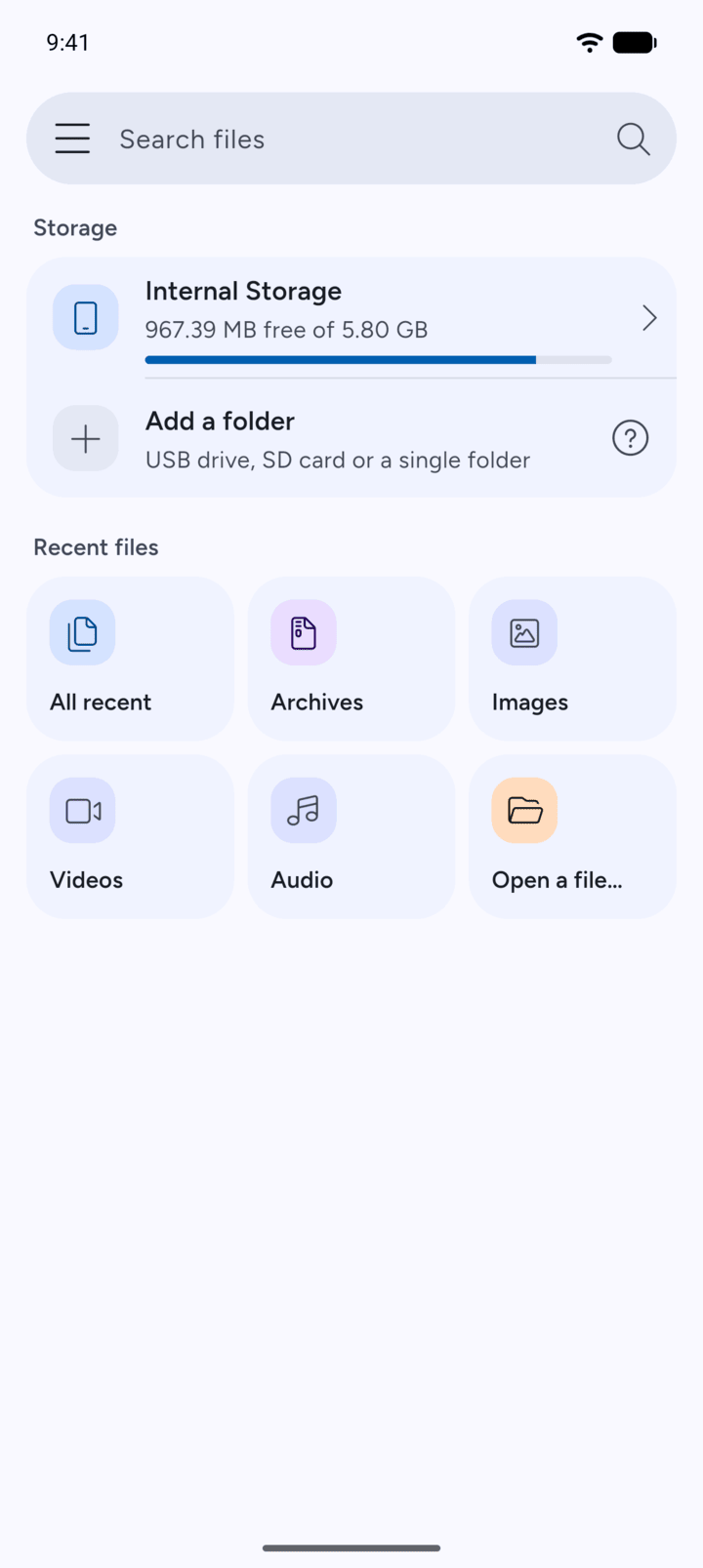
On Home, tap Add a folder. It's the last item in the Storage section.
-
Step 2
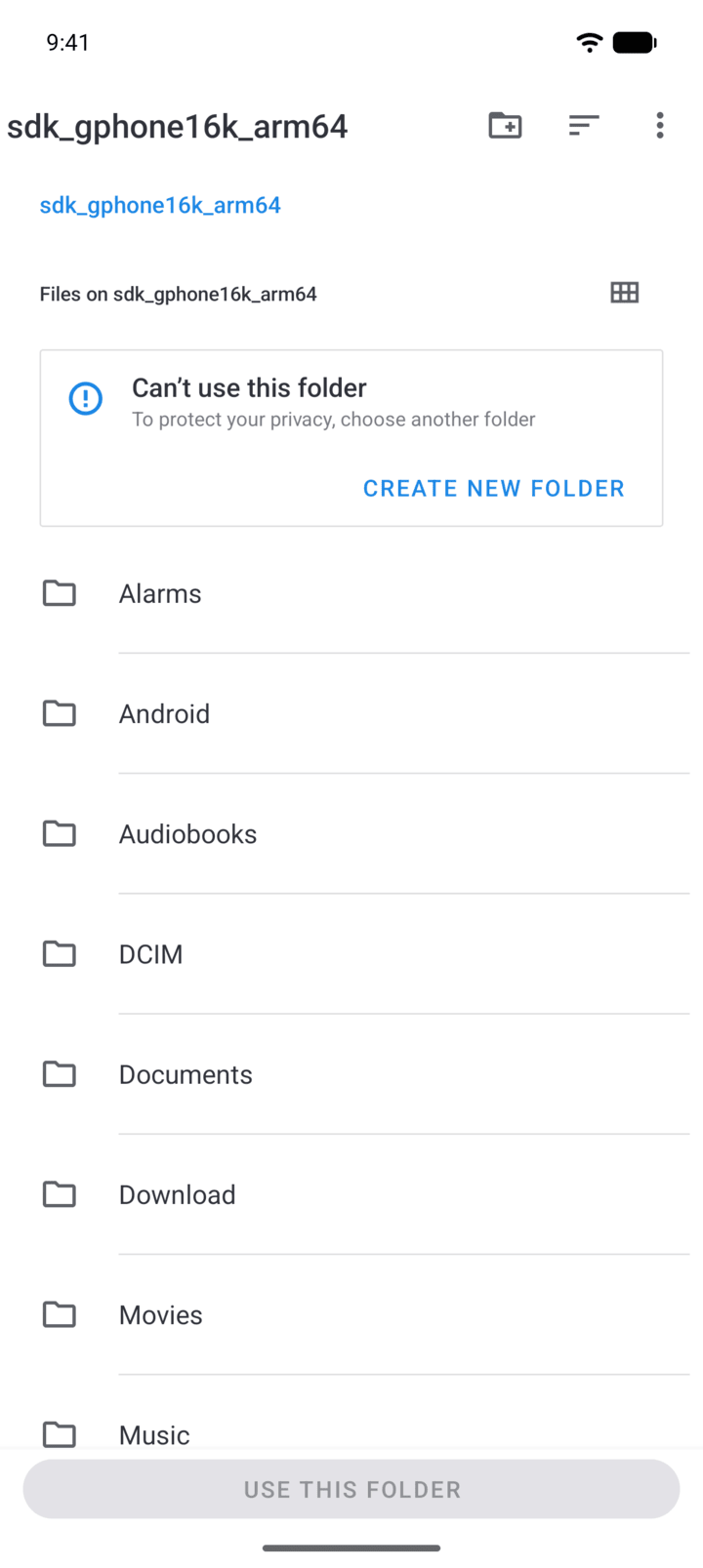
Android's folder picker opens in your phone's internal storage. Android won't let you choose the top of a storage or the Download folder itself.
-
Step 3
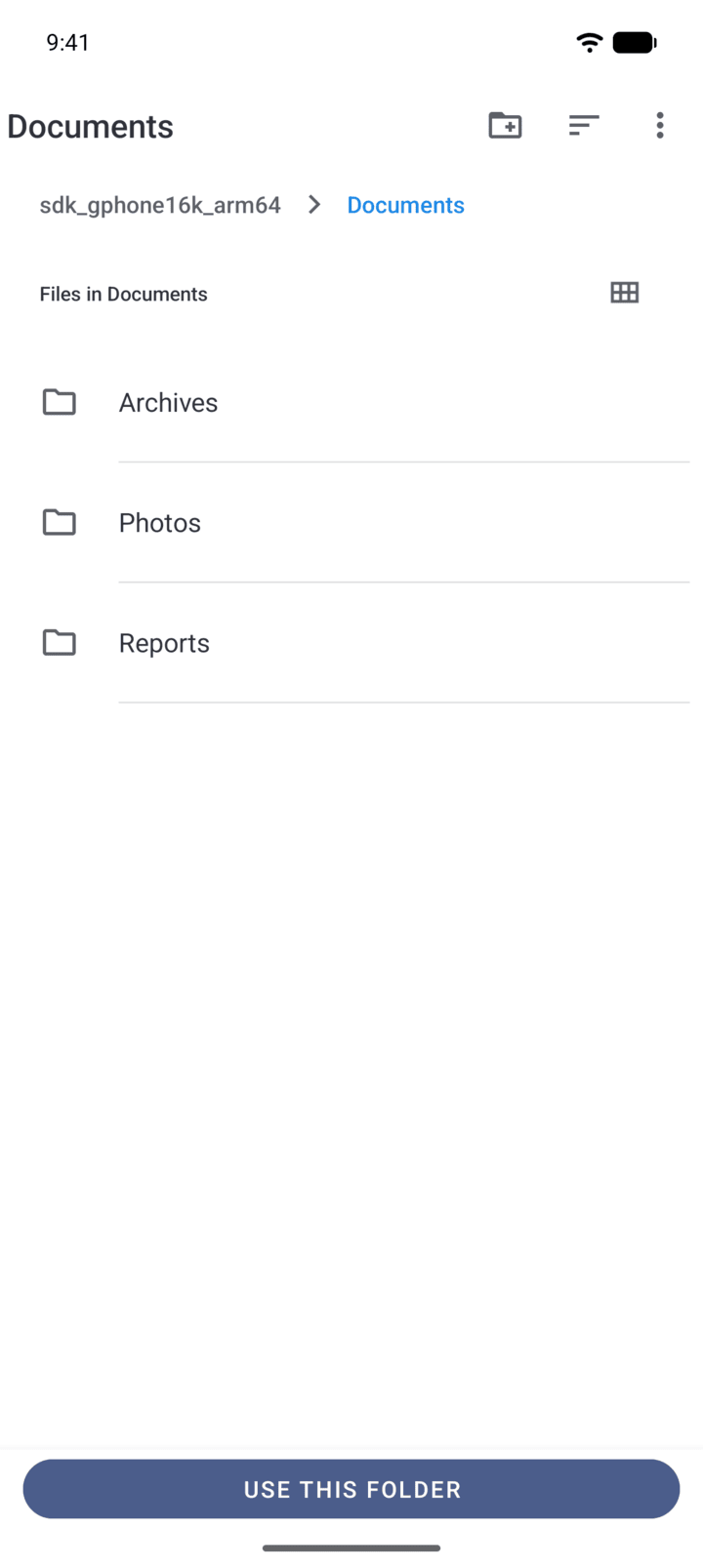
Open the folder you want, for example Documents. To use an SD card or USB drive, open the menu in the picker and choose it from the list.
-
Step 4
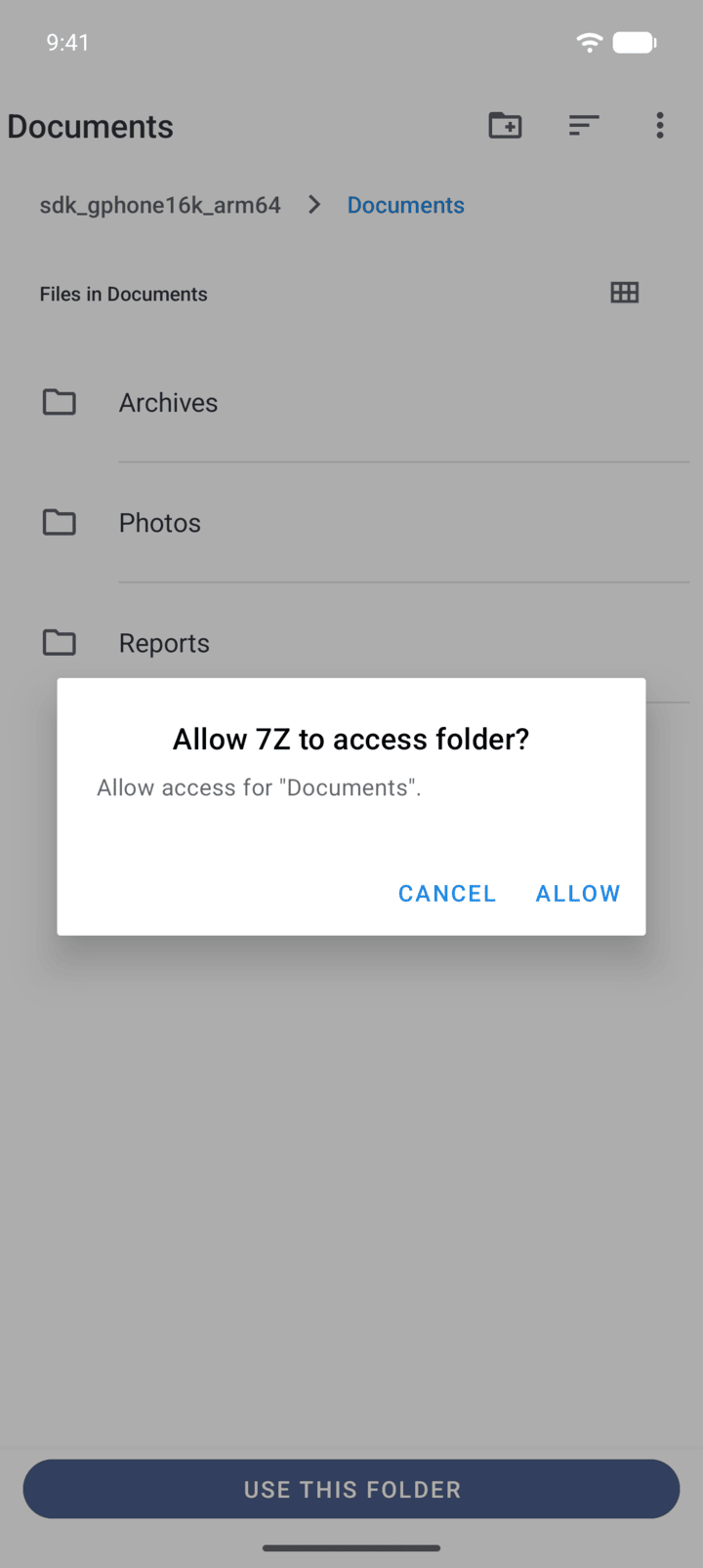
Tap Use this folder, then tap Allow.
-
Step 5
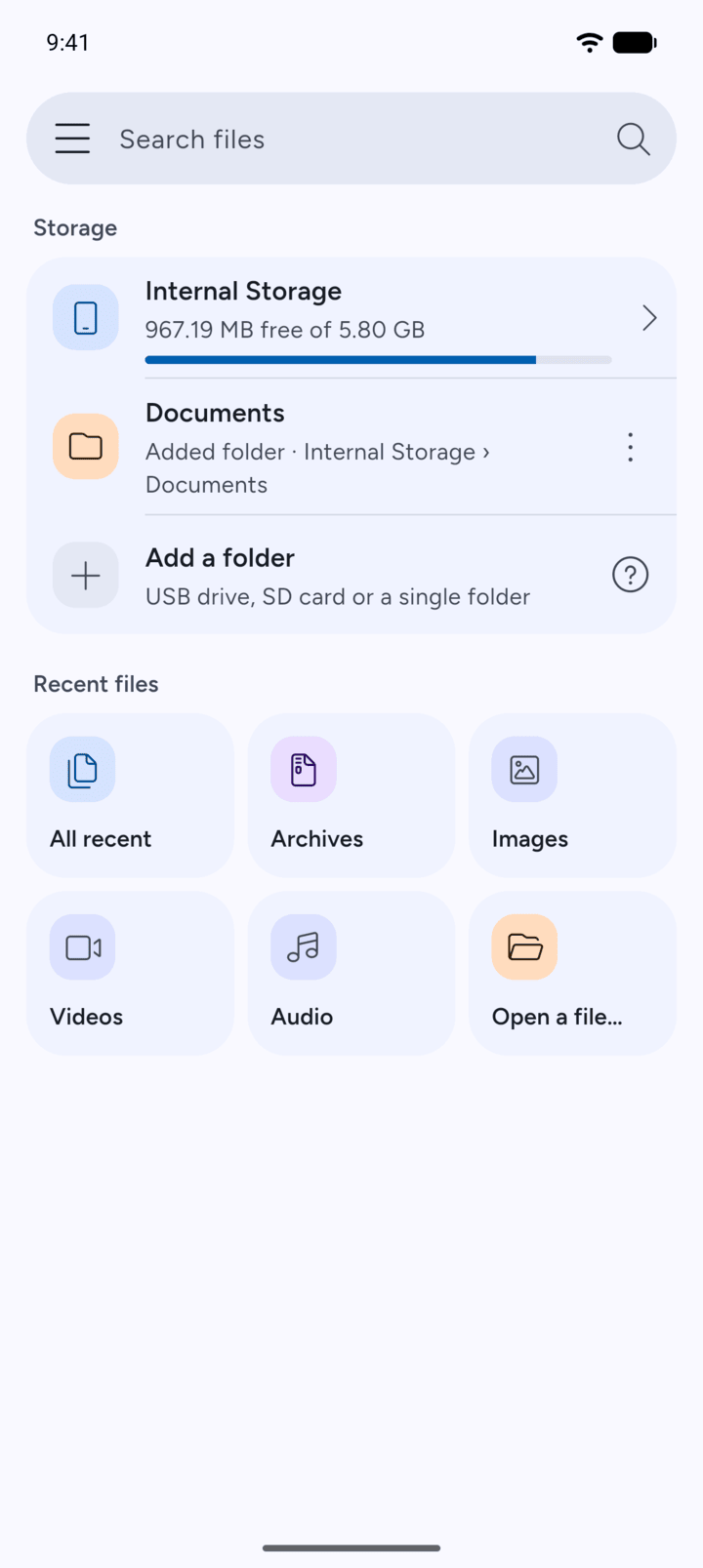
The folder now shows on Home under Storage. 7Z can open everything in it, including files you add later.
-
Step 6
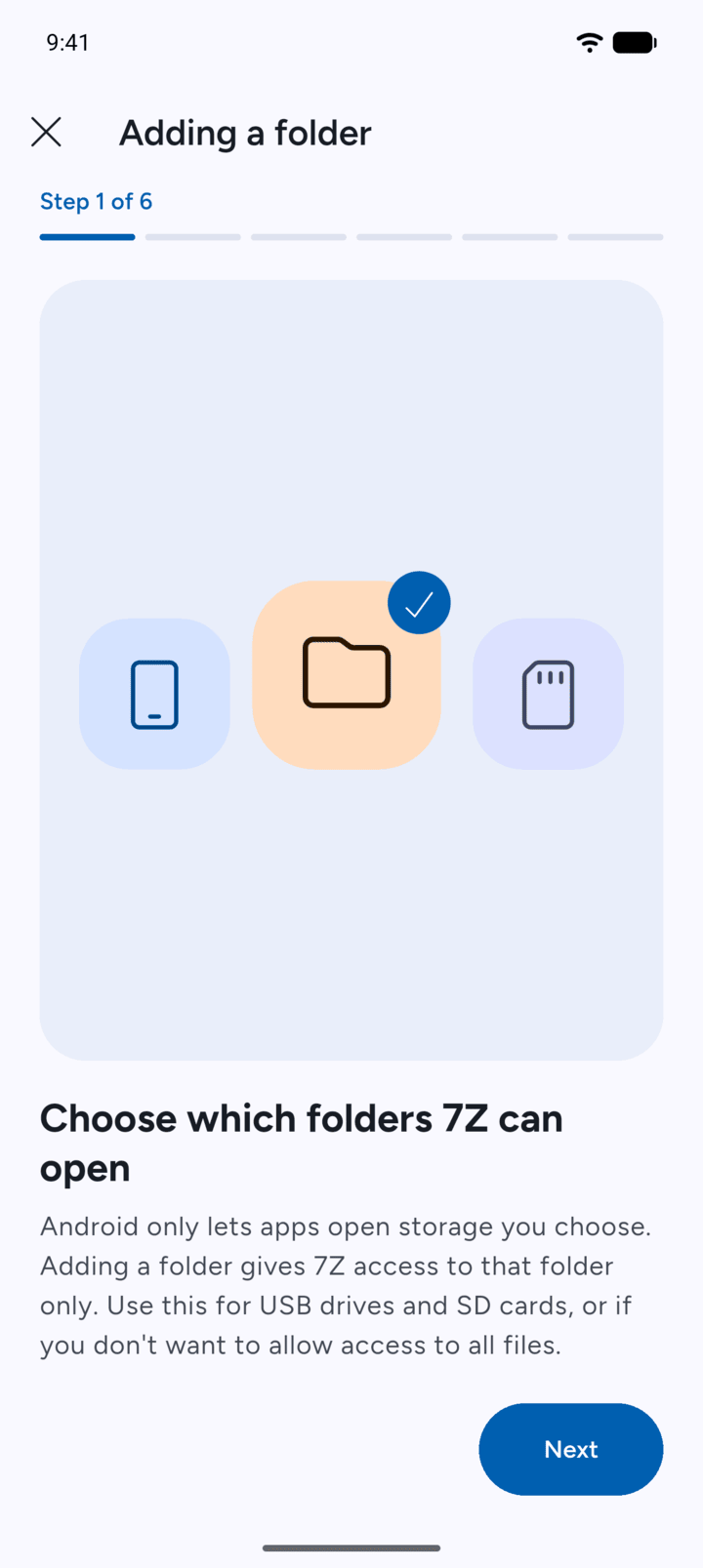
Need a reminder later? Tap the question mark next to Add a folder to see these steps in 7Z.
-
To stop 7Z from opening the folder, see the guide Removing a folder.
Add a folder when you want 7Z to open a USB drive, an SD card, or just one folder instead of all your files.
- On Home, tap Add a folder. It's the last item in the Storage section.
- Android's folder picker opens in your phone's internal storage. Android won't let you choose the top of a storage or the Download folder itself.
- Open the folder you want, for example Documents. To use an SD card or USB drive, open the menu in the picker and choose it from the list.
- Tap Use this folder, then tap Allow.
- The folder now shows on Home under Storage. 7Z can open everything in it, including files you add later.
- Need a reminder later? Tap the question mark next to Add a folder to see these steps in 7Z.
To stop 7Z from opening the folder, see the guide Removing a folder.