 7Z
7Z
In this guide 5 steps
-
Step 1
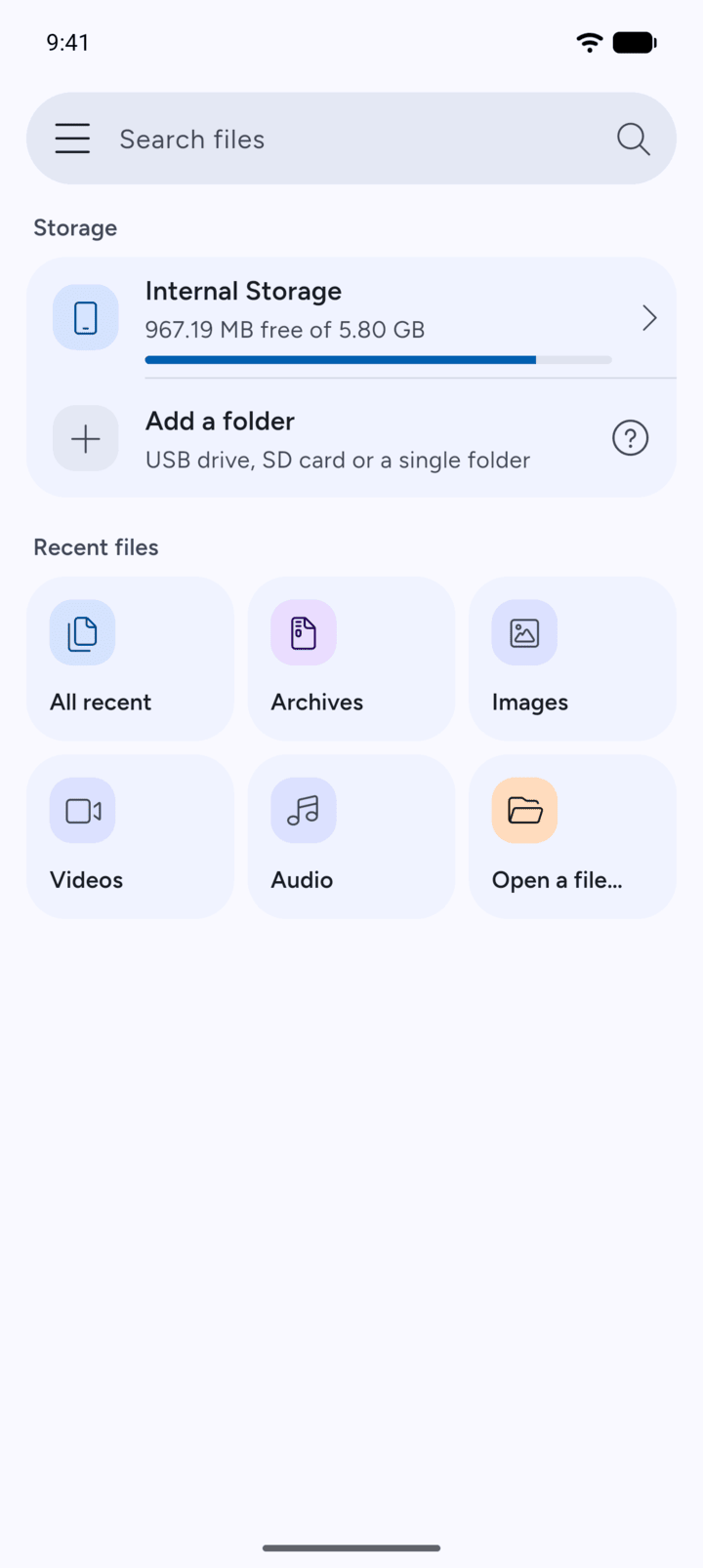
On Home, tap Internal Storage or a folder you added.
-
Step 2
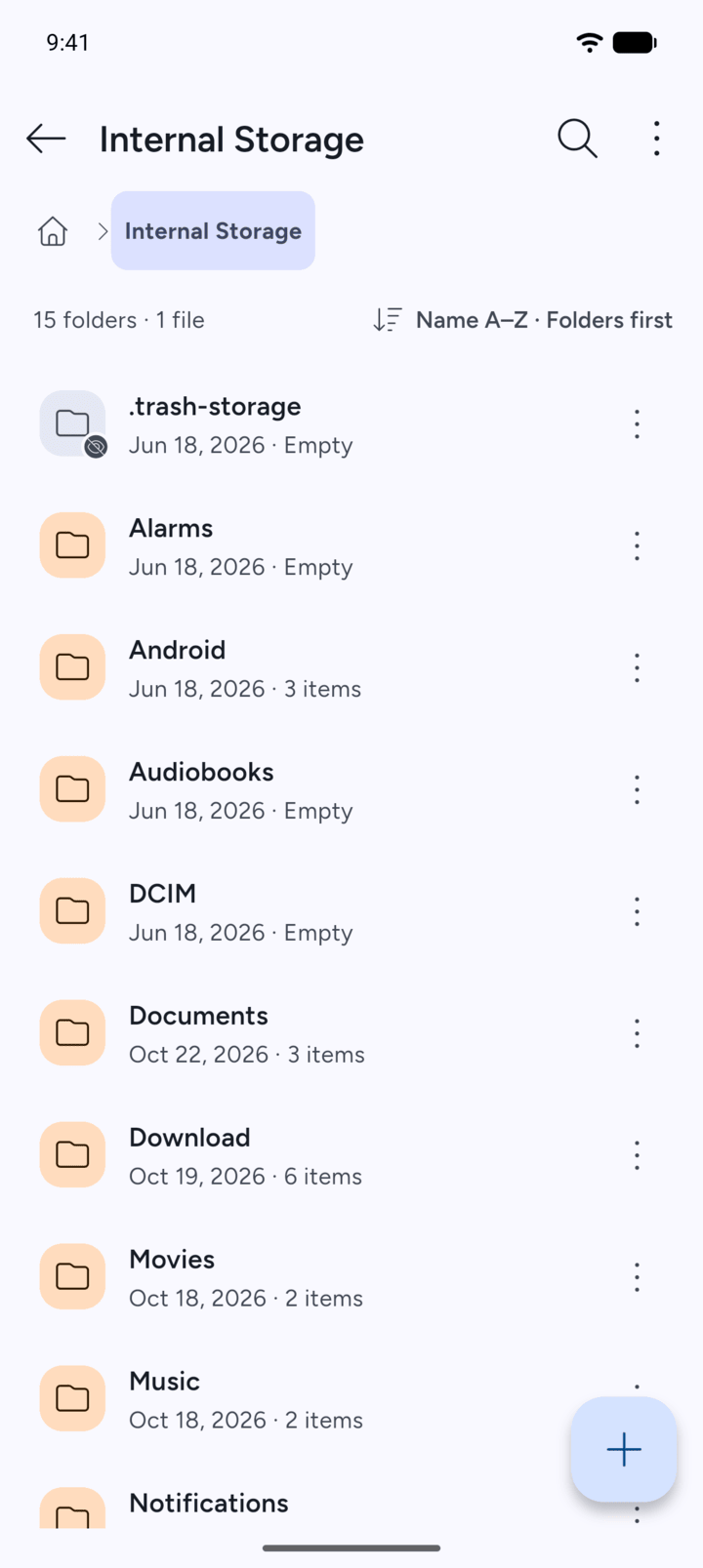
Tap a folder to open it. Each folder shows the date it last changed and how many items it holds.
-
Step 3
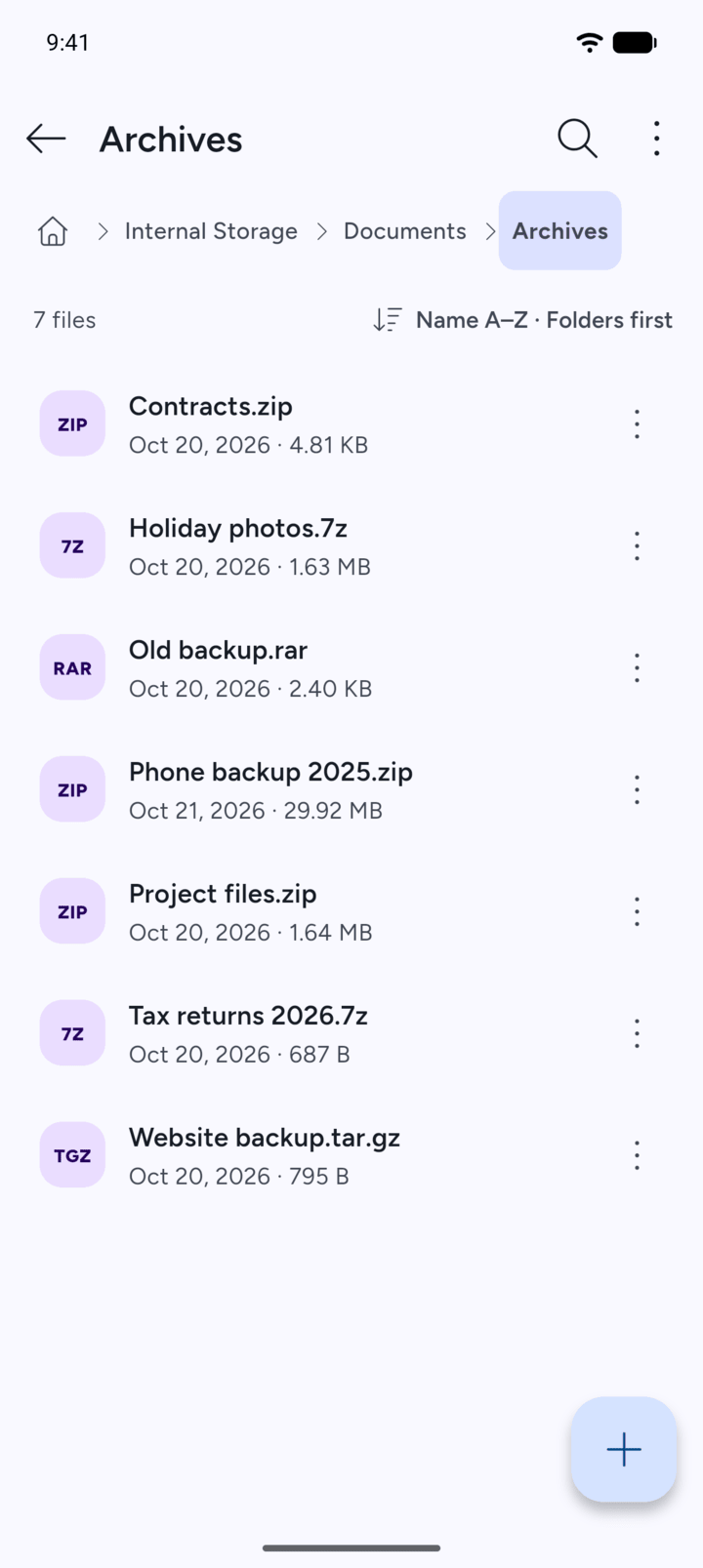
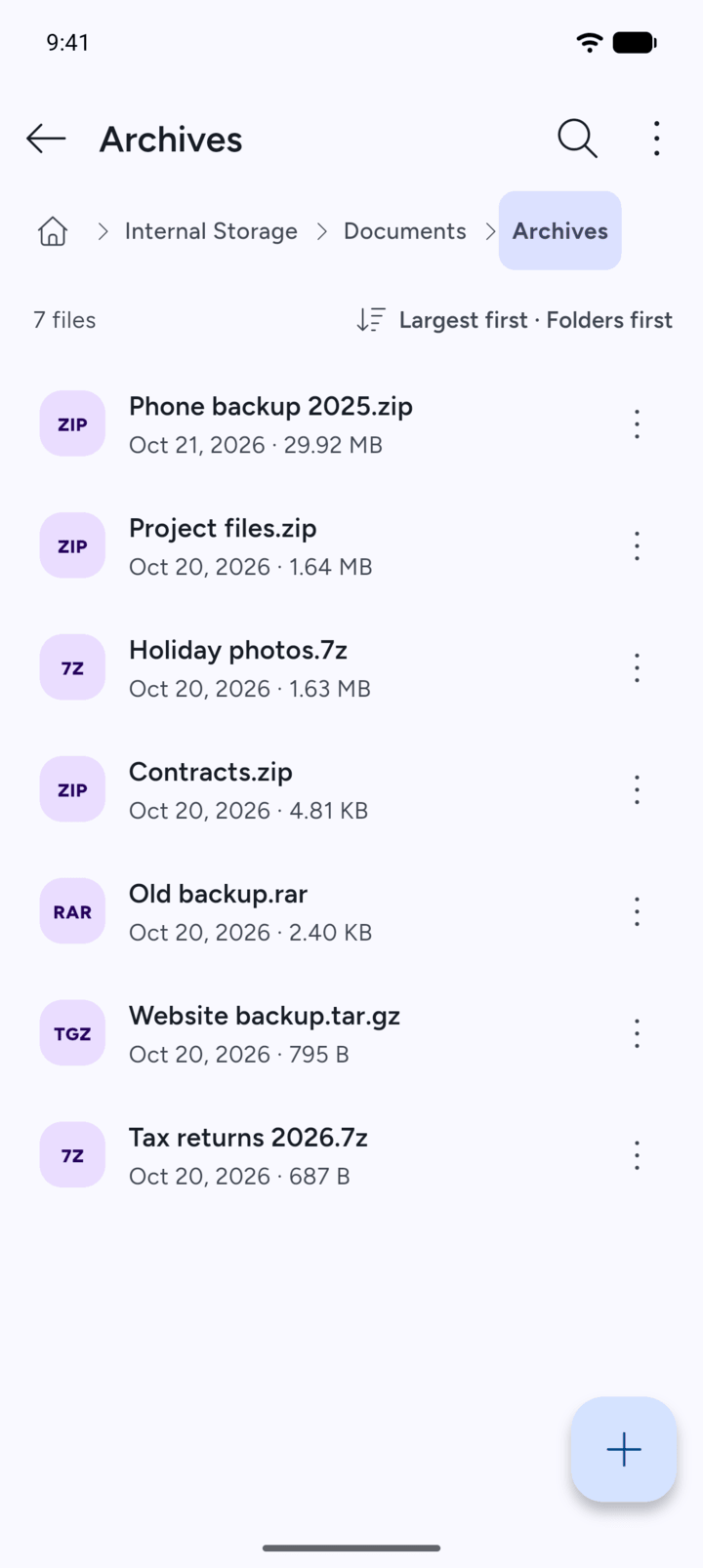
The path at the top shows where you are. Tap any folder in the path to go back to it, or tap the house to go to Home.
-
Step 4
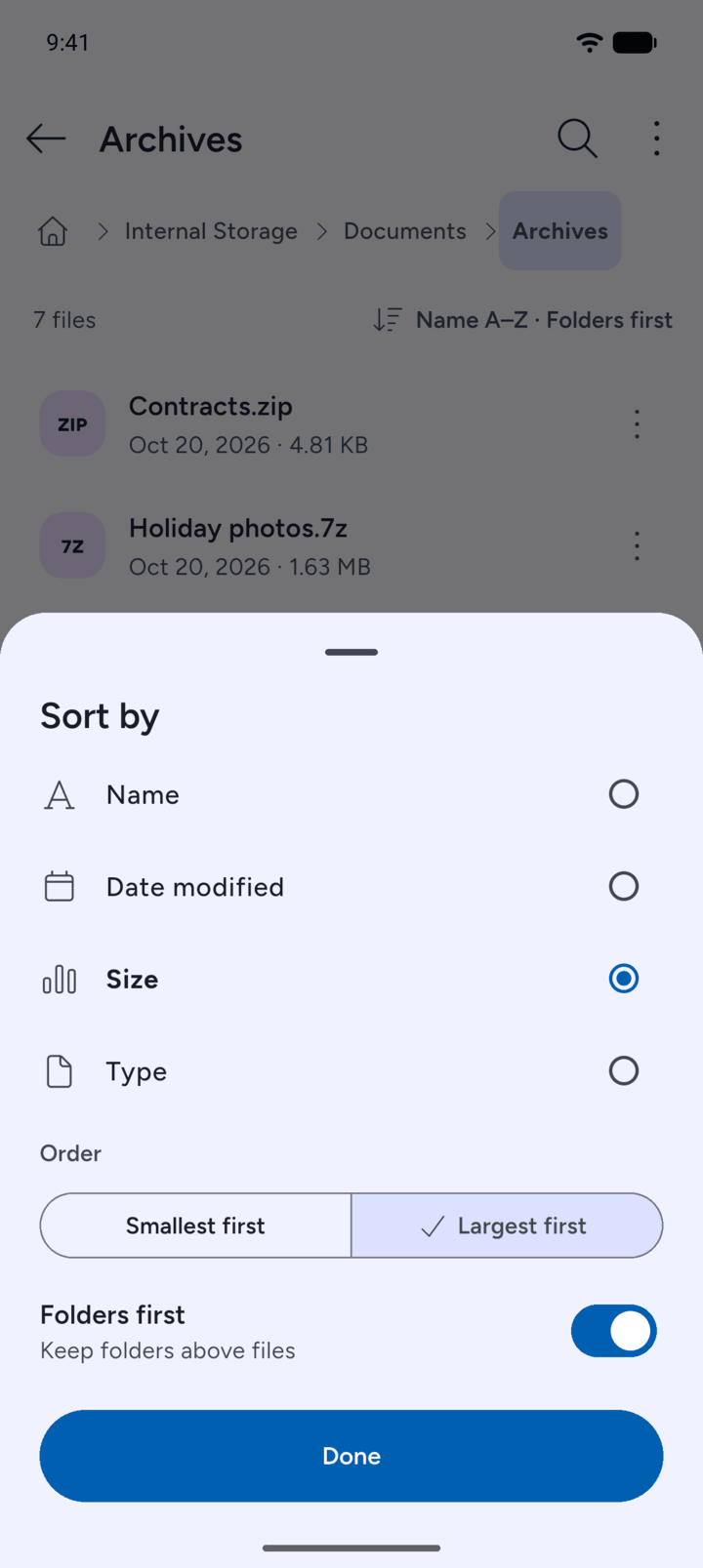
To change the order, tap the sort label above the list, for example Name A–Z · Folders first. Choose Name, Date modified, Size or Type, choose the order, and choose whether to keep folders above files. Tap Done.
-
Step 5
The list is sorted the way you chose. 7Z keeps this order until you change it.
- On Home, tap Internal Storage or a folder you added.
- Tap a folder to open it. Each folder shows the date it last changed and how many items it holds.
- The path at the top shows where you are. Tap any folder in the path to go back to it, or tap the house to go to Home.
- To change the order, tap the sort label above the list, for example Name A–Z · Folders first. Choose Name, Date modified, Size or Type, choose the order, and choose whether to keep folders above files. Tap Done.
- The list is sorted the way you chose. 7Z keeps this order until you change it.