 7Z
7Z
In this guide 5 steps
-
Overview
Pin the folders you use most so you can open them straight from Home.
-
Step 1
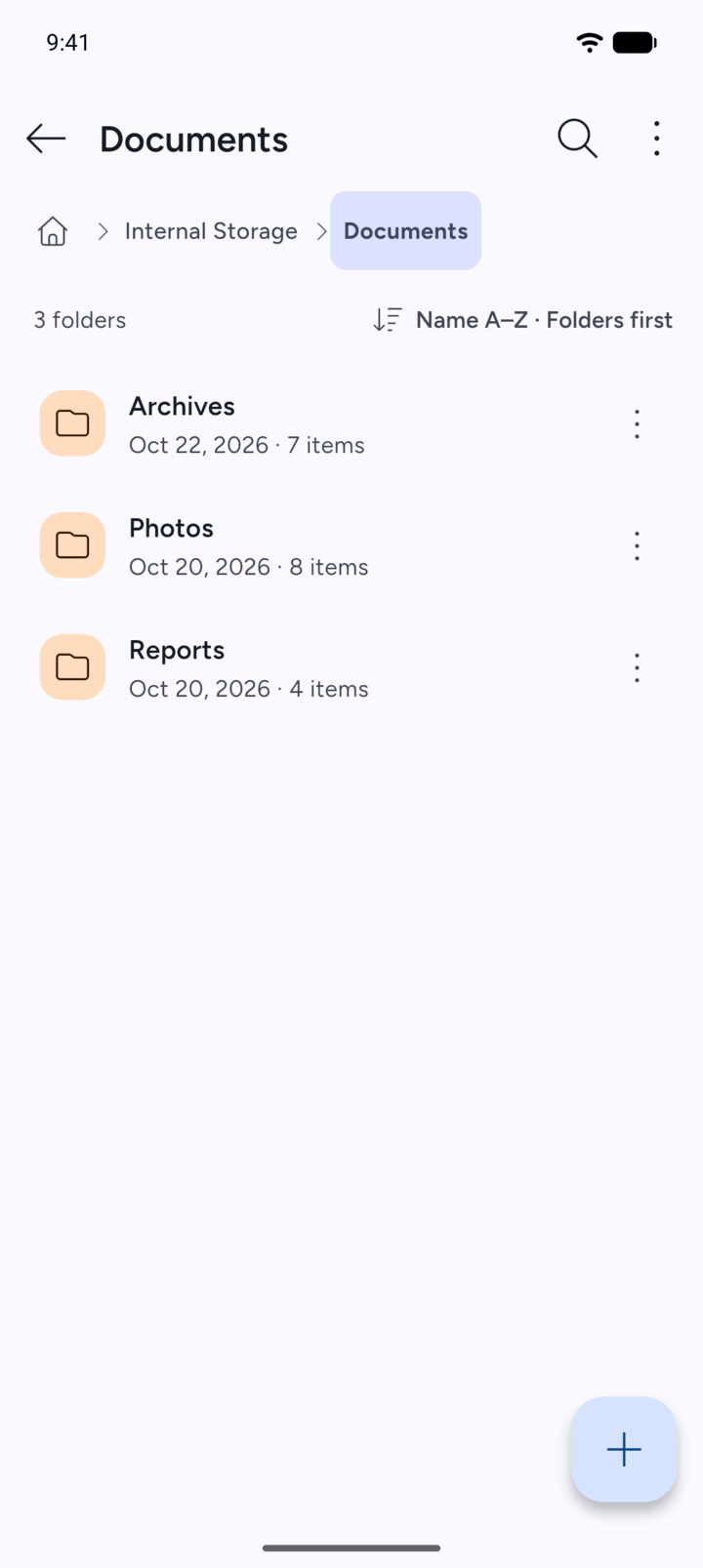
Open the folder that holds the folder you want to pin, then tap the three dots next to it.
-
Step 2
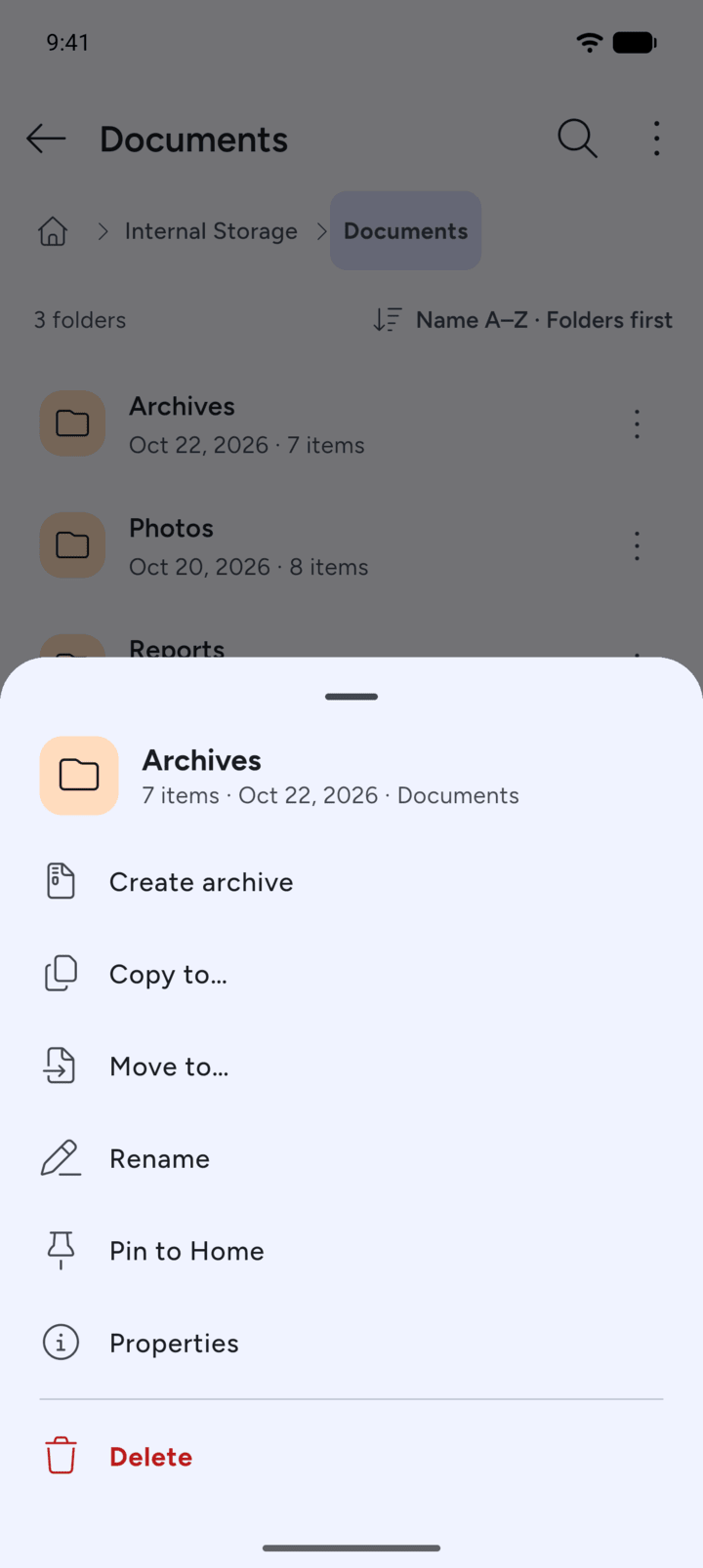
Tap Pin to Home.
-
Step 3
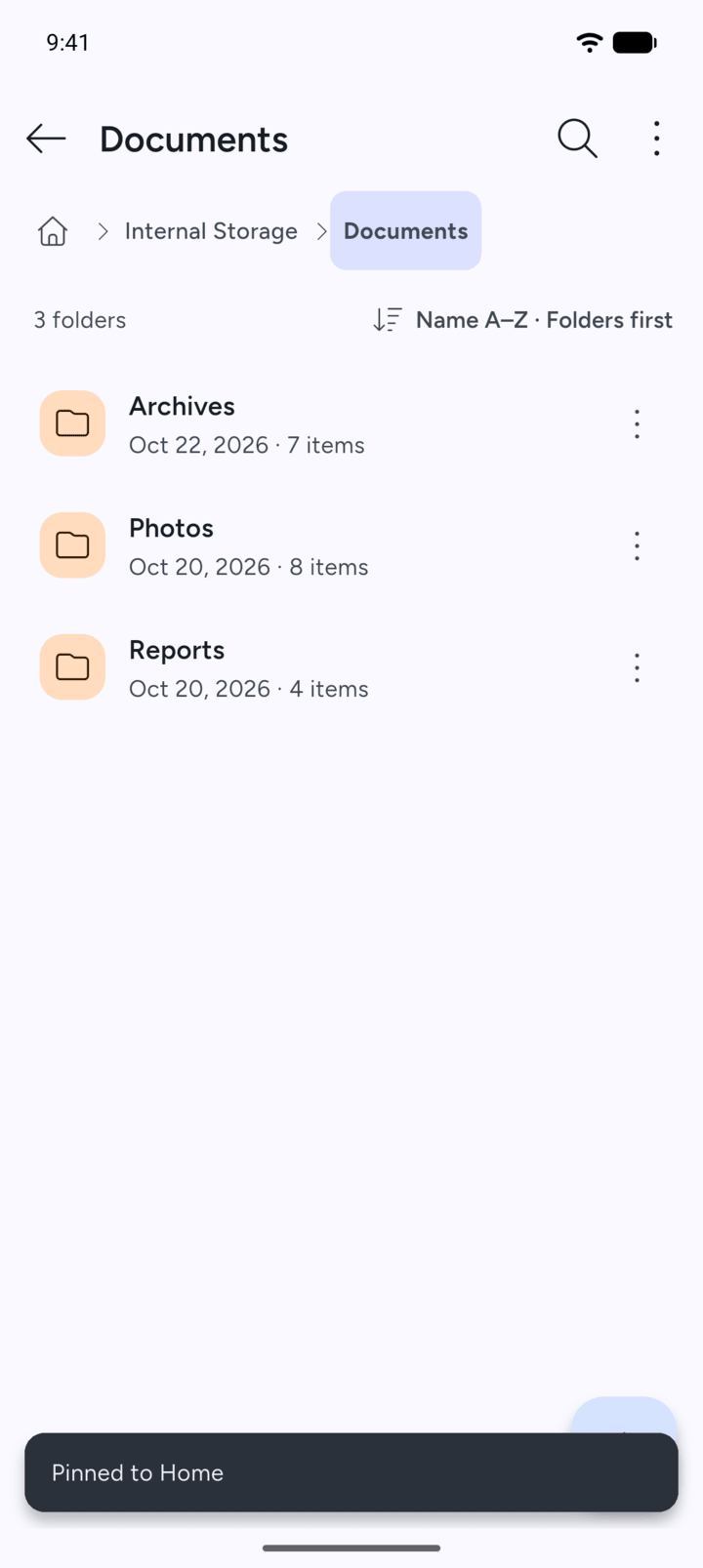
7Z shows Pinned to Home.
-
Step 4
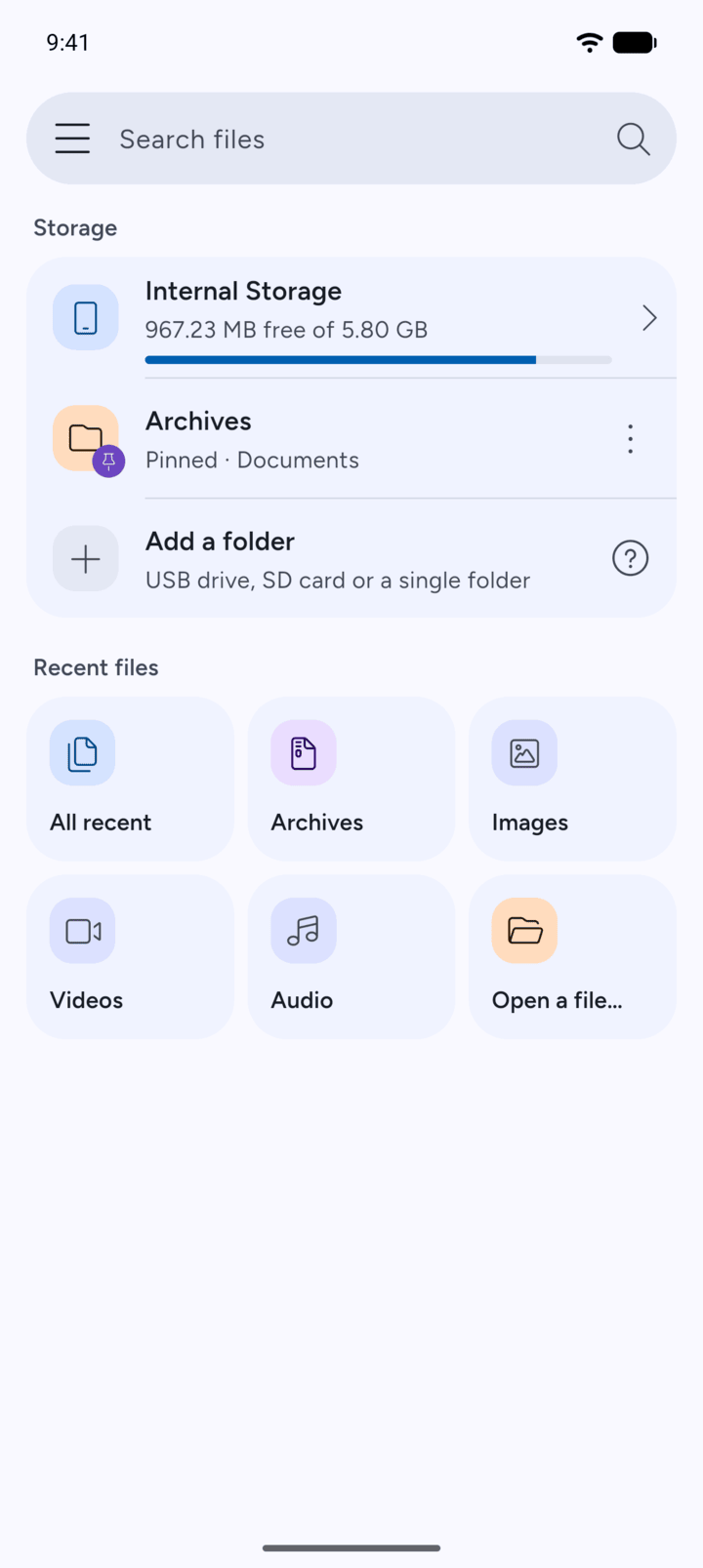
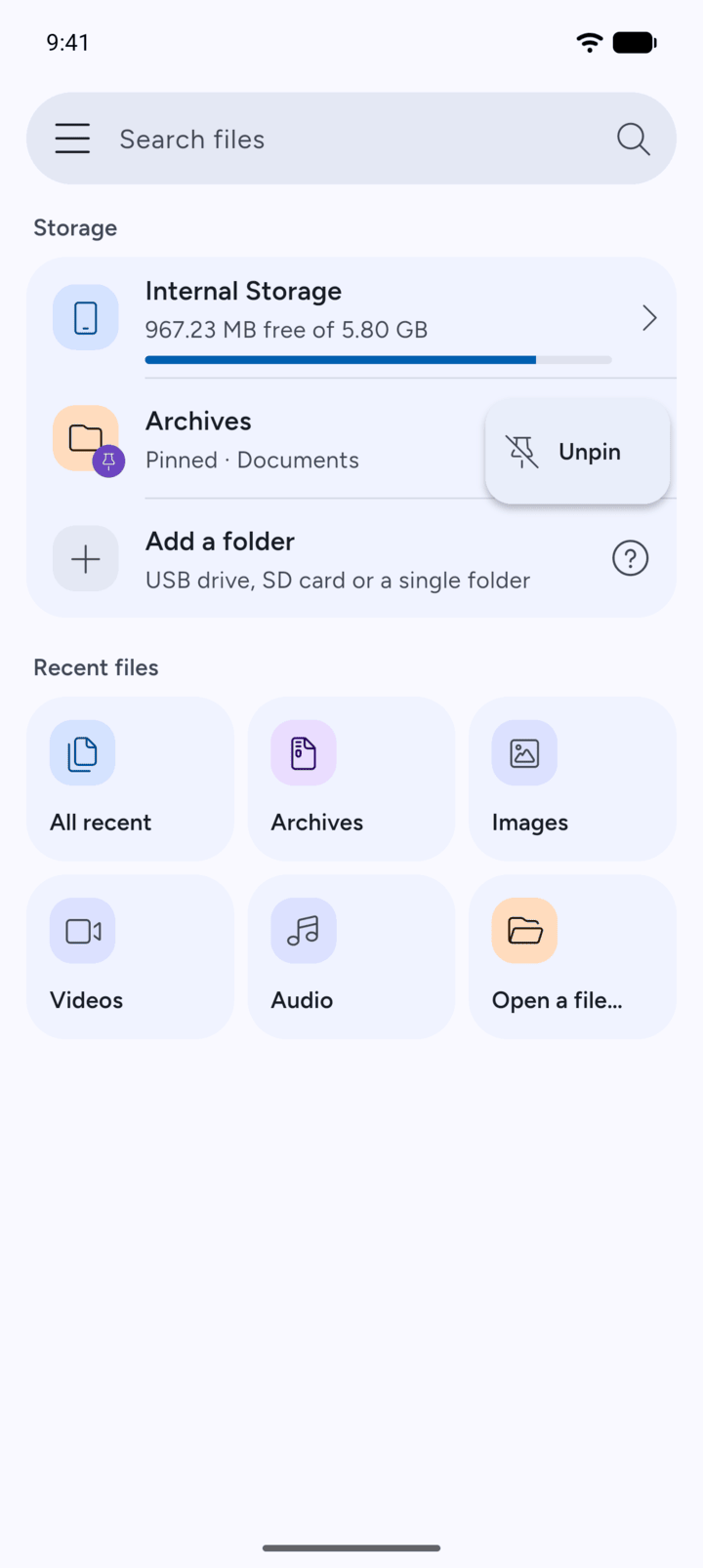
The folder now shows on Home under Storage. Tap it to go straight there.
-
Step 5
To unpin it, tap the three dots next to it on Home and tap Unpin.
Pin the folders you use most so you can open them straight from Home.
- Open the folder that holds the folder you want to pin, then tap the three dots next to it.
- Tap Pin to Home.
- 7Z shows Pinned to Home.
- The folder now shows on Home under Storage. Tap it to go straight there.
- To unpin it, tap the three dots next to it on Home and tap Unpin.