 7Z
7Z
In this guide 4 steps
-
Overview
Android only lets apps open the files you allow. The first time you open 7Z, it asks for access to your storage.
-
Step 1
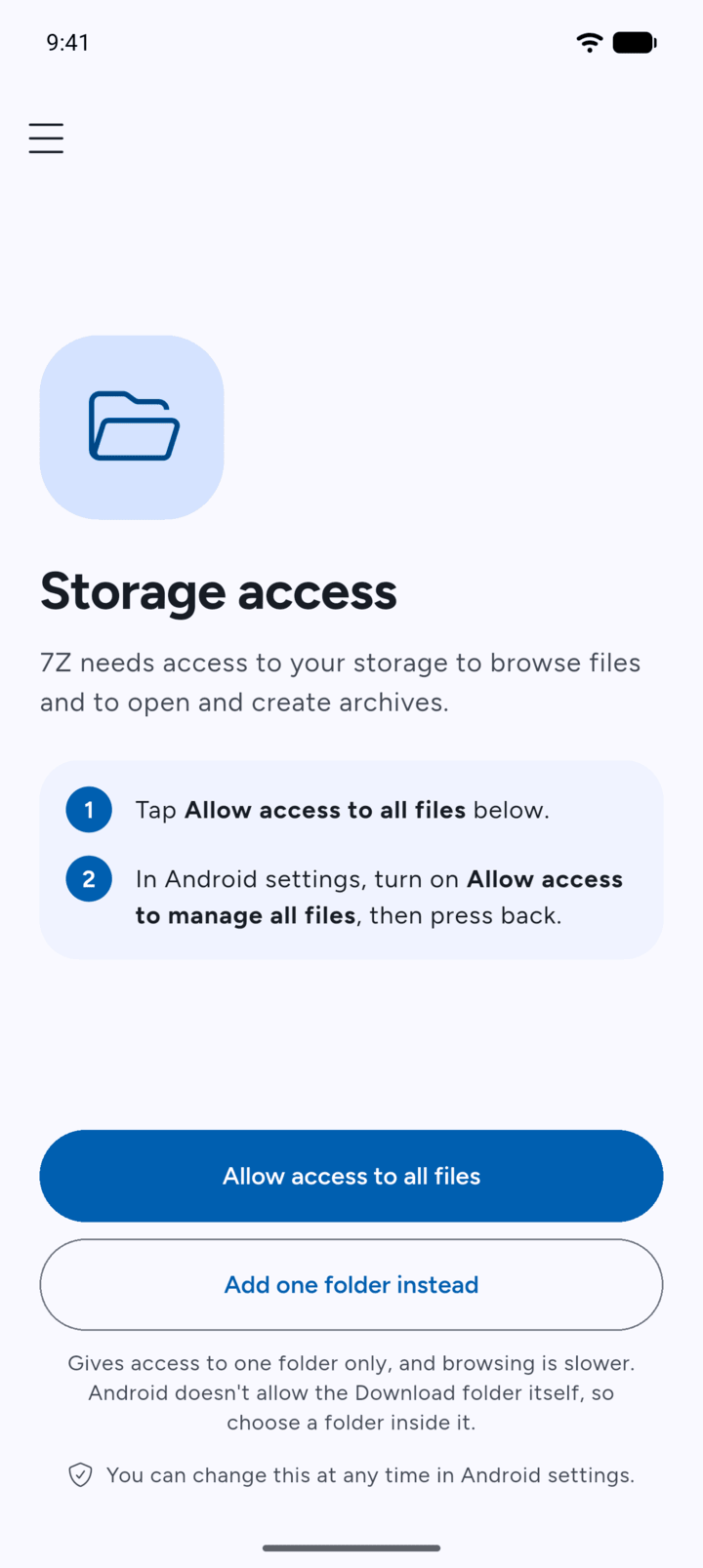
Open 7Z. On the Storage access screen, tap Allow access to all files.
-
Step 2
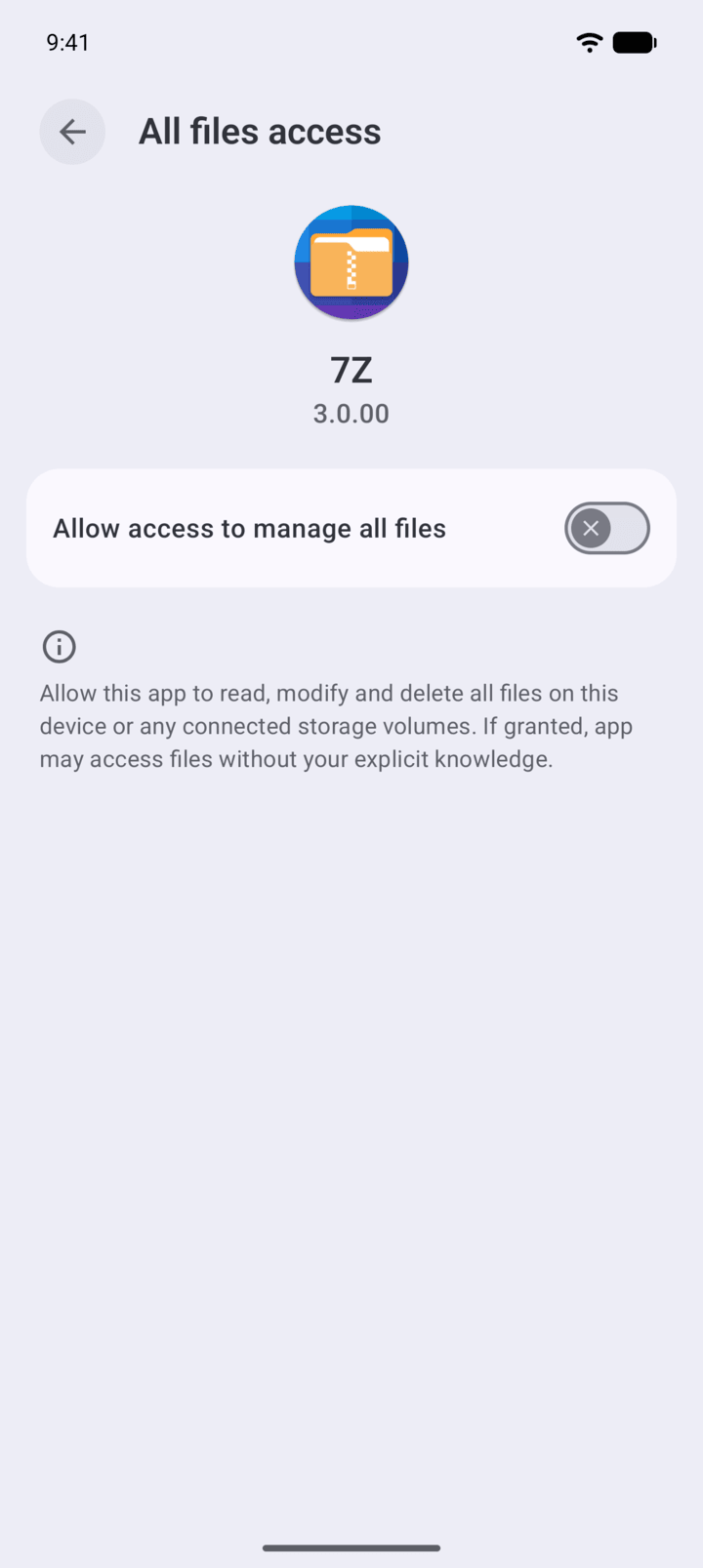
Android opens All files access for 7Z. Turn on Allow access to manage all files.
-
Step 3
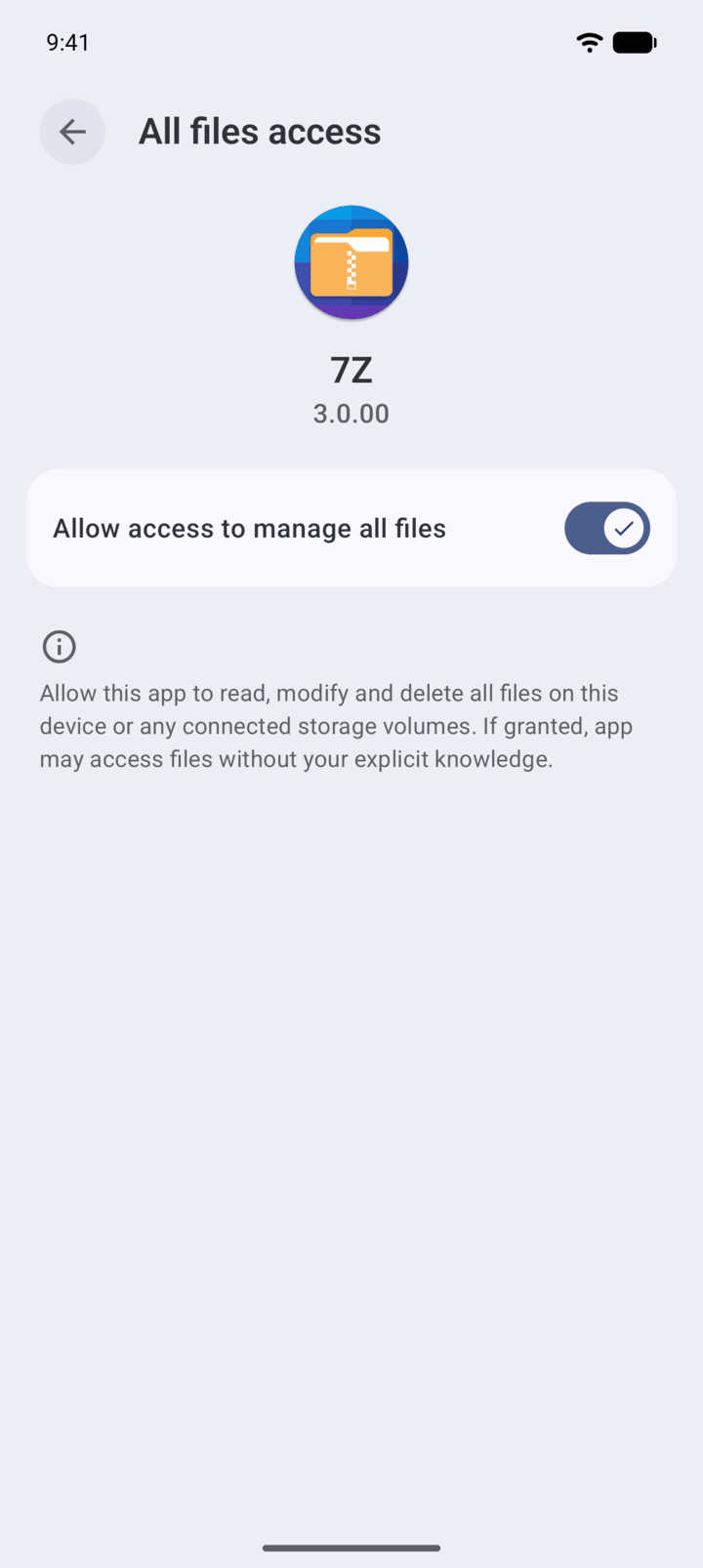
Press back to return to 7Z.
-
Step 4
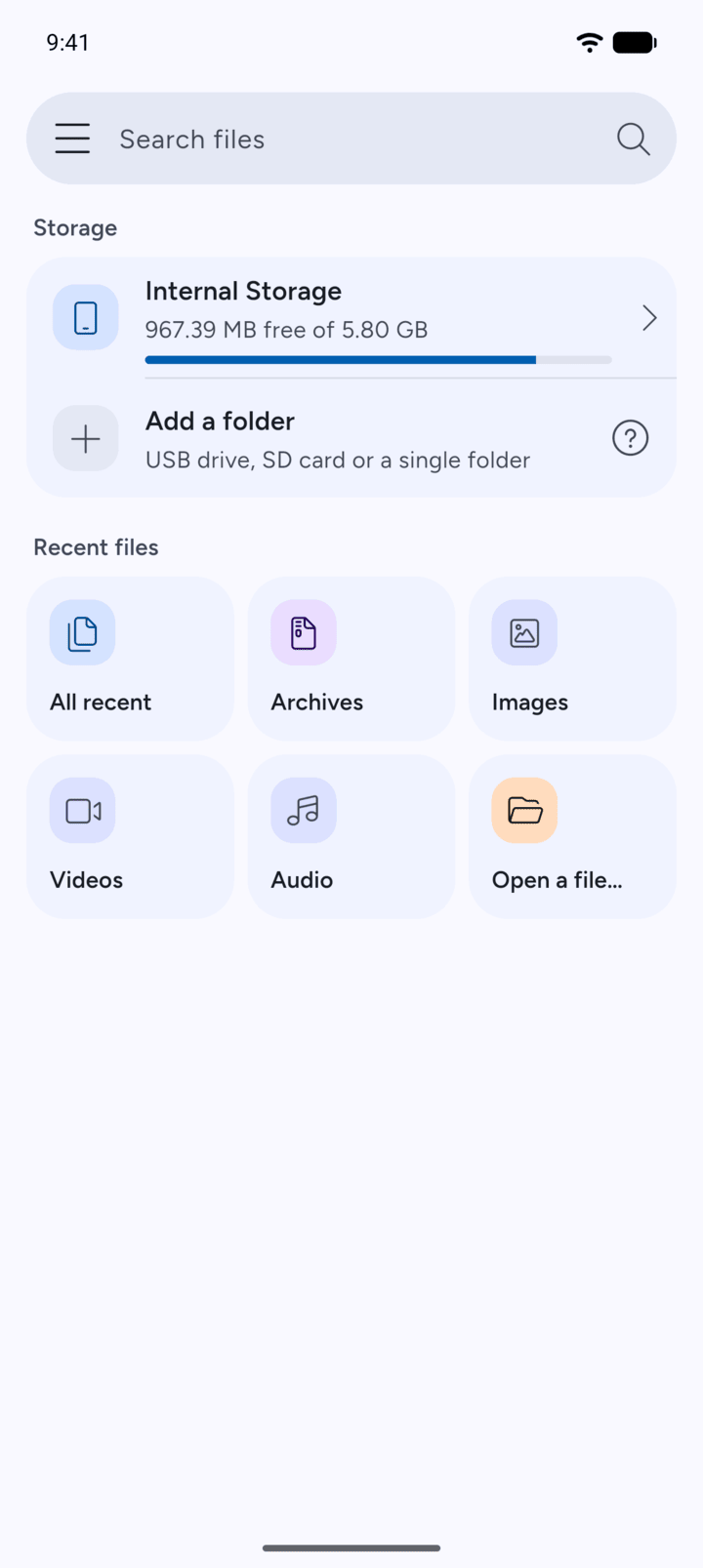
You're on Home. Tap Internal Storage to browse your files.
-
Prefer not to give 7Z access to everything? Tap Add one folder instead on the Storage access screen. 7Z can then open only that folder, and browsing is slower. See the guide Adding a folder.
You can change this at any time in Android settings.
Android only lets apps open the files you allow. The first time you open 7Z, it asks for access to your storage.
- Open 7Z. On the Storage access screen, tap Allow access to all files.
- Android opens All files access for 7Z. Turn on Allow access to manage all files.
- Press back to return to 7Z.
- You're on Home. Tap Internal Storage to browse your files.
Prefer not to give 7Z access to everything? Tap Add one folder instead on the Storage access screen. 7Z can then open only that folder, and browsing is slower. See the guide Adding a folder.
You can change this at any time in Android settings.