 7Z
7Z
In this guide 7 steps
- 01On Home, tap Search files at the top.
- 02Type part of a name. Matching files and folders…
- 03Each result shows the folder it's in.
- 04To see only one kind of item, tap All types and…
- 05The list now shows only that kind of item.
- 06To see only newer files, tap Any time and…
- 07To search inside one folder, open the folder…
-
Step 1
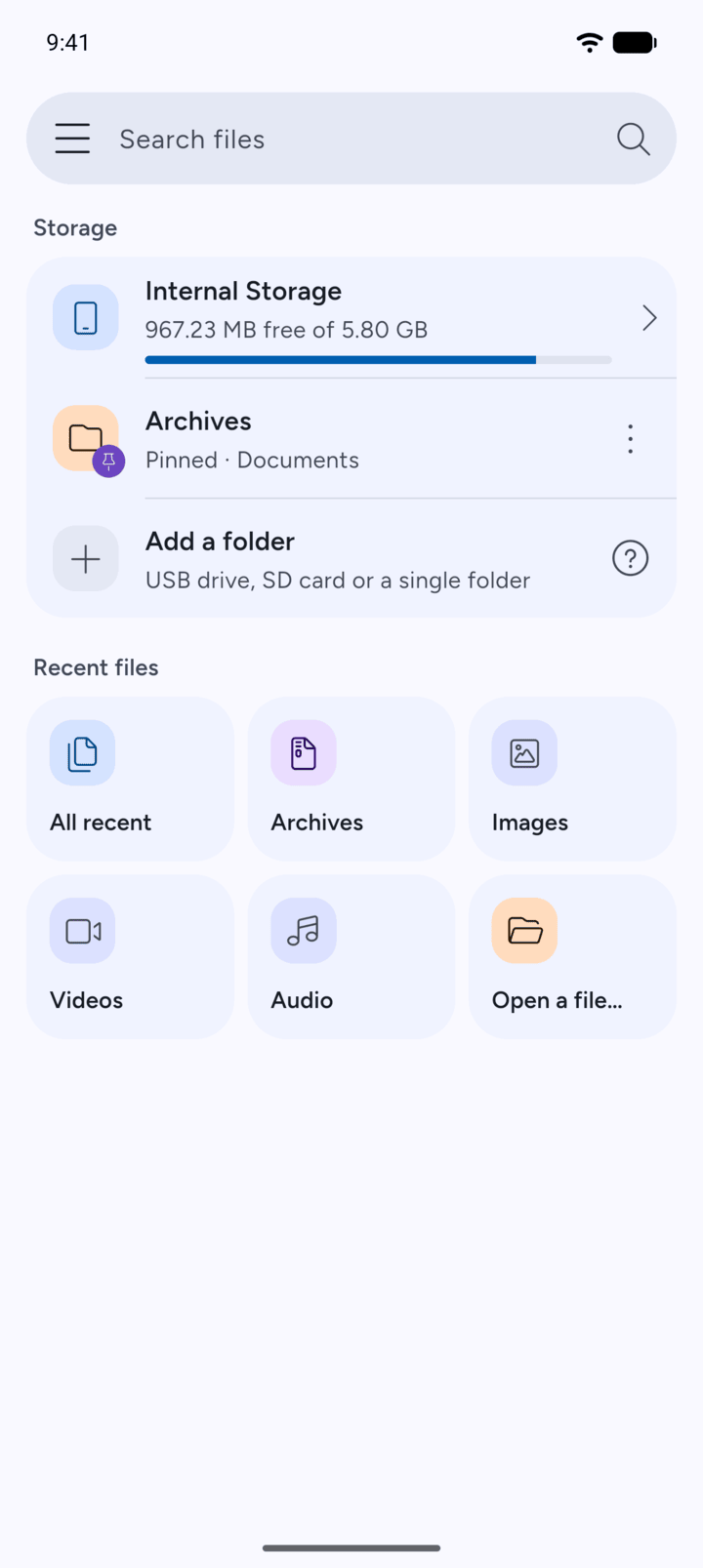
On Home, tap Search files at the top.
-
Step 2
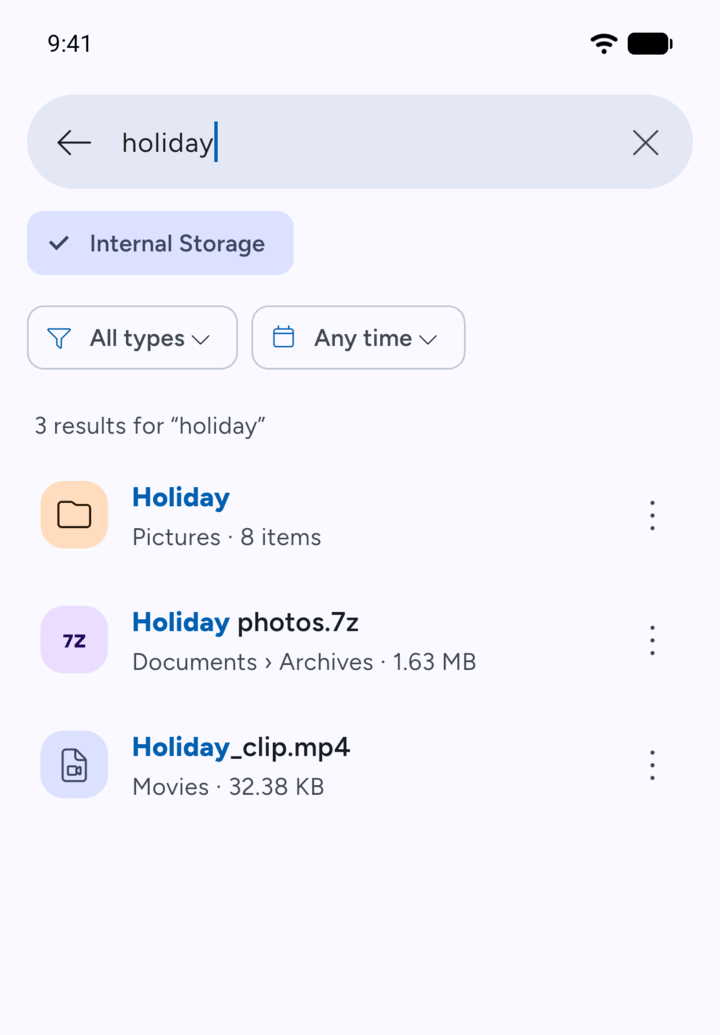
Type part of a name. Matching files and folders on Internal Storage show as you type.
-
Step 3
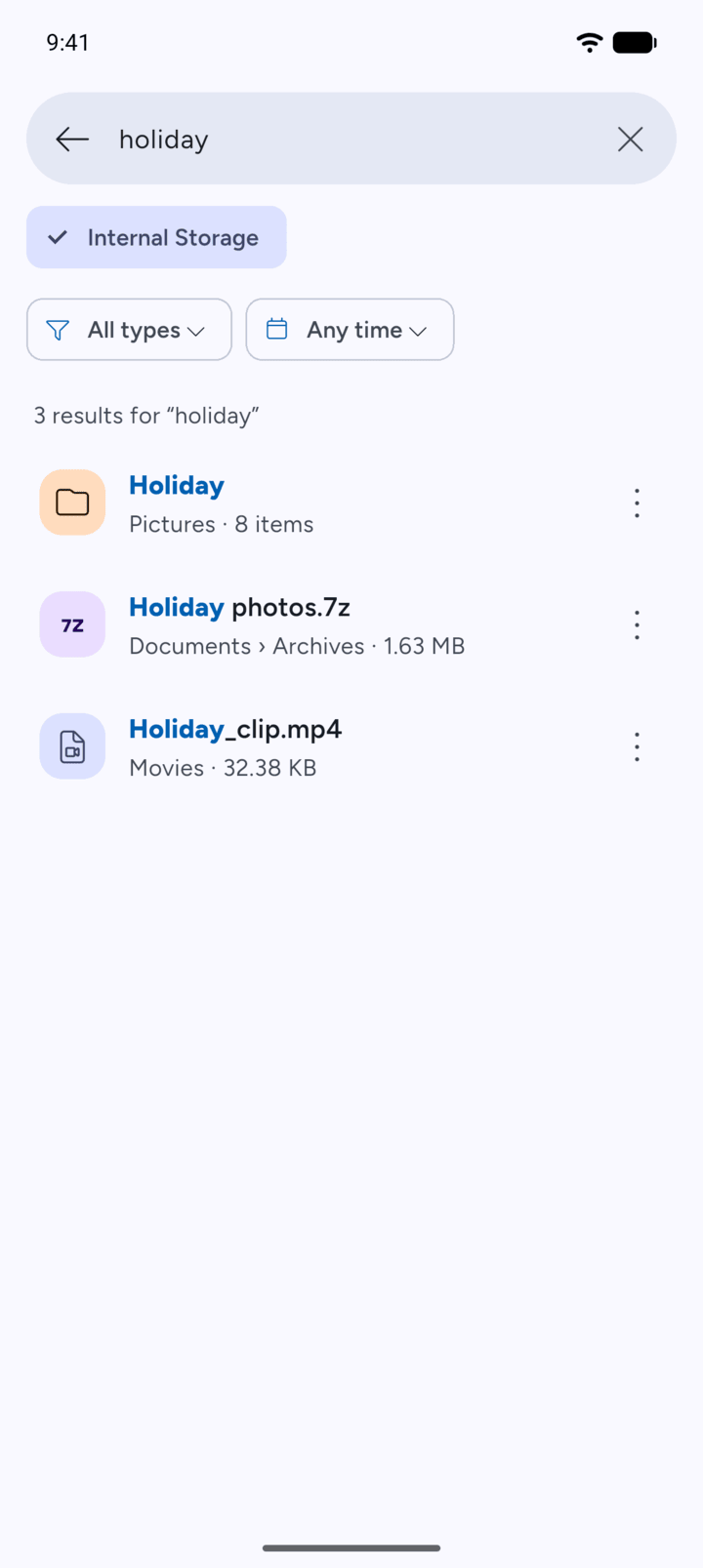
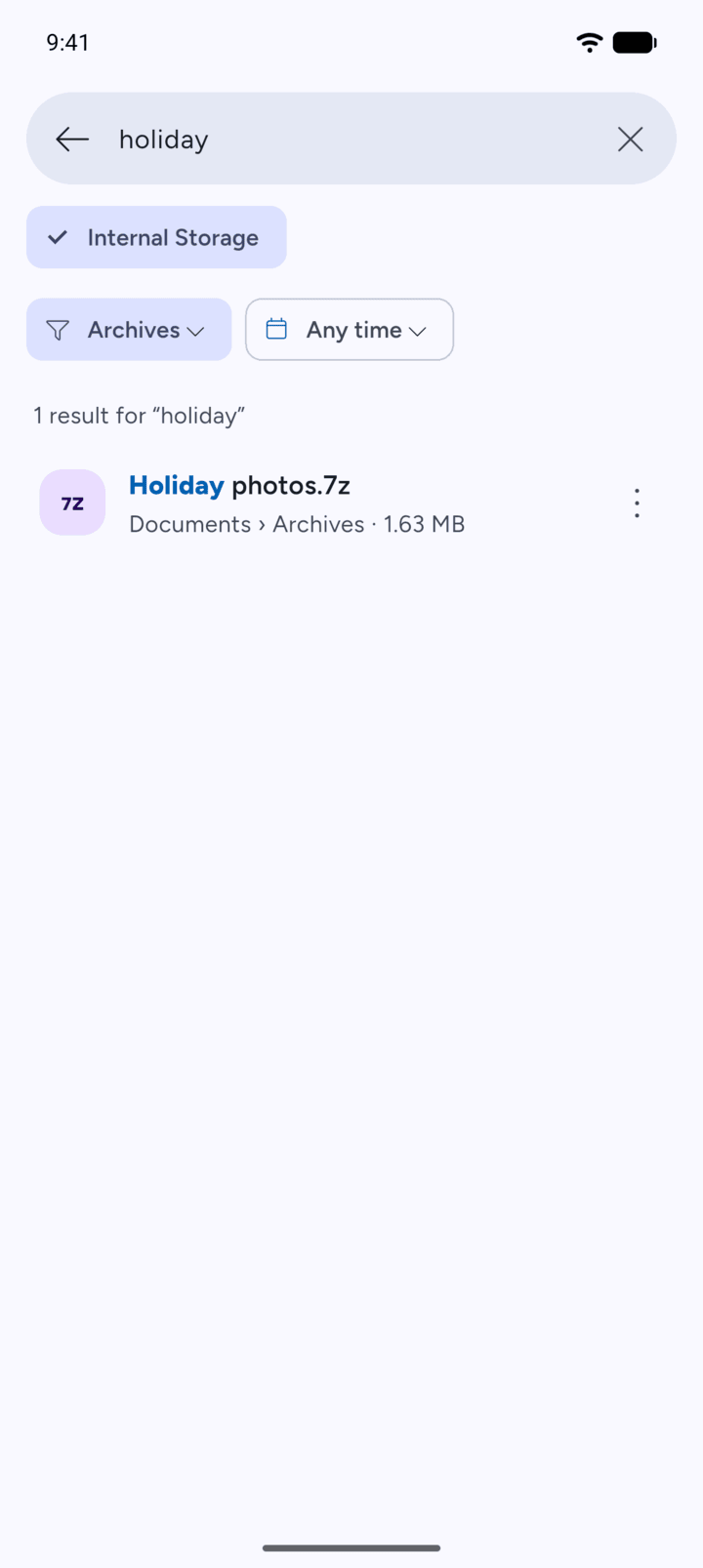
Each result shows the folder it's in.
-
Step 4
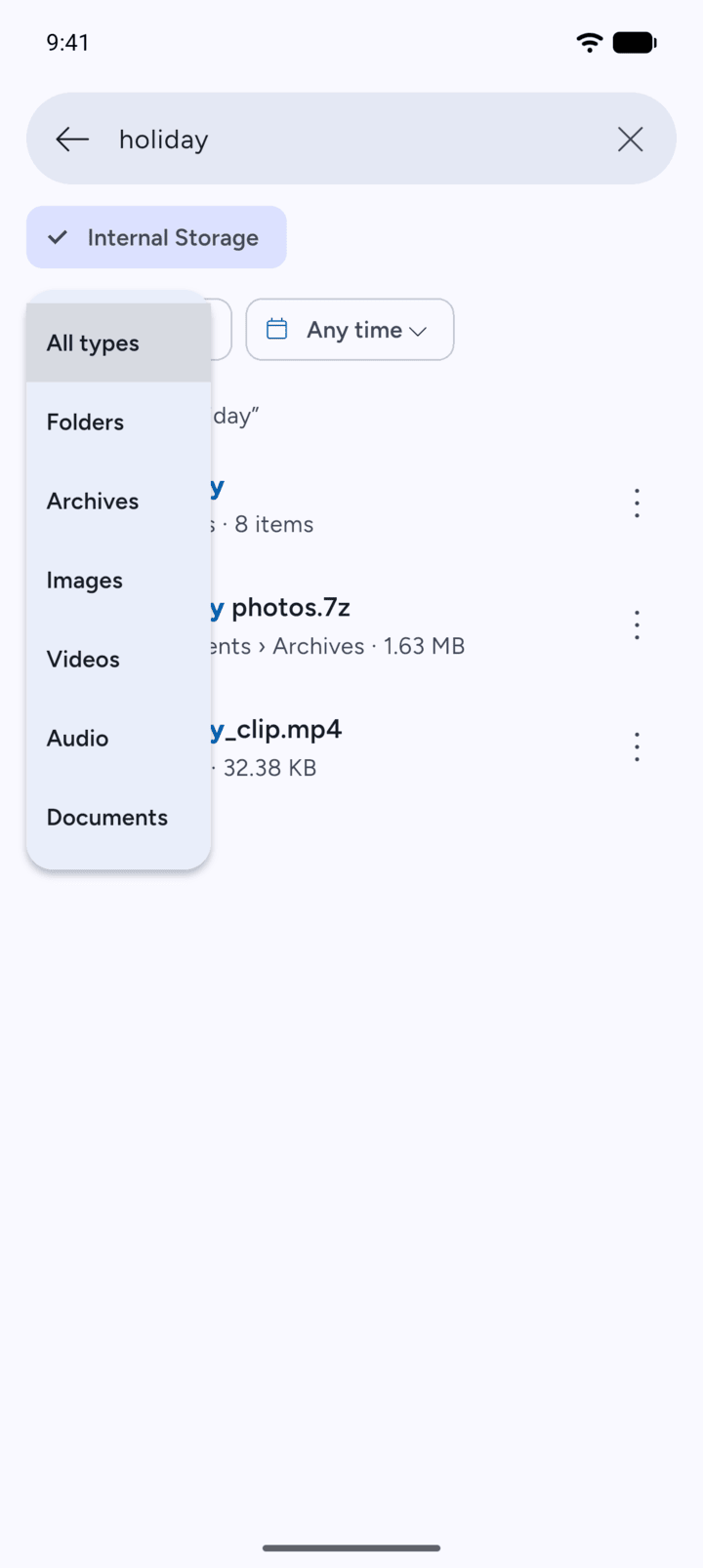
To see only one kind of item, tap All types and choose Folders, Archives, Images, Videos, Audio or Documents.
-
Step 5
The list now shows only that kind of item.
-
Step 6
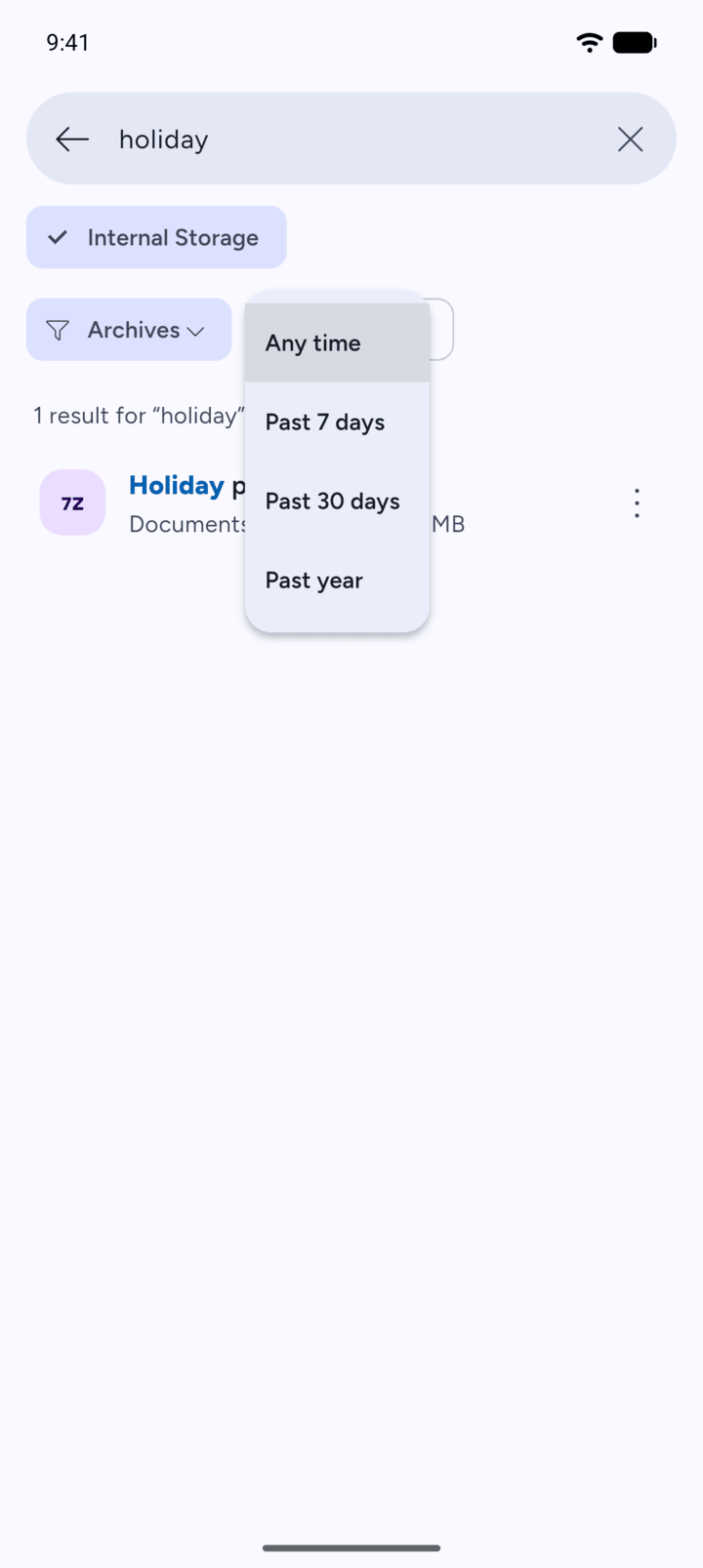
To see only newer files, tap Any time and choose Past 7 days, Past 30 days or Past year.
-
Step 7
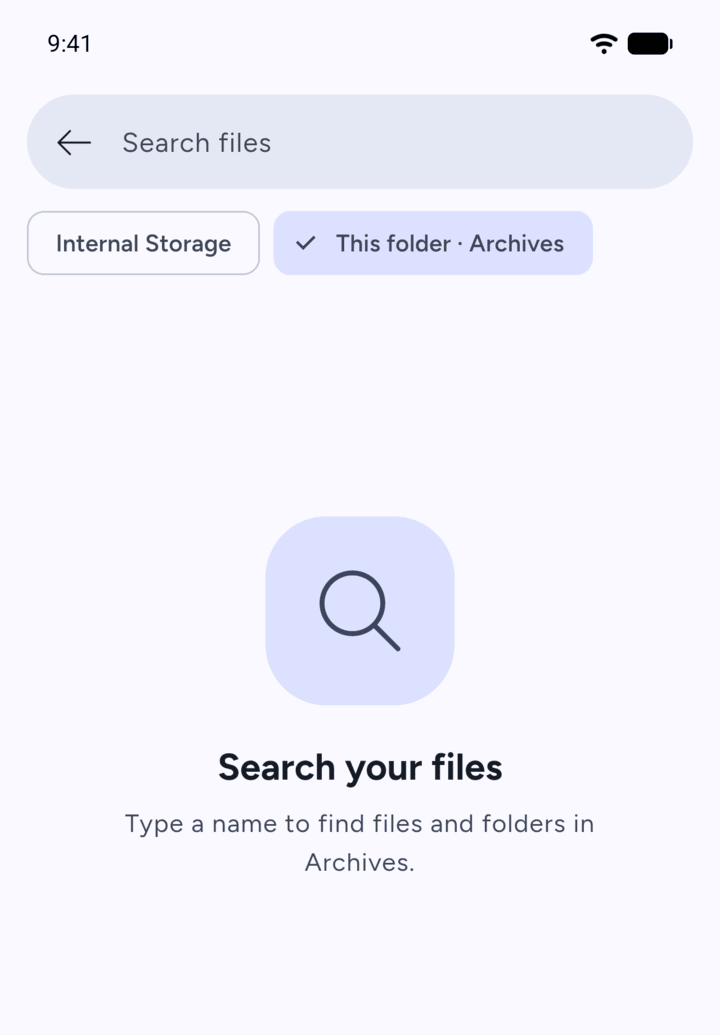
To search inside one folder, open the folder and tap the magnifying glass at the top. The search then starts in This folder. Tap Internal Storage to search everywhere instead.
- On Home, tap Search files at the top.
- Type part of a name. Matching files and folders on Internal Storage show as you type.
- Each result shows the folder it's in.
- To see only one kind of item, tap All types and choose Folders, Archives, Images, Videos, Audio or Documents.
- The list now shows only that kind of item.
- To see only newer files, tap Any time and choose Past 7 days, Past 30 days or Past year.
- To search inside one folder, open the folder and tap the magnifying glass at the top. The search then starts in This folder. Tap Internal Storage to search everywhere instead.