 Sober Time
In this guide 4 steps
-
Overview
Resetting starts the tracker again from the time you last used. The time you were clean is kept in your history and statistics.
-
Step 1
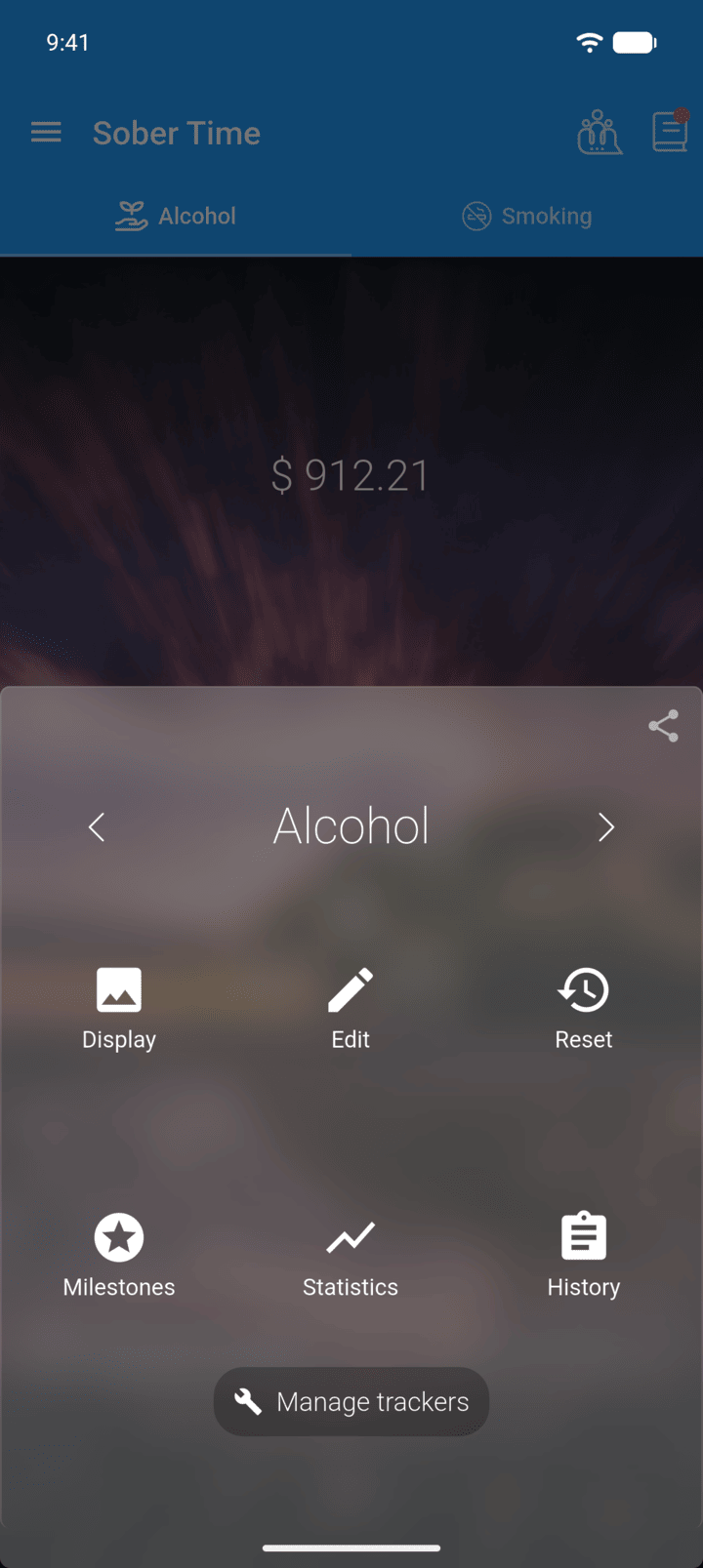
On the Home screen, swipe to the tracker you want. Tap the round arrow button at the bottom of the screen to open its options. Tap Reset.
-
Step 2
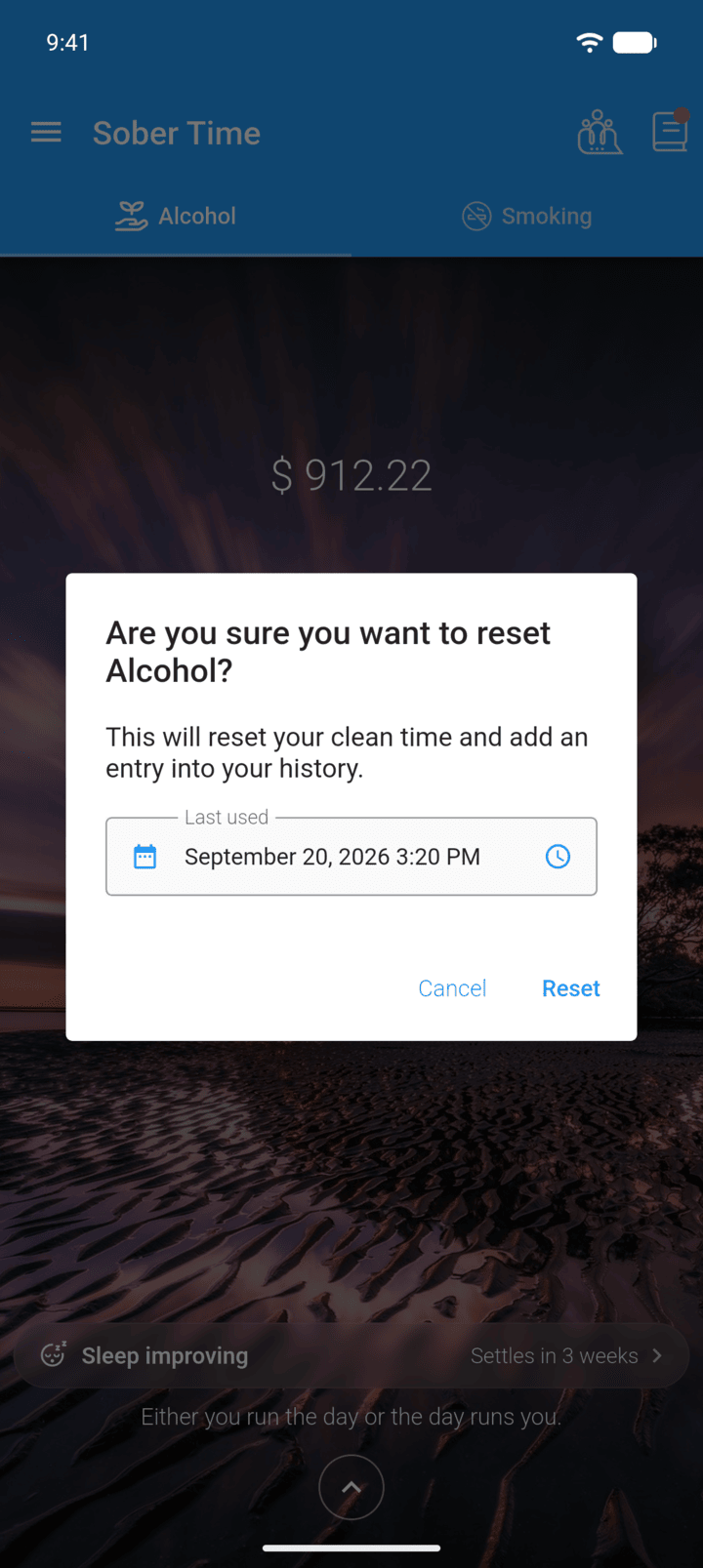
Check Last used. It's set to now. Tap it to choose an earlier date, or tap the clock icon to change the time.
-
Step 3
Tap Reset.
-
Step 4
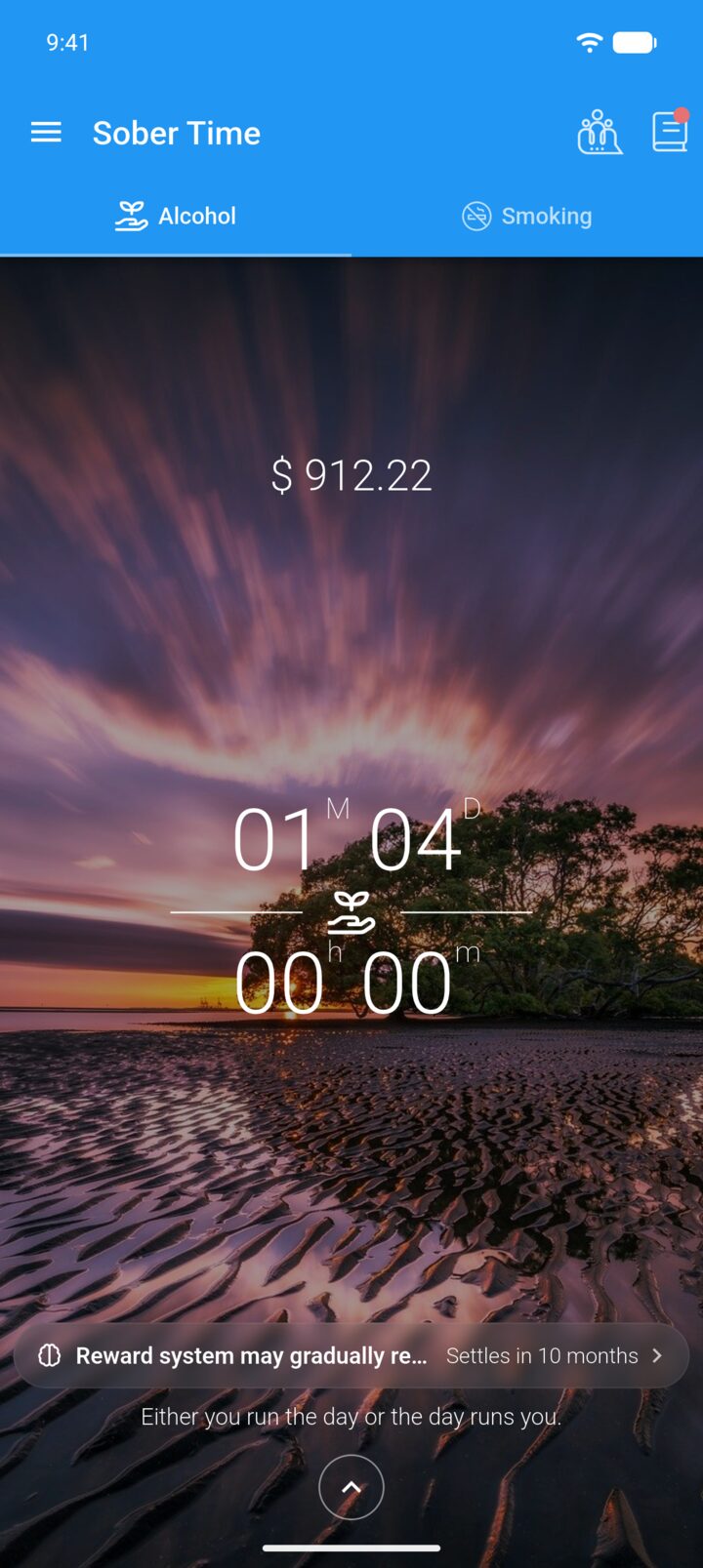
The tracker counts from the date you chose, and a new entry appears in its history.
-
To undo a reset, delete it in History and change the tracker's Clean Date in Edit.
Resetting starts the tracker again from the time you last used. The time you were clean is kept in your history and statistics.
- On the Home screen, swipe to the tracker you want. Tap the round arrow button at the bottom of the screen to open its options. Tap Reset.
- Check Last used. It's set to now. Tap it to choose an earlier date, or tap the clock icon to change the time.
- Tap Reset.
- The tracker counts from the date you chose, and a new entry appears in its history.
To undo a reset, delete it in History and change the tracker's Clean Date in Edit.